
Block Web Hosts & TOR
Choose which hosting networks, matched by ASN, and TOR exit nodes to block or challenge, then deploy the rule to your Cloudflare zone.
On this page
The Block Web Hosts & TOR feature allows you to block or challenge traffic coming from known hosting providers, data centers, cloud networks, and TOR exit nodes. This feature helps reduce the following:
- automated attacks
- bot traffic
- proxy-based abuse
- fake registrations
- spam requests
- suspicious login attempts
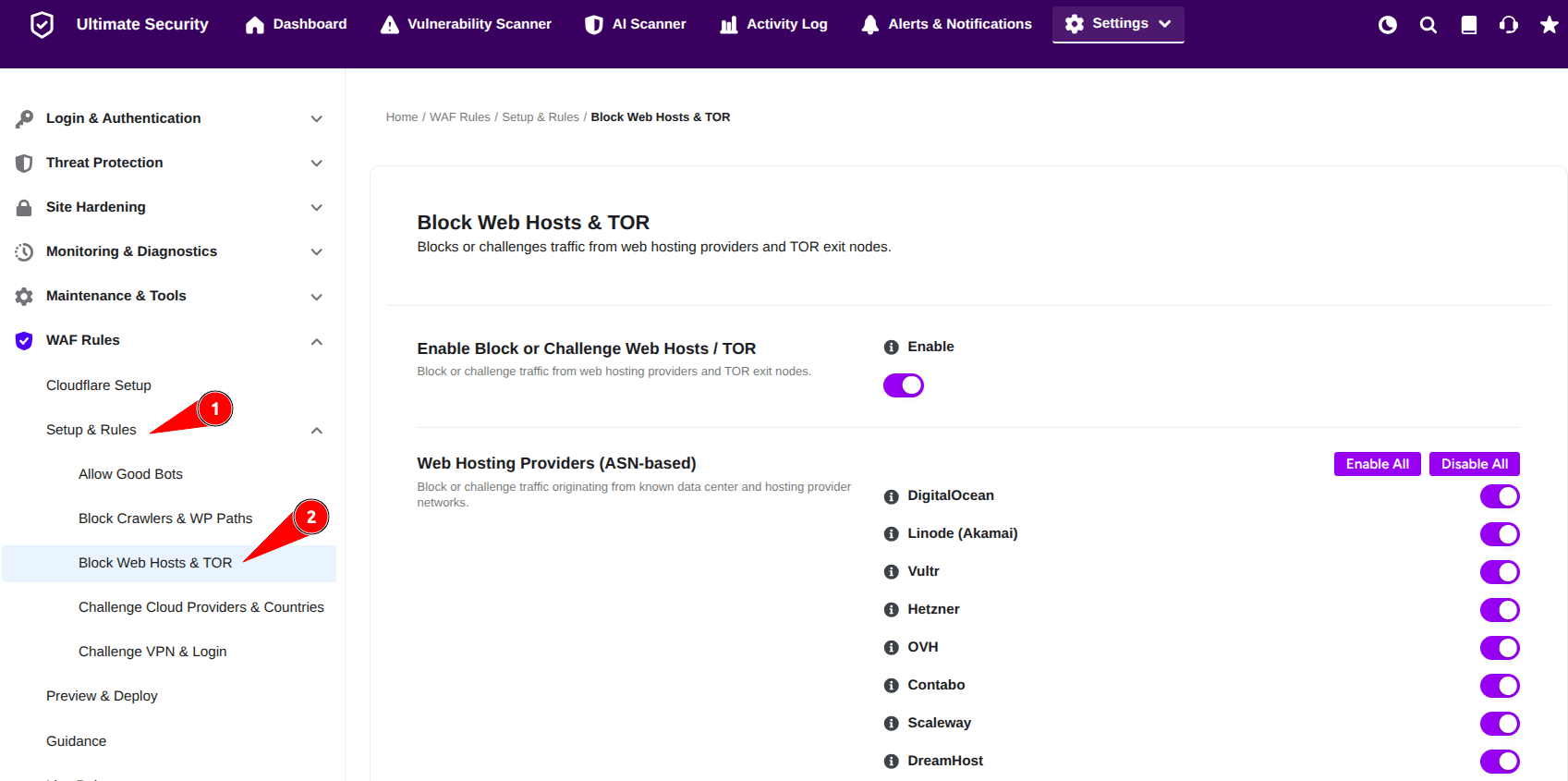
Most malicious traffic targeting WordPress websites originates from cloud hosting providers, VPS services, or anonymous proxy networks. This module helps filter that traffic before it reaches your website.
Enable Block or Challenge Web Hosts / TOR
Enable this option to activate protection against traffic originating from hosting providers and TOR exit nodes. Once enabled, Ultimate Security will apply the selected ASN-based filtering rules. The settings have an Enable All and Disable All button for quick bulk control, plus individual toggles for each service.
Web Hosting Providers (ASN-based)
This section allows you to block or challenge requests coming from known hosting providers and cloud infrastructure networks. These rules work using ASN (Autonomous System Number) detection.
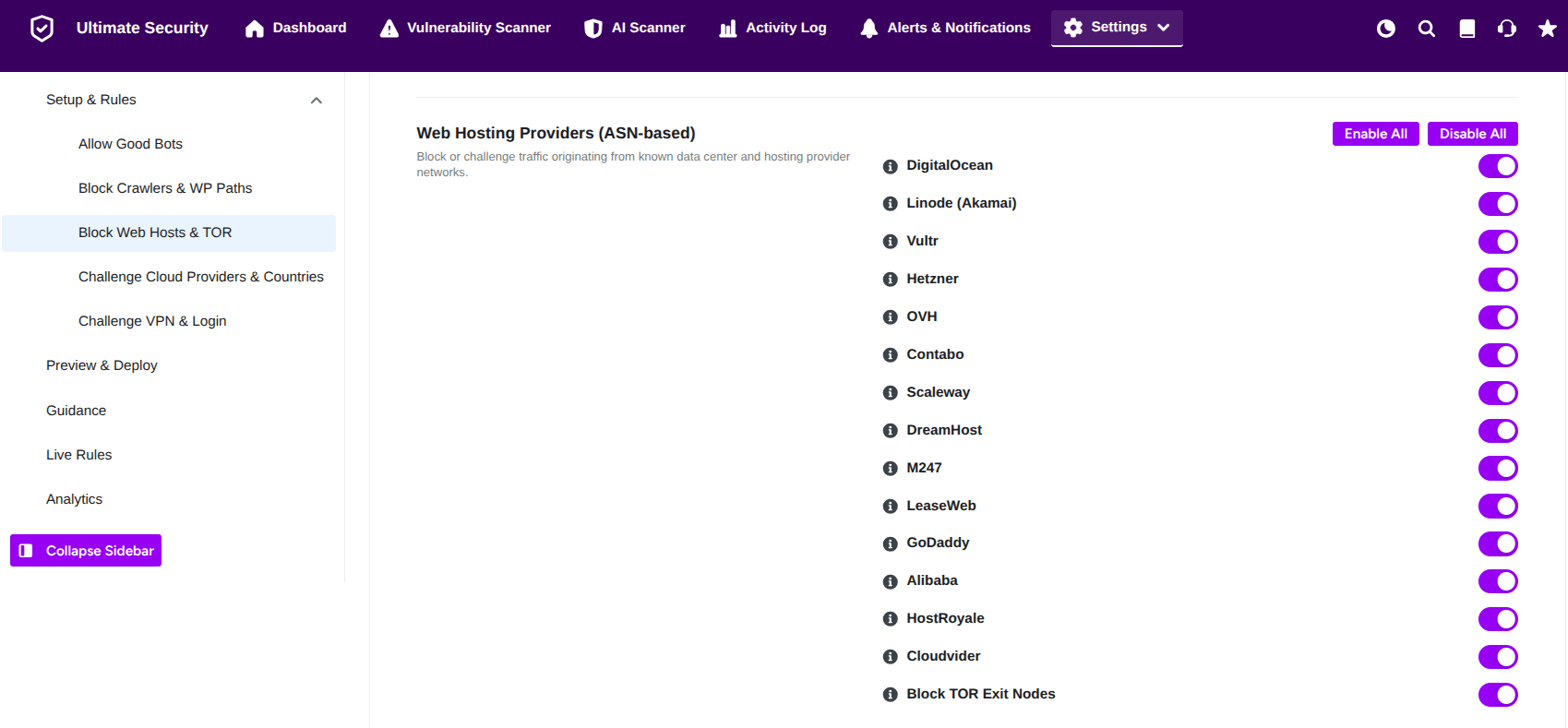
Available Options
- DigitalOcean (Blocks traffic from DigitalOcean (ASN 14061), a common source of automated bot traffic.)
- Linode (Akamai) (Blocks traffic from Linode/Akamai Connected Cloud (ASN 63949).)
- Vultr (Blocks traffic from Vultr (ASN 20473), often seen in scraping and brute-force activity.)
- Hetzner (Blocks traffic from Hetzner (ASNs 24940 and 213230), a frequent attack source.)
- OVH (Blocks traffic from OVH/OVHcloud, a large hosting network that often produces bot traffic.)
- Contabo (Blocks traffic from Contabo, a budget provider frequently used for scraping and spam.)
- Scaleway (Blocks traffic from Scaleway, a cloud provider sometimes used for automated attacks.)
- DreamHost (Blocks traffic from DreamHost where compromised accounts can run attack scripts.)
- M247 (Blocks traffic from M247/DataCamp, a major data center network frequently seen in bot traffic.)
- LeaseWeb (Blocks traffic from LeaseWeb. Useful against bots, but may affect some legitimate services.)
- GoDaddy (Blocks traffic from GoDaddy hosting. Useful, but may cause false positives for some services.)
- Alibaba (Blocks traffic from Alibaba Cloud, a common source of automated scanning from Asia.)
- HostRoyale (Blocks traffic from HostRoyale, an offshore host frequently associated with malicious traffic.)
- Cloudvider (Blocks traffic from Cloudvider, an infrastructure provider sometimes associated with bot networks.)
- Block TOR Exit Nodes (Blocks traffic from TOR exit nodes. Strong protection, but it may block privacy-conscious visitors.)
Deploy to Cloudflare
After configuring your bot whitelist, you must save and deploy to make it active on Cloudflare.
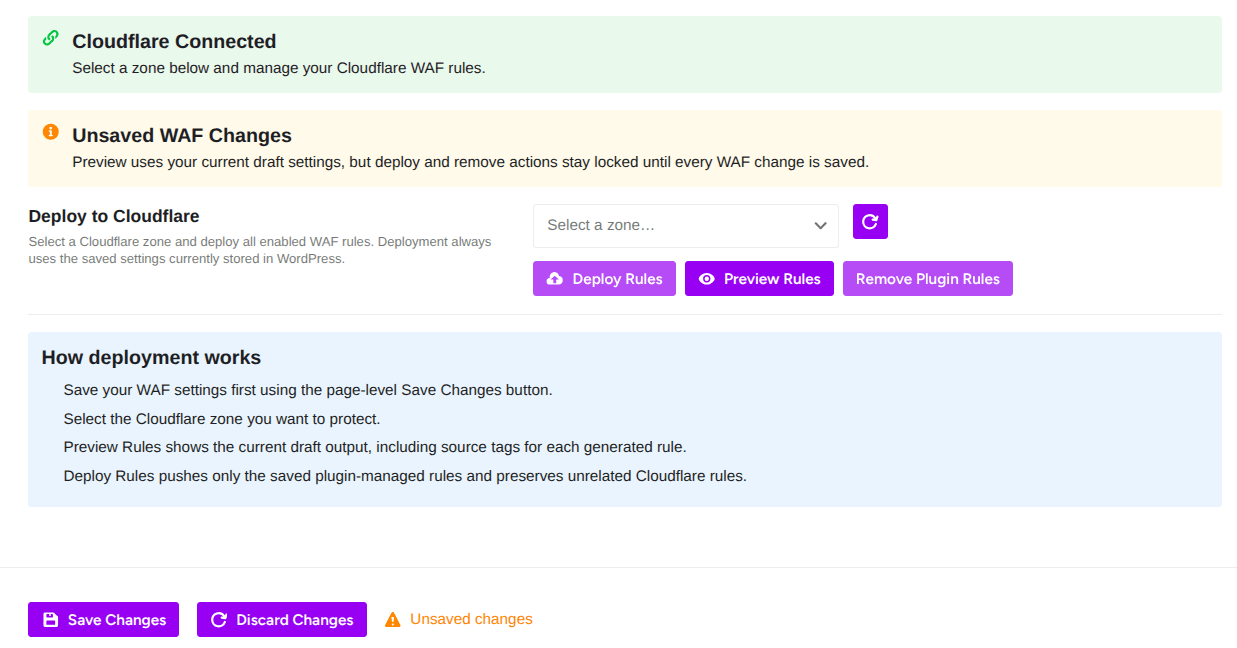
Deploy Rules: Pushes your saved settings to Cloudflare and activates them live
Preview Rules: Shows you the exact rule expressions that will be generated. Review before deploying
Remove Plugin Rules: Removes all WAF rules created by this plugin from Cloudflare
Zone Selector: Choose which Cloudflare domain (zone) to deploy to.
How Deployment Works From the Plugin:
- Save your WAF settings first using the Save Changes button at the bottom of the page
- Select the Cloudflare zone you want to protect
- Preview Rules shows the current draft output, including source tags for each generated rule
- Deploy Rules pushes only the saved plugin-managed rules and preserves unrelated Cloudflare rules
The plugin only manages its own rules. It won’t delete or overwrite any rules you created manually in Cloudflare.