
Session Management Settings
Harden login cookies, bind sessions to the browser that created them, limit concurrent logins per user, and log out inactive users.
On this page
The Session Management module gives you total control over active user logins on your website. By hardening your security settings here, you prevent account sharing, stop unauthorized session hijacking, and ensure that inactive users are safely logged out. Below is a detailed explanation of every feature available in this section.
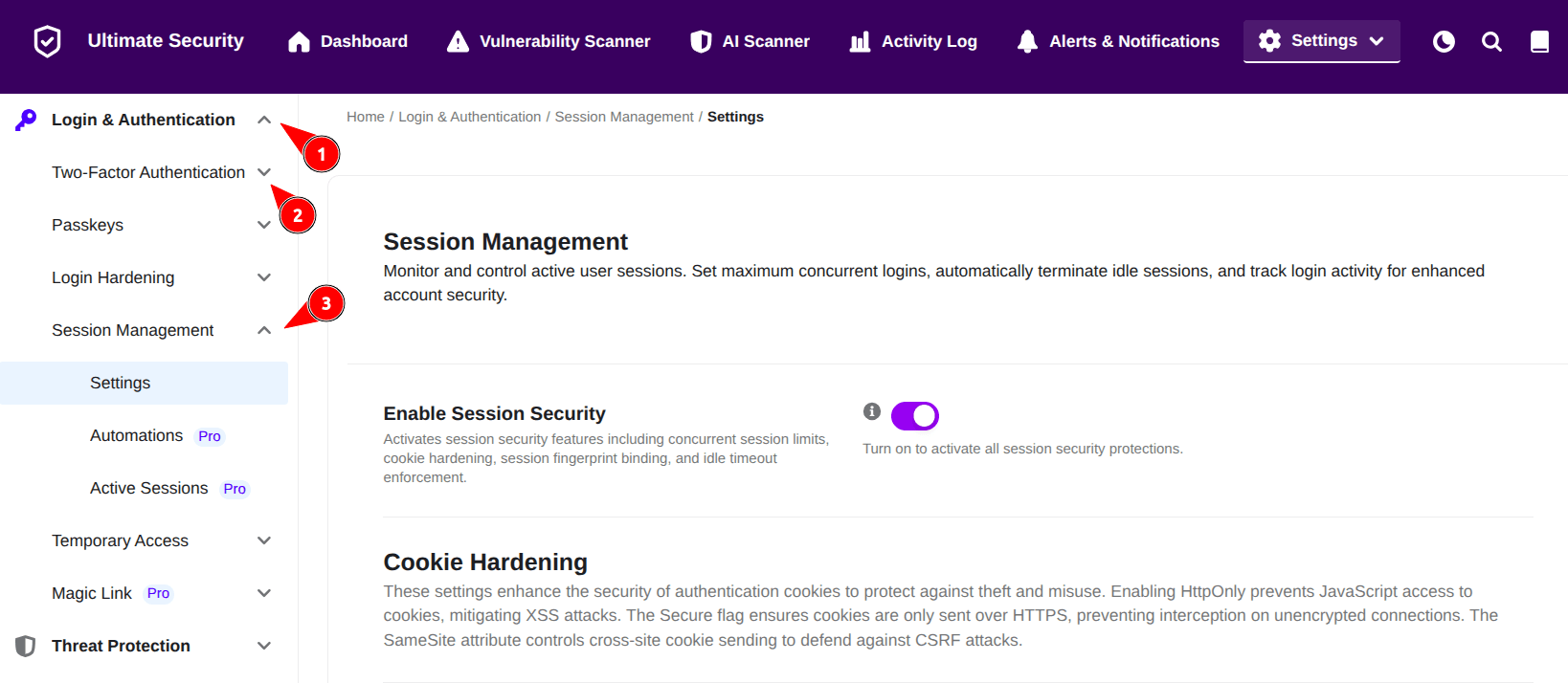
Enable Session Security
Turning this switch on activates all the underlying protections you configure below. If this is turned off, the entire module is disabled, and none of the session security features, cookie rules, or limits will apply to your site.
Cookie Hardening
When a user logs into WordPress, the site places small data files called “cookies” in their browser to remember them. If a hacker steals these cookies, they can log in as that user without needing a password. Cookie hardening blocks the most common ways hackers try to steal these files.
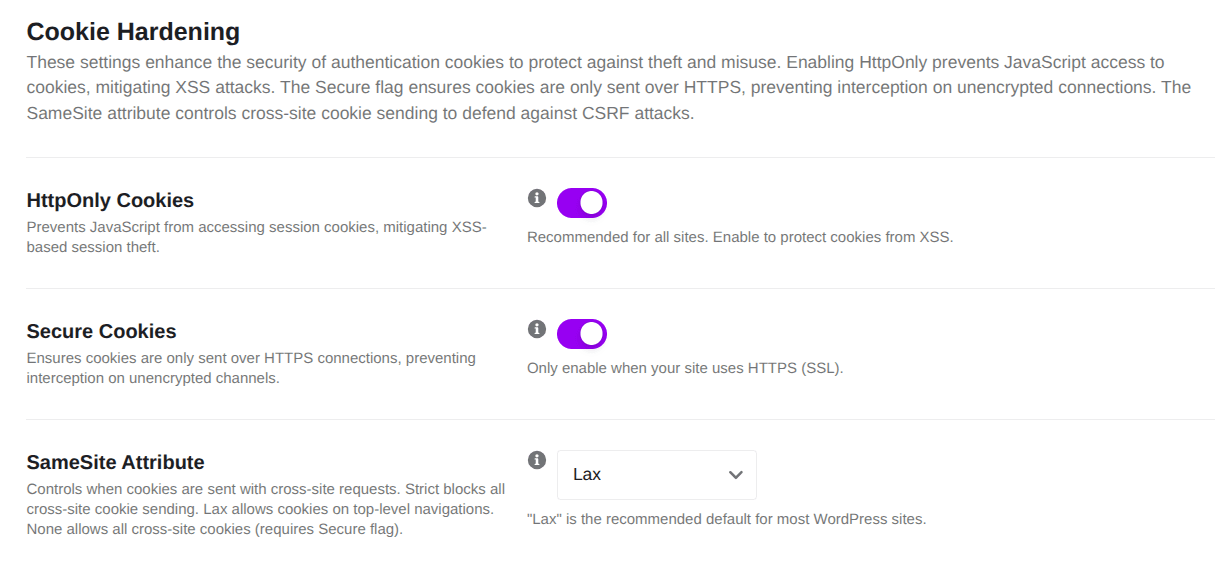
HttpOnly Cookies
It prevents web browser scripts (like JavaScript) from reading or accessing your authentication cookies. It stops a malicious script from grabbing a user’s session data during a Cross-Site Scripting (XSS) attack.
Secure Cookies
This forces the browser to only send login cookies over secure, encrypted connections. It stops hackers from sniffing out and stealing session data when users are on unsecured networks, like public coffee shop Wi-Fi.
Note: This feature only works if your website has an active SSL certificate (HTTPS).
SameSite Attribute
It controls whether cookies are sent along with requests originating from third-party websites. You can choose between Strict, Lax, or None from the dropdown menu. It protects your site from Cross-Site Request Forgery (CSRF) attacks, where an external malicious site tries to trick an authenticated user’s browser into performing actions on your site.
Lax is the recommended default for most WordPress sites, offering excellent protection without breaking normal user navigation.
Session Binding
Session Binding links a user’s active login session to the unique identity of their specific device or browser fingerprint. If a hacker steals a session token but tries to use it from a different device, the system detects the mismatch and blocks them instantly.
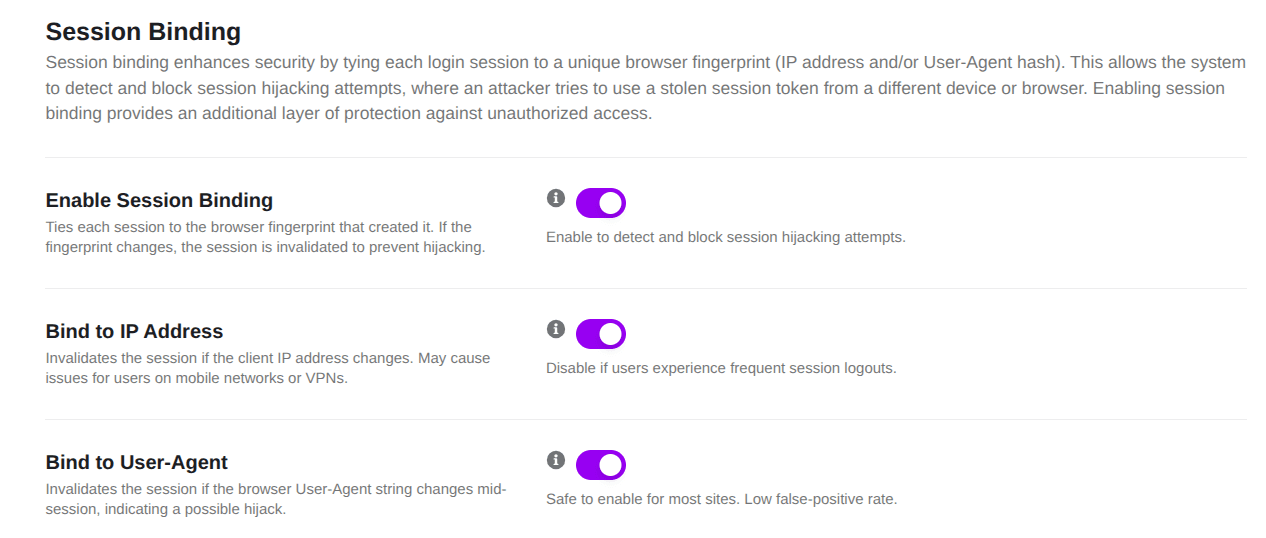
Enable Session Binding
The main switch that locks each active login to the unique browser fingerprint that originally created it. If the fingerprint changes mid-session, the session is invalidated immediately.
Bind to IP Address
It ties the user’s active session to their specific internet connection (IP address). If the IP address changes, the user is logged out.
You should disable this if your users complain about being logged out too frequently. This often happens to users browsing on mobile data networks or using VPNs, where IP addresses shift constantly.
Bind to User-Agent
It ties the active session to the specific web browser and operating system (the User-Agent string) the user used to log in. If a user logs in via Google Chrome on a Mac, and the session suddenly switches to Firefox on Windows, the system recognizes a potential hack and terminates the session. It has a very low false-alarm rate and is safe for almost all sites to use.
Concurrent Session Limits
These features limit how many times a single user account can be logged in simultaneously across different devices, which heavily reduces your attack surface and stops unauthorized account sharing.
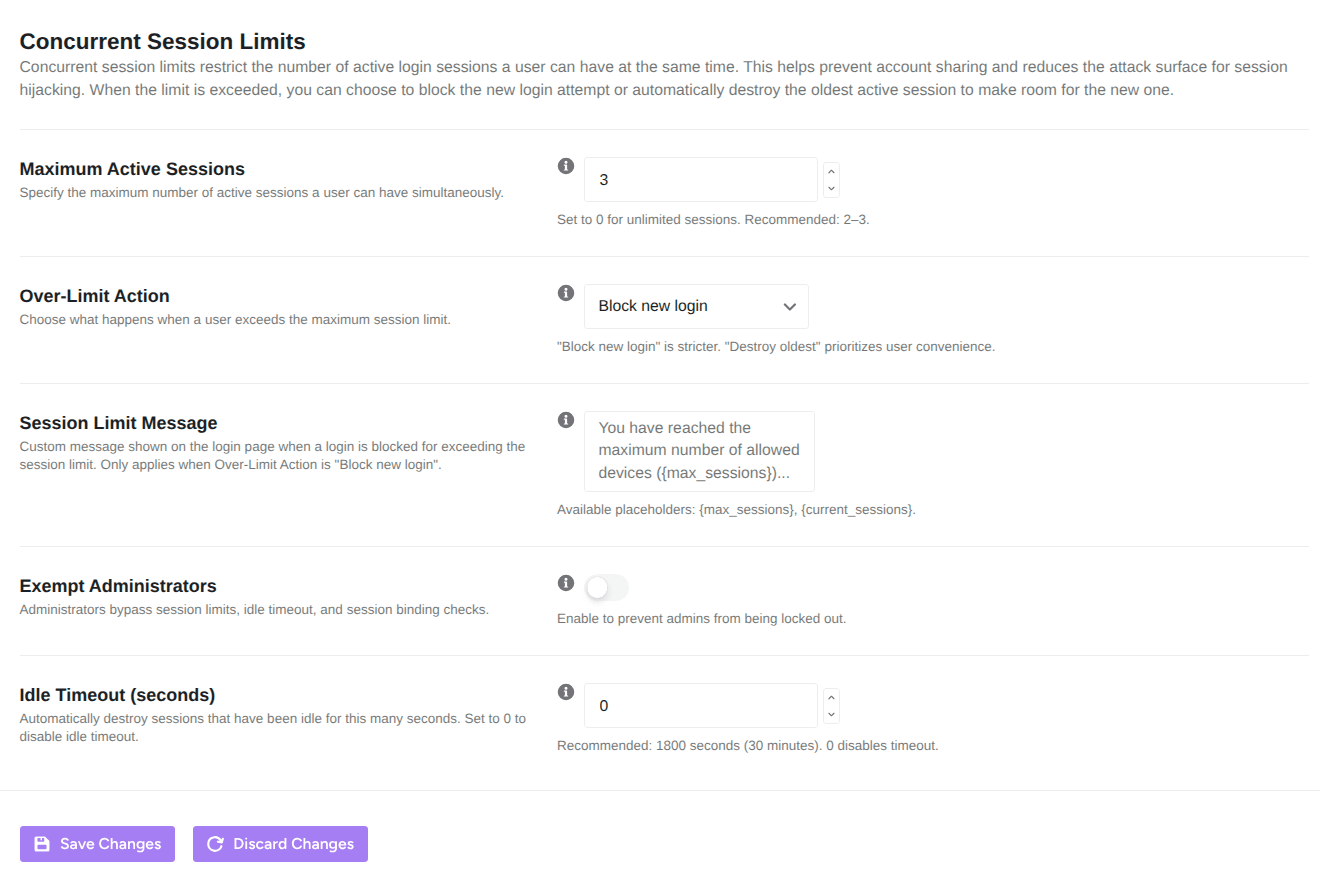
Maximum Active Sessions
It specifies the maximum number of concurrent active logins a single user account can have open at one time. If set to 12 , a user can be logged in on 12 different devices at once. Setting it to 0 allow unlimited active sessions.
For optimal security, change this to 2 or 3 (e.g., one laptop, one phone, one office desktop).
Over-Limit Action
This determines exactly what happens when a user attempts a new login but has already reached their maximum active sessions limit.
- Block new login: A strict security approach that completely stops the user from logging in on the new device until they manually log out from an older one.
- Destroy oldest: A user-friendly approach that automatically logs out the oldest active device session to make room for the new login.
Session Limit Message
Specify a custom message to be shown on the default login page whenever a login is blocked due to a user exceeding their active session limit. You can customize this text using the following dynamic placeholder variables to display live numbers to the user:
- {max_sessions} – Displays the maximum number of allowed active sessions configured on your site.
- {current_sessions} – Displays the number of active sessions the user currently has open.
Note: This configuration only applies when the Over-Limit Action is set to “Block new login.”
Exempt Administrators
It allows site administrators to completely bypass session limits, session binding rules, and idle timeouts.
This serves as an essential safety net. It ensures that you, the site owner, won’t accidentally lock yourself out of your own dashboard if you are working across multiple devices or switching internet networks.
Idle Timeout (seconds)
This settings automatically destroy a login session and log the user out if they have been inactive on your site for the specified number of seconds.
- Setting it to
0disable the timeout entirely. - Set this to 1800 seconds (which equals 30 minutes). This keeps your site highly secure if a user leaves their computer unattended, without annoying them with constant logouts.
Click Save Changes (Button) to save and immediately apply all the configuration changes, and Discard Changes (Button) resets all the settings.