
SMS Authentication
Send 6-digit login codes by SMS through Twilio: choose roles, enter your Account SID, token and sender, and check sender ID rules by country.
On this page
SMS Authentication adds an extra layer of security to your site by sending a 6-digit verification code directly to a user’s mobile phone during login. Even if someone guesses a password, they won’t be able to log in without that phone code. To configure these settings, navigate to Login & Authentication > Two-Factor Authentication > SMS Authentication.
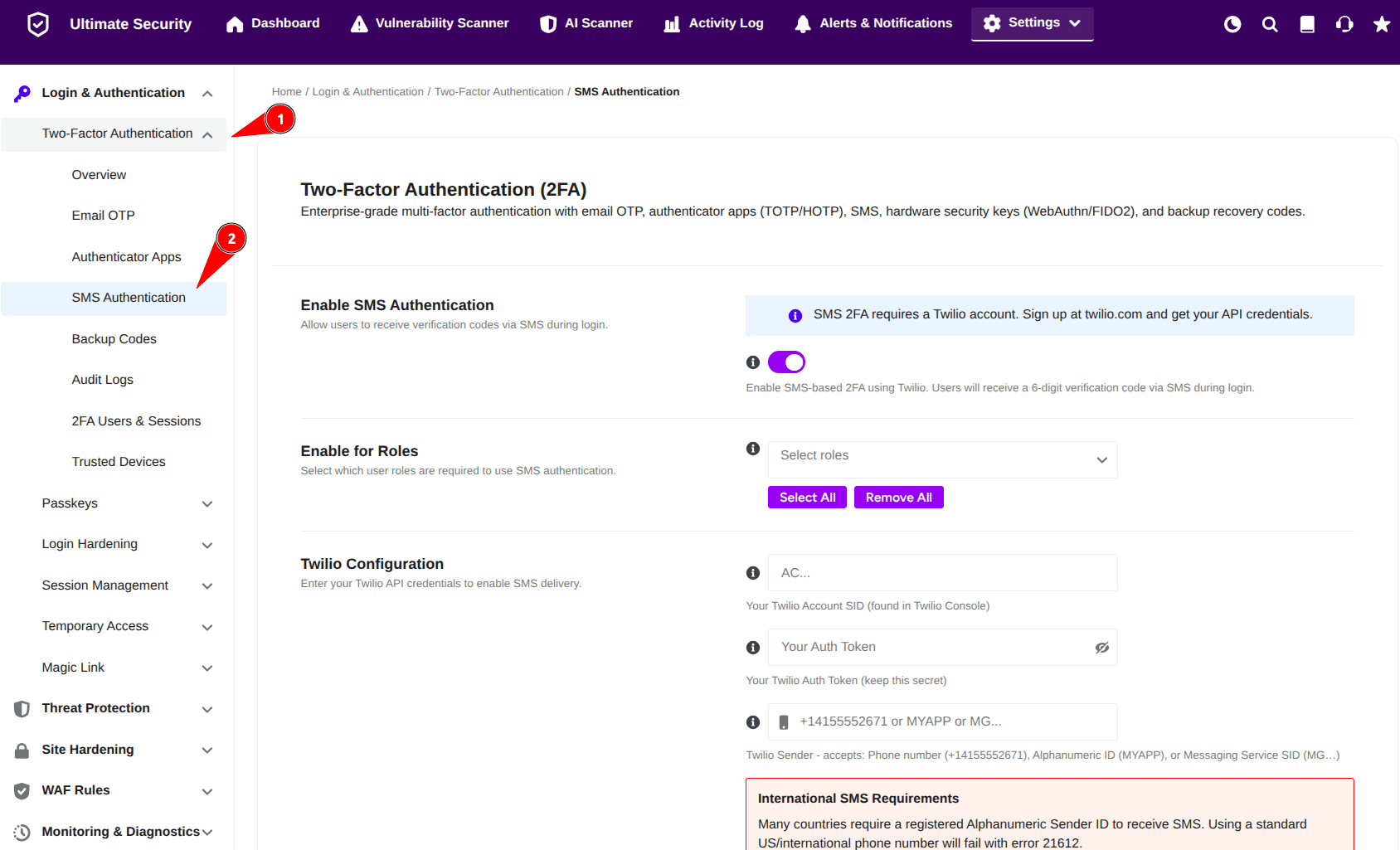
Enable SMS Authentication
This setting activates or deactivates the SMS-based two-factor authentication feature across your WordPress site.
- Toggle the switch next to Enable SMS Authentication to turn the feature ON.
- Note: SMS Authentication requires an active Twilio account to send text messages. Make sure you have signed up at
twilio.comto retrieve your API credentials before continuing.
Enable for Roles
Allows you to choose which specific user roles (e.g., Administrator, Editor, Subscriber) are required to use SMS authentication when logging in.
- Click the Select roles dropdown menu to pick individual user roles.
- Click Select All if you want to enforce SMS authentication for every registered user role on your site.
- Click Remove All if you want to clear your selections and start over.
Twilio Configuration
Connects your WordPress site to your Twilio account so the plugin can send text messages to your users. Fill in the following fields using the information from your Twilio Console:
- Account SID: Copy and paste your Twilio Account SID into the first box.
- Auth Token: Copy and paste your Twilio Auth Token into the second box. Keep this token secret.
- Twilio Sender: Enter the phone number or sender identifier that your SMS messages will come from. This field accepts:
- Phone Number: Full international format (e.g.,
+1415552671). - Alphanumeric Sender ID: A custom sender name up to 11 characters (e.g.,
MYAPP). - Messaging Service SID: Starts with
MG...(a 34-character ID from Twilio).
- Phone Number: Full international format (e.g.,
⚠️ International SMS Requirements
Many countries require a registered Alphanumeric Sender ID to receive SMS messages. Sending from a standard US/International phone number to these countries will fail with Error 21612.
Countries requiring sender registration include:
- Bangladesh, India, Pakistan, Philippines, Vietnam
- Saudi Arabia, UAE, Egypt, Nigeria, Kenya
- Indonesia, Thailand, Malaysia, and others.
Action: If your users are in any of these countries, register an Alphanumeric Sender ID inside your Twilio Console under Messaging → Senders.
Important Things to Remember
- Phone Number Format: Phone numbers must be formatted in standard E.164 format:
+[country code][number](e.g.,+1234567890). - Sender ID Length: Alphanumeric Sender IDs must be 2 to 11 characters long (letters and numbers only).
- Code Expiration: Sent SMS verification codes automatically expire after 5 minutes.
- Twilio Billing: Twilio charges apply per SMS sent according to your Twilio plan.
- User Profile Setup: Users can configure and update their mobile phone numbers directly inside their WordPress Profile Settings.
Once you have filled in your details:
- Click Save Changes at the bottom of the page to apply your setup.
- Click Discard Changes if you want to undo your edits.