
Activity Logs Dashboard
Recent events and key statistics for everything happening on your site.
On this page
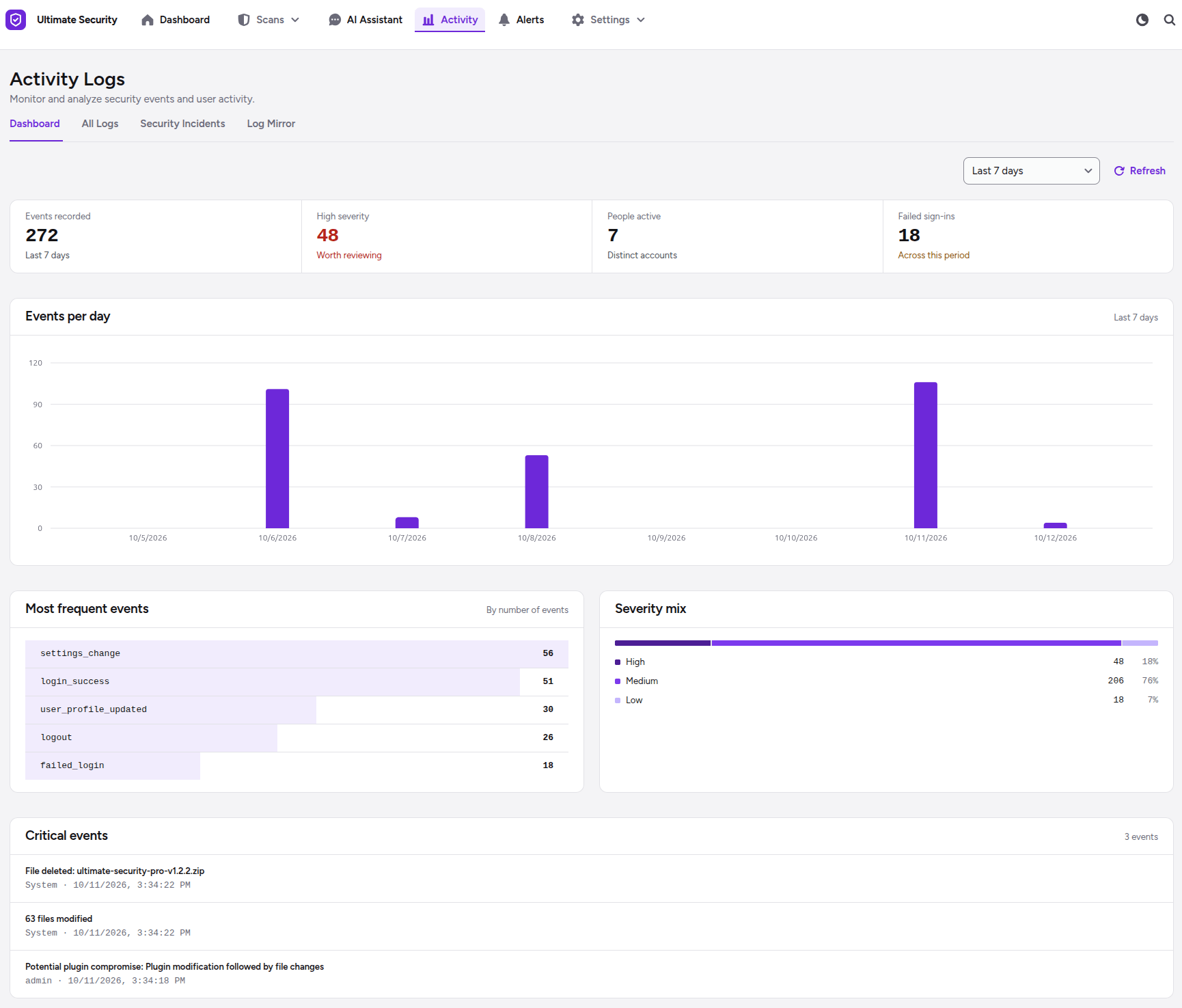
The Activity Logs feature in Ultimate Security helps you keep track of everything happening on your WordPress website. It acts as a security camera, recording important user actions, logins, and system changes so you can monitor site safety and quickly identify suspicious behavior. When you open Activity Logs, the main dashboard gives you a quick snapshot of recent user actions and security events on your site.
Key Metrics Summary
At the top of the dashboard, you will see four quick-summary cards:
- Events recorded: Shows the total number of actions or events logged during the selected time period.
- High severity: Displays the total count of dangerous or critical security events that need immediate attention.
- People active: Displays the total number of distinct user accounts that logged in or took action on your site.
- Failed sign-ins: Tracks how many unsuccessful login attempts occurred, helping you spot potential brute-force attack attempts early.
Navigation Tabs
- Dashboard: The main summary view displaying key metrics, event trends, and event breakdowns.
- All Logs: View a detailed list of every single event recorded on your website, including timestamps, usernames, and action details.
- Security Incidents: Filters the logs to show only security-related incidents or potential threats that took place on your site.
- Log Mirror: Configures real-time streaming or copying of your activity logs to external storage or server locations for safe remote backup.
Time Range Selector & Refresh
- Date Filter: Click this dropdown menu to filter and view activity log data for a specific date range.
- Refresh Button: Instantly reloads the page to display the newest events recorded on your site.
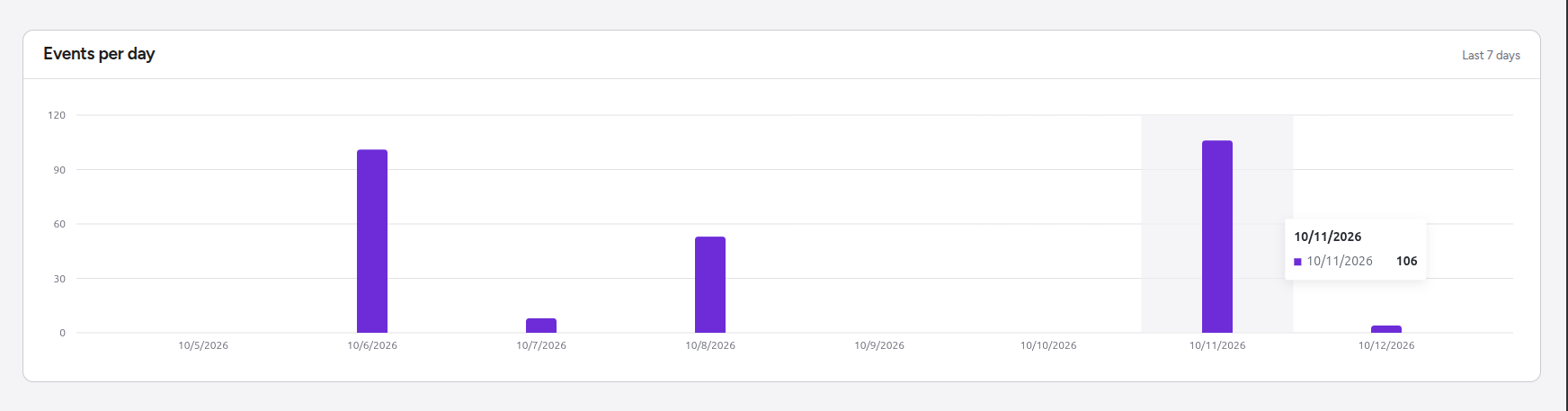
Events Per Day Chart
A visual line/bar graph displaying daily activity levels. This helps you quickly spot unusual spikes in user activity on specific dates.
Event Breakdown Sections
Understanding what each section means helps you monitor your website safely without confusion
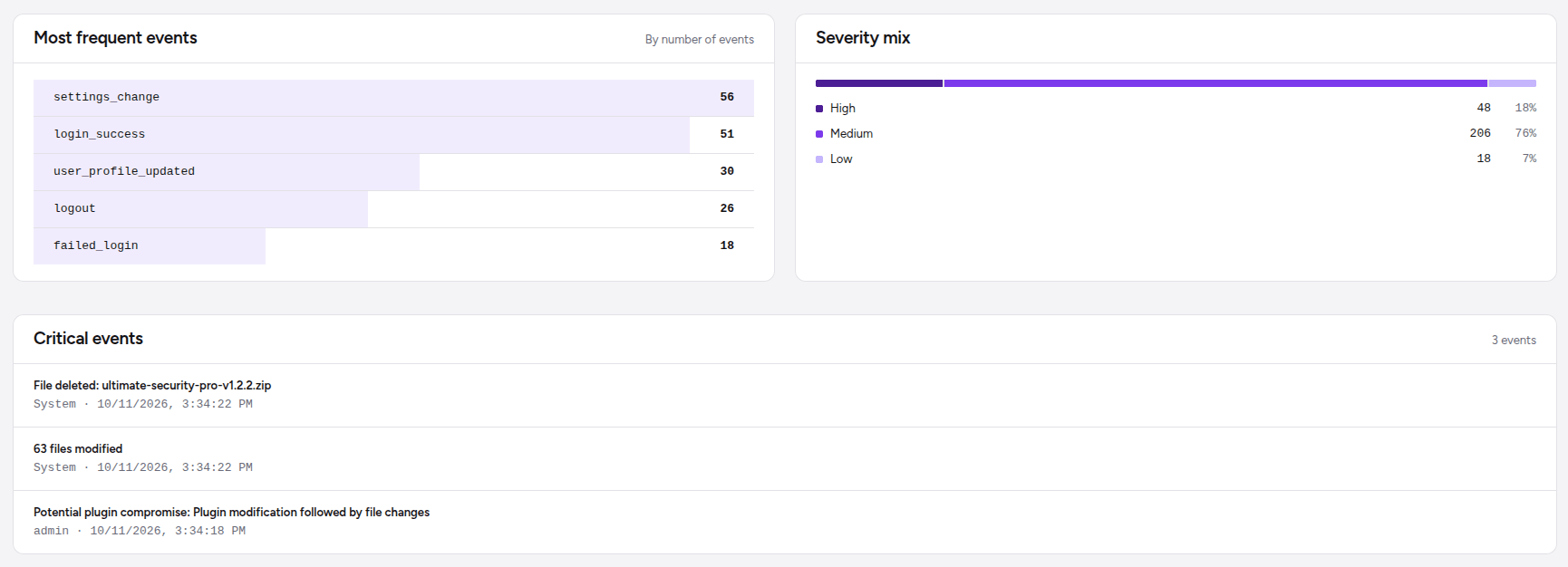
- Most frequent events: Lists the actions happening most often on your site (for example, successful user logins like
login_success) alongside event counts. - Severity mix: A color-coded breakdown showing the proportion of High, Medium, and Low severity events recorded on your site.
- Critical events: Highlights high-risk security threats that occurred during the selected timeframe. If no severe actions were detected, it confirms that nothing critical was recorded.