
Security Incidents
View only security-related events, see counts by severity, filter incidents by status and severity, and act on several incidents at once.
On this page
The Security Incidents tab in Activity Logs works as your site’s main security management center. This tab filters out normal site activity and shows you potential security issues that need your attention.
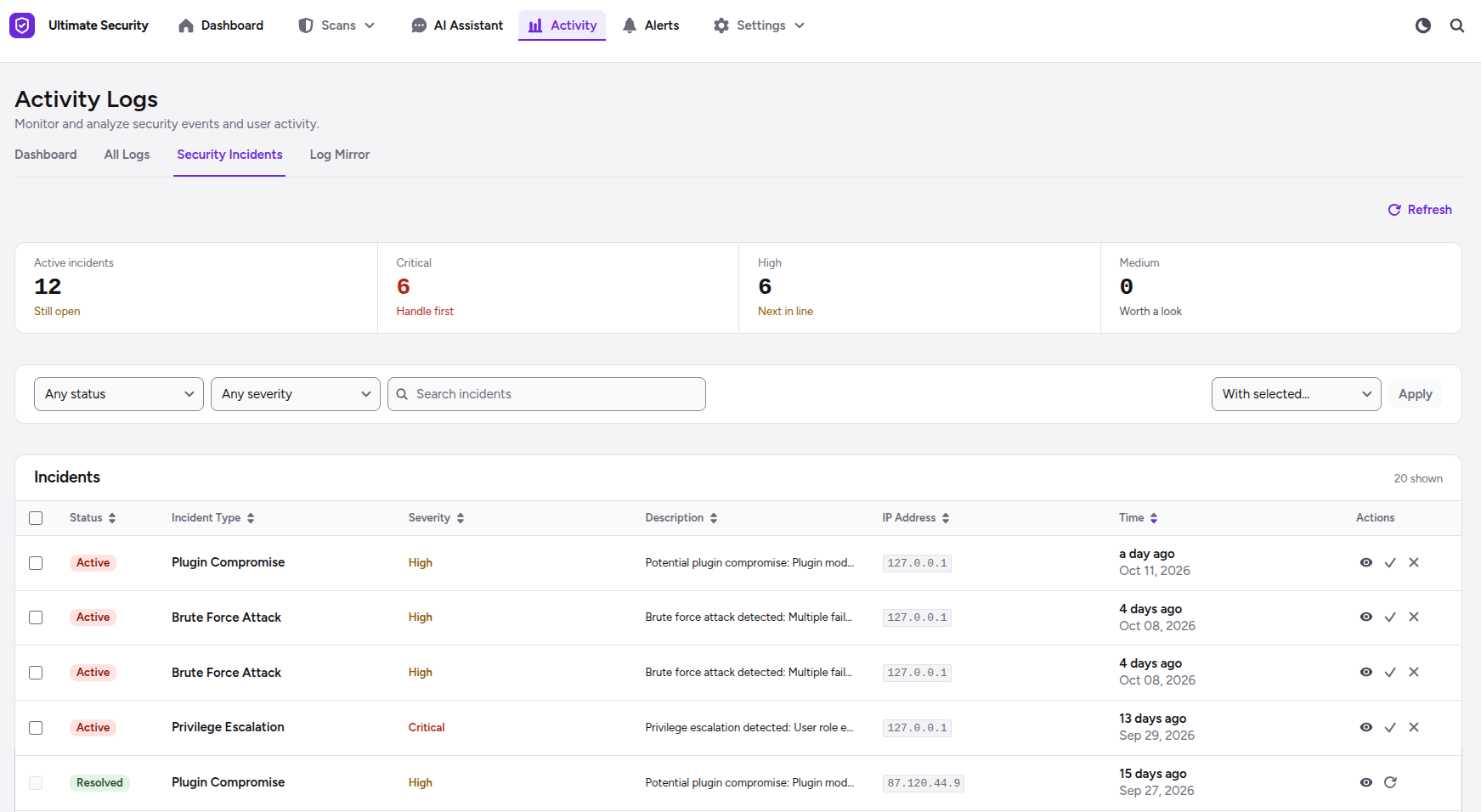
Summary Cards
At the top of the Security Incidents page, four summary cards display the current status of all flagged security threats:
- Active incidents: Shows the total number of security threats that are currently open and unresolved on your site.
- Critical: Highlights the count of severe, high-priority threats that must be fixed immediately.
- High: Displays threats that pose a significant security risk and require prompt attention.
- Medium: Shows moderate-risk issues that should be reviewed as soon as possible.
Search, Filters & Bulk Actions
You can quickly find and manage security threats using the control bar above the table:
- Any status filter: Filter incidents by their current status (Active, Resolved, or Dismissed).
- Any severity filter: Filter incidents by risk level (critical, high, medium, and low).
- Search incidents: Type keywords to look up specific incident types, descriptions, or IP addresses.
- Bulk Actions (“With selected…”): Select multiple incidents using the checkboxes and apply bulk status updates.
- Refresh Button: Instantly reloads the incident list to display new alerts.
Incidents Table
The main table lists every flagged incident alongside actionable details:
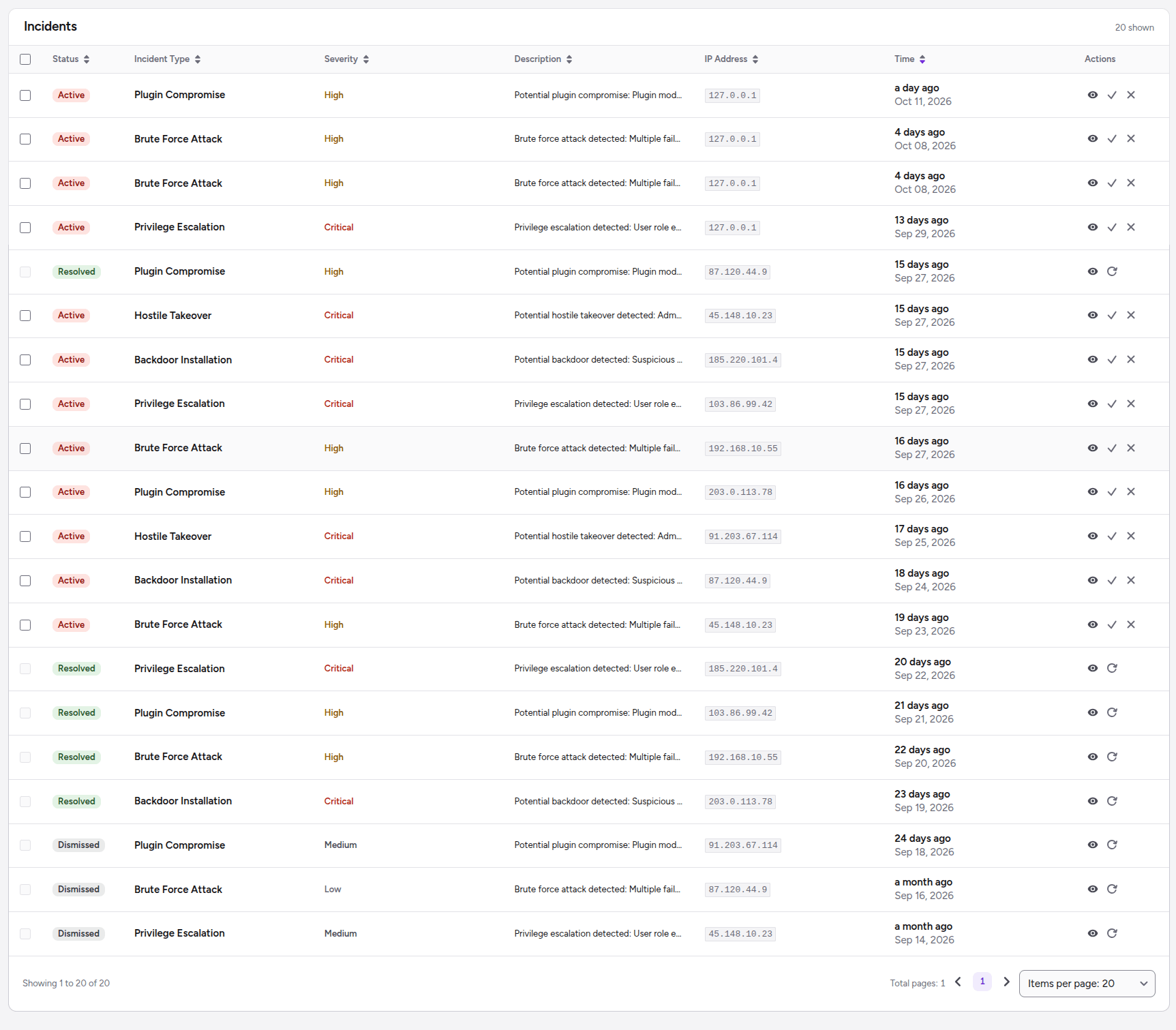
- Status: Shows whether an incident is Active (open threat), Resolved (fixed), or Dismissed (ignored/cleared).
- Incident Type: Displays the type of security threat detected (e.g.,
Brute Force Attack,Privilege Escalation,Plugin Compromise,Hostile Takeover, orBackdoor Installation). - Severity: Highlights the danger level of the threat using clear badges.
- Description: Provides a brief summary explaining why the system flagged the event.
- IP Address: Displays the attacker’s or user’s IP address responsible for the event.
- Time: Shows how long ago the incident took place alongside the exact timestamp.
- Actions: Quick action icons next to each row let you manage individual incidents:
- 👁️ View Details: Inspect full technical details of the incident.
- ✓ Mark as Resolved: Mark the security issue as addressed.
- ✕ Dismiss / Reopen: Ignore an alert or restore an archived incident.
What Counts as an Incident?
To help you understand why an alert was triggered, the bottom section defines what triggers each incident type:

- Hostile Takeover: Occurs when an admin logs in, deactivates a security plugin, and uploads a file in quick succession.
- Plugin Compromise: Triggered when plugin files are modified followed by unexpected file additions or changes.
- Backdoor Installation: Detects the upload or creation of suspicious PHP executable files on your server.
- Privilege Escalation: Occurs when an existing user account is elevated to administrator permissions without authorization.
- Brute Force Attack: Flagged when multiple failed login attempts originate from the same IP address.
Was this article helpful?
Thanks for the feedback.