
Login Attempt Limits
Set how many failed logins trigger a lockout, how long it lasts, stricter second-tier limits, when the counter resets, and your recovery URL.
On this page
The Login Attempt Limits feature protects your WordPress website from automated bot attacks. Hackers often use automated tools to guess passwords repeatedly until they break in. This feature stops them by blocking access after too many failed log-in tries.
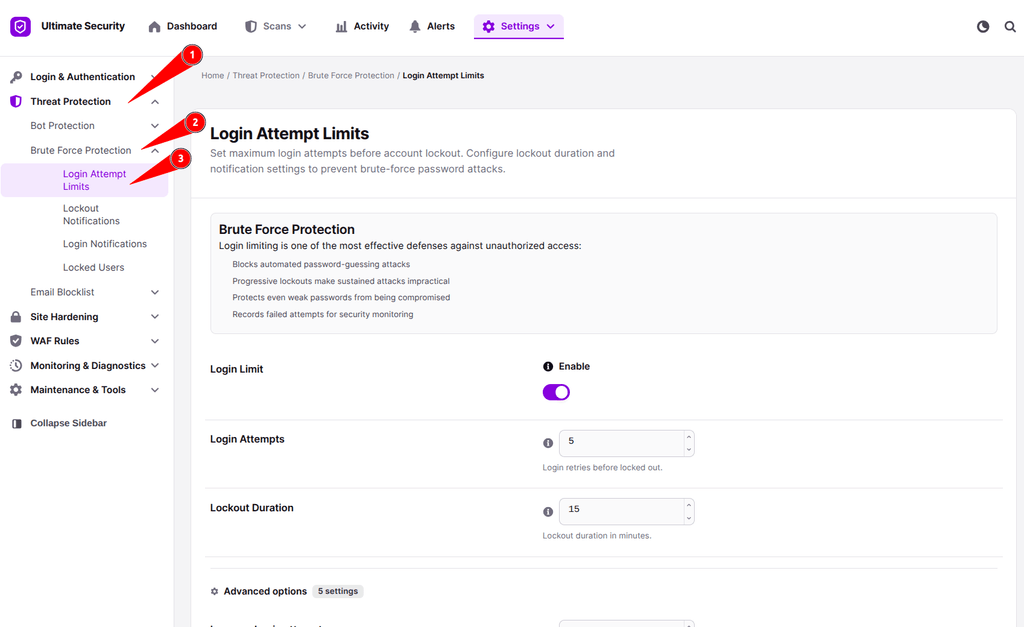
- Login Limit (Enable/Disable): Turns the protection feature on or off. When enabled, it monitors all log-in attempts on your site.
- Login Attempts: This decides how many wrong password tries a person gets before they are blocked. The default is set to 5 tries, meaning if someone fails 5 times, the system stops them from trying again right away.
- Lockout Duration: When a bot or user gets blocked, this controls how many minutes they must wait before trying to log in again.
Advanced Settings for Stricter Security
If the brute-force attack keeps going, you can use these extra settings to build a stronger defense:
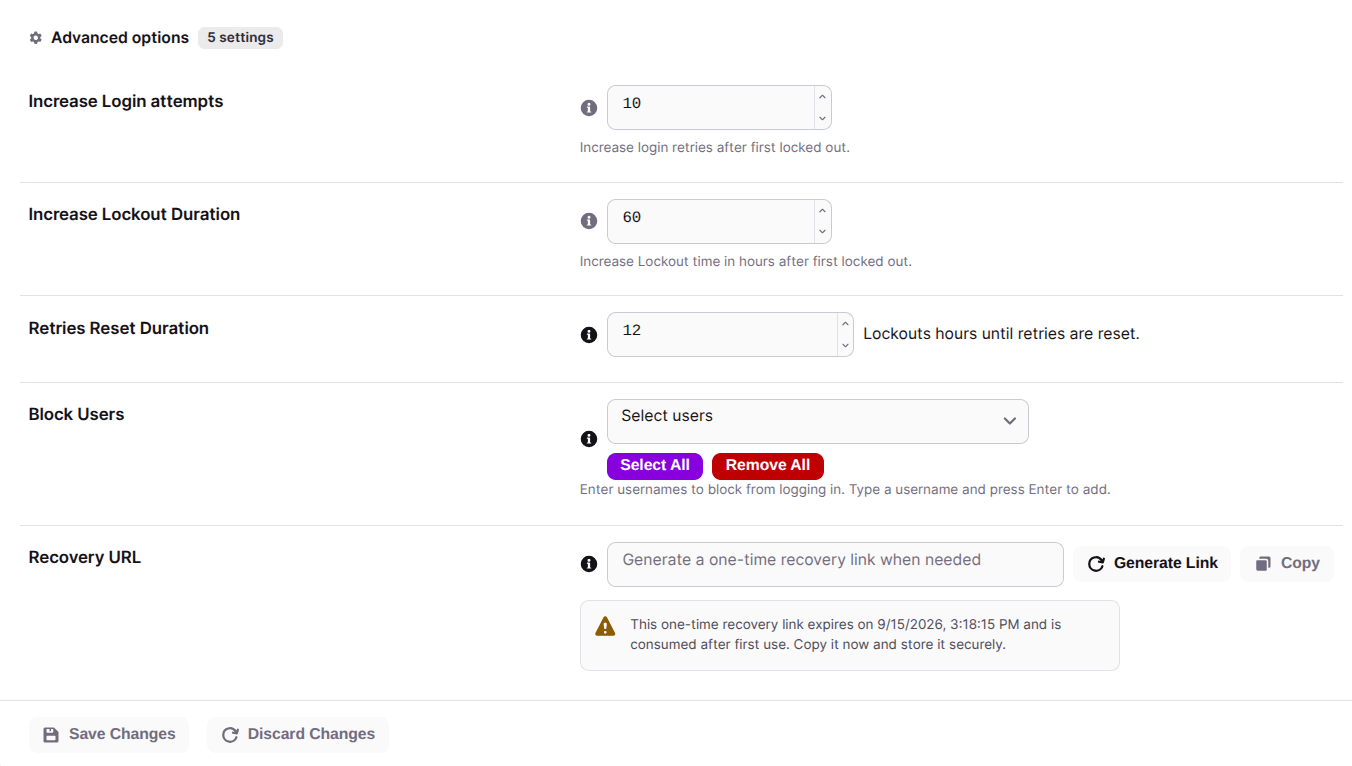
- Increase Login Attempts: This controls how many extra wrong password tries are allowed after the very first lockout period ends. It sets up a smart, two-tier defense so repeat attackers face stricter hurdles.
- Increase Lockout Duration: This applies a much longer penalty time (measured in hours) after the second lockout happens. It severely slows down persistent brute force attacks trying to hammer your site over and over.
- Retries Reset Duration: This acts as the waiting period (in hours) required for a user’s failed login counter to clear back to zero. If they stop trying during this window, their history wipes clean and they get a fresh start.
- Block Users: If you want to proactively ban specific usernames from ever attempting to log in, you can select or type them right into this box.
- Recovery URL: Website owners sometimes accidentally lock themselves out by typing their password wrong too many times.
- Click the Generate Key button, and the plugin will create a secret, one-time link for you.
- Click the Copy button to save that link directly to your clipboard.
- Save it somewhere safe: If you ever get locked out, this is your only way back into your site. Keep it completely private and never share it with anyone.
Once you have all of these settings adjusted, click the Save Changes button at the bottom.
Was this article helpful?
Thanks for the feedback.