
Passkeys
Search and filter every registered passkey, see its user, authenticator and last use, switch it on or off, or delete it to revoke access.
On this page
The Passkeys tab provides a central directory for administrators to search, filter, monitor, enable/disable, or revoke registered passkeys across all user accounts.
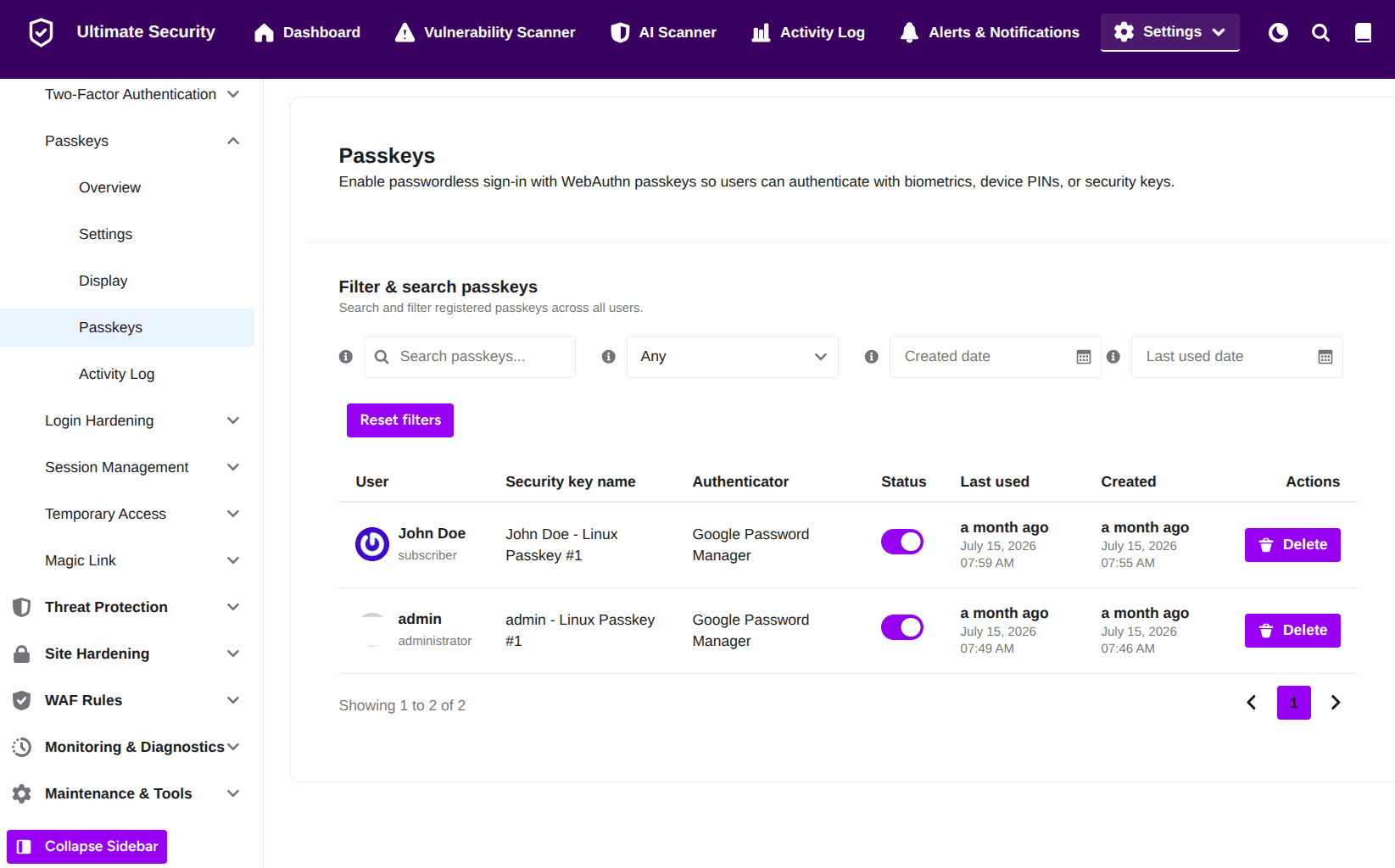
Filter & Search Controls
Use these tools to locate specific passkeys or narrow down the directory view.
- Search Input Field: Type keywords, key names, or usernames into Search passkeys… to instantly filter matching records in the table.
- Status Filter: Select options from the dropdown (default: Any) to filter entries by enabled or disabled states.
- Created Date: Use the calendar picker to isolate passkeys registered within a specific timeframe.
- Last Used Date: Use the calendar picker to filter passkeys based on when they were last used to sign in.
- Reset Filters: Click Reset filters to clear all active search terms, dropdown choices, and date parameters back to default.
Passkey Directory Overview
The primary table displays detailed information for registered credentials.
- User: Displays the account owner’s display name alongside their WordPress user role.
- Security Key Name: Displays the specific label assigned to the credential.
- Authenticator: Identifies the platform or service managing the credential (such as Google Password Manager or Apple Keychain).
- Status: Toggle ON or OFF to activate or temporarily suspend an individual passkey without removing it from the system.
- Last Used: Shows relative and exact timestamps for the most recent login event.
- Created: Shows relative and exact timestamps for when the passkey was first registered.
Revoking Credentials
- Delete Button: Click the Delete button next to any entry to permanently revoke the passkey and remove it from both the user account and site database.
Was this article helpful?
Thanks for the feedback.