
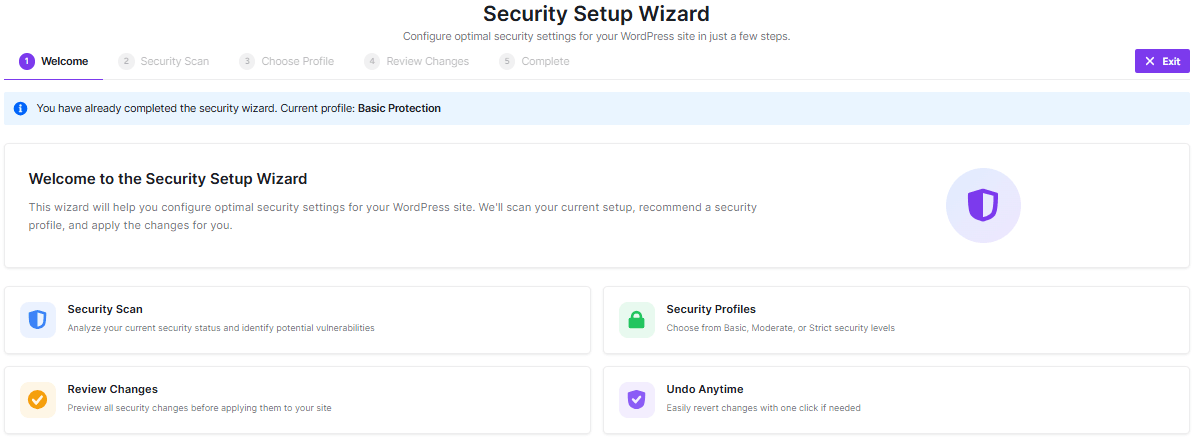
To help you get the best protection for your website, we created a simple Security Setup Wizard. This tool handles the technical side for you, making sure your site is safe without any complicated steps.
Setup Process
The wizard is divided into four simple stages, which you can track at the top of your screen:
- Security Scan: The plugin analyzes your current WordPress environment for vulnerabilities.
- Choose Profile: You select a security level (Basic, Moderate, or Strict) that fits your needs.
- Review Changes: A summary of the upcoming adjustments for your final approval.
- Complete: Your settings are applied, and your site is secured.
Note: Every setting configured during this wizard can be adjusted later from the main plugin settings page.
Security Scan
After initiating the setup, the plugin performs a comprehensive scan of your WordPress site. This screen displays your Security Grade and a detailed breakdown of your current security posture. At the top of the page, you will see a summary of your results:
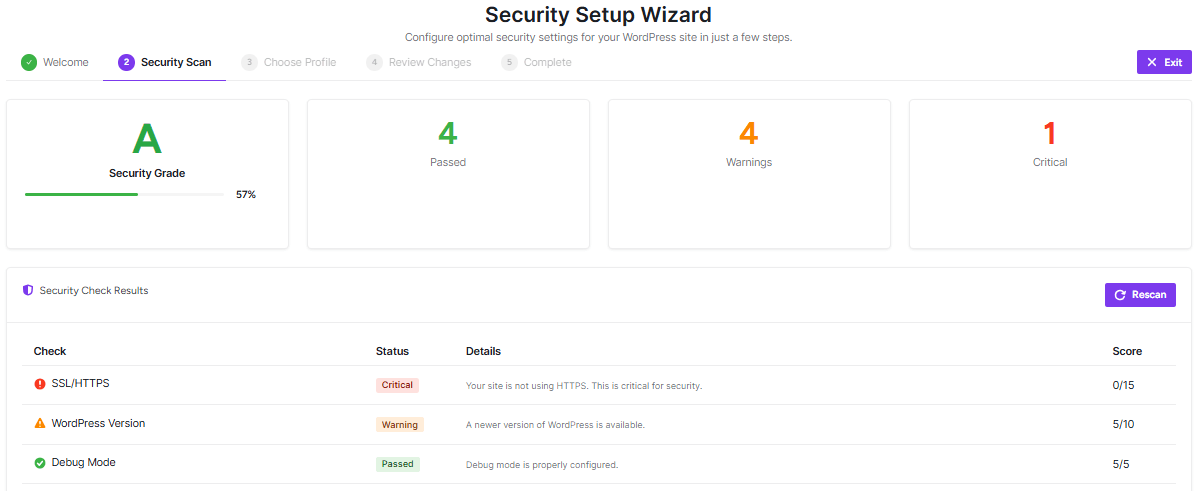
- Security Grade: A letter grade (e.g., A, B, C) representing your overall protection level.
- Passed: The number of security checks your site successfully cleared.
- Warnings: Areas that are functional but could be improved for better security.
- Critical: High-priority issues that represent a significant risk to your site.
Security scan results
The table below the dashboard provides a granular look at specific technical areas. Each row will give you a specific security check like SSL, password policies, and login settings, with a status of Passed, Warning, or Critical, plus a brief explanation of why.
Choose Profile
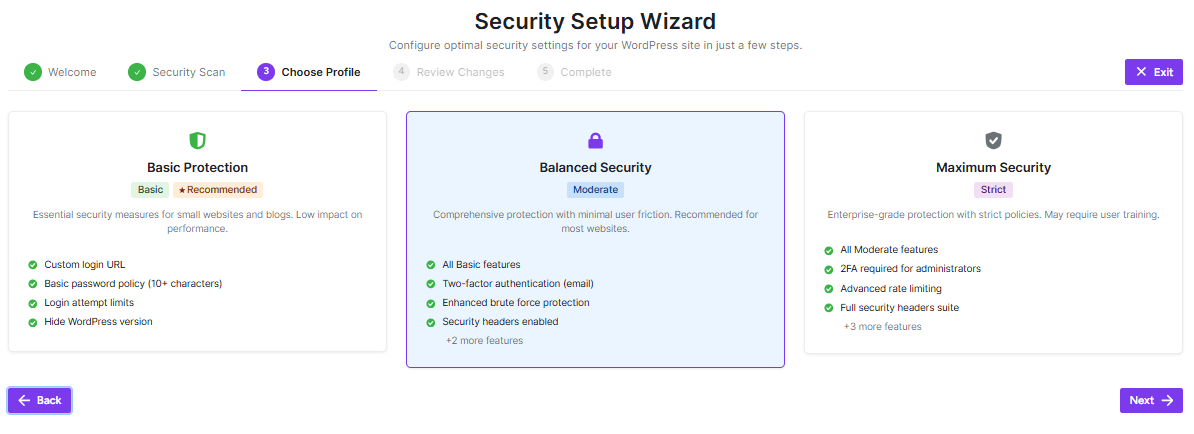
Now that the scan is complete, it’s time to choose a security profile. These profiles are pre-configured sets of rules designed to provide the right balance between high-level security and ease of use. You can choose from three distinct protection tiers. Each tier builds upon the previous one to strengthen your site’s defenses.
1. Basic Protection (Recommended for Beginners)
This profile provides essential security measures with almost zero impact on your site’s performance or daily workflow. It is ideal for small websites and personal blogs.
- Custom login URL: Changes your login page address to hide it from bots.
- Basic password policy: Ensures all users use at least 10 characters.
- Login attempt limits: Blocks IP addresses that repeatedly fail to log in.
- Hide WordPress version: Removes public information that hackers use to target specific vulnerabilities.
2. Balanced Security (Recommended for Most Sites)
This profile offers comprehensive protection while maintaining a smooth experience for your visitors. It is the best choice for business websites and growing blogs.
- Includes all Basic features.
- Two-factor authentication (Email): Adds a second layer of security by requiring a code sent to your email.
- Enhanced brute force protection: Stricter rules for blocking malicious login attempts.
- Security headers enabled: Protects your site from common browser-based attacks.
3. Maximum Security
This is an enterprise-grade tier with strict policies. It provides the highest level of defense but may require some user training to navigate the stricter login requirements.
- Includes all Balanced features.
- Mandatory 2FA for administrators: Requires all admins to use two-factor authentication.
- Advanced rate limiting: Prevents scrapers and bots from overloading your site.
- Full security headers suite: The most robust set of browser protections available.
How to Apply a Profile
- Review the features listed under each card.
- Click on the card that best fits your needs to select it.
- Click the Next button to move to the Review Changes step.
Review Changes
Before the plugin applies your new security configuration, you are provided with a complete overview of the adjustments. This step ensures you have full visibility into how your site’s settings will change based on the profile you selected.
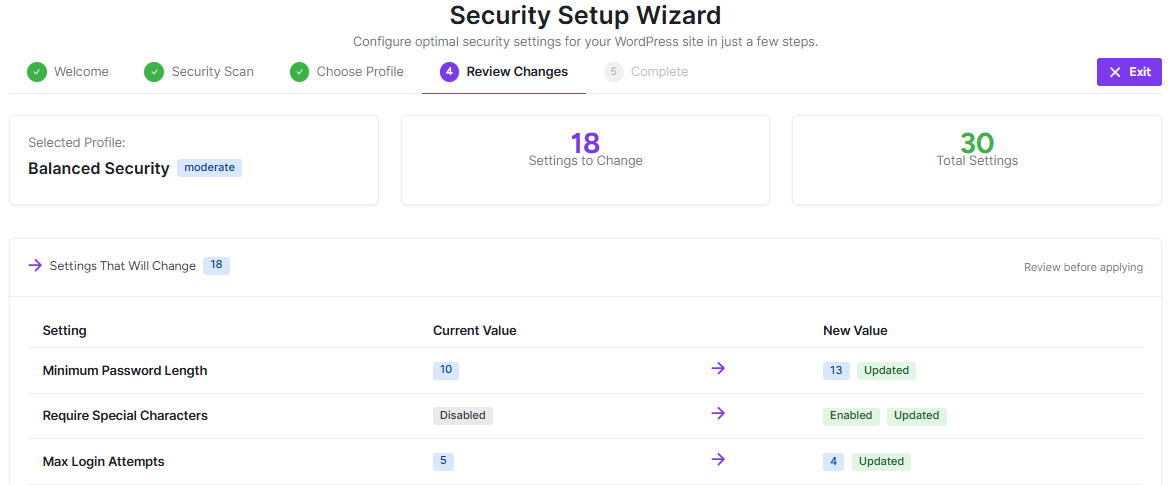
- Selected Profile: Displays the name of the profile you chose in the previous step (e.g., Basic Protection).
- Settings to Change: The total number of individual settings that will be modified.
- Total Settings: The overall number of security parameters managed by the plugin.
Comparison Table
The Settings that will change the table allow you to compare your site’s current state with the new, optimized configuration.
| Column | Description |
| Setting | The specific feature being updated. |
| Current Value | Your site’s current configuration before the update. |
| New Value | The optimized settings will be applied to your site. |
Finalizing the Setup
Take a moment to scroll through the list and ensure you are comfortable with the updates. If everything looks correct:
- Click the Next button to apply the changes and move to the final step.
- If you wish to choose a different security level, click the Back button to return to the Choose Profile screen.
Configuration Complete
This final screen confirms the changes made and suggests additional steps to further harden your site’s defenses. At the top of the page, you will see a confirmation of the profile you applied for.
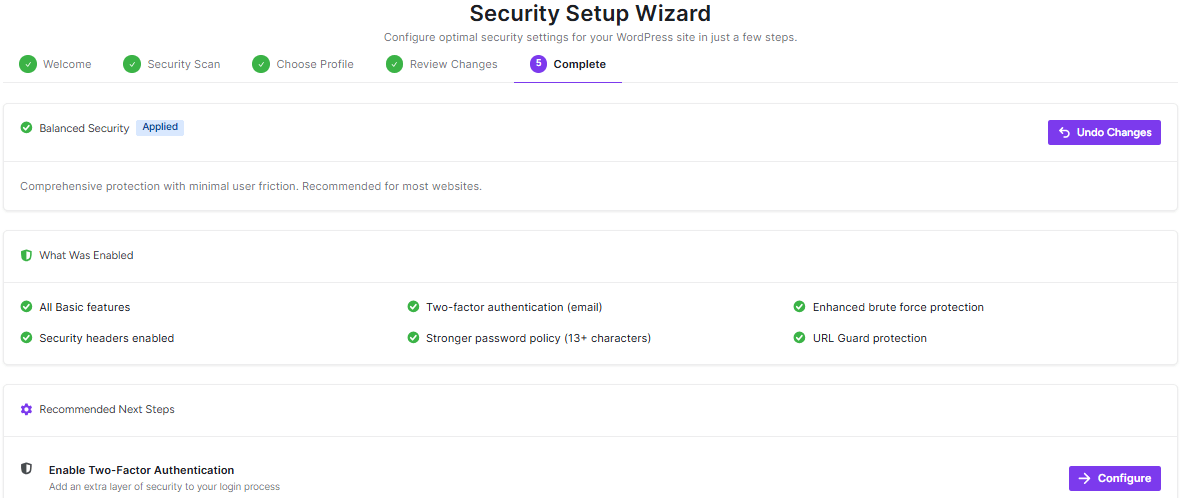
- Undo Changes: If you realize you’ve made a mistake or want to revert to your previous settings immediately, click the “Undo Changes” button in the top right.
- What Was Enabled: This section provides a checklist of the core features that are now active on your site, such as your Custom login URL or Login attempt limits.
Recommended Next Steps
While the wizard has secured the essentials, there are always additional layers you can add. The plugin suggests impactful actions you can take right away. To set up any of these features, click the Configure button next to the respective item.
Once you are satisfied with the setup. Click Go to Dashboard at the bottom right to exit the wizard and access the main plugin management area.


