
Email OTP
Turn on email one-time codes for chosen roles, set up the method from a user profile, and test the login before your users rely on it.
On this page
This page lets you set up email verification. When turned on, users will get a one-time code in their email every time they log in. Enable the Verification toggle switch to activate the feature
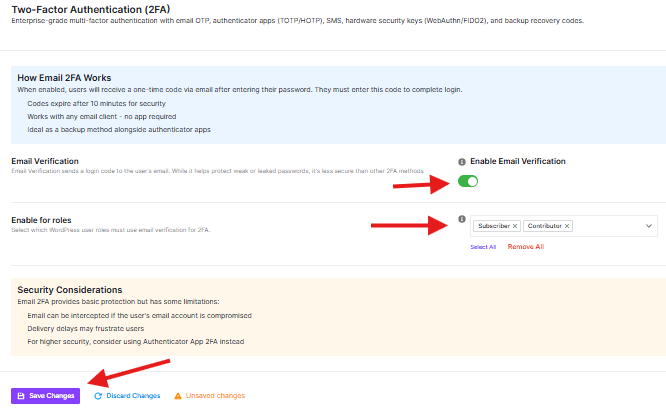
Enable for Roles
- This setting allows you to choose which user groups are required to use email 2FA.
- You may choose to disable this for regular subscribers to avoid friction during simple logins, unless your site deals with sensitive user data.
NB: “Save Changes” or “Discard Changes” button will apply the settings
Next Steps for Users
Once you have enabled this feature on this page:
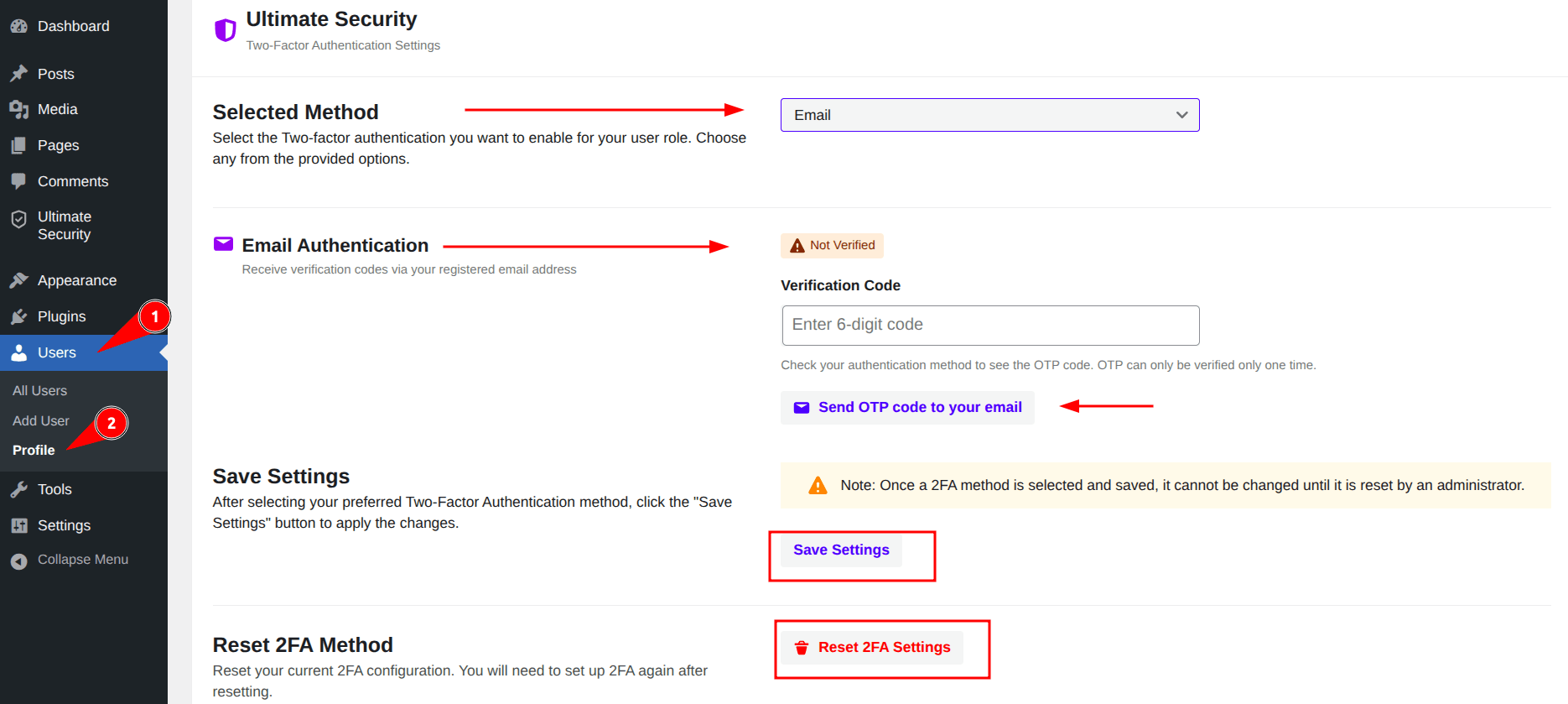
- Go to WordPress Dashboard → Users → Profile
- Scroll down and find the Ultimate Security section
- Select Email as the 2FA method
- Click the Send OTP button to receive a verification code in your email
- Enter the code in the box
Once you submit the OTP in the box, you will get a “Verified” mark. and click ” Save Settings ” to apply. Finally, click on the “Update Profile” button at the very end to start 2FA. If you want to start from the beginning, there is a Reset 2FA Settings to wipe out the current settings.
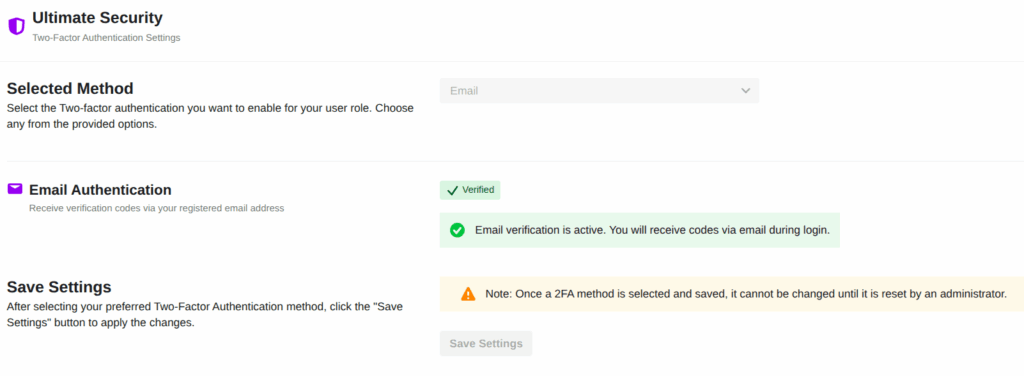
Please keep the following in mind:
To be able to receive emails, the site owner must set up an email SMTP service on the given WordPress site. Read more about SMTP
- Email delivery is not always instant. Network issues or server load can cause delays, making the verification code expire before the user finds it.
- If a hacker has already compromised a user’s email password, they can access the 2FA code, rendering this layer of security ineffective.
- Occasionally, verification codes can be flagged as spam and end up in the user’s junk folder.
Test Your Setup
After completing the configuration, verify that email OTP is working before your users start logging in.
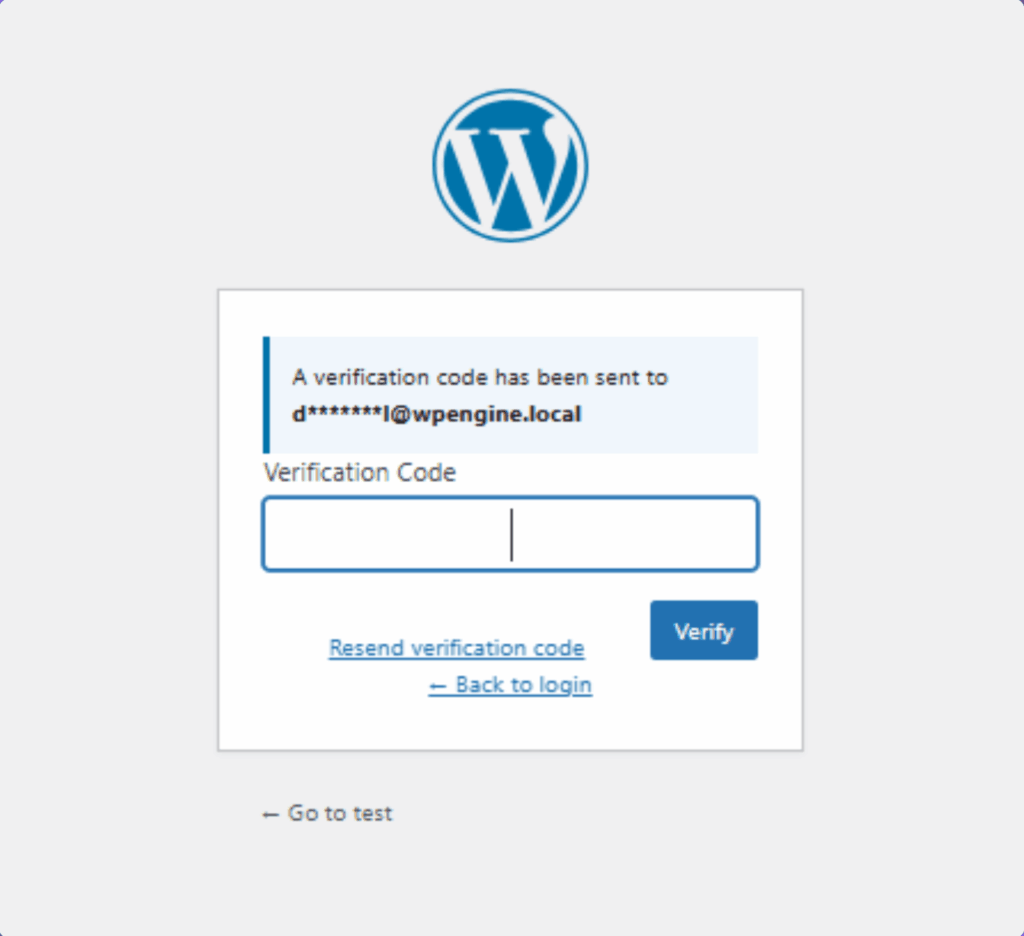
- Log out of your WordPress site
- Go to the login page and enter your username and password
- Check if the OTP verification screen appears after submitting
- Open your email inbox and enter the code in the verification field
- If you reach the dashboard, the setup is working correctly