
The Compare Scan Results feature is a powerful diagnostic tool that allows you to audit changes in your site’s security posture over time. By comparing a current scan against a previous baseline, you can instantly identify new vulnerabilities, verify if recent fixes were successful, and track unchanged issues.
How to Compare Scans
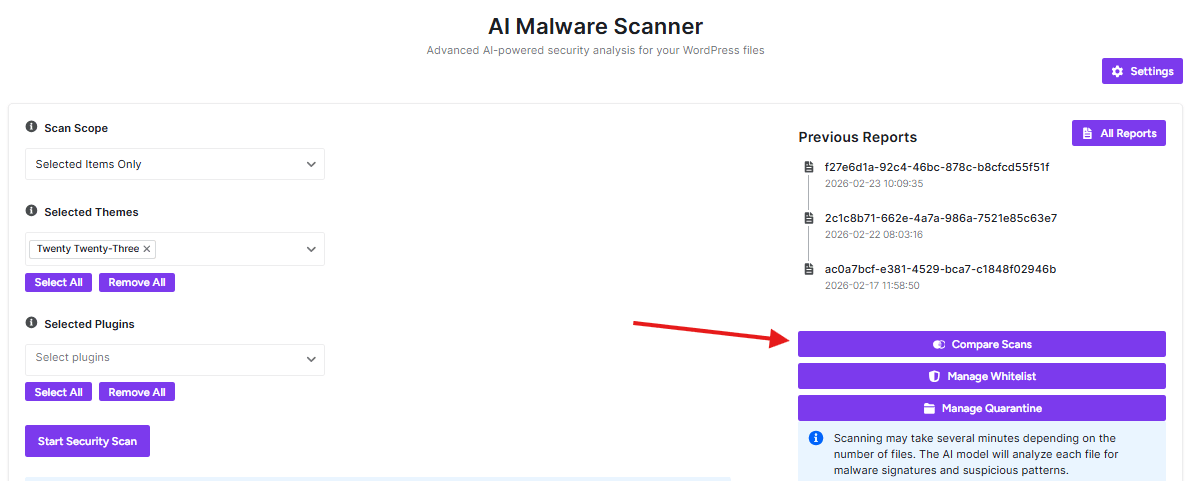
To access this interface, navigate to the AI Scanner dashboard and click the Compare Scans button in the right-hand sidebar.
Analyzing the Results Table
The detailed results table breaks down findings file-by-file, providing contextual AI analysis for each entry:
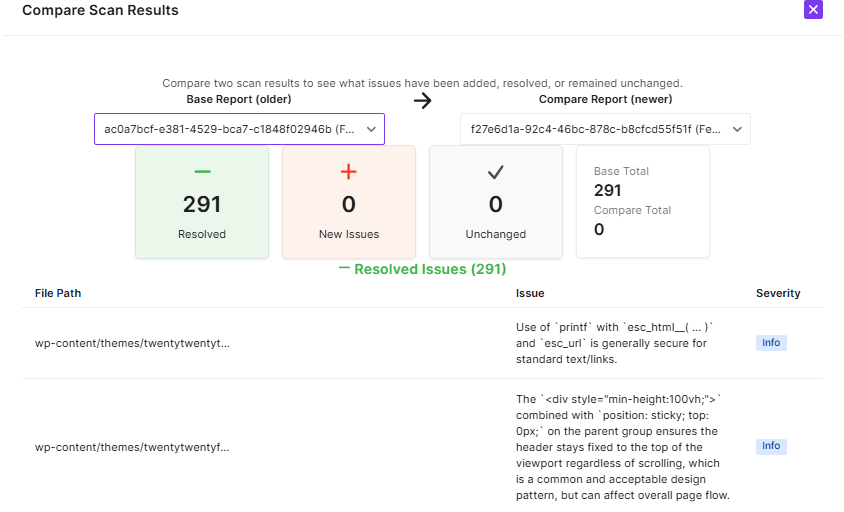
- File Path: The exact location of the file within your WordPress directory (e.g.,
wp-content/themes/...). - Issue: A detailed, AI-generated explanation of the detected pattern. This includes analysis of security functions (like
esc_htmlorprintf) and structural code patterns that may affect site flow or security. - Severity: A color-coded tag indicating the risk level (e.g., Info, Warning, or Critical).
Managing Navigation
If a scan results in a high number of entries, use the pagination controls at the bottom of the window to move through the reports. You can see exactly how many issues are being displayed out of the total found.
Pro-Tip
Post-Update Audits: After updating a plugin or theme, use the Compare tool to see exactly how the new code changed your security landscape. If “New Issues” appear in a trusted theme, they may simply be “Info” level code style changes, but they should always be reviewed to ensure no backdoors were introduced.


