
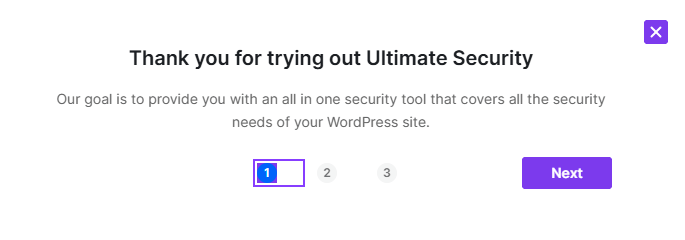
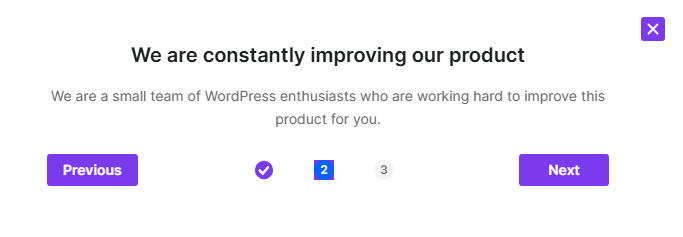
Once the plugin is activated, you will see a new menu item in your WP dashboard called Ultimate Security. Click on it to enter the plugin’s dashboard. This is the first screen; you will see a greeting pop-up.
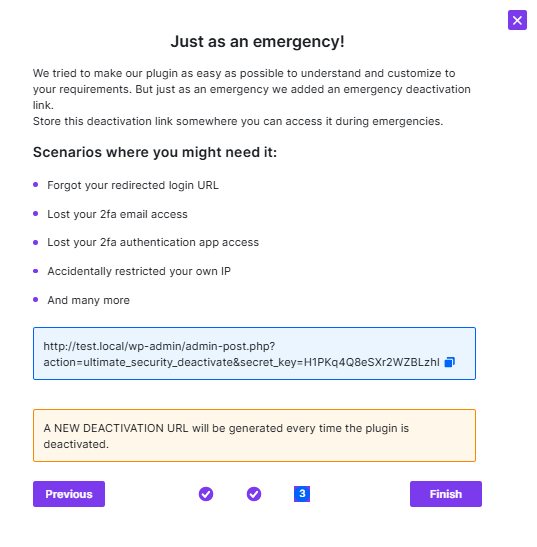
After heading to the next steps, the “Just an emergency” pop-up will appear. It will provide you with an emergency URL that deactivates the plugin if you encounter any issues.
Here is the first dashboard you will be exploring:
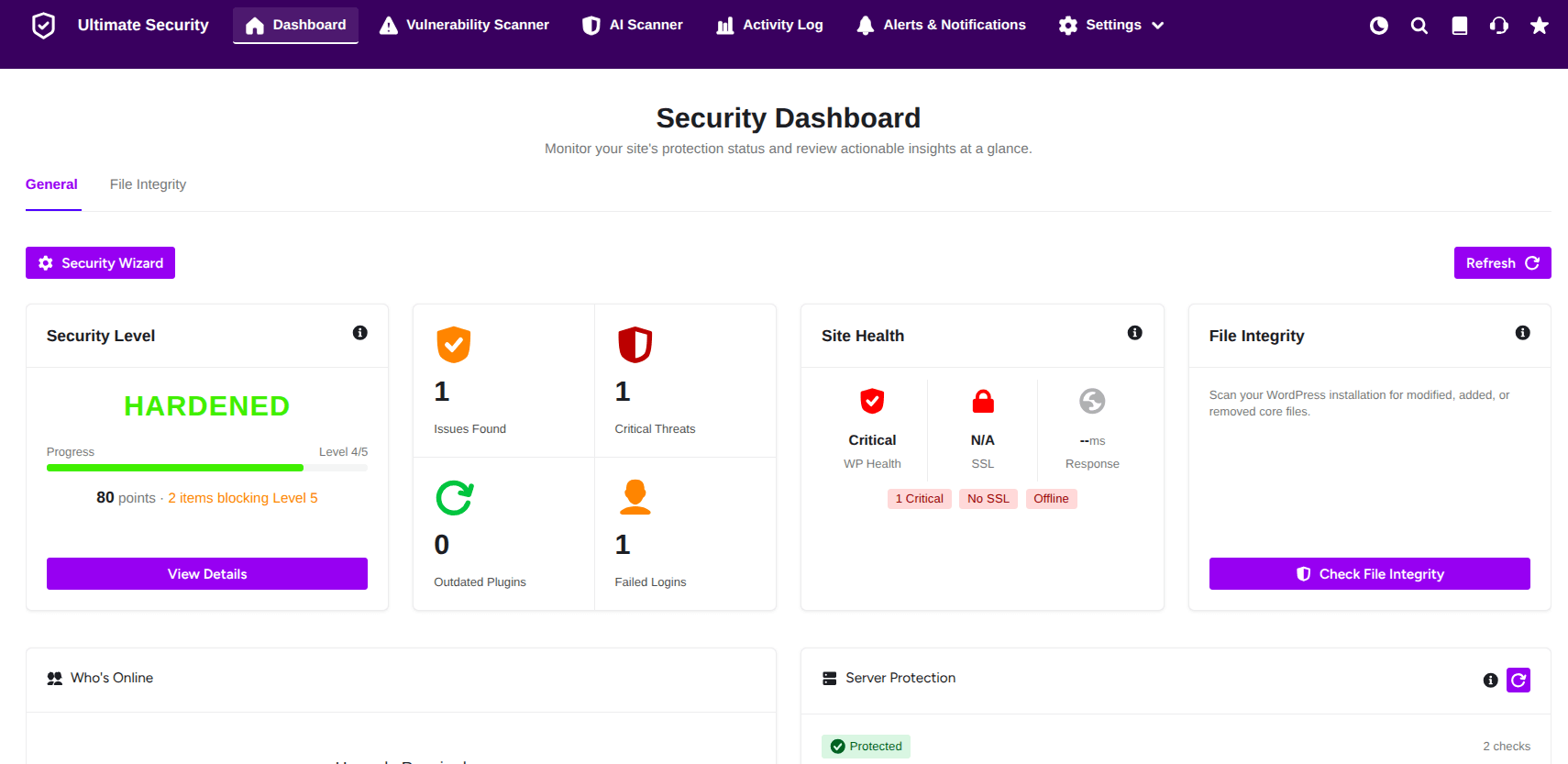
- It provides a real-time data of your website’s security.
- Top right, you will find a refresh button to update all the cards.
Security Level
At the top left corner, you will see “Security Level.” The Security Level displays the current protection status of your system, providing a clear visual representation of your security posture.
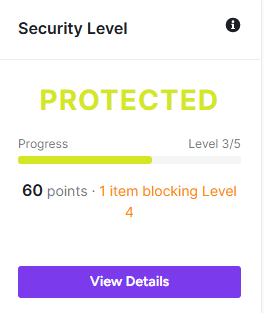
- Protection Status: Shows whether your system is currently “PROTECTED” or requires attention
- Security Level Progress: Displays your current level and overall progression
- Security Points: Shows your accumulated security points
- Blocking Issues: Identifies any items preventing you from reaching higher security levels
Press on ‘View Details’ button for more security info.
Current Security Level
The Security Level provides a detailed analysis of your website’s security posture. It breaks down your protection into different categories and priorities.
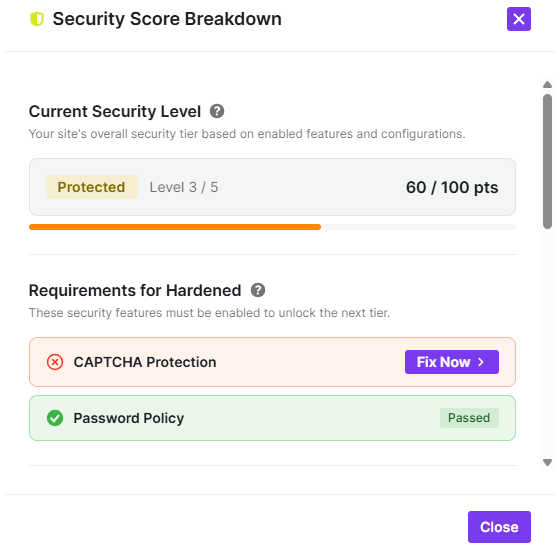
Requirements for Hardened
This section shows what you need to complete strengthening your website’s security:
- CAPTCHA Protection: It prevents automated bots and spam attacks
- Password Policy: It ensures strong password requirements
Score Breakdown
These are essential security measures that significantly impact your protection:
- Two-Factor Authentication
- SSL/HTTPS
- Login Rate limiting
These three security options add up to 45 points overall
High Priority
Important security features that provide substantial protection including:
- CAPTCHA Protection
- Password Policy
- WordPress Core Updated
These three security options add up to 30 points overall
Medium Priority
These medium-priority security options include:
- All Plugins Updated
- Audit Logs
- File Integrity Monitoring
Both combine for 15 points
Additional Hardening
These are optional security features,;
- Hide Login URL
- Disable File Editing
- API Privacy
- Content Protection
- Custom Login Consent
Total 10 points will be added when you enable all of them
Issue Counters and Critical Threats
Near the “Security Level,” there are four important signs that help you prioritize your actions:
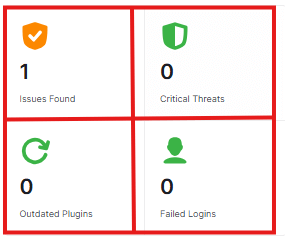
- Issues Found: It shows recommendations or vulnerabilities that are not currently active threats but pose a risk if left unaddressed.
- Critical Threats: This counts the number of immediate, high-risk dangers currently detected on your site.
- Outdated Plugins: The number shows how many of your installed plugins are currently running on old versions
- Failed Logins: It counts how many times someone tried to log in to your website recently but failed to access it.
Site Health
This section shows your website’s overall health
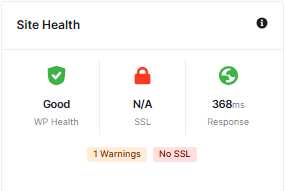
- WP Health: It depends on PHP version, security scans, and system configuration.
- SSL: This checks if your site has a security certificate.
- Response: This tracks how quickly your site starts loading.
File Integrity
This section acts like a security guard. It monitors WordPress’s core files.
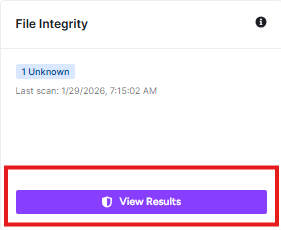
- The purple button will show you exactly which file is different. You can then see if it is a safe change or if you need to delete it to protect your site
“View Results” Button
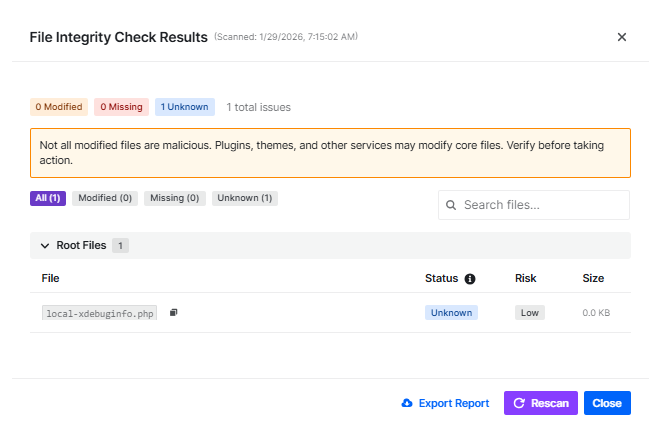
This screen appears after clicking the View Results button. It scans a detailed report on any files that have been changed, added, or removed from your WordPress installation.
Scan Summary
At the top of the page, you will see a quick summary of the findings based on the scan time.
- Modified: It indicates that if any modified file has been detected
- Missing: It shows that if any files are missing
- Unknown: It indicates if there are any unfamiliar files.
- Total issues: The sum of all issues found.
Important Note: You will see a yellow notification box on this screen.

- Not all modified files are malicious. Sometimes, changes are made by legitimate plugins or themes you installed.
- Check ‘Unknown’ files to ensure they belong to a trusted plugin. If they aren’t recognized, investigate or delete them
File List Details
A list displays the specific files that triggered the alert. Finding any specific files from the search box can save time.
- File Name: Shows the file
- Status: Indicates the type of change.
- Risk: Indicates the threat level.
- Size: Shows the size of the file
Action Buttons:
At the bottom of the screen, you have three options:
- Export Report: Download your scan report.
- Rescan: Run rescan to update your results after fixing or deleting files
- Close: Click this to return to the main Dashboard
Server Protection
The Server Protection component highlights security measures that can be implemented at the infrastructure level, independent of the WordPress application. Adding these layers ensures that malicious traffic is mitigated before it interacts with your site’s codebase.
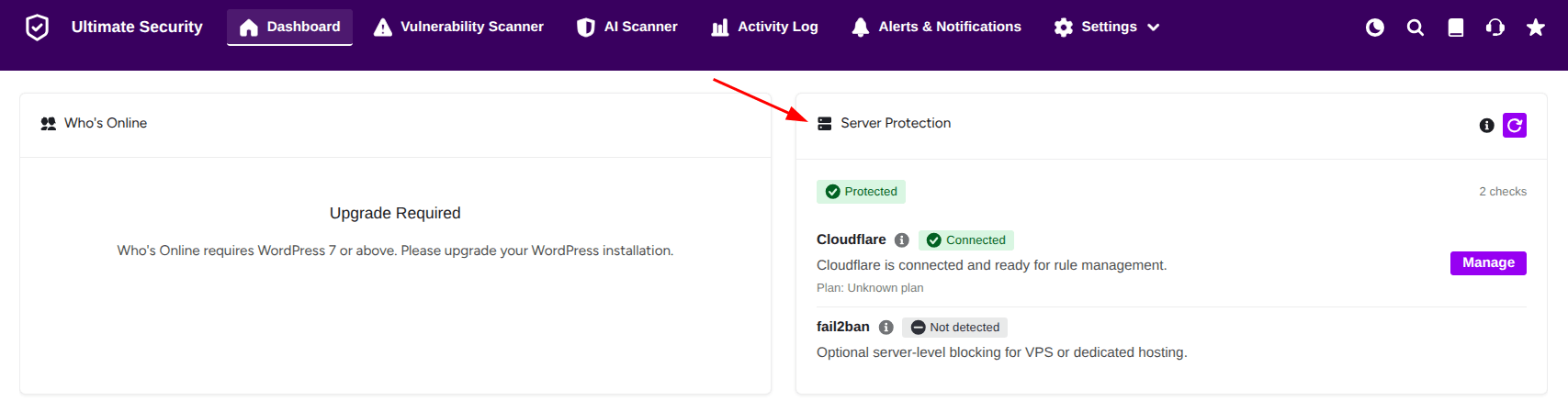
- Cloudflare — A free service that blocks malicious traffic before it even reaches your server
- Fail2ban — A server-side tool that automatically bans IP addresses after too many failed login attempts
Who’s Online
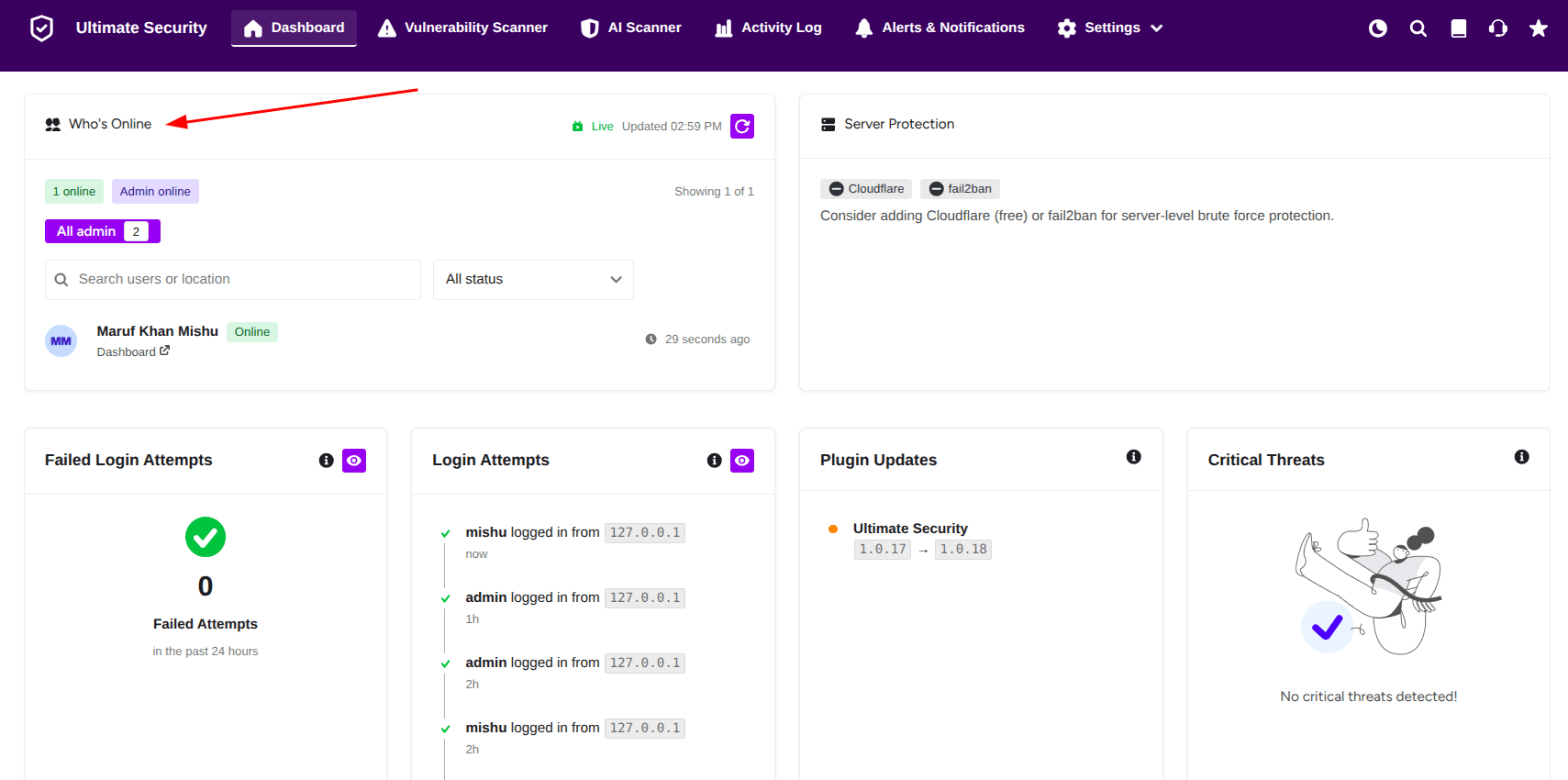
The Who’s Online feature in Ultimate Security provides a real-time overview of everyone currently logged into your WordPress site. This tool is essential for monitoring site activity and ensuring that only authorized users are accessing your dashboard.
This feature requires WordPress 7.0 or higher. If you see an “Upgrade Required” message, please update your WordPress core
Key Components
- Real-Time Status: The “Live” indicator shows that the data is being updated automatically. You can also manually refresh the list using the Refresh Icon next to the timestamp.
- Active User Count: Show you exactly how many people are online at a glance.
- Search & Filter: Use this to find a specific user
- Status Dropdown: Filter users based on their current activity status.
- User Cards: Each active user is displayed with their name, current status, and exactly where they are on your site. It also shows the last time their activity was recorded.
How to Use This Section
- Monitor Team Activity: If you have multiple editors or administrators, you can see who is currently making changes to prevent overlapping work.
- Security Auditing: Check the “All Admin” filter regularly. If you see an administrator account online that shouldn’t be, it may be a sign of a compromised account.
- Track Locations: By observing the location data in the search/filter area, you can verify if users are logging in from recognized regions or IP addresses.
Bottom Cards
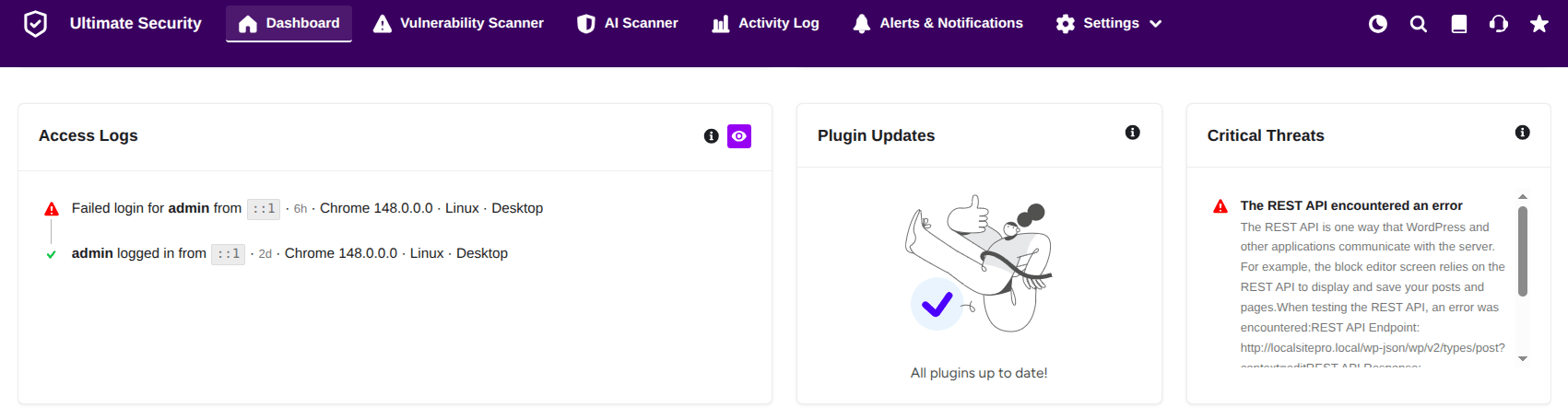
Access Logs
The Access Logs panel on your main dashboard provides an immediate snapshot of recent login activity.
- Green Checkmark: Indicates a successful login.
- Red Warning Icon: Indicates a failed login attempt.
Each entry displays the username used and the time elapsed since the attempt. Clicking the eye icon opens the Review Access Activity window. You can see the full log data. The activity table provides several columns of data for every event:
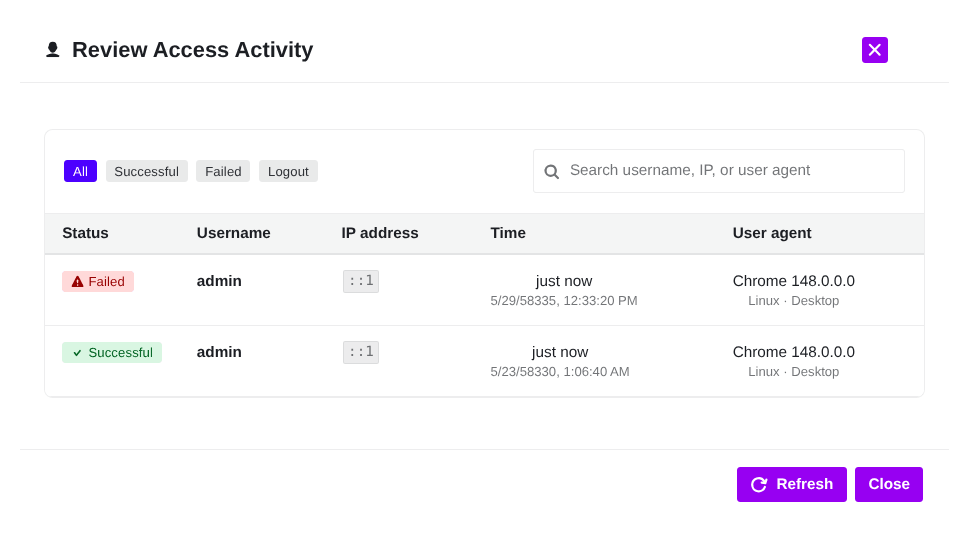
- Type a specific username, IP address, or device type into the search box to filter the results instantly.
- Use the category buttons to view All, Successful, Failed, or Logout events individually.
- A clear label showing if the attempt was successful or failed.
- The specific account name that was entered.
- The IP address of the visitor.
- The precise date and timestamp of the activity.
- Details regarding the visitor’s browser and platform.
Plugin Updates
This section shows any available updates for your plugins.
Critical Threats
This section displays critical security threats found on your website.
Quick Action
This section provides easy access to the most important security features of your WordPress site. These are common security tasks that you can set up quickly with just a few clicks.
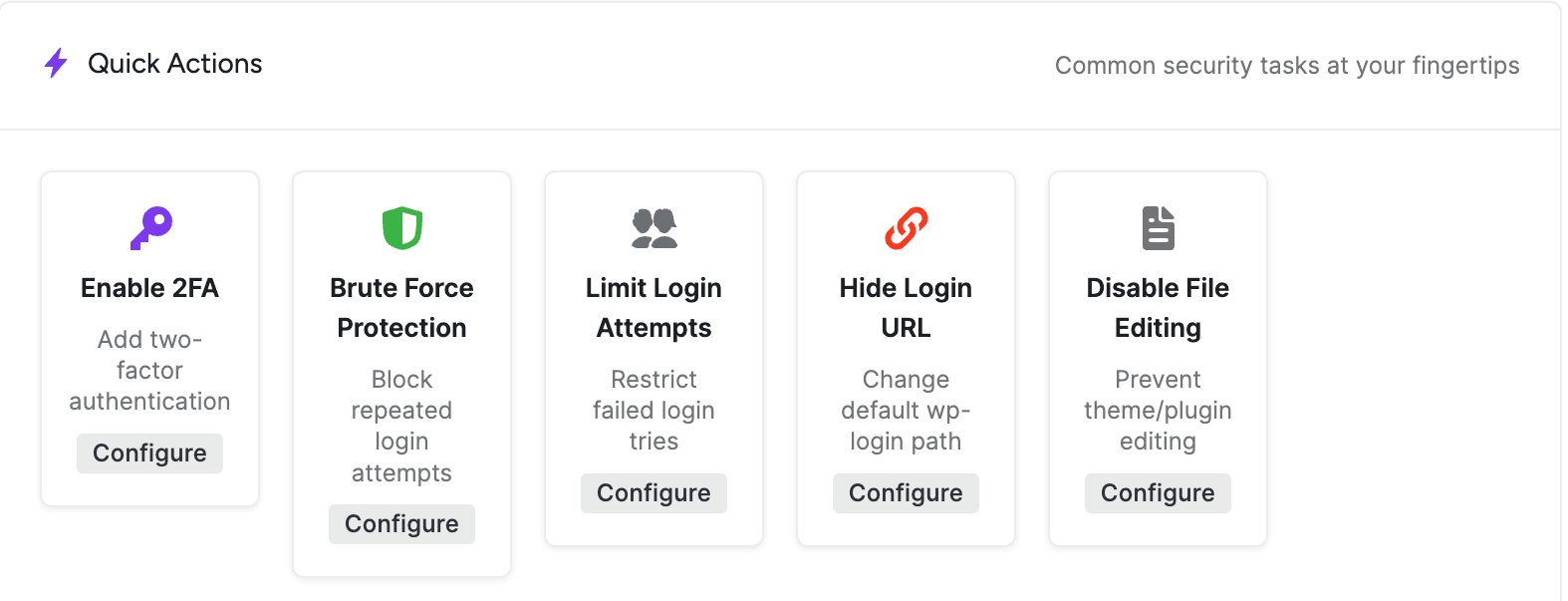
Enable 2FA
- Adds an extra layer of security to your login process
- Requires a second verification step when logging in
- Click “Configure” to set up two-factor authentication
Brute Force Protection
- Blocks repeated login attempts from suspicious sources
- Prevents automated password guessing attacks
- Click “Configure” to enable this protection
Limit Login Attempts
- Restricts the number of failed login tries
- Helps prevent brute force attacks on your login page
- Click “Configure” to set your preferred limits
Hide Login URL
- Changes the default WordPress login path (wp-login.php)
- Makes it harder for attackers to find your login page
- Click “Configure” to set a custom login URL
Disable File Editing
- Prevents unauthorized changes to your theme and plugin files
- Adds an extra security layer to your site’s core files
- Click “Configure” to enable this protection
Each action has a “Configure” button that will take you to the specific settings page where you can customize that security feature according to your needs. These quick actions help you strengthen your site’s security without needing to navigate through multiple menus.
Security Recommendations
This section shows important security improvements for your WordPress site. The plugin analyzes your current security setup and recommends actions to make your site more secure.
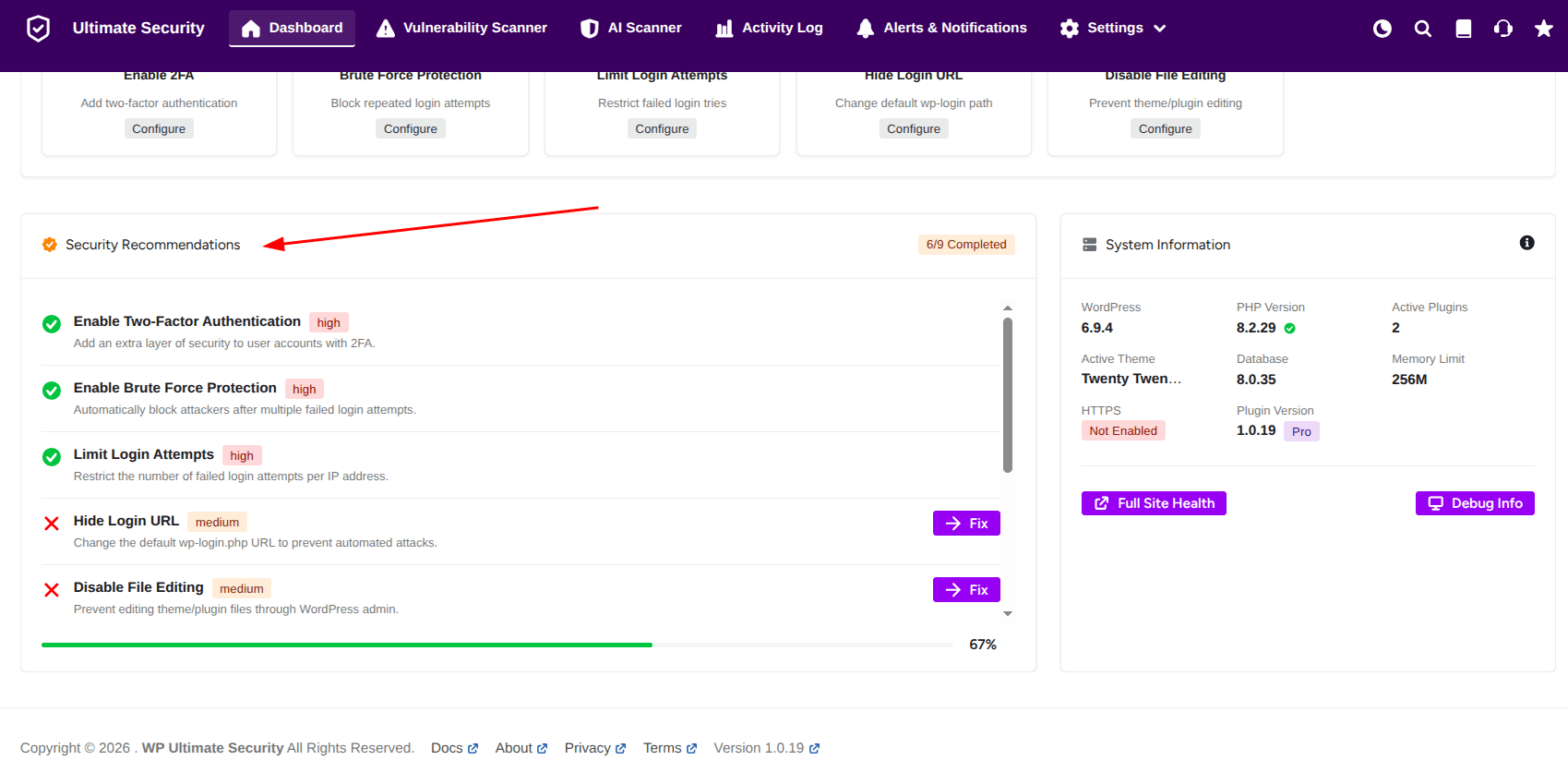
System Information
The System Information card provides an overview of the current WordPress environment and the Ultimate Security plugin’s active configuration. This component is designed for quick diagnostics and environment verification. You will see the following;
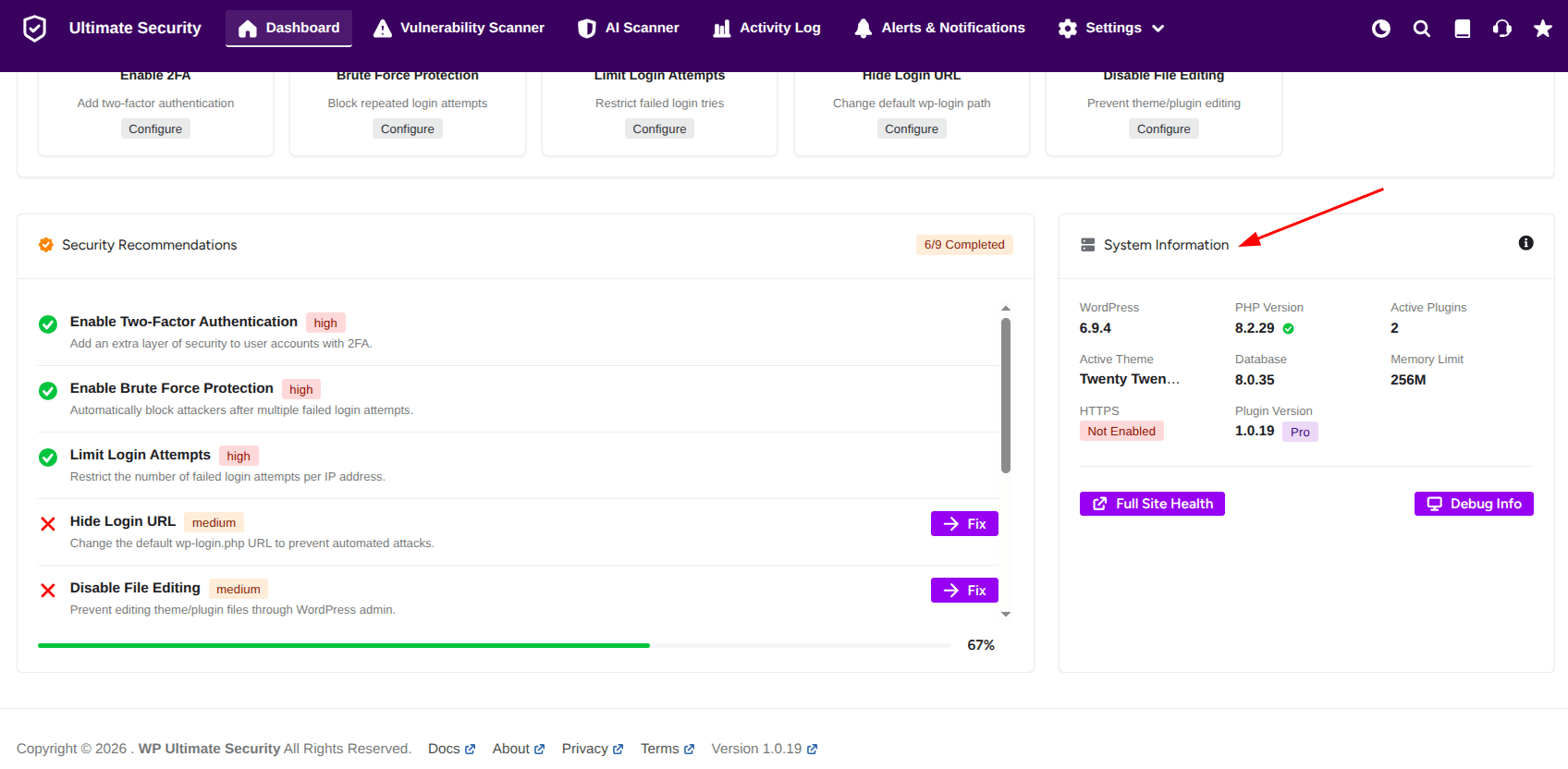
- WordPress Version
- PHP Version
- Active Plugins
- Active Theme
- Database Version
- Memory Limit
- HTTPS Status
- Plugin Version
At the bottom of the card, you’ll find two functional buttons:
- Full Site Health: Accesses the detailed WordPress health report page
- Debug Info: Displays comprehensive site health information specific to the plugin
This card serves as a quick reference for monitoring your WordPress environment and accessing deeper diagnostic tools when needed.


