Skip to content

Documentation site for Ultimate Security plugin for WordPress.

Documentation site for Ultimate Security plugin for WordPress.

Getting Started

2
  • System Requirements
  • Installation

How It Works?

5
  • Login & Authentication
  • Threat Protection
  • Site Hardening
  • Maintenance & Tools
  • Monitoring & Diagnostics

Dashboard

1
  • Dashboard

Vulnerability Scanner

2
  • Vulnerability Scanner Dashboard
  • Scan History

Dashboard

1
  • Vulnerability Scanner Dashboard

Scan History

1
  • Scan History

Settings

1
  • Vulnerability Scanner Settings

Configure API Key

1
  • Vulnerability Scanner Settings

Configure API Key

1
  • Vulnerability Scanner Settings

Activity Logs & Monitoring

3
  • Activity All Logs
  • Activity Logs Dashboard
  • Security Incidents

Dashboard

1
  • Activity Logs Dashboard

All Logs

1
  • Activity All Logs

Security Incidents

1
  • Security Incidents

Alerts & Notifications

2
  • Alerts & Notifications
  • History

Settings

1
  • Alerts & Notifications

History

1
  • History

Login & Authentication

6
  • Overview
  • Email OTP
  • Authentication Apps
  • Custom Login URL
  • Password Requirements
  • Settings

Two-Factor Authentication

3
  • Overview
  • Email OTP
  • Authentication Apps

Login Hardening

2
  • Custom Login URL
  • Password Requirements

Session Management

1
  • Settings

Threat Protection

4
  • Google reCAPTCHA
  • Cloudflare Turnstile
  • Login Attempts
  • Lockout Notifications

Bot Protection

2
  • Google reCAPTCHA
  • Cloudflare Turnstile

Brute Force Protection

2
  • Login Attempts
  • Lockout Notifications

Site Hardening

9
  • Content Protection Overview
  • Text Protection
  • Image Protection
  • Keyboard Shortcut
  • Display Settings
  • API & Data Privacy
  • Plugin Updates
  • Theme Updates
  • Security Hardening

Content Protection

5
  • Content Protection Overview
  • Text Protection
  • Image Protection
  • Keyboard Shortcut
  • Display Settings

Security Keys

1
  • WordPress Security Keys

API & Data Privacy

1
  • API & Data Privacy

Update Manager

3
  • Plugin Updates
  • Theme Updates
  • Update History

Security Hardening

1
  • Security Hardening

Monitor & Diagnostics

3
  • Site Health
  • Error Notifications
  • Test Mode

Error Notifications

1
  • Error Notifications

Test Mode

1
  • Test Mode

Maintenance & Tools

6
  • Comments Management
  • Backup & Restore
  • Security Tools
  • Advanced Settings
  • Database Cleanup
  • Self Defense
View Categories
  • Home
  • Docs
  • Plugin Settings
  • Maintenance & Tools
  • Advanced Settings

Advanced Settings

2 min read

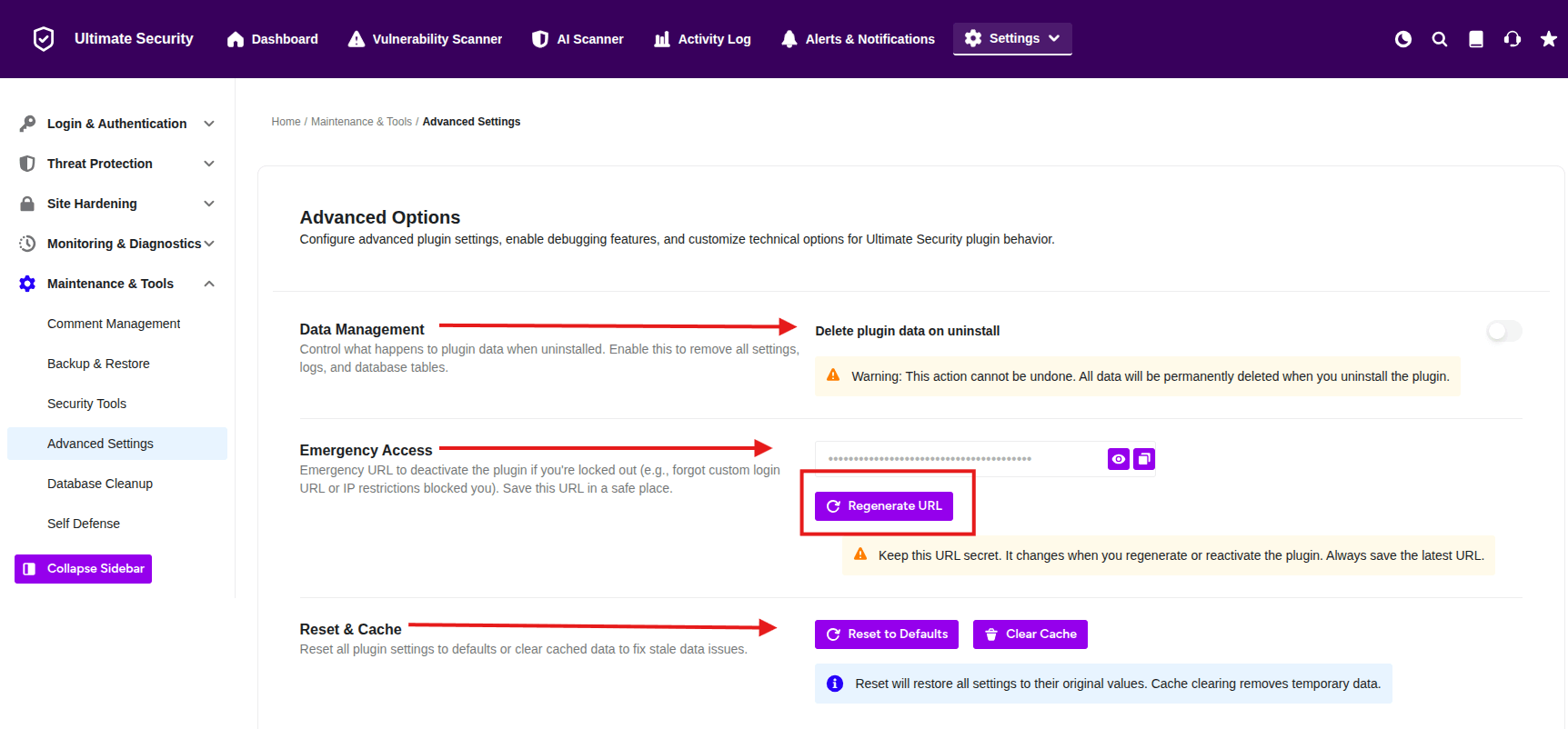
Data Management

This section decides what happens if you ever decide to stop using the plugin and delete it.

ULTIMATE SECURITY ADVANCE OPTION
  • Delete plugin data on uninstall: * What it does: If you turn this switch ON, the plugin will erase everything it ever recorded (like settings and security logs) when you delete it from WordPress.
    • Why use it: Use this if you want to make sure no leftover “digital trash” is left behind on your website.
    • ⚠️ Warning: Once this data is deleted, you can never get it back!

Emergency Access (The “Spare Key”)

This is one of the most important parts of the plugin. Sometimes, security settings might accidentally lock you out of your own website.

  • Emergency URL: This is a secret web link made just for you.
  • What it does: If you are locked out, you can paste this secret link into your browser. It will automatically turn off the security plugin so you can get back into your site.
  • How to use it: 1. Save it: Copy this link and save it somewhere safe, like a notebook or a private file on your phone. 2. Test URL: Click this to make sure the link works. 3. Regenerate URL: If you think someone else saw your secret link, click this to create a brand-new one.

Reset & Cache (The “Fresh Start”)

If the plugin is acting strangely or you just want to go back to the beginning, use these buttons.

  • Reset to Defaults: * What it does: This pushes the “Reset” button on every setting in the plugin. It will go back to exactly how it looked when you first installed it.
  • Clear Cache: * What it does: This clears out “temporary memory” that the plugin uses.
    • Why use it: If you changed a setting but don’t see the change happening on your site, clicking this can usually fix the problem.

💡 Always remember to click the Save Changes button at the bottom left after turning on the “Delete plugin data” switch!

Updated on February 16, 2026

What are your Feelings

  • Happy
  • Normal
  • Sad

Share This Article :

  • Facebook
  • X
  • LinkedIn
  • Pinterest
Security ToolsDatabase Cleanup

Powered by BetterDocs

Leave a Reply Cancel reply

Your email address will not be published. Required fields are marked *

© 2026 Documentation site for Ultimate Security plugin for WordPress.


  • Home