
Global Comments
This section lets you decide where people are allowed to leave comments.
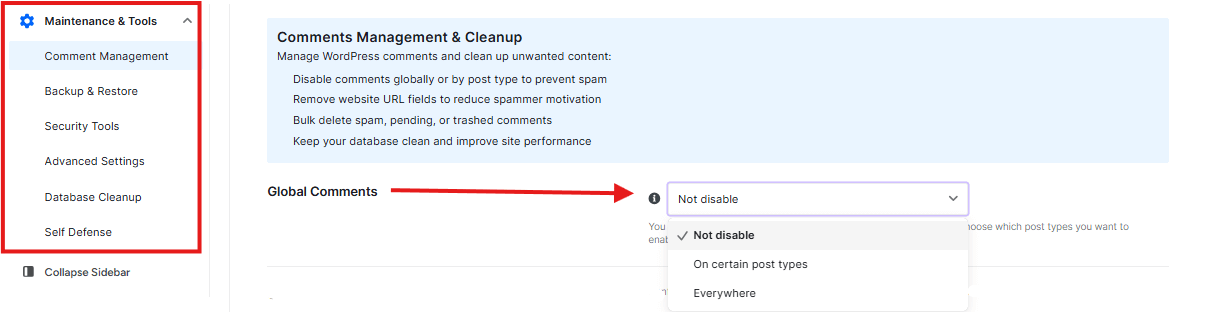
- What it does: You can turn off comments for your whole website or just for specific types of pages.
- How to use it: Use the dropdown menu to choose if you want to disable comments everywhere or only on certain parts of your site.
Select Post Types
If you chose to turn off comments on “certain post types,” this is where you pick them.
- What it does: You can flip the switch for Posts, Pages, Media (like images), or Products.
- Why use it: Sometimes you want people to comment on your blog posts, but not on your “Contact Us” page or product images.
Comment Settings (The Spam Blockers)
Spammers love to leave links to other websites. These settings stop them.

- Remove “url” in the comment form: This hides the box where people normally type their website address. If they can’t put their link, they usually won’t leave a spam comment.
- Remove external links in the comments: If a spammer does leave a link, this tool will strip it out.
- Replace external links from author bio: This stops people from using their profile name to advertise other websites.
Cleaning Up Old Comments
The bottom sections are for deleting comments that are already there.
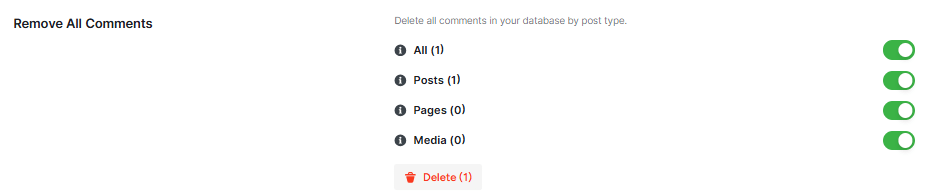
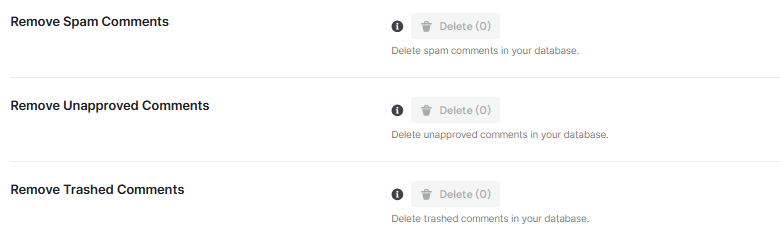
- Remove All Comments: Use this to wipe the slate clean and delete every single comment on your site.
- Remove Spam Comments: This deletes comments that WordPress has already flagged as “Spam.”
- Remove Unapproved Comments: This clears out comments waiting for you to say “Yes” or “No” to them.
- Remove Trashed Comments: This empties the “Trash” bin for your comments, like taking the garbage out to the curb.
💡Always click the purple Save Changes button at the very bottom left after you make a choice. If you don’t, the plugin won’t remember what you picked!


