
WordPress Security Keys and Salts are cryptographic tokens that secure your site’s authentication cookies and password encryption. This feature helps you manage, monitor, and automate the rotation of these keys to protect your site against session hijacking and brute-force attacks.
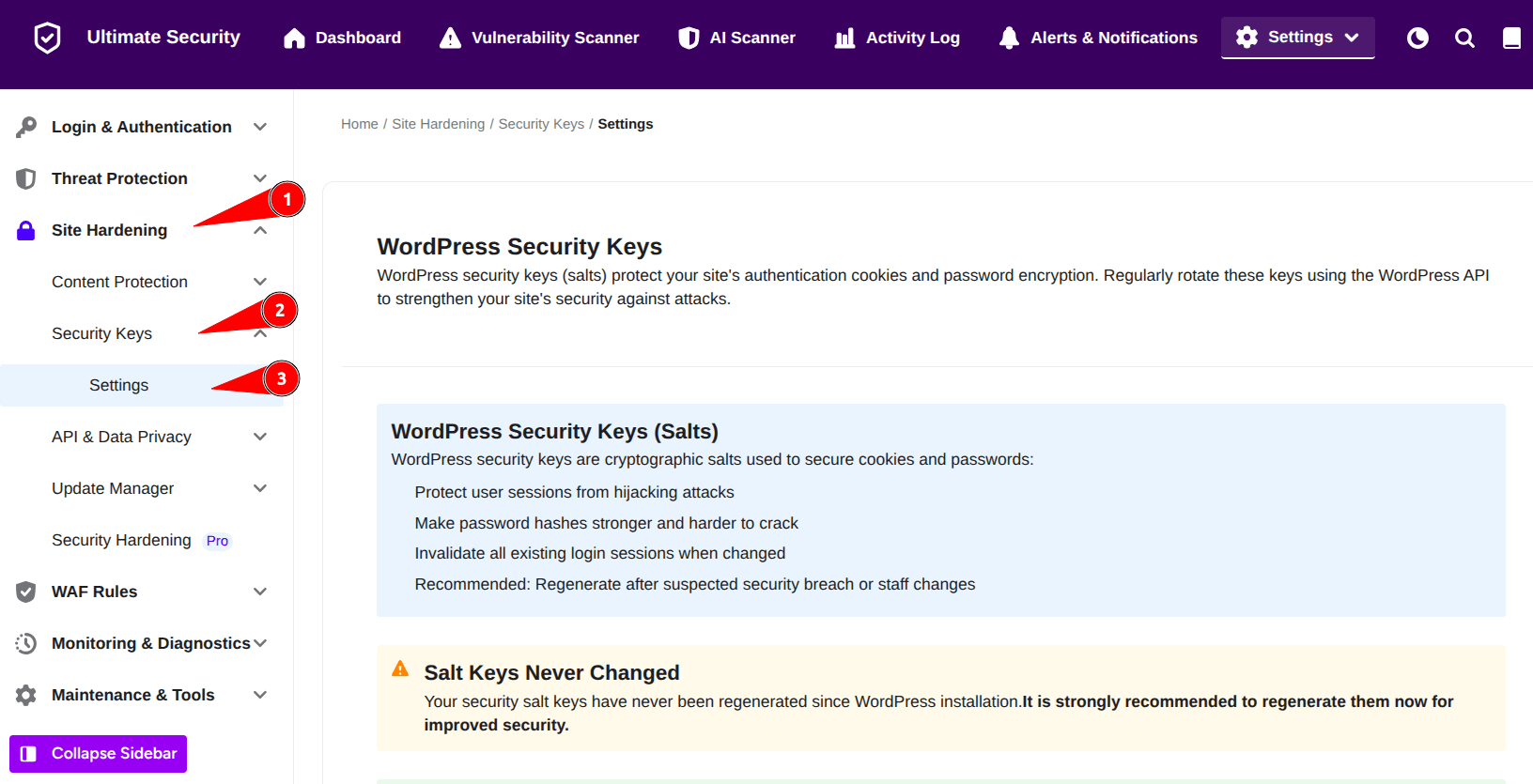
Current Salt Keys
The Current Salt Keys panel provides a visual breakdown of the eight unique cryptographic strings currently active on your website. These keys are automatically read directly from your site’s wp-config.php file.
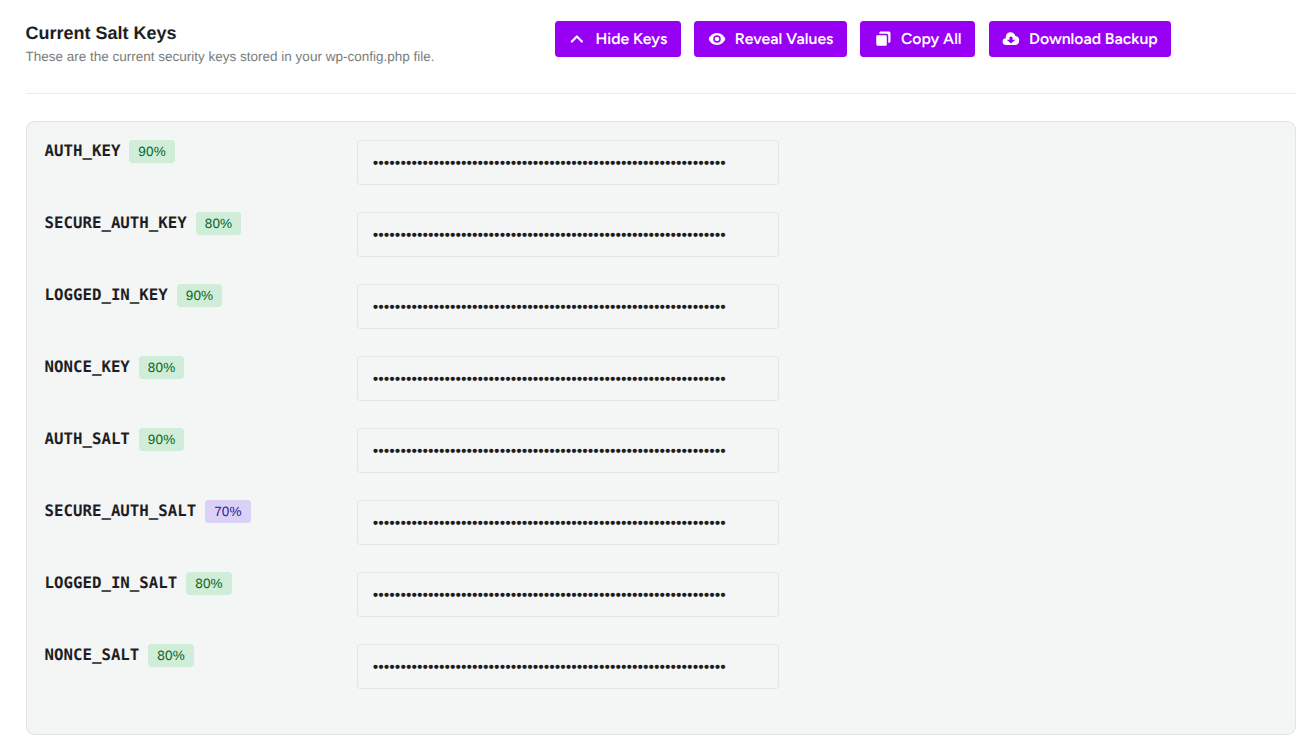
Each of the eight standard WordPress keys features an automated security assessment badge:
- The 8 Keys Managed:
AUTH_KEY,SECURE_AUTH_KEY,LOGGED_IN_KEY,NONCE_KEY,AUTH_SALT,SECURE_AUTH_SALT,LOGGED_IN_SALT, andNONCE_SALT. - Cryptographic Strength Badge: Next to each key name, a percentage badge indicates its structural complexity (e.g., 70%, 80%, or 90%). These badges are color-coded (Green for high strength, Purple for moderate/acceptable strength) to give you an instant health check on your site’s encryption.
Action Buttons
Four action buttons at the top right allow you to safely manage your active keys:
- Hide/Show Keys: Toggles the visibility of the raw key values on your screen.
- Mask Values: Partially replaces the middle of each key with bullet points (
••••••••). This lets you safely verify the start and end patterns without exposing the full string to onlookers or screen recorders. - Copy All: Copies all eight active keys to your clipboard with a single click.
- Download Backup: Downloads a secure backup file of your current keys. Always use this before regenerating new salts for a quick recovery point.
Automatic Salt Key Rotation
WordPress uses a set of security keys and salts to encrypt data stored in user cookies (like keeping you logged in). Periodically changing, or “rotating,” these keys enhances your site’s security by instantly invalidating all active sessions.
This feature allows you to automate the entire process, ensuring your site stays hardened without manual intervention. If you haven’t enabled a schedule, the status card will show rotation is off.
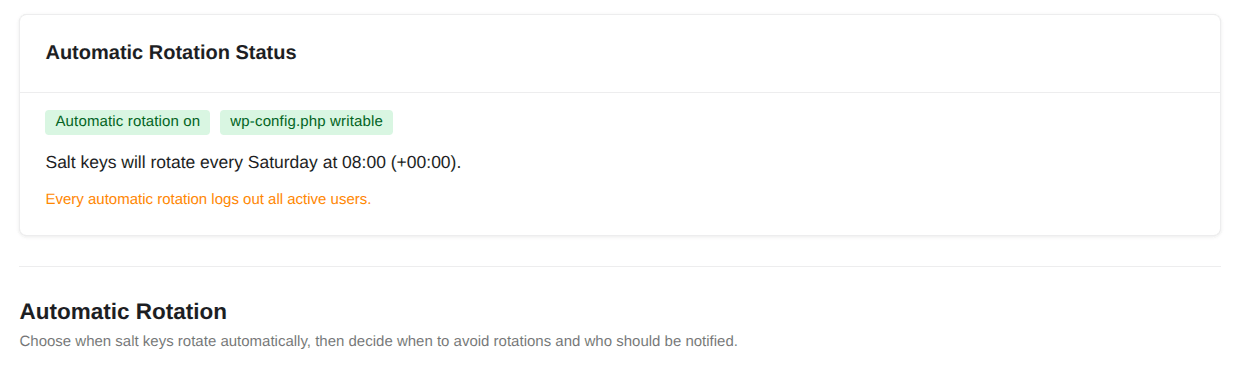
Scheduled Change
Follow these simple steps to automate your salt key rotation
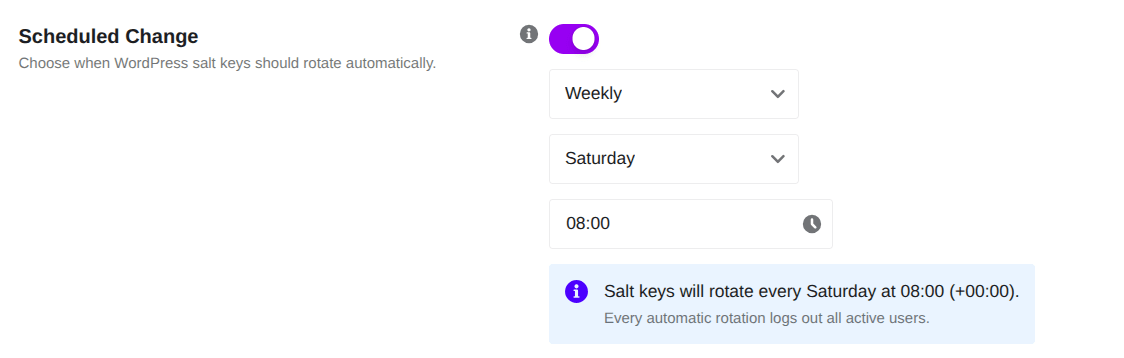
- Toggle the switch next to Scheduled Change to enable it. (If you ever need to pause automatic rotation, simply click this switch again to turn it off).
- Choose the Frequency: Select how often you want the keys to change (e.g., Daily, Weekly, Monthly, Biannually) from the dropdown menu.
- Pick a Time: Set the exact time you want the change to happen. It is smart to pick a time when your website gets the least amount of traffic.
Do Not Rotate During
If you want to absolutely guarantee that the system never changes keys during your busiest work hours, you can set up a blackout window.
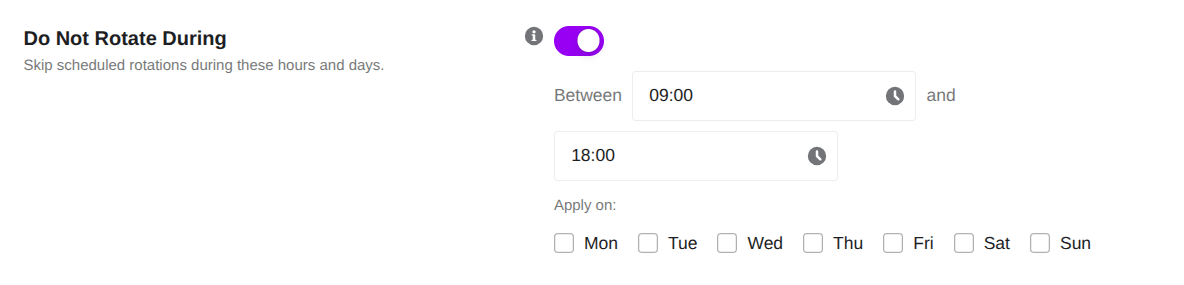
- Flip the Do Not Rotate During toggle switch to On.
- Set the Hours: Choose the start and end times when you want to block updates (for example, between
09:00and18:00). - Select the Days: Check the boxes for the days of the week you want this rule to apply (like Monday through Friday).
If an update is supposed to happen during these hours, the system will safely skip it so your users stay logged in and uninterrupted.
Reminders and Notifications
This section allows you to control how you want to be notified about salt key changes and gives you tools to pause schedules or change your keys instantly. Staying informed ensures you are never caught off guard when a session logout occurs.
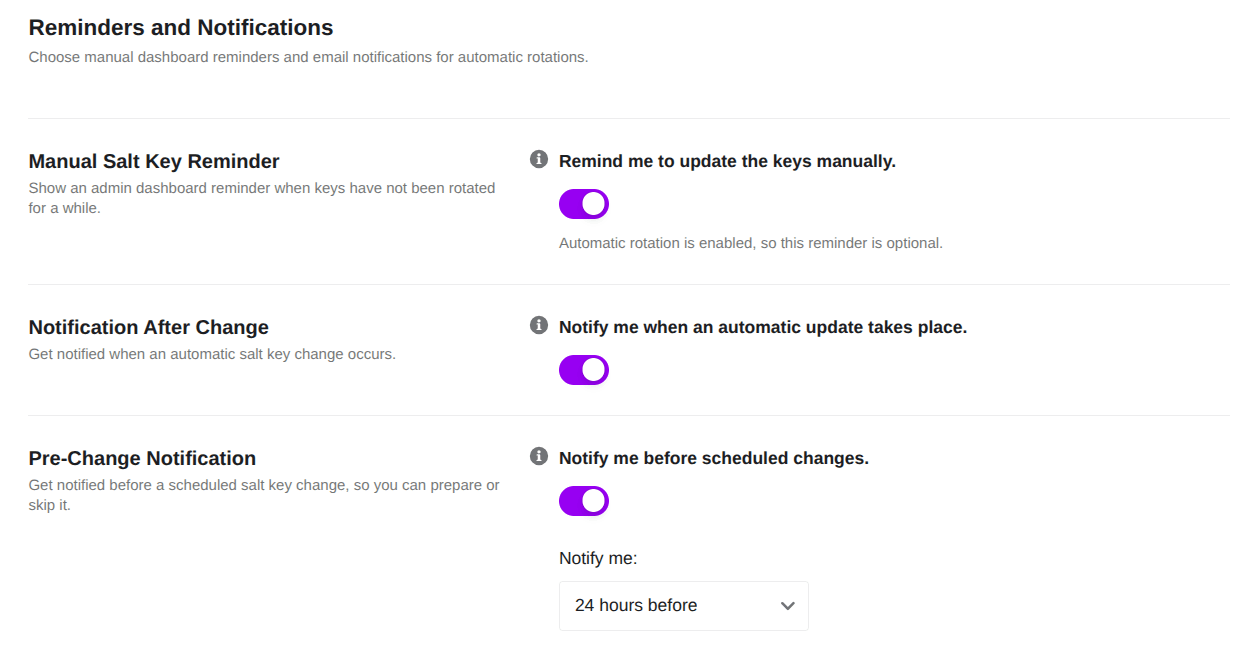
- Manual Salt Key Reminder: Turn this on to get a reminder on your WordPress dashboard if your keys haven’t been changed in a while.
- Note: You can choose how long to wait before seeing this reminder by adjusting the Manual Reminder Interval dropdown (e.g., 7 days).
- Notification After Change: Turn this on to receive an email notification the moment an automatic salt key rotation successfully takes place.
- Pre-Change Notification: Turn this on if you want an advance warning before a scheduled change happens. You can select exactly how early you want the alert (e.g., 24 hours before) from the dropdown menu. This gives you time to prepare or skip the rotation if needed.
Manual Controls and History Logs
This section provides advanced tools to manually manage your salt key schedule, view historical data, or trigger an immediate security refresh.
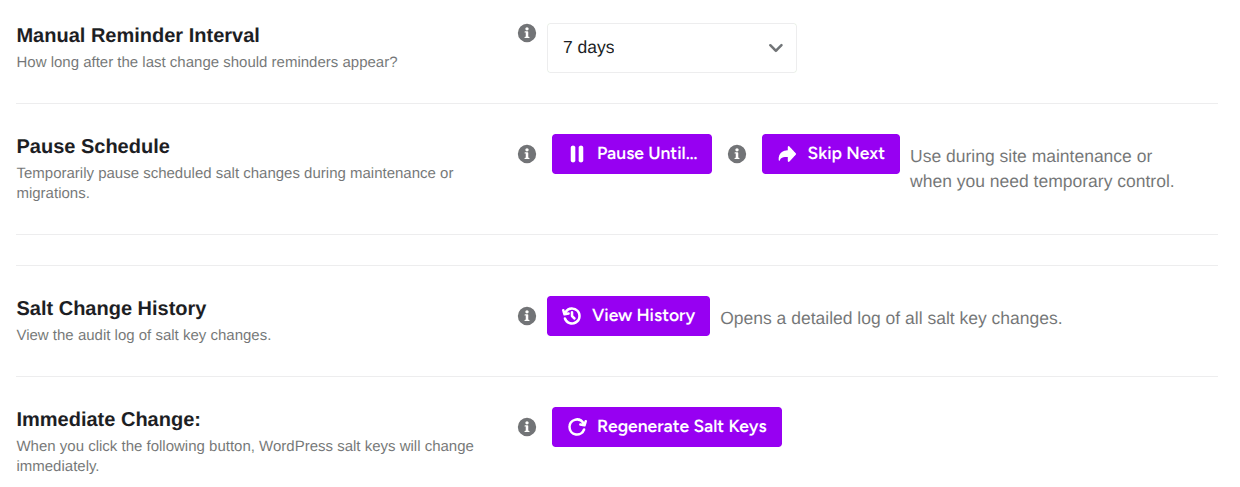
Manual Reminder Interval
The Manual Reminder Interval acts as a security safety net for your website. It controls how many days the system waits after your last salt key change before showing a reminder notification on your WordPress dashboard. Click the dropdown menu to choose exactly how long you want to wait between a key change and the next reminder notification.

Pause Schedule
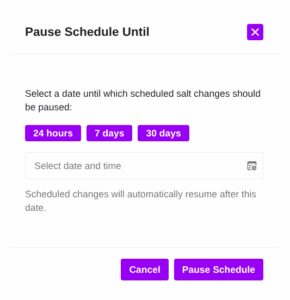
There are times when you need to stop scheduled rotations, such as during critical website maintenance, database migrations, or live product launches, to prevent users from being logged out unexpectedly.

- What it does: Temporarily stops automatic key changes
- When to use: During website maintenance or when you’re moving your site to a new server
- How it works: Click this button to pause automatic updates until you’re ready to resume
Pause Until: Temporarily halts your automated salt rotation schedule to prevent background updates from interrupting your active maintenance work.
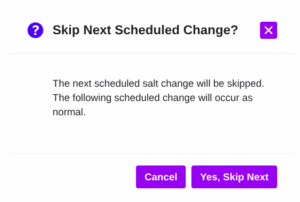
Skip Next: Skips only the single, upcoming scheduled rotation date. Your regular automation timeline will automatically resume normally right after that skipped date passes.
Salt Change History
Keeping track of when your security configurations change is essential for maintaining a clear security audit trail. Click the View History button to open a detailed log of all past salt key changes. This allows you to verify that automated rotations are running successfully on schedule and track any manual changes.
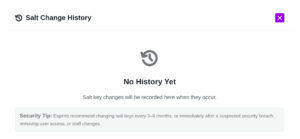
- What it shows: A detailed log of all your security key changes
- Why it’s useful: Lets you see when keys were changed and track your security updates
- How to access: Click the “View History” button to see all past changes
Immediate Change
If your website experiences a security scare, or if you suspect unauthorized access, you do not have to wait for the next scheduled update. Click the Regenerate Salt Keys button to instantly generate entirely new security keys and salts.
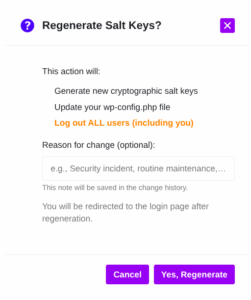
- What it does: Changes your security keys right away, without waiting for the schedule
- When to use: If you’re concerned about security and want immediate protection
- How to use: Click the “Regenerate Salt Keys” button
- Important note: After clicking, all logged-in users will need to log in again
Frequently Asked Questions
Who gets logged out when salt keys change?
All users will be logged out immediately, including administrators. This is a security feature – it ensures that any potentially compromised sessions are invalidated.
Will changing salt keys break anything?
No, changing salt keys will not break your website. Users will simply need to log in again. All functionality remains unchanged.
How often should I change salt keys?
Security experts recommend changing salt keys every 3–6 months for optimal security. You should also change them immediately after a suspected security breach, when removing a user’s access, or after any staff changes.
What happens during the regeneration process?
The plugin fetches new random keys from the WordPress API (or generates them locally if unavailable), updates your wp-config.php file atomically, and then forces a page reload to apply the changes.


