
Skip to content

Documentation site for Ultimate Security plugin for WordPress.

Documentation site for Ultimate Security plugin for WordPress.

Getting Started

2
  • System Requirements
  • Installation

How It Works?

5
  • Login & Authentication
  • Threat Protection
  • Site Hardening
  • Maintenance & Tools
  • Monitoring & Diagnostics

Dashboard

1
  • Dashboard

Vulnerability Scanner

2
  • Vulnerability Scanner Dashboard
  • Scan History

Dashboard

1
  • Vulnerability Scanner Dashboard

Scan History

1
  • Scan History

Settings

1
  • Vulnerability Scanner Settings

Configure API Key

1
  • Vulnerability Scanner Settings

Configure API Key

1
  • Vulnerability Scanner Settings

Activity Logs & Monitoring

3
  • Activity All Logs
  • Activity Logs Dashboard
  • Security Incidents

Dashboard

1
  • Activity Logs Dashboard

All Logs

1
  • Activity All Logs

Security Incidents

1
  • Security Incidents

Alerts & Notifications

2
  • Alerts & Notifications
  • History

Settings

1
  • Alerts & Notifications

History

1
  • History

Login & Authentication

6
  • Overview
  • Email OTP
  • Authentication Apps
  • Custom Login URL
  • Password Requirements
  • Settings

Two-Factor Authentication

3
  • Overview
  • Email OTP
  • Authentication Apps

Login Hardening

2
  • Custom Login URL
  • Password Requirements

Session Management

1
  • Settings

Threat Protection

4
  • Google reCAPTCHA
  • Cloudflare Turnstile
  • Login Attempts
  • Lockout Notifications

Bot Protection

2
  • Google reCAPTCHA
  • Cloudflare Turnstile

Brute Force Protection

2
  • Login Attempts
  • Lockout Notifications

Site Hardening

9
  • Content Protection Overview
  • Text Protection
  • Image Protection
  • Keyboard Shortcut
  • Display Settings
  • API & Data Privacy
  • Plugin Updates
  • Theme Updates
  • Security Hardening

Content Protection

5
  • Content Protection Overview
  • Text Protection
  • Image Protection
  • Keyboard Shortcut
  • Display Settings

Security Keys

1
  • WordPress Security Keys

API & Data Privacy

1
  • API & Data Privacy

Update Manager

3
  • Plugin Updates
  • Theme Updates
  • Update History

Security Hardening

1
  • Security Hardening

Monitor & Diagnostics

3
  • Site Health
  • Error Notifications
  • Test Mode

Error Notifications

1
  • Error Notifications

Test Mode

1
  • Test Mode

Maintenance & Tools

6
  • Comments Management
  • Backup & Restore
  • Security Tools
  • Advanced Settings
  • Database Cleanup
  • Self Defense
View Categories
  • Home
  • Docs
  • Plugin Settings
  • Threat Protection
  • Brute Force Protection
  • Login Attempts

Login Attempts

2 min read

This setting helps you stop automated robots from guessing your password.
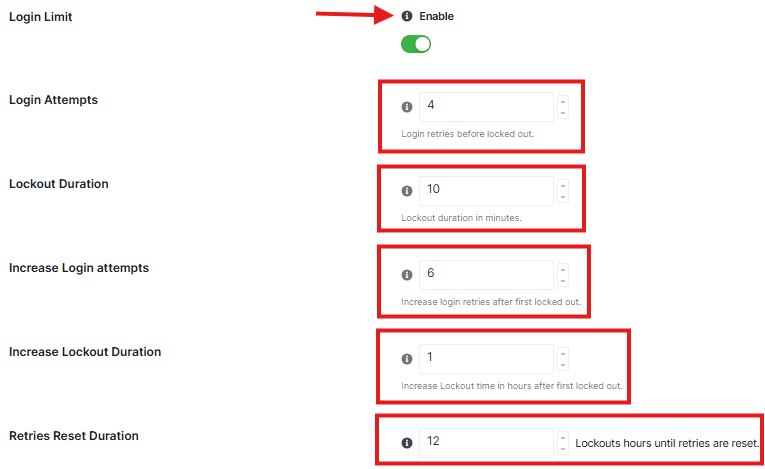
login limits settings

Login Limit

  • This is the main switch that activates the protection.

Login Attempts 

  • This tells the plugin how many times someone is allowed to type the wrong password. If someone guesses wrong 4(the default) times, we immediately block them.

Lockout Duration: 

  • This is how long the person is “put in timeout” after guessing wrong too many times. They will have to wait certain time before they can try again.

Increase Login attempts:

  • If the same person gets locked out in hours, the plugin decides they are a serious threat and gets tougher.

Increase Lockout Duration: 

  • Once they are marked as a serious threat, we Increase Lockout time in hours after first lockout.

Retries Reset Duration: 

  • Sometimes a real user just forgets their password. This setting tells the plugin: If they haven’t tried to log in for a particular hour, forget about their past mistakes and let them start fresh.

Block Users

block users setting
  • Stop a specific person from logging into your website.
  • In the input box, type the exact username of the person you want to block.
  • Select All: Click this if you want to highlight every user currently on your blocked list at the same time.
  • Remove All: Click this to clear the entire list and unblock everyone.

Recovery URL

Use this link if you ever get locked out of your account. So please keep it private and store it somewhere safe offline

recovery URL

Please follow these steps carefully:

  1. Generate Key: Click the Generate Key button. The plugin will create a secret link just for you.
  2. Copy: Click the Copy button to save that link to your computer’s clipboard.
  3. Save It Somewhere Safe: This is the most important step. Paste that link into a document on your computer, write it in a notebook, or save it in a password manager.
    • ⚠️ Important Warning: Do not lose this link. If you get locked out, this is the only way you can get back in to manage your site. Keep it private and do not share it with anyone.

NOTE: Once you have these settings how you like them, click Save Changes

Updated on February 15, 2026

What are your Feelings

  • Happy
  • Normal
  • Sad

Share This Article :

  • Facebook
  • X
  • LinkedIn
  • Pinterest
Lockout NotificationsLockout Notifications

Powered by BetterDocs

Leave a Reply Cancel reply

Your email address will not be published. Required fields are marked *

© 2026 Documentation site for Ultimate Security plugin for WordPress.


  • Home