
Use this page to set up your Authenticator app. These apps provide the strongest security because they work without internet or phone signal. For extra protection, your login code changes every 30 seconds
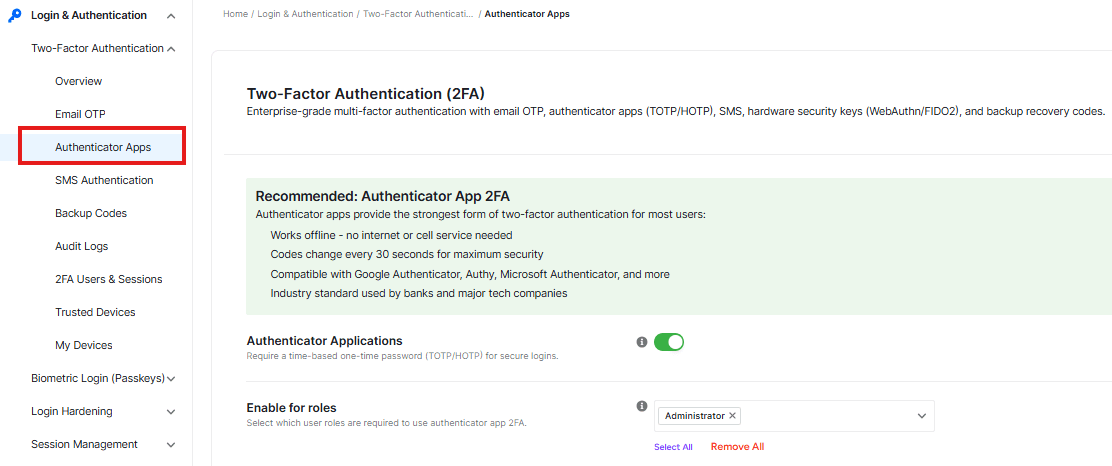
Authenticator Applications
This switch enables or disables two-factor authentication.
Enable for Roles
This setting allows you to select which user roles are allowed to use the Authenticator App.
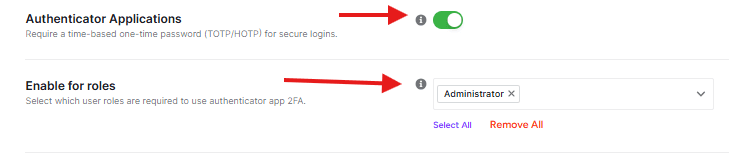
Advanced Settings
This section allows you to select the algorithm used to generate your OTP. You can choose between two options:

- TOTP (Time-Based): This is the most common algorithm and is used by virtually all authenticators. It generates a new verification code every 30 seconds based on the current time.
- HOTP (Event-Based): This option generates codes based on a counter. The code only changes when an event occurs (like a login attempt), rather than based on the time.
XML-RPC
XML-RPC is a feature in WordPress that allows external services to communicate with your site remotely. You will see a dropdown menu with two specific options. This setting decides if 2FA is required when these external services try to connect.

Option 1: Do not require 2FA over XMLRPC (default).
External tools and mobile apps can connect to your site using just a username and password. They will not be asked for a 2FA code.
Option 2: Do require 2FA over XMLRPC
Any connection attempt via XML-RPC (including mobile apps) must provide a valid two-factor authentication code in addition to the password.
Note: Only enable this requirement if you are sure your external apps support Two-Factor Authentication, or if you do not use external apps to manage your site
Encrypt Keys in Database
This feature locks your security codes inside the database to keep them hidden. It adds an extra layer of protection so that even if a hacker gets into your database, they cannot see or steal your login secrets.

Note: Once you enable this feature, it cannot be disabled. However, it is completely safe to keep it enabled.
Important Notice:
For the highest level of security, we strongly recommend using the Authentication App method (if available) instead of Email OTP. Authentication apps generate codes offline on your device, are immune to email delays, and are virtually impossible to intercept remotely.
Prerequisites
Before you begin the setup, please download one of the following recommended authenticator apps on your mobile device:
- Google Authenticator: iOS App Store | Google Play Store
- Microsoft Authenticator: iOS App Store | Google Play Store
- 2FAS Authenticator (Open Source): Official Website
How to activate 2FA from WordPress Profile
Once you have downloaded the authenticator app, follow the process below:
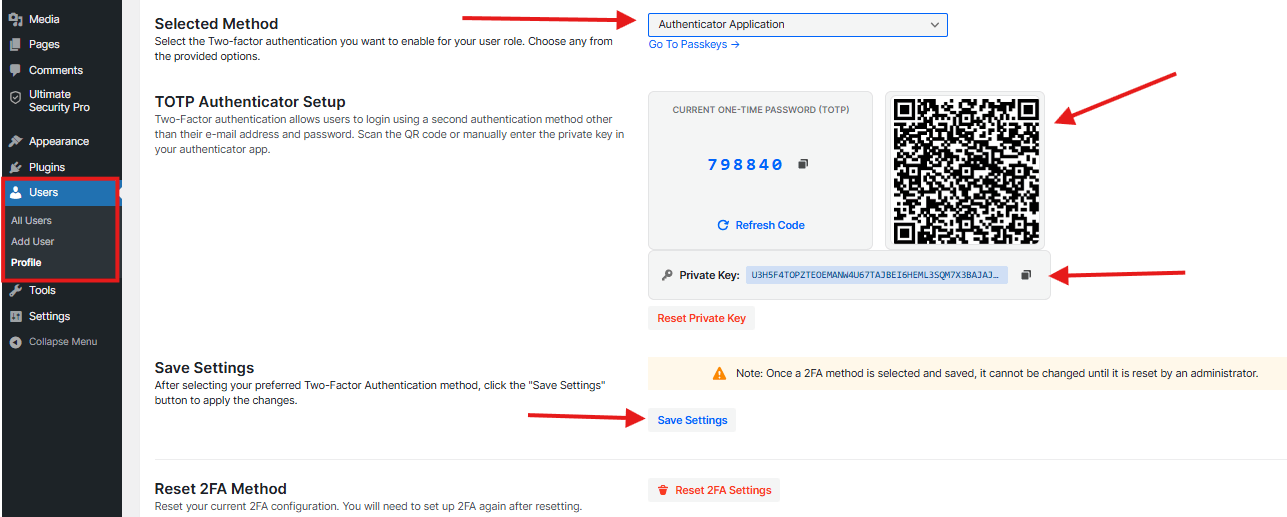
- Go to their WordPress Dashboard > Users > Profile page.
- Scroll down and find the Ultimate Security
- Select the Authenticator Application method.
- Click Setup
- Scan the provided QR code with their preferred mobile app to finish the connection.
- Reset 2FA Method settings to restore all settings
How to Use the Private Key
While scanning the QR code is the recommended and quickest method to set up your authenticator app, the private key provides an alternative manual entry option. If you’re unable to scan the QR code (for example, if you’re setting up authentication on a different device or experiencing camera issues), you can:
- Click the copy icon (📋) next to the private key field to copy the entire key to your clipboard
- Open your authenticator application on your device
- Select the option to manually enter a key or add account manually
- Paste or type the private key into the provided field
- Complete the setup process in your authenticator app
Resetting Your Private Key
If you need to reset your private key (for example, if you’ve accidentally shared it, suspect it’s been compromised, or are having trouble setting up your authenticator app), click the Reset Private Key button located below the private key field.
⚠️ Important: Resetting your private key will:
- Generate a completely new private key
- Invalidate the previous key immediately
- Require you to reconfigure your authenticator app with the new key
- Update the QR code to reflect the new key
After resetting, you’ll need to either scan the new QR code or manually enter the new private key into your authenticator application to continue using two-factor authentication.
What Happens After 2FA Is Enabled
Once you finish the setup, the next time you (or any user with 2FA enabled) log in to WordPress, the login process will have an extra step.
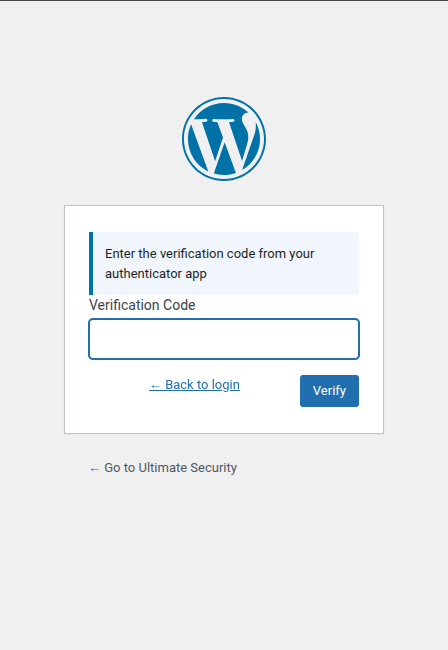
What you will see:
- Enter your username and password as usual on the WordPress login page.
- After submitting, a second screen will appear asking for your 6-digit verification code.
- Open your authenticator app (Google Authenticator, Microsoft Authenticator, or 2FAS) on your phone.
- Find the code for your site and enter it on the login screen.
- Click Verify, and you are in.
The code refreshes every 30 seconds, so make sure you enter it before it expires.


