
The Temporary Access feature allows you to grant time-limited access to your WordPress site for developers, support staff, or collaborators. Instead of creating permanent user accounts, you can generate secure temporary logins that expire automatically, ensuring your site remains secure after the work is completed.
Configuration Settings
To manage how temporary login links are generated, navigate to the Temporary Access settings tab.
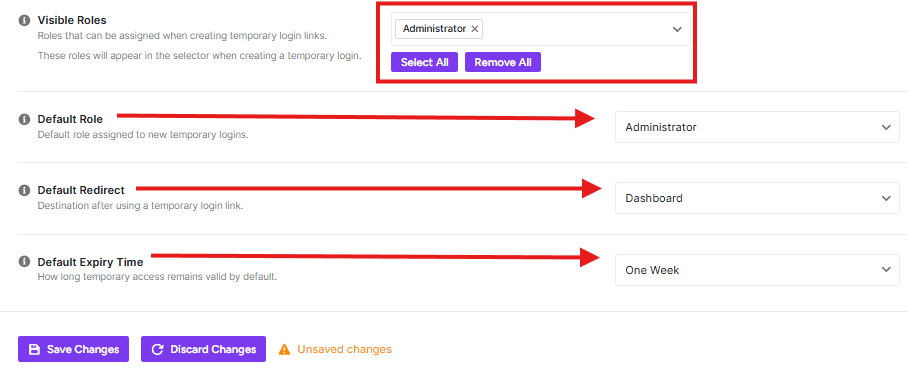
- Visible Roles: Choose which WordPress user roles can be assigned when creating a temporary link. Only the roles selected here will appear in the selector during the login creation process. You can use the Select All or Remove All buttons for quick management.
- Default Role: Set the primary role that is automatically assigned to new temporary logins (e.g., Administrator, Editor, or Subscriber).
- Default Redirect: Define where a user is sent immediately after using a temporary login link. By default, this is set to the Dashboard, but it can be customized based on your needs.
- Default Expiry Time: Select how long the temporary access remains valid by default. Options include presets like One Week, after which the link will automatically expire and the user will lose access.
How to Save Your Settings
- Adjust the roles and default behaviors to match your security requirements.
- Click Save Changes to apply the settings.
- If you want to revert your edits before saving, click Discard Changes.


