Skip to content

Documentation site for Ultimate Security plugin for WordPress.

Documentation site for Ultimate Security plugin for WordPress.

Getting Started

2
  • System Requirements
  • Installation

How It Works?

5
  • Login & Authentication
  • Threat Protection
  • Site Hardening
  • Maintenance & Tools
  • Monitoring & Diagnostics

Dashboard

1
  • Dashboard

Vulnerability Scanner

2
  • Vulnerability Scanner Dashboard
  • Scan History

Dashboard

1
  • Vulnerability Scanner Dashboard

Scan History

1
  • Scan History

Settings

1
  • Vulnerability Scanner Settings

Configure API Key

1
  • Vulnerability Scanner Settings

Configure API Key

1
  • Vulnerability Scanner Settings

Activity Logs & Monitoring

3
  • Activity All Logs
  • Activity Logs Dashboard
  • Security Incidents

Dashboard

1
  • Activity Logs Dashboard

All Logs

1
  • Activity All Logs

Security Incidents

1
  • Security Incidents

Alerts & Notifications

2
  • Alerts & Notifications
  • History

Settings

1
  • Alerts & Notifications

History

1
  • History

Login & Authentication

6
  • Overview
  • Email OTP
  • Authentication Apps
  • Custom Login URL
  • Password Requirements
  • Settings

Two-Factor Authentication

3
  • Overview
  • Email OTP
  • Authentication Apps

Login Hardening

2
  • Custom Login URL
  • Password Requirements

Session Management

1
  • Settings

Threat Protection

4
  • Google reCAPTCHA
  • Cloudflare Turnstile
  • Login Attempts
  • Lockout Notifications

Bot Protection

2
  • Google reCAPTCHA
  • Cloudflare Turnstile

Brute Force Protection

2
  • Login Attempts
  • Lockout Notifications

Site Hardening

9
  • Content Protection Overview
  • Text Protection
  • Image Protection
  • Keyboard Shortcut
  • Display Settings
  • API & Data Privacy
  • Plugin Updates
  • Theme Updates
  • Security Hardening

Content Protection

5
  • Content Protection Overview
  • Text Protection
  • Image Protection
  • Keyboard Shortcut
  • Display Settings

Security Keys

1
  • WordPress Security Keys

API & Data Privacy

1
  • API & Data Privacy

Update Manager

3
  • Plugin Updates
  • Theme Updates
  • Update History

Security Hardening

1
  • Security Hardening

Monitor & Diagnostics

3
  • Site Health
  • Error Notifications
  • Test Mode

Error Notifications

1
  • Error Notifications

Test Mode

1
  • Test Mode

Maintenance & Tools

6
  • Comments Management
  • Backup & Restore
  • Security Tools
  • Advanced Settings
  • Database Cleanup
  • Self Defense
View Categories
  • Home
  • Docs
  • Plugin Settings
  • Monitor & Diagnostics
  • Site Health

Site Health

2 min read

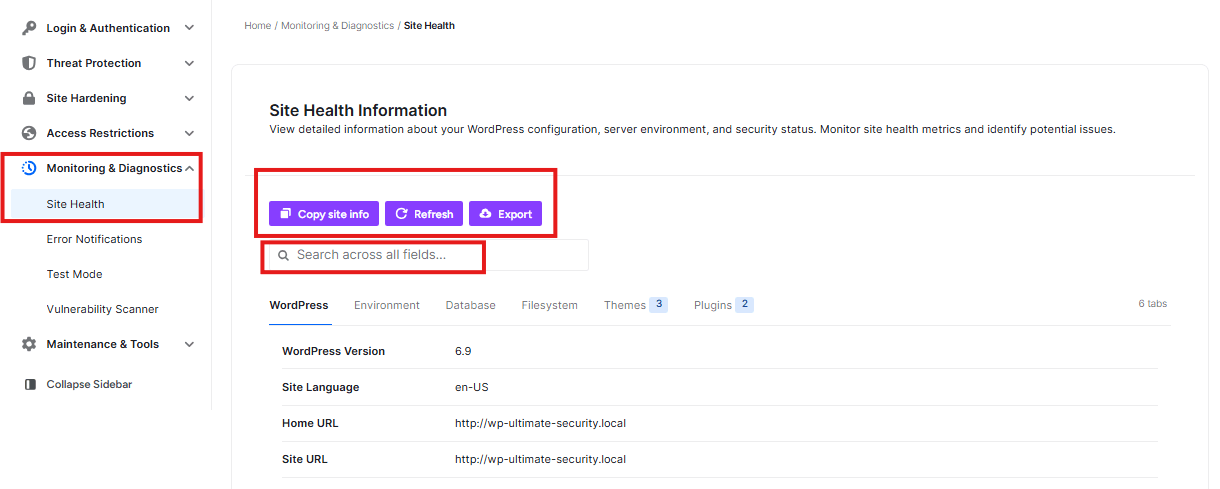
The Site Health page is like a doctor’s report for your website. It shows you exactly how your site is built and if it is running smoothly. If you ever need to ask a professional for help, all the information they need is right here.
ultimate security Monitoring & Diagnostics

The Action Buttons

At the top of the page, you have three main tools:

  • Copy site info: This copies all your technical details so you can easily paste them into an email for support.
  • Refresh: This updates the page to show the most recent information.
  • Export: This saves a copy of all this information to your computer.

The Information Tabs

There are six different “folders” of information you can look through:

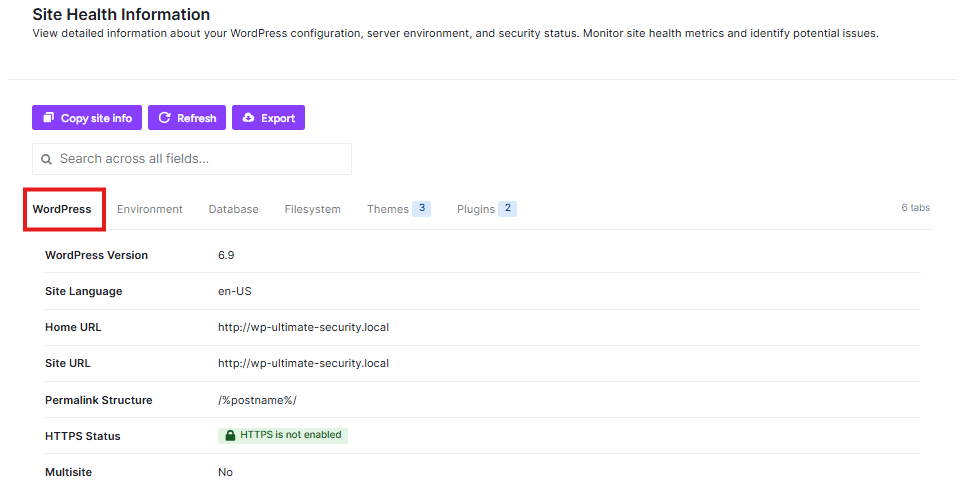
1. WordPress

This shows your site’s “ID card.” It tells you which version of WordPress you are using (like 6.9) and if your site is using a “secure lock” (HTTPS). If you see “HTTPS is not enabled,” you should fix this to keep your site safe.
ultimate security wordpress

2. Environment

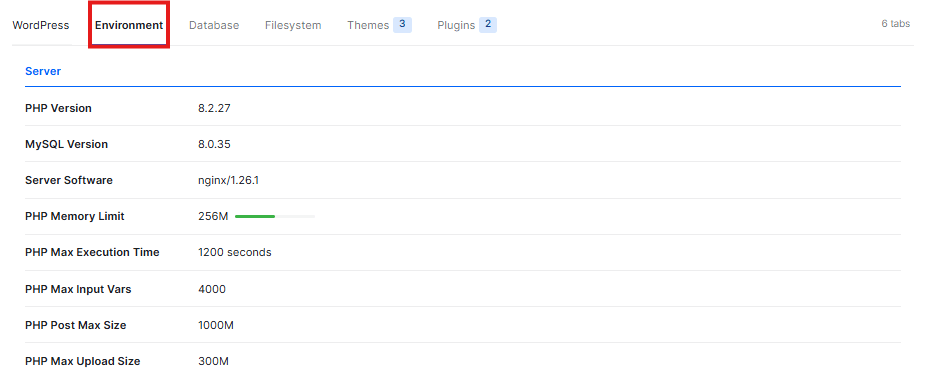
This shows details about the computer (server) where your website lives.
wordpress environment
wordpress constant
  • PHP Version: This is the main “engine” version your site runs on.
  • Memory Limit: This shows how much “brain power” your site is allowed to use.
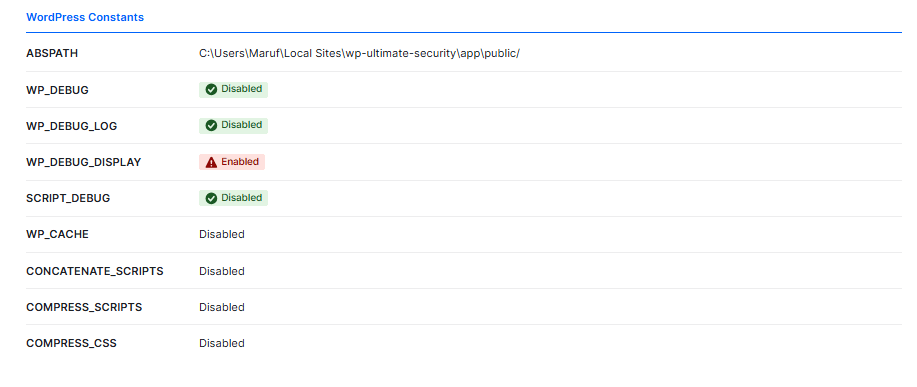
  • WP_DEBUG: If this says “Enabled” with a red warning, it might show technical errors to your visitors. It is usually safer to have this “Disabled”.

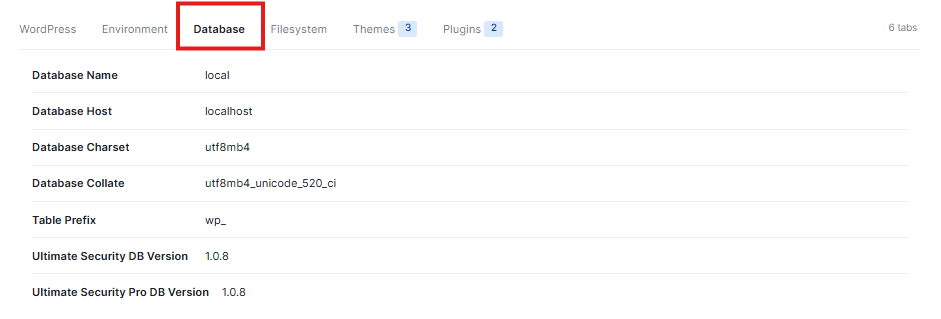
3. Database

This is the “filing cabinet” where all your posts, pages, and settings are stored. It lists the technical names and versions of your database so experts can see how it is organized.
ultimate security database

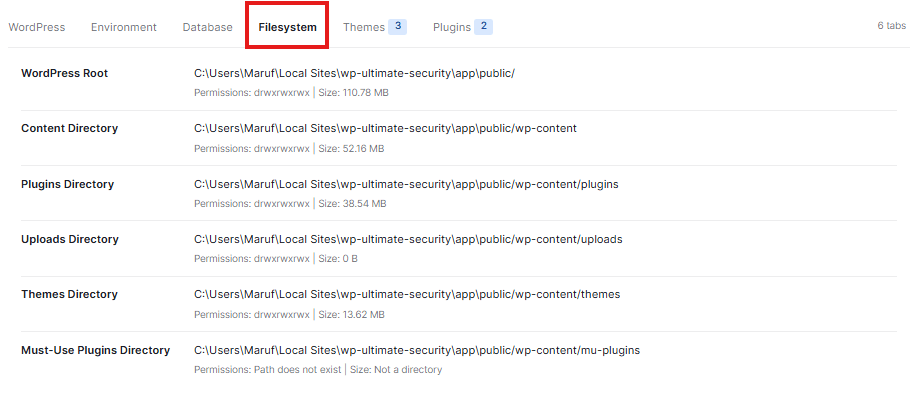
4. Filesystem

This section checks the “drawers” on your server to make sure WordPress is allowed to save and move files. It shows where your plugins, themes, and images are kept on the computer.
wp ultimate security file system

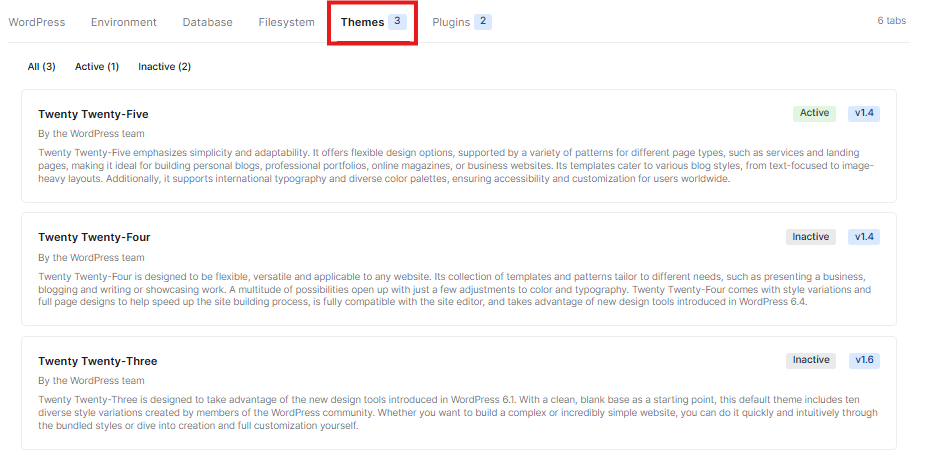
5. Themes

This lists the different designs (Themes) you have installed.
themes
  • Active: The design you are currently using for your site.
  • Inactive: Other designs you have downloaded but are not using right now.

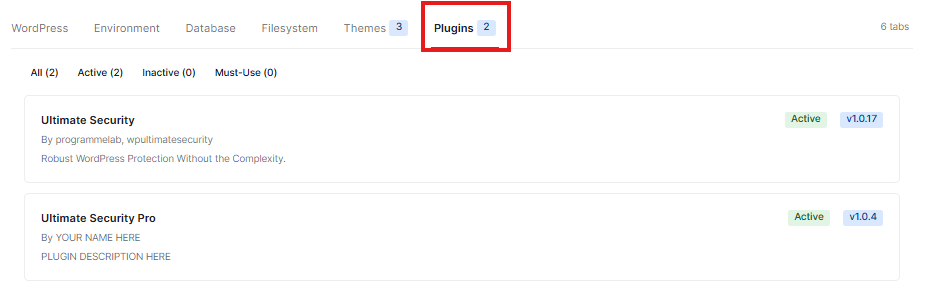
6. Plugins
plugins

This shows the extra “tools” (Plugins) you have added to your site, like Ultimate Security. It tells you if they are Active and which version you are using.

Updated on February 16, 2026

What are your Feelings

  • Happy
  • Normal
  • Sad

Share This Article :

  • Facebook
  • X
  • LinkedIn
  • Pinterest
Test ModeError Notifications

Powered by BetterDocs

Leave a Reply Cancel reply

Your email address will not be published. Required fields are marked *

© 2026 Documentation site for Ultimate Security plugin for WordPress.


  • Home