
Data Management
Welcome to the Advanced Settings page of the Ultimate Security plugin. This page contains important technical options that help you customize how the security plugin works on your WordPress site. This section controls what happens to your plugin data when you uninstall the plugin.
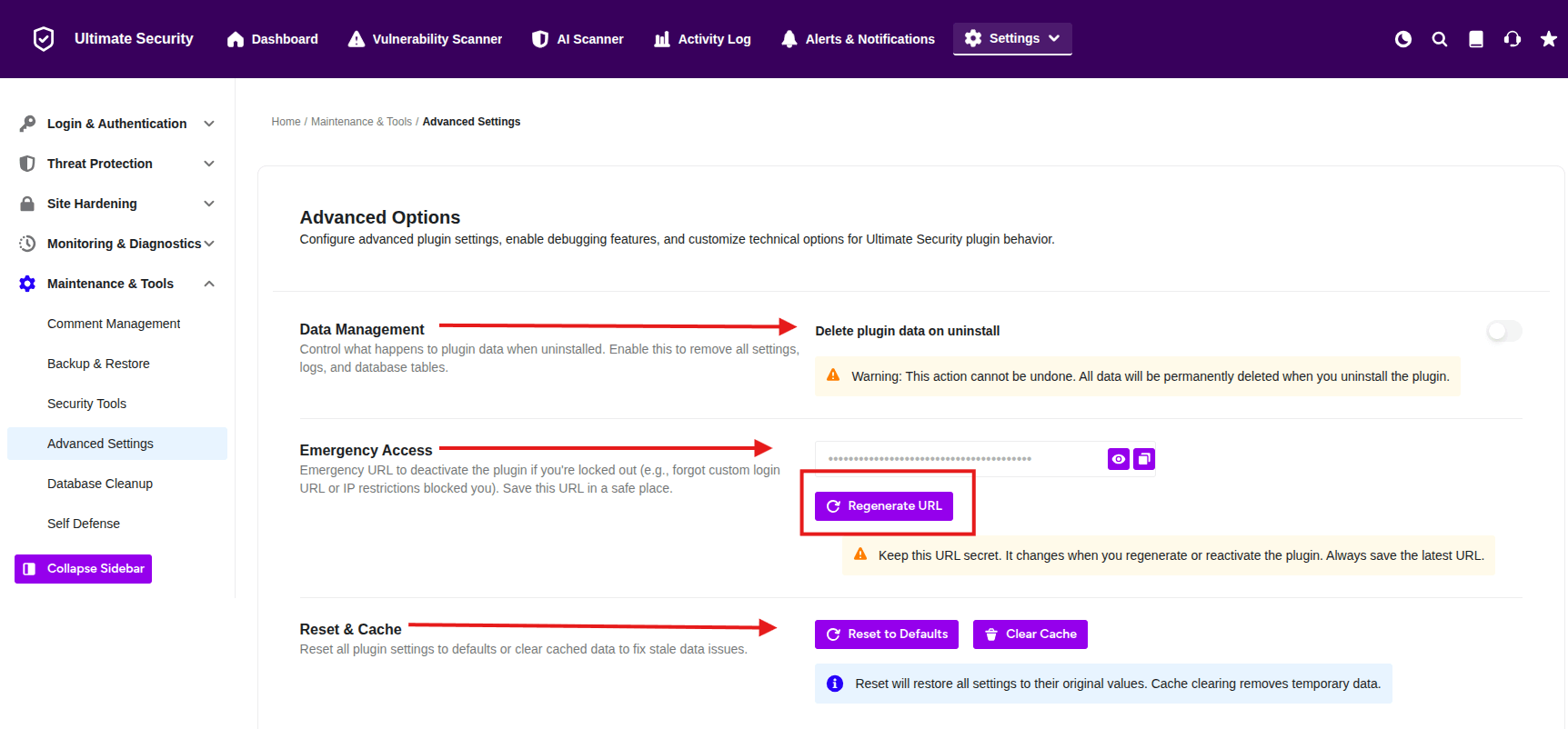
Delete Plugin Data on Uninstall
- When enabled, this option removes all plugin settings, logs, and database tables when you uninstall the plugin.
- Toggle the switch to enable or disable this feature.
- This action cannot be undone. Once you uninstall the plugin with this option enabled, all data will be permanently deleted.
Emergency Access
This is a crucial safety feature that helps you regain access to your site if you get locked out. Press “Regenerate URL” and save this URL in a safe place. You’ll need it if you ever get locked out. This special URL allows you to deactivate the plugin if you’re locked out (for example; forgot custom login URL or IP restrictions blocked you)
Reset & Cache
If the plugin isn’t behaving as expected or you’ve made too many changes and want to start over, use these tools.
- Reset to Defaults: This button instantly reverts every setting in the plugin back to its original “out-of-the-box” state. Use this if you’ve misconfigured a setting and aren’t sure how to fix it.
- Clear Cache: Sometimes, old “cached” data can cause the dashboard to show outdated information. Clicking this refreshes the plugin’s internal temporary data without changing your actual security settings.
Quick Tip: Before using the Reset to Defaults or Delete plugin data options, it is always a good idea to have a recent backup of your website just in case.


