
This section helps you monitor changes to your WordPress files. It tracks which files have been modified, added, or deleted, which is crucial for detecting unauthorized changes or potential security threats.
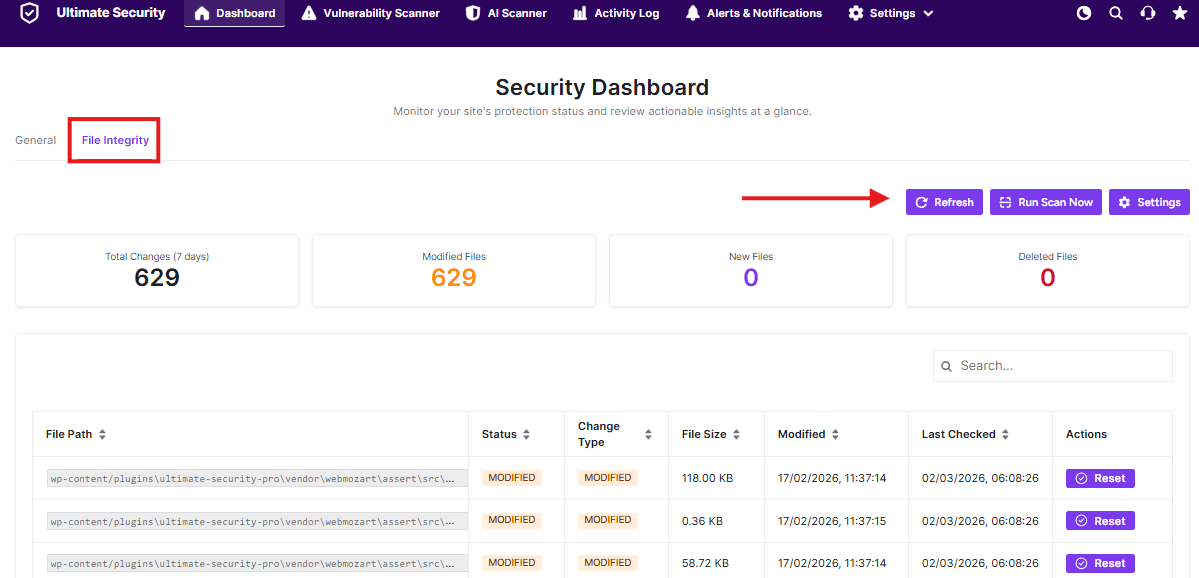
Key Information
Statistics (last 7 days):
- Total Changes: Shows all modified files
- Modified Files: Show file changes
- New Files: Shows new files
- Deleted Files: Shows removed files
Action Buttons
- Refresh: Update the current view with the latest file status
- Run Scan Now: Manually start a new file integrity scan
- Settings: Configure how file monitoring works
File List
The table shows detailed information about modified files:
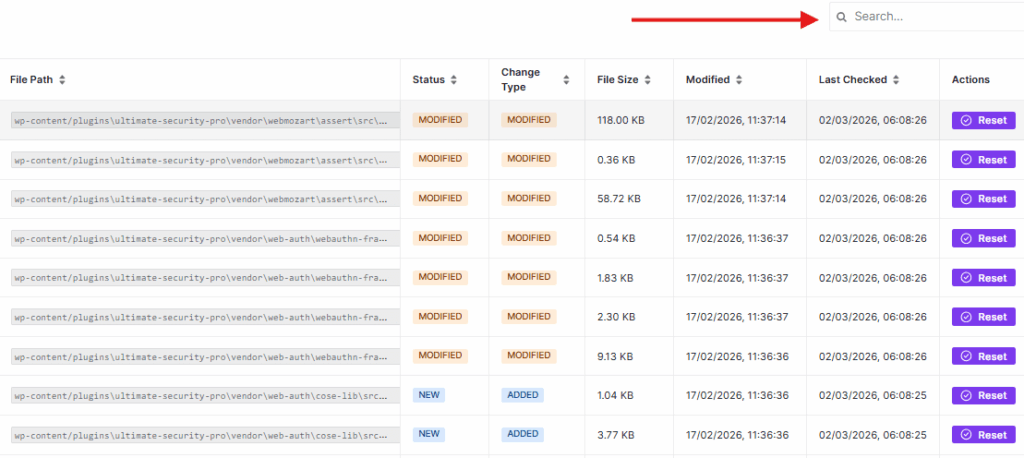
- File Path: Where the file is located on your server
- Status: Shows as “MODIFIED” for changed files
- Change Type: What kind of change occurred
- File Size: The size of the file
- Modified: When the file was last changed
- Last Checked: When the plugin last scanned this file
- Actions: Use the “Reset” button to mark a file as legitimate if you made the changes yourself
Search Function
Use the search bar to find specific files in the list quickly.
This feature helps you spot suspicious file changes that could indicate a security breach or hacking attempt.
File Integrity Settings
This page lets you configure how the File Integrity feature works. You can control when scans run, how long data is saved, and how you’re notified about changes.
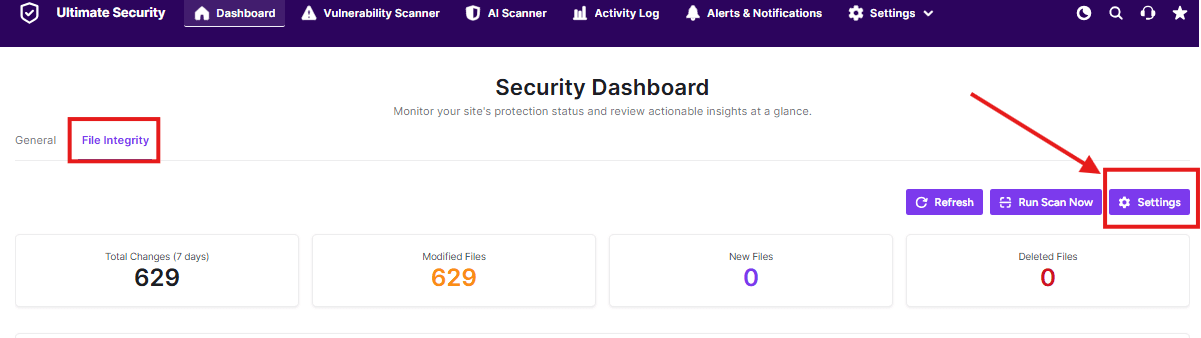
Enable File Integrity
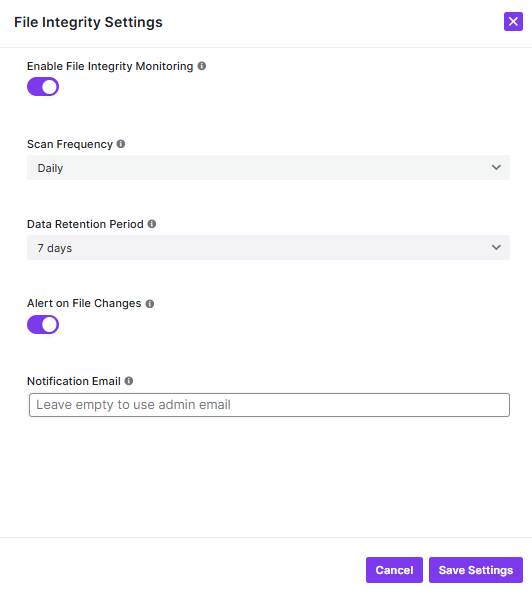
- Toggle this on to activate file monitoring
- The system will track changes to your WordPress files
Scan Frequency
- Choose how often to check for file changes
Data Retention Period
- Set how long to keep file change records
Alert Settings
- Toggle this on to receive notifications when files are modified
- Get instant alerts about suspicious activity
- Enter an email address for alerts
- Leave empty to use your default WordPress admin email
- Ensure you receive important security notifications
Cancel: Discard any changes you’ve made
Save Settings: Apply your configuration changes
These settings help you balance security monitoring with your needs. More frequent scans provide better protection but use more resources.


