
The Locked Users dashboard provides a real-time overview of all user accounts currently restricted from logging in due to repeated failed attempts. This feature is a core part of the Brute Force Protection suite, allowing administrators to monitor security threats and manually intervene when a legitimate user gets locked out.
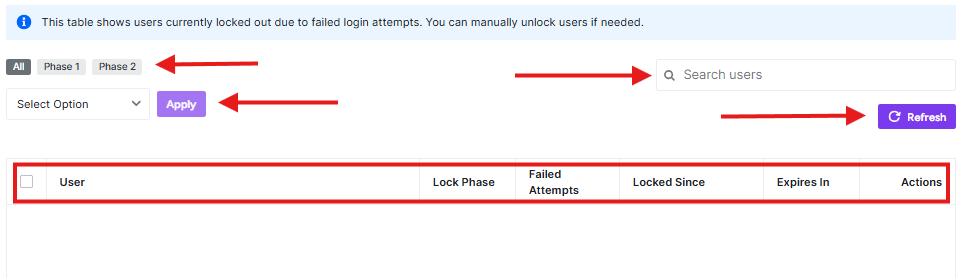
Navigating the Locked Users Table
To access this dashboard, navigate to Ultimate Security > Brute Force Protection > Locked Users.
The table displays the following critical information for every locked account:
- User: The username or email address associated with the login attempt.
- Lock Phase: Indicates the severity of the lockout (e.g., Phase 1 for temporary blocks, Phase 2 for extended bans).
- Failed Attempts: The total number of incorrect password entries recorded before the lockout occurred.
- Locked Since: The exact timestamp when the restriction was applied.
- Expires In: A countdown timer showing when the user will automatically regain access.
- Actions: Manual controls to unlock a user immediately or extend a ban.
Managing Lockouts
1. Filtering and Searching
If your site is under a heavy brute-force attack, the list can grow quickly. Use the top navigation bar to filter the view:
- All / Phase 1 / Phase 2: Filter users based on their current lockout stage.
- Search Users: Quickly find a specific user by typing their username in the search bar.
2. Bulk Actions
To manage multiple users at once:
- Select the checkboxes next to the usernames.
- Choose an option from the Select Option dropdown (e.g., “Unlock” or “Delete”).
- Click Apply.
3. Manual Refresh
The dashboard does not auto-refresh to save server resources. Click the Refresh button at the top right to pull the most recent lockout data.
Pro-Tips
Verify before unlocking: If you see a user locked out with a high number of Failed Attempts from an unrecognized username, it is likely a bot. Avoid unlocking these accounts manually.
Phase 2 Lockouts: Users in Phase 2 have typically triggered multiple Phase 1 lockouts. If a legitimate team member reaches Phase 2, consider reviewing their password habits or checking if they have a misconfigured device trying to sync with old credentials.


