
This section helps you block bots from spamming your website’s form. It uses a tool from Google to check if a real person is trying to submit the form.
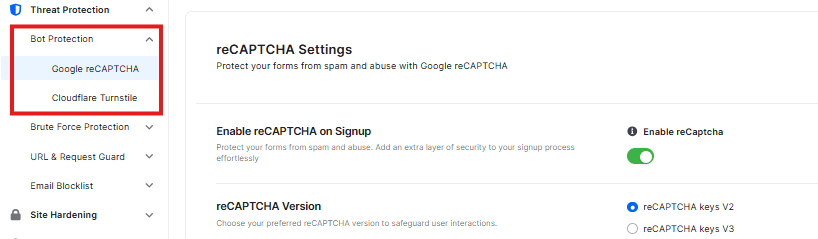
Enable reCAPTCHA on Signup
- There is a switch labeled “Enable reCAPTCHA” to control this feature.
reCAPTCHA Version
You can choose between two versions of this method:

- v2: Usually shows the familiar “I’m not a robot” checkbox.
- v3: Works silently in the background without bothering your users unless it detects suspicious behavior.
Enter Your Keys (Site Key & Secret Key)
To make these features work, you need two special codes from Google.
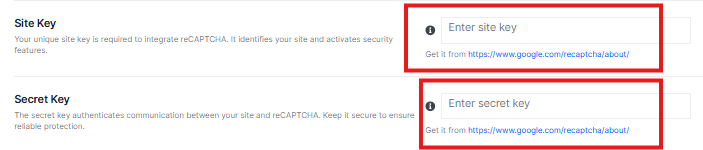
- Site Key: This is a public code that goes into your website’s form.
- Secret Key: This is a private code that stays on your server (in the plugin settings) to verify the check.
How to fill this out:
- You will need to get these keys for free from the Google reCAPTCHA website.
- Once you have them, copy and paste the “Site Key” into the first box.
- Copy and paste the “Secret Key” into the second box.
reCAPTCHA verification failed

- Use this box to change the message people see when they fail the security check. This message appears if someone gets the puzzle wrong or if the system thinks they are a robot. A default message is pre-filled in the text box, but you can overwrite it with your own custom text.
Can not connect to server

- Use this box to write a message for when the security check doesn’t work. This error might show up if your internet is down or if a security setting is stopping the connection. There is already a default message here, but you can change it.
reCAPTCHA Field Title

- This setting allows you to change the text label that appears above the checkbox on your form. The default text is already set. You can change it too.
reCAPTCHA Theme

- You can select Light or Dark theme based on your preferences
reCAPTCHA Size

- You can select Normal or Compact size based on your preference
No-Conflict Mode

- Enable No-Conflict Mode to prevent conflict from other themes or plugins and ensure your system runs smoothly.
WooCommerce Registration
If you are running an online store, enable this feature to secure your customer signup process.
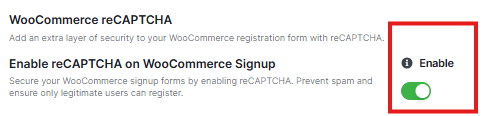
Enable reCAPTCHA on Signup
This adds a security verification to the registration page during checkout, preventing automated bots from creating fraudulent customer accounts.
Note: Once you are happy with your settings, scroll to the bottom and click the blue button that says Save Changes. If you made a mistake and want to go back to how things were before you started editing, click Discard Changes
How to Check if it’s Working
After you click Save Changes, it’s a good idea to make sure the protection is active on your site. Follow these two simple steps:
Step 1: Open your site in a “Private” window
Since you are already logged in as an Admin, the security check might not show up for you. To see what your visitors see:
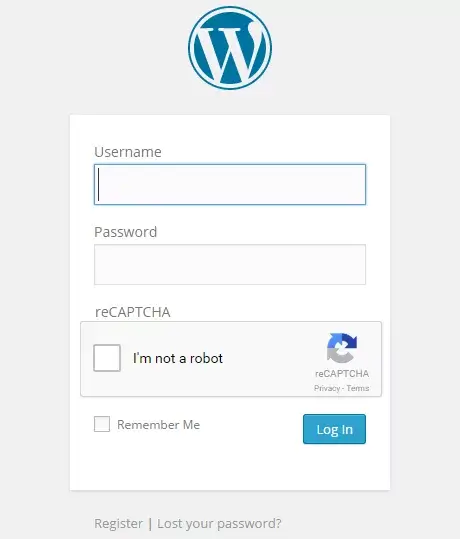
- Open a new Incognito or Private window in your browser (usually by pressing Ctrl + Shift + N).
- Go to your website’s admin login page.
- Look for the Google reCAPTCHA box (or the small blue badge in the bottom corner of your screen).
Step 2: Try to log in without the check
To make sure the shield is actually blocking bots:
- Type in a random username and password.
- Do not click the “I’m not a robot” box.
- Click the Login button.
- Your website should stop you and show a message like “Please complete the CAPTCHA” or “Security check failed.”
If you see that message, congratulations! Your site is now protected from automated bots.


