
This guide will help you set up and use the Cloudflare Turnstile plugin. This keeps your website safe without making it hard for your visitors

Default WordPress Forms
These settings determine where you want to use Cloudflare
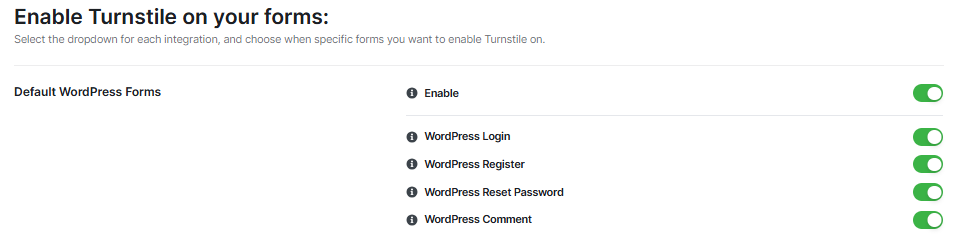
Enable toggle activates the following settings:
- WordPress Login
- WordPress Register
- WordPress Reset Password
- WordPress Comment.
Your Keys
Get your keys from the Cloudflare Dashboard. You have to log in to have these keys
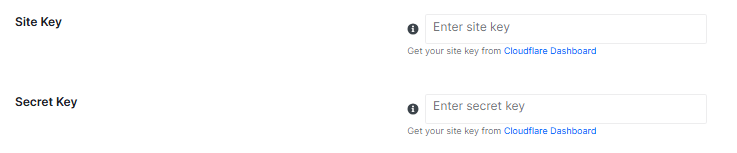
- “Site Key” field. Paste your Site Key.
- “Secret Key” field. Paste your Secret Key.
General Settings
These settings control how the Turnstile check looks and works on your site.
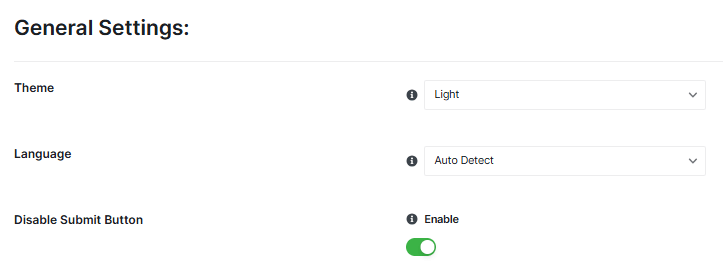
- Theme: You can choose between “Light” and “Dark” themes. Pick the one that matches your website’s look.
- Language: You can let the plugin automatically detect the language, or you can choose a specific language for the Turnstile check.
- Disable Submit Button: This option can stop people from submitting a form until they pass the security check. It’s usually a good idea to leave this “Enable.”
Advanced Settings
These are for more experienced users, but you can still use them
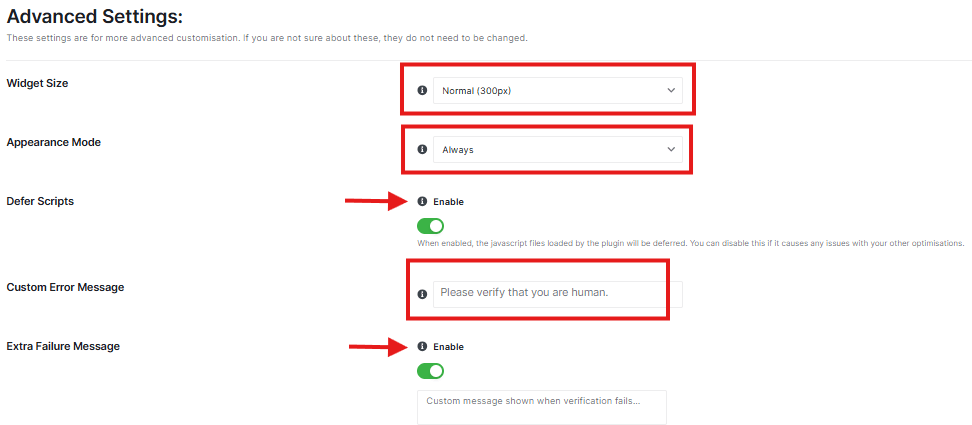
- Widget Size: Choose the size of the security check.
- Appearance Mode: Choose when the security check appears. “Always” means it will always be there.
- Defer Scripts: This can make your website load faster. It’s usually best to leave this “Enable.”
- Custom Error Message: If someone fails the security check, you can show them a special message. The default is “Please verify that you are human.”
- Extra Failure Message: Add another message if the check fails. It’s usually best to leave this “Disable.”
Whitelist Settings
This lets certain people skip the security check.
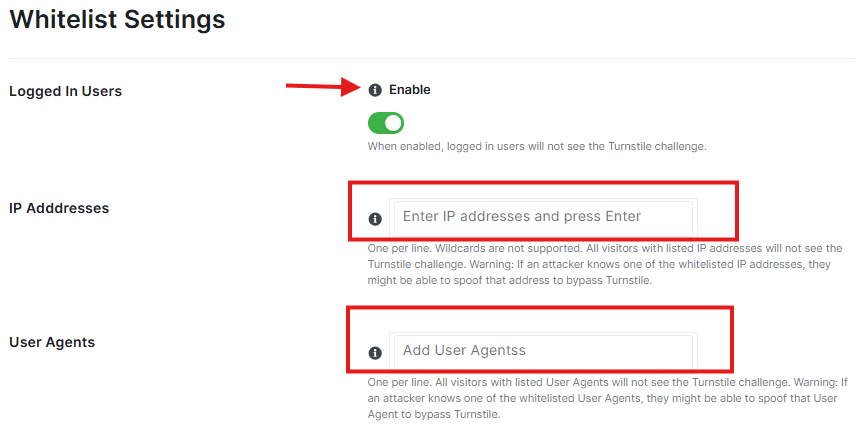
- Logged In Users: If you “Enable” this, people who are logged into your website won’t see the security check.
- IP Addresses: You can add IP addresses here. If you add an IP address, anyone using that address won’t see the security check.
- User Agents: You can add “User Agents” here. This is like a browser’s name. If you add a User Agent, anyone using that browser won’t see the check.
Turnstile Logs
If you “Enable” this, the plugin will keep a record of when the security check is used.
Don’t forget to click the “Save Changes” button at the bottom of the page.
How to Check if it’s Working
After you click Save Changes, it’s a good idea to make sure the protection is active on your site. Follow these two simple steps:
Open your site in a “Private” window
Since you are already logged in as an “admin”, the security check might not show up for you. To see what your visitors see:
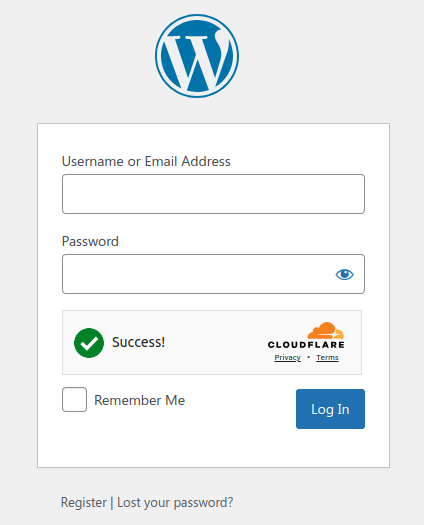
- Open a new Incognito or Private window in your browser (usually by pressing Ctrl + Shift + N).
- Go to your website’s admin login page.
- Look for the Cloudflare Turnstile box in the login form
If you see that check, your site is now protected with Turnstile


