
Navigation
To access the Passkeys settings, navigate to WP Ultimate Security > Passkeys > Settings from your WordPress admin sidebar.
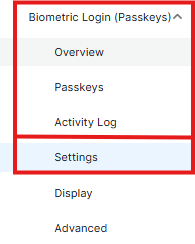
Enable Passkeys
This is the master toggle for the WebAuthn authentication system.

- Function: When switched to Enable, the plugin activates the passkey infrastructure across your site.
- User Impact: If enabled, users with authorized roles can register their devices and use them for subsequent logins.
Enable Maximum Passkeys
This setting allows administrators to control the “device footprint” of their users.

- Function: Toggle this to ON to restrict the number of passkeys a single user can register.
- Default Behavior: If this is disabled, users are permitted to register an unlimited number of passkeys/devices.
Max Passkeys Number
Once a limit is enabled, this field defines the specific numerical threshold for security credentials.

- Usage: Enter a whole number (e.g., 3) to set the maximum capacity.
- Note: This setting only functions if the Enable Maximum Passkeys toggle is active.
Enabled User Roles
This granular control determines which segments of your user base can access passwordless technology.
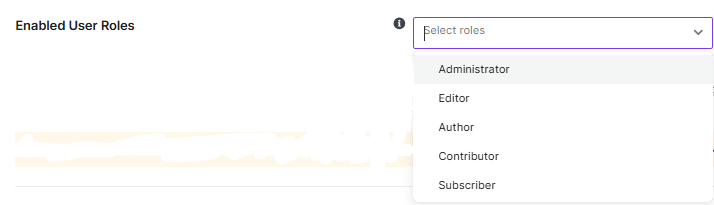
- Selection: Use the dropdown menu to select specific roles, such as Administrator or Editor.
- Management: Use the Select All button to enable the feature sitewide or Remove All to reset your selections.
Important: Users with roles that are not selected will not be able to log in via passkeys, and the registration form will be hidden from their profiles and registration shortcodes.
Exclude Existing Credentials
This feature prevents the accumulation of redundant security keys and ensures a streamlined authentication database.

- Function: Toggle to Enable to prevent users from registering a passkey that is already associated with their account.
- Recommendation: It is highly recommended to keep this setting enabled to avoid configuration conflicts and redundant registrations.
Registration Timeout
This setting establishes a security window for the initial setup of a new passkey.
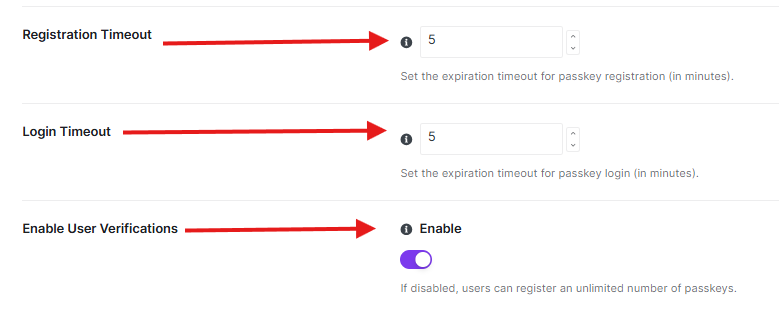
- Usage: Enter a numerical value in the field to set the expiration time in minutes.
- Default: The standard setting is 5 minutes.
- Impact: If a user does not complete the device-level verification (e.g., fingerprint scan or PIN entry) within this timeframe, the registration session will automatically expire.
Login Timeout
Similar to registration, this setting manages the lifespan of a login attempt.
- Usage: Specify the duration (in minutes) that a login request remains valid.
- Default: The standard setting is 5 minutes.
- Security Benefit: This prevents persistent login sessions from remaining active indefinitely if a user initiates a login but fails to complete the biometric verification.
Enable User Verifications
This toggle controls the requirement for the authenticator to verify the user during the passkey process.
- Function: Switch to Enable to ensure that the device (phone, laptop, or hardware key) actively verifies the user’s identity via biometrics or a PIN before proceeding.
- Effect: When disabled, restrictions on the number of registered passkeys may not be strictly enforced.


