
Managing passwordless authentication at scale requires clear visibility into user adoption. The Passkeys tab allows administrators to monitor, search, and manage all security keys registered across the site. This centralized management interface ensures that you can support users who may have lost devices or need to verify their biometric enrollment status.
Navigation
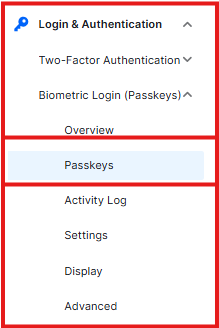
To manage registered passkeys, navigate to: Ultimate Security > Biometric Login (Passkeys) > Passkeys
Filter & Search Passkeys
As your user base grows, finding specific credentials becomes essential. This section provides robust filtering options to audit your security landscape:
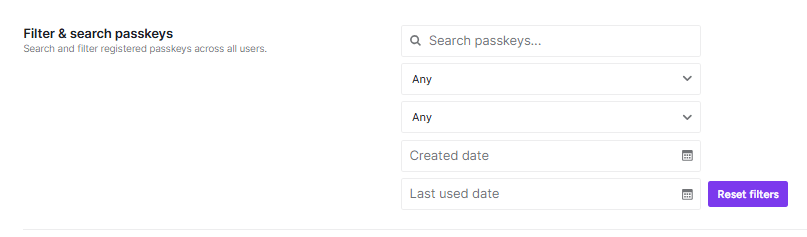
- Search Bar: Search for specific passkeys using the user’s name, email, or the custom label assigned to the passkey.
- Status Filter: Filter passkeys by their current state (e.g., Active, Revoked, or Pending).
- Type Filter: Narrow down the list by authenticator type, such as mobile biometrics or hardware keys.
- Date Range: Select a specific timeframe using the calendar pickers to view passkeys registered within a certain period.
- Reset Filters: Instantly clear all search parameters to return to the full list of registered credentials.
Registered Passkeys List
This section serves as your primary ledger for all biometric credentials currently active on your WordPress site.
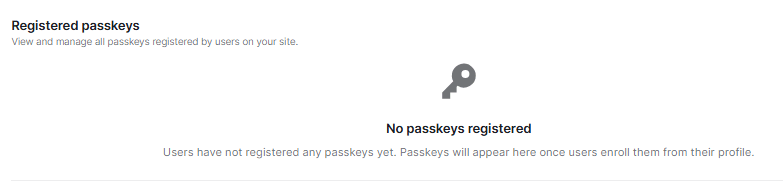
- Credential Overview: Displays the user associated with the passkey, the device type used for registration, and the last used date.
- Management Actions: From this list, administrators can perform critical maintenance tasks such as renaming a passkey for better identification or revoking a passkey if a user reports a lost or stolen device.
- Empty State: If no users have enrolled yet, the dashboard will display a “No passkeys registered” message. Passkeys will automatically appear here as users complete the enrollment process from their individual profiles.


