
The AI Malware Scanner provides advanced, AI-powered security analysis for your WordPress files. Unlike traditional scanners that rely solely on static signatures, this tool uses intelligent models to identify suspicious patterns and potential zero-day threats within your themes and plugins.
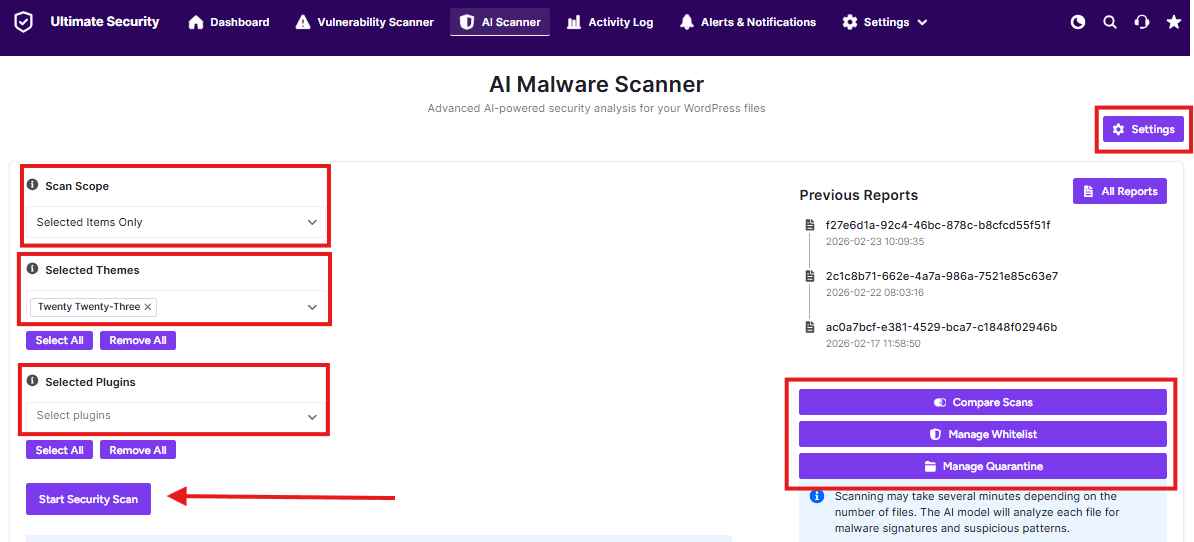
Configuring Your Scan Scope
Before starting a scan, you can define exactly what the AI should analyze to save time and server resources.
- Scan Scope: Use this dropdown to choose between scanning your entire site or specific sections.
- Selected Themes: If you choose a custom scope, you can select individual themes from your library. Use Select All or Remove All for quick management.
- Selected Plugins: Similar to themes, you can isolate specific plugins for analysis. This is highly recommended after installing a new plugin from an untrusted source.
Running a Scan
Once your scope is set, click the Start Security Scan button. Scan Result appears here: IMAGE
Important Note: Scanning may take several minutes depending on the total number of files on your site. The AI model meticulously analyzes each file for malware signatures and complex suspicious patterns.
Managing Scan Results & History
The right-hand sidebar allows you to track your security posture over time:
- Previous Reports: A chronological list of your most recent scans. Clicking a report ID allows you to view the detailed findings from that specific date.
- All Reports: Access a full archive of every scan ever performed on the site.
- Compare Scans: Select two different reports to see what has changed in your file system between scans.
- Manage Whitelist: If the AI flags a file you know to be safe (a false positive), you can add it to the Whitelist here so it is ignored in future scans.
- Manage Quarantine: View and restore files that were moved to the secure quarantine folder during a scan.
Advanced Settings
Click the Settings (gear icon) at the top right of the scanner interface to configure:
- Automated Scanning: Schedule the AI to run daily or weekly.
- Sensitivity Levels: Adjust how strictly the AI flags “suspicious” code patterns.
- Email Alerts: Receive a notification the moment the scanner detects a high-priority threat.
Pro-Tip
Post-Update Scans: Always run an AI Malware Scan immediately after updating your WordPress core, themes, or plugins. This ensures that the updated files haven’t been tampered with and that no new vulnerabilities have been introduced.


