
Activity logs help you monitor and analyze security events and user activity on your WordPress site. This feature records everything that happens on your site, so you can see who did what and when.
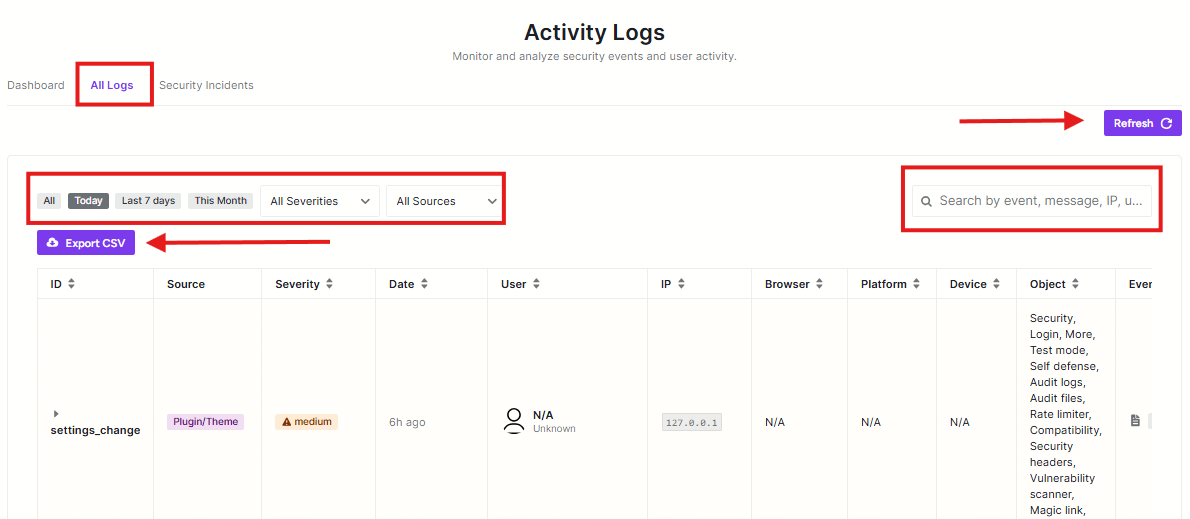
All Logs Tab
This is the main view showing all recorded activities on your site.
Refresh Button
Click this purple button to get the latest activity log information.
Time Filters
These help you narrow down what logs you see:
- All: Shows all logs
- Today: Shows only today’s activities
- Last 7 days: Shows activities from the past week
- This Month: Shows activities from the current month
Severity Filter
Choose to see logs with specific importance levels.
Sources Filter
Filter logs by where they came from.
Export CSV Button
Click this purple button to download your activity logs as a CSV file for record-keeping or analysis.
Search Bar
Use this to find specific events by searching for:
- Event names
- Messages
- IP addresses
- User information
Log Table
The table shows detailed information about each activity:
- ID: Unique identifier for the log entry
- Source: Where the activity came from
- Severity: How important the event is
- Date: When it happened
- User: Who performed the action
- IP: The user’s IP address
- Browser/Platform/Device: Technical details about the user’s setup
- Object: What was affected
- Event: What happened
Why Use Activity Logs?
- Keep track of who’s accessing your site
- Monitor for suspicious activity
- See when changes are made to your site
- Maintain a record of site events for security purposes
The activity logs help you stay aware of everything happening on your WordPress site and catch potential security issues early.


