
This section helps you manage how you receive security alerts from your WordPress site.
Dashboard Navigation Tabs
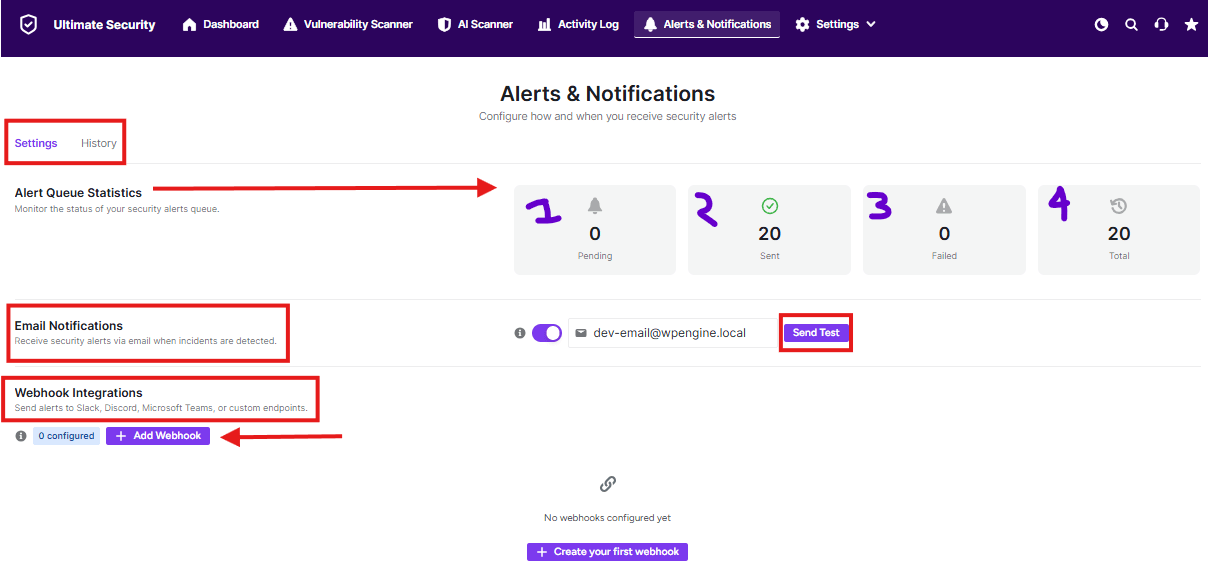
At the top, you’ll see two tabs:
- Settings: Where you configure your alert preferences
- History: View past alert activity and logs
Alert Queue Statistics
This section shows you the current status of your security alerts:
- 1. Pending: Alerts waiting to be sent
- 2. Sent: Alerts that have been successfully delivered
- 3. Failed: Alerts that couldn’t be sent
- 4. Total: All alerts processed in the system
Email Notifications
This feature sends security alerts directly to your email when issues are detected:
- Toggle the switch to enable/disable email alerts
- Enter your email address
- Use the Send Test button to check if your email notifications are working
Webhook Integrations
Connect your security alerts to other services:
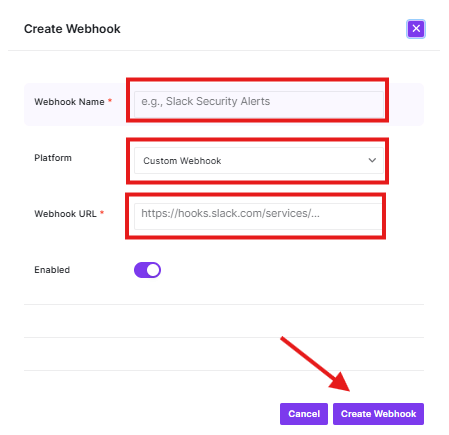
- Send alerts to platforms like Slack, Discord, Microsoft Teams, or custom endpoints
- Currently shows “0 configured” – meaning no webhooks are set up yet
- Click Add Webhook to connect external services
Notification Filters Settings
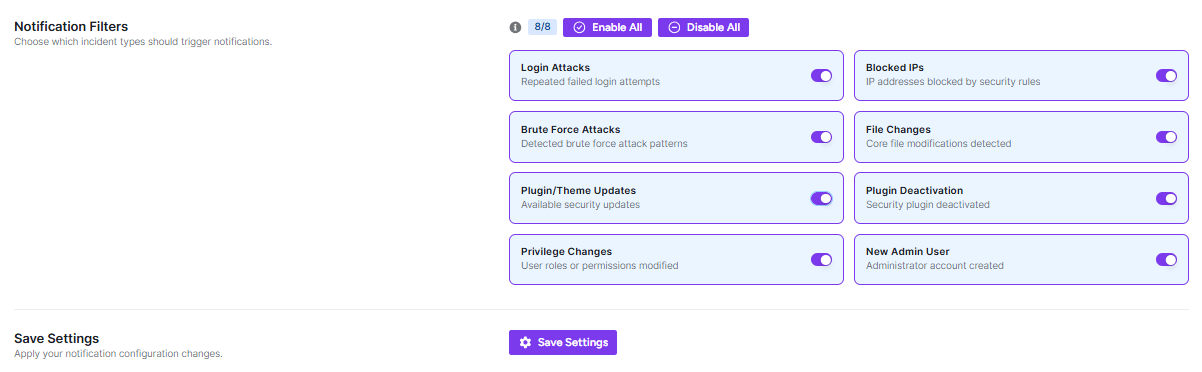
This page helps you choose which types of security incidents should send you alerts. You can customize exactly what notifications you want to receive.
Quick Actions
- Enable All: Turn on notifications for every security event
- Disable All: Turn off all notifications at once
Notification Types You Can Configure
Each toggle switch controls whether you receive alerts for specific events:
- Login Attacks: Get notified about repeated failed login attempts
- Blocked IPs: Alerts when IP addresses are blocked by security rules
- Brute Force Attacks: Notifications for detected brute force attack patterns
- File Changes: Alerts when core files are modified
- Plugin/Theme Updates: Get notified about available security updates
- Plugin Deactivation: Know when your security plugin is turned off
- Privilege Changes: Alerts for modified user roles or permissions
- New Admin User: Notifications when new administrator accounts are created
After making your selections, click the Save Settings button to apply your preferences. This ensures your notification configuration takes effect immediately.
This dashboard helps you stay informed about your site’s security by delivering important alerts through your preferred methods.


