
REST API Methods
The REST API uses four main types of messages to manage your website’s data:
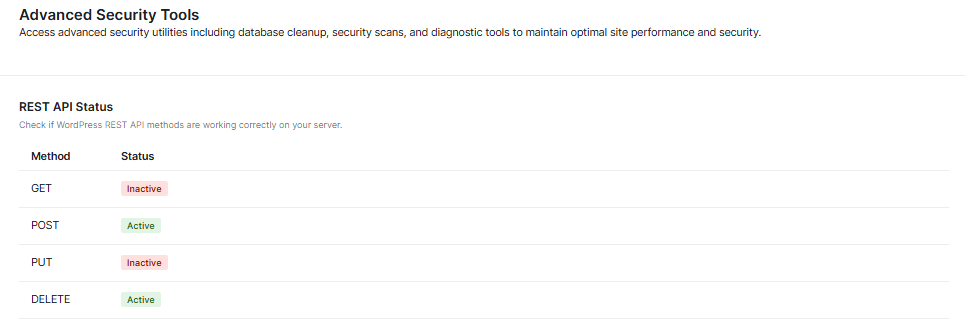
- GET (The “Reader”):
- This is used when your site wants to read or look at information. It’s like opening a book to see what is written inside.
- POST (The “Creator”):
- This is used to add or create something new. It’s like writing a brand-new page and adding it to your book.
- PUT (The “Editor”):
- This is used to update or fix something that is already there. It’s like taking an eraser to a mistake and writing the correct information over it.
- DELETE (The “Eraser”):
- This is used to remove information. It’s like ripping a page out of the book and throwing it away.
What the Status Colors Mean
- Active (Green): The “door” is open, and your website can use this method to talk to other apps.
- Inactive (Red): The “door” is locked. This might be for safety, but sometimes it can stop certain features from working.
Server Resources
This part shows you how hard your website’s “brain” is working.

- Memory Limit: This is the total amount of “thinking space” your website has (for example, 256M).
- Current Usage: This shows how much of that space you are using right now. If the green bar gets too full, your site might slow down.
- Max Execution Time: This is the amount of time (in seconds) your site is allowed to work on a single task before it gives up.
- Copy & Print: You can use these buttons to save this information if you ever need to show it to a tech expert for help.
Scheduled Tasks
This is the “To-Do List” for your security plugin.
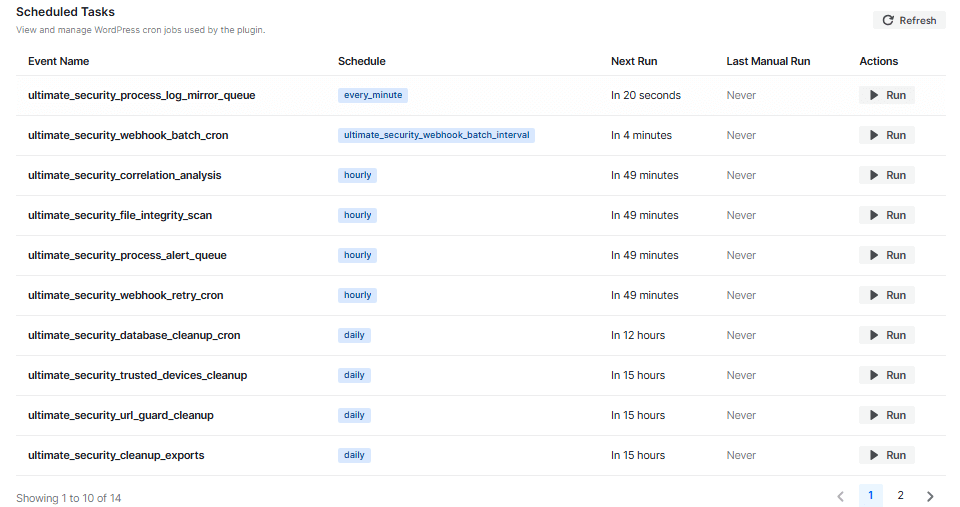
- Event Name: This is the name of the specific job the plugin needs to do, like checking your files for changes or sending alerts.
- Schedule: This tells you how often the job happens (for example, “every minute” or “hourly”).
- Next Run: This shows a countdown of when the job will start again.
- Actions (Run Button): If you don’t want to wait for the timer, you can click the Run button to make the plugin do that task immediately.
💡You don’t usually need to change anything here. This page is mostly for checking that everything is working exactly as it should!


