
Database Stats
At the top, you’ll see four important numbers:
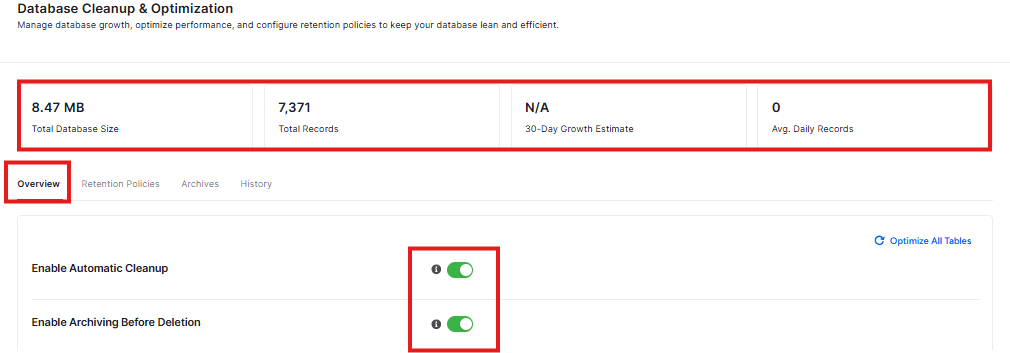
- Total Database Size: How big your database is (right now it shows 0 B)
- Total Records: How many things are stored in your database (right now it shows 0)
- 30-Day Growth Estimate: How much your database might grow in 30 days
- Avg. Daily Records: How many new things are added each day
Overview Tab
This is the main dashboard that shows you:
- Your total database size
- How many records (items) are in your database
- How your database is growing
- Average daily records being added
Turn On Automatic Cleanup
You’ll see two toggle switches:
- Enable Automatic Cleanup – This automatically removes old, unnecessary data from your database
- Enable Archiving Before Deletion – This saves a copy of data before removing it (good for safety)
Both are turned ON by default, which is usually best for most websites.
Clean Up Your Database
In the “Database Cleanup” section, you can:
- Select which tables (parts of your database) to clean
- Delete old records that you don’t need anymore
Right now, it shows “No log tables found” which means your database is already clean!
Retention Policies Tab
This tab helps you control how long data stays in your database.
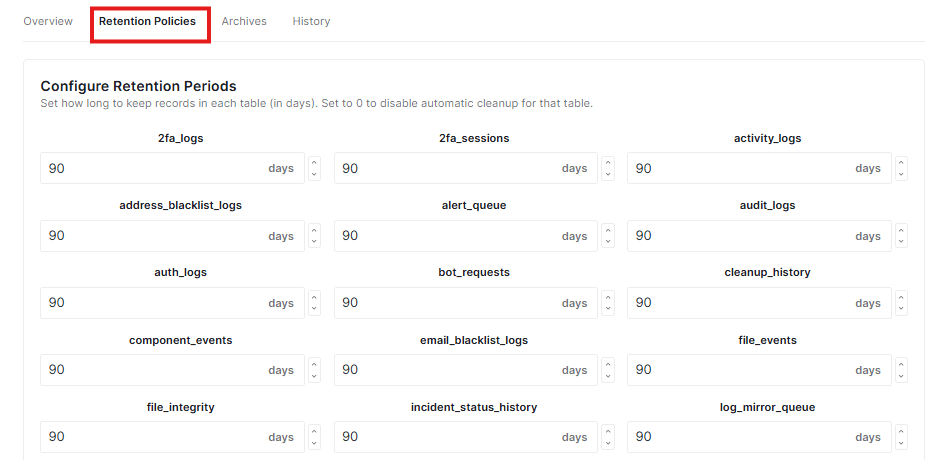
What It Does:
- Configure Retention Periods: You can set how many days to keep records in each part of your database
- Save Retention Policies: Click this blue button to save your settings
Why This Matters:
- Keeping your database clean means your website runs faster
- You can choose how long to keep different types of data
- This helps prevent your database from getting too big and slow
Archives Tab
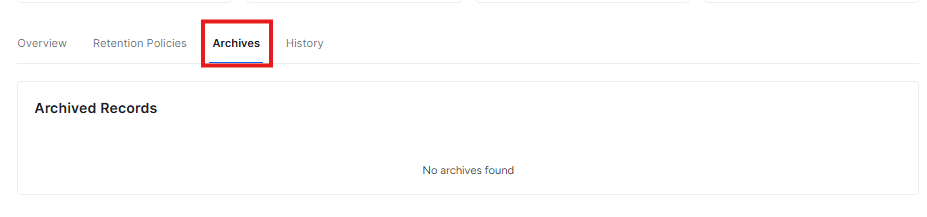
This tab shows you archived records – data that has been saved before being deleted.
What You’ll See:
- Archived Records: Any data that was archived (saved) before cleanup
- Right now it shows “No archives found” which means your database is clean!
Why Archives Are Good:
- They act like a backup before data gets deleted
- You can review what was removed if needed
- Makes cleanup safer because you can always restore archived data
History Tab
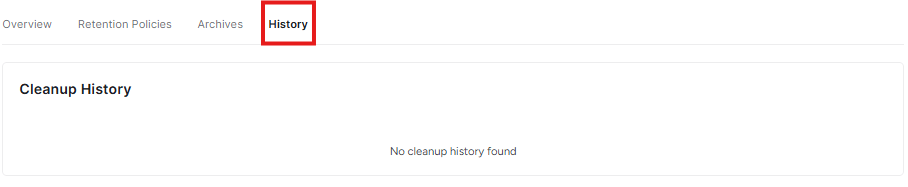
This tab keeps track of all the cleanup activities.
What It Shows:
- Cleanup History: A log of everything the plugin has cleaned up
- Right now it shows “No cleanup history found” which means the plugin hasn’t done any cleanups yet, or it’s a new installation
Why History Is Helpful:
- You can see what was cleaned and when
- Helps you track how your database is being maintained
- Good for troubleshooting if something goes wrong
Important Tips:
- Always save your changes by clicking “Save Changes” at the bottom
- If you make a mistake, you can “Discard Changes” to go back
- Start with the default settings if you’re not sure what to do
- These features help keep your website fast and secure!
Important Notes
- Automatic cleanup helps keep your site running fast
- Archiving before deletion is like making a backup before cleaning – it’s safer
- You can always turn these features off if you prefer to clean your database manually
- Click “Save Changes” to keep your settings, or “Discard Changes” to go back to how things were


