
Content Protection
Content Protection Overview page helps you protect your website’s content from being copied by visitors.
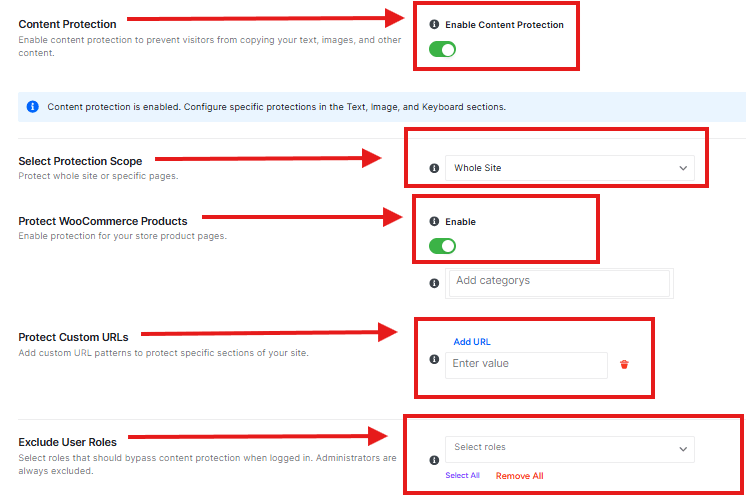
Enable Content Protection
This main toggle turns the entire content protection feature on or off. It prevents visitors from copying your text, images, and other content.
Select Protection Scope
You can choose to protect either your entire website (“Whole Site”) or only specific pages (“Specific Pages”).
Protect WooCommerce Product
- This toggle specifically protects your store’s product pages.
- Add categories to protection-specific product categories.
Protect Custom URLs
You can add custom URL patterns to protect specific sections of your site that aren’t covered by the other options.
Exclude User Roles
You can choose which user roles should be able to bypass the content protection (administrators are always excluded by default).
Save or Discard button to apply changes
Text Protection
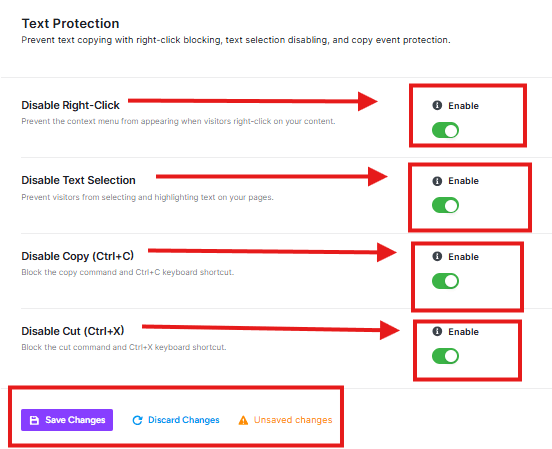
This feature helps protect the text content on your website from being copied by visitors.
Disable Right-Click
This stops visitors from right-clicking on your site. This prevents them from copying your text or saving your images.
Disable Text Selection
This stops visitors from selecting text on your pages by highlighting it, making it impossible to copy text.
Disable Copy (Ctrl+C)
This blocks the standard keyboard shortcut (Ctrl+C) on Windows or Command+C on (Mac) that people use to copy selected text.
Disable Cut (Ctrl+X)
This blocks the standard keyboard shortcut (Ctrl+X) on Windows or Command+X on (Mac) that people use to cut selected text.
Save or Discard button to apply changes
Image Protection
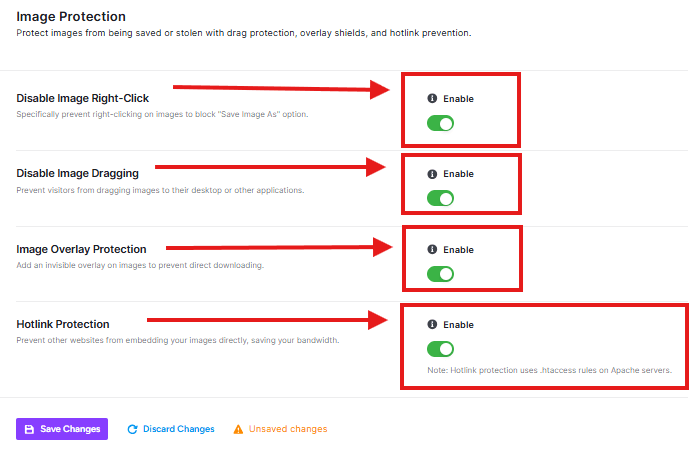
This helps you stop people from stealing the images on your website. It makes it much harder for visitors to save your original work to their devices.
Disable Image Right-Click
This prevents visitors from right-clicking on your images, which stops them from accessing the “Save Image As” option.
Disable Image Dragging
Stop visitors from dragging your images to their device. This makes it impossible for them to save your pictures just by pulling them off the page.
Image Overlay Protection
This adds an “invisible shield” over your photos. If a user tries to find another way to download the image, they will end up with a blank photo.
Hotlink Protection
“Hotlinking” is when another website displays your images by linking directly to your server. This feature blocks other sites from using your images.
Save or Discard button to apply changes
Keyboard Shortcut
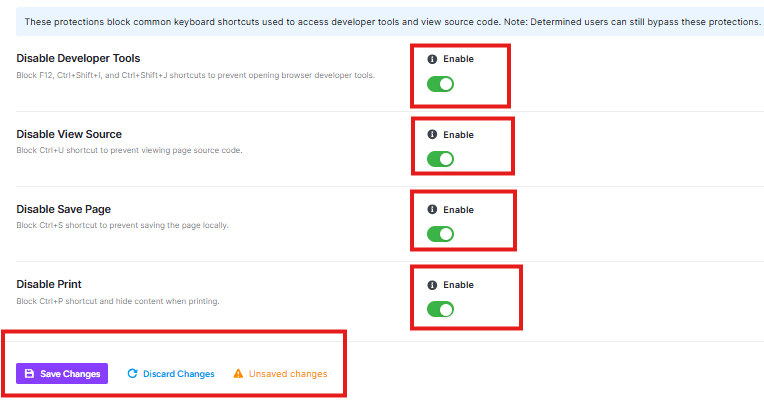
Keyboard Shortcut Protection blocks keyboard shortcuts to access developer tools or save your website content.
Disable Developer Tools
This blocks keyboard shortcuts like F12, Ctrl+Shift+I, and Ctrl+Shift+J that people use to open browser developer tools. This prevents visitors from inspecting your website’s code.
Disable View Source
This blocks the Ctrl+U shortcut that allows visitors to view the HTML source code of your pages.
Disable Save Page
This blocks the Ctrl+S shortcut that lets visitors save your entire webpage.
Disable Print
This blocks the Ctrl+P shortcut and hides the print content option from printing your website content.
Save or Discard button to apply changes
Display Settings
You can customize the message when visitors try to do something that is blocked.
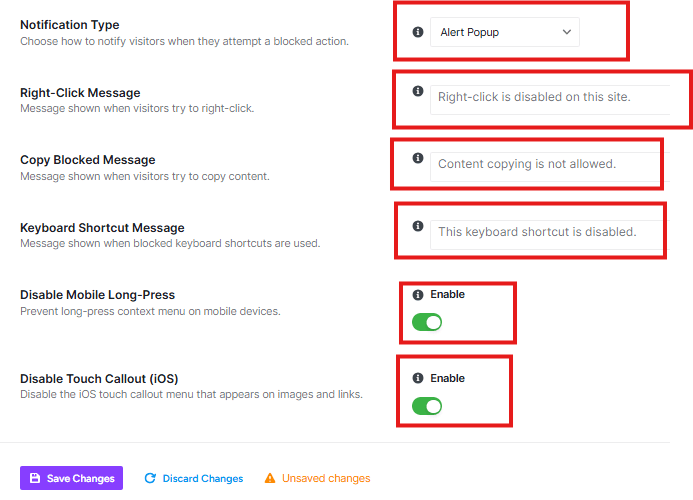
Notification Type
You can select from the drop-down menu how visitors will be notified when they try to do something blocked.
- “Alert Popup” shows a browser popup message
- “Toast” shows a subtle notification at the bottom of the screen
- “Silent” blocks the action without any message
Custom Messages
You can set specific messages for:
- Right-click attempts
- Copy attempts
- Keyboard shortcut attempts
Mobile Protection
You can enable two mobile-specific protections:
- Disable Mobile Long-Press – Prevents the long-press menu that appears on mobile devices
- Disable Touch Callout (iOS) – Disables the iOS touch callout menu that appears on images and links
This section helps you control both what visitors see when protection is triggered and how your protection works on mobile devices.
Security Keys
Settings
WordPress security keys (also called “salts”) are special codes that help protect your website from hackers
Current Salt Keys
The page shows several important security keys:
- AUTH_KEY
- SECURE_AUTH_KEY
- LOGGED_IN_KEY
- NONCE_KEY
- AUTH_SALT
- SECURE_AUTH_SALT
- LOGGED_IN_SALT
- NONCE_SALT
Each one has a 100% strength rating.
Action Buttons
- Hide Keys – Hides the key values (for extra security)
- Reveal Values – Shows the actual key codes
- Copy All – Copies all keys to your clipboard
- Download Backup – Saves a copy of all keys to your computer
⚠️ Changing WordPress salt keys will force all logged-in users to login again
Scheduled Change
What it does: This feature automatically changes your WordPress security keys on a regular schedule.
How to use it:
- The toggle switch turns automatic key changes ON or OFF
- The dropdown menu lets you choose how often: “Daily” is currently selected
- When turned on, your keys will be updated automatically without you needing to do anything
Why this is helpful: Regularly changing keys makes your site more secure by invalidating any potential threats.
Set Manual Time
What it does: Lets you choose a specific time for automatic key changes.
How to use it:
- Use the day dropdown (currently set to “Saturday”)
- Set the time using the hour and minute selectors (currently 08:00 or 8:00 AM)
- This means your keys will update automatically at 8:00 AM on Saturdays
Reminder for Changing Salt Keys
What it does: This toggle turns on/off reminders about manually updating your keys.
Why you might want this: Even with automatic updates, it’s good to stay aware of your site’s security practices.
Notification After Change
What it does: When turned on, you’ll get a notification after your keys have been automatically updated.
Why this is useful: You’ll know when your site’s security has been refreshed.
Pre-Change Notification
What it does: This gives you a heads-up before scheduled key changes happen.
How it works:
- The toggle turns this feature ON or OFF
- The dropdown lets you choose when to be notified (currently “24 hours before”)
- This gives you time to prepare or skip the change if needed
Reminder Interval
What it does: Sets how often you receive reminders about key changes.
Current setting: “7 days” – meaning you’ll get reminders every week
Pause Until… Button
- What it does: Temporarily stops automatic key changes
- When to use: During website maintenance or when you’re moving your site to a new server
- How it works: Click this button to pause automatic updates until you’re ready to resume
Skip Next Button
- What it does: Skips the next scheduled key change
- When to use: If you know you’ll be doing maintenance soon, or if you don’t want the next update to happen
- Temporary control: Gives you quick control over the next update
Salt Change History
- What it shows: A detailed log of all your security key changes
- Why it’s useful: Lets you see when keys were changed and track your security updates
- How to access: Click the “View History” button to see all past changes
Immediate Change
- What it does: Changes your security keys right away, without waiting for the schedule
- When to use: If you’re concerned about security and want immediate protection
- How to use: Click the “Regenerate Salt Keys” button
- Important note: After clicking, all logged-in users will need to log in again
Action Buttons
- Save Changes: Saves any settings you’ve adjusted
- Discard Changes: Ignores any changes you’ve made (goes back to previous settings)
- Unsaved changes: This warning appears if you’ve made changes but haven’t saved them yet
API & Data Privacy
API Privacy?
API (Application Programming Interface) privacy helps protect your website by hiding information that WordPress normally shows to the public. Think of it like putting curtains on your windows – it keeps prying eyes from seeing what’s inside.
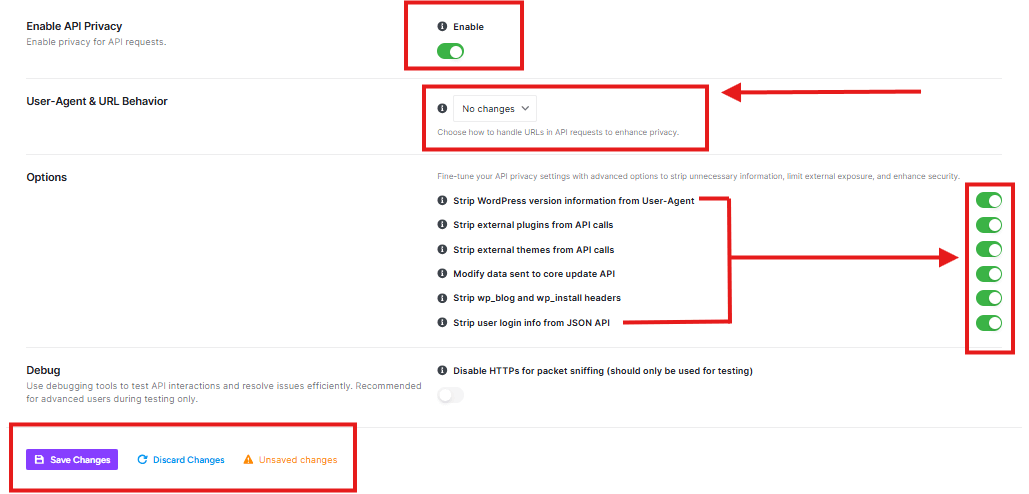
Enable API Privacy
This toggle turns API privacy ON or OFF.
- When ON: Your website hides sensitive information from outsiders
- When OFF: Your website shows more information (less secure)
Recommendation: Keep this ENABLED for better security.
User-Agent & URL Behavior
This setting controls how your website handles web addresses (URLs) in API requests.
- Current setting: “No changes” – meaning your website shows normal URL behavior
- Why it matters: How URLs are handled can affect your site’s privacy
Privacy Options (Advanced Settings)
These are extra privacy protections you can enable:
Strip WordPress version information from User-Agent
- What it does: Hides which version of WordPress you’re using
- Why helpful: Hackers can’t target known vulnerabilities in your specific WordPress version
Strip external plugins from API calls
- What it does: Hides information about plugins you’ve installed
- Why helpful: Prevents hackers from knowing which plugins might have security issues
Strip external themes from API calls
- What it does: Hides information about your website’s theme
- Why helpful: Stops hackers from targeting theme-specific vulnerabilities
Modify data sent to core update API
- What it does: Changes how update information is sent
- Why helpful: Adds an extra layer of security during updates
Strip wp_blog and wp_install headers
- What it does: Removes identifying headers from your site
- Why helpful: Makes it harder for attackers to gather information about your site
Strip user login info from JSON API
- What it does: Hides user login details in API responses
- Why helpful: Protects your users’ login information
Debug Settings
Disable HTTPS for packet sniffing
- What it does: Temporarily turns off secure connections (only for testing)
- Important: Should only be used by advanced users during testing
- Warning: Not for regular use – keeps your site less secure
Save Your Changes
- Save Changes: Applies all your privacy settings
- Discard Changes: Ignores any changes you’ve made
Plugin Updates
Update Management
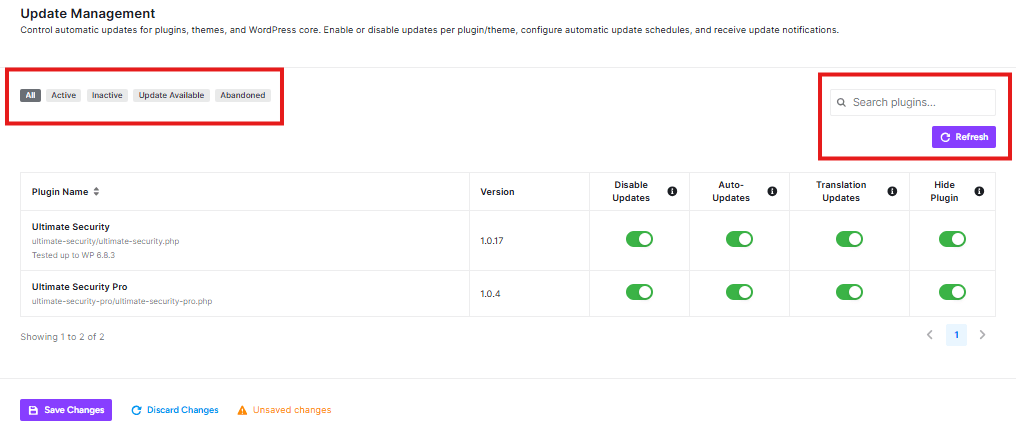
This page helps you control how your website updates itself. Updates are important because they:
- Fix security issues
- Add new features
- Keep your site running smoothly
Plugin Updates Section
This specific section shows updates for the plugins (extra features) installed on your website.
Filter Tabs
You can filter plugins by their status:
- All: Shows every plugin
- Active: Shows only plugins that are currently working
- Inactive: Shows plugins that are turned off
- Update Available: Shows plugins that need updates
- Abandoned: Shows plugins that aren’t maintained anymore
Search and Refresh
- Search plugins: Find specific plugins quickly
- Refresh: Get the latest update information
Plugin List
Your page shows two security plugins:
- Ultimate Security (version 1.0.17)
- Ultimate Security Pro (version 1.0.4)
Plugin Control Options
For each plugin, you can control:
Disable Updates:
- Turn OFF to stop this plugin from updating automatically
- Turn ON to allow automatic updates
Auto-Updates:
- Green means updates happen automatically
- Gray means you need to update manually
Translation Updates:
- Green means translation files update automatically
- Gray means you need to update translations manually
Hide Plugin:
- Hide the plugin from your dashboard (advanced option)
Theme Updates
What is Theme Management?
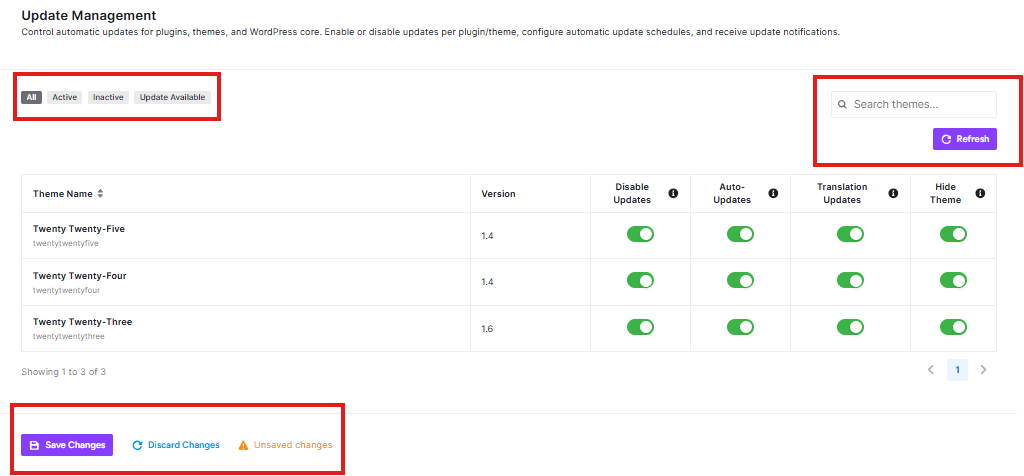
Themes are the visual designs and layouts of your website – they control how your site looks and feels to visitors. Just like plugins, themes need regular updates to stay secure and work properly.
Theme Updates Section
This page helps you manage updates for your website’s themes (the visual designs).
Filter Tabs
You can filter themes by their status:
- All: Shows every theme
- Active: Shows only themes currently being used
- Inactive: Shows themes that aren’t active
- Update Available: Shows themes that need updates
Search and Refresh
- Search themes: Find specific themes quickly
- Refresh: Get the latest update information
Theme List
Your page shows three WordPress themes:
- Twenty Twenty-Five (version 1.4)
- Twenty Twenty-Four (version 1.4)
- Twenty Twenty-Three (version 1.6)
Theme Control Options
For each theme, you can control:
Disable Updates:
- Turn OFF to stop this theme from updating automatically
- Turn ON to allow automatic updates
Auto-Updates:
- Green means updates happen automatically
- Gray means you need to update manually
Translation Updates:
- Green means translation files update automatically
- Gray means you need to update translations manually
Hide Theme:
- Hide the theme from your dashboard (advanced option)
Update Manager
What Are These Settings For?
This page helps you control how your website updates itself. Updates are like getting new, improved versions of things on your website – they fix problems, add new features, and keep everything secure.
General Update Settings
WordPress Core Updates
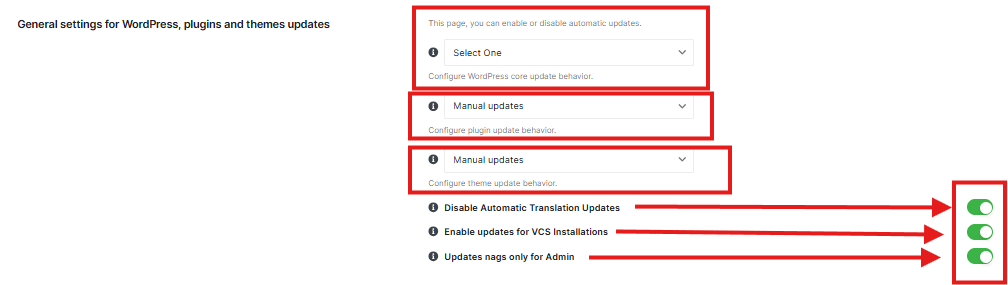
This controls how your main WordPress software gets updated.
Current setting: “Manual updates” – meaning you need to click a button to update WordPress
Other options you might see:
- Automatic updates: WordPress updates itself without you doing anything
- Daily updates: Checks for updates every day
- Weekly updates: Checks for updates once a week
Plugin Updates
This controls how your plugins (extra features) get updated.
Current setting: “Manual updates” – you need to update plugins yourself
Why this matters: Plugins can have security issues that need fixing, just like apps on your phone.
Theme Updates
This controls how your website’s design (themes) gets updated.
Current setting: “Manual updates” – you need to update themes yourself
Why this matters: Theme updates often fix design problems and security issues.
Toggle Switch Options
Disable Automatic Translation Updates
- What it does: Stops translations from updating automatically
- When to use: If you don’t need translated content or want to control translations yourself
Enable updates for VCS Installations
- What it does: Allows updates for version-controlled installations
- When to use: If you’re using advanced version control (most users don’t need this)
Updates nags only for Admin
- What it does: Only shows update notifications to website administrators
- Why helpful: Keeps regular users from seeing technical messages
Enable Update Schedule Window

- What it does: Lets you choose specific hours for updates
- Why helpful: You can avoid updating during your website’s busiest times (when most visitors are online)
- Example: If your site gets lots of traffic in the afternoon, you can schedule updates for early morning
Auto-Update Delay
- Current setting: “No delay” – updates happen right away
- Other options: You can add a delay (like 1 hour, 6 hours, or 24 hours)
- Why helpful: Gives time for any problems with new updates to be discovered before your site gets updated
Enable Maintenance Mode During Updates
- What it does: Puts your site in “maintenance mode” during updates
- Why helpful: Visitors see a friendly message instead of error pages while updates are happening
Day-of-Week Scheduling

- What it does: Lets you choose which days updates can happen
- Why helpful: You can avoid updating on your website’s busiest days
- Example: If weekends are your busiest, you can schedule updates for weekdays only
Freeze Periods
- What it does: Creates “freeze” periods when updates are completely blocked
- How to use:
- Click “Add” to create a new freeze period
- Choose start and end dates
- Updates won’t happen during these times
- Why helpful: Perfect for important events, sales, or when you can’t have any disruptions
Email Notifications
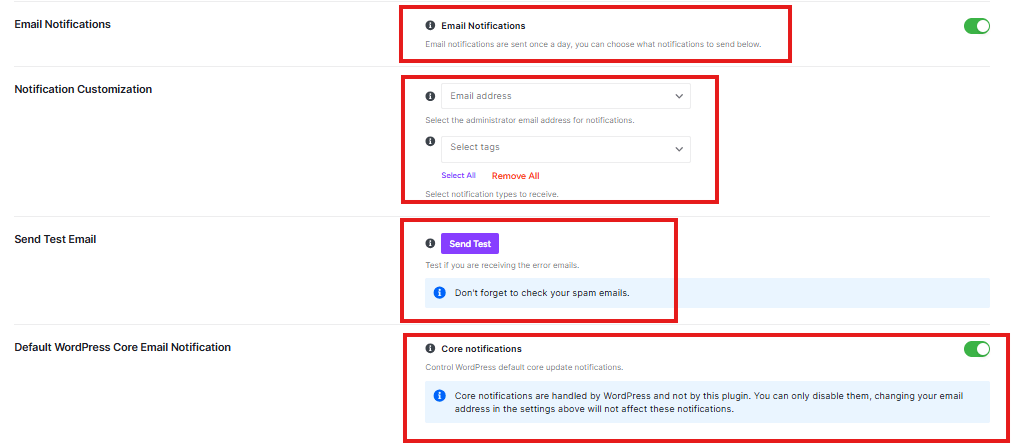
- What it does: Sends you email updates about your website’s updates
- Why helpful: You’ll know exactly when updates happen and if there are any issues
- How often: Once a day, with a summary of what happened
WordPress Core Email Notification
Core Notifications
This toggle controls whether you get email updates about your WordPress core (the main software).
Important Note: These core notifications are handled by WordPress itself, not by this security plugin. Changing settings here only affects this plugin’s notifications.
What Core Notifications Include
Core notifications typically tell you about:
- WordPress version updates
- Security patches
- Important maintenance information
Advanced Options
This section has powerful tools for managing your website updates. Proceed with caution – these options can affect how your site works.
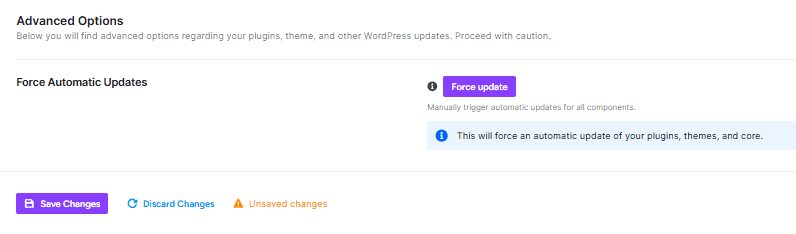
Force Automatic Updates
This is a powerful feature that lets you manually trigger updates for everything on your website at once.
What it does:
- Updates your plugins (extra features)
- Updates your themes (website designs)
- Updates WordPress core (main software)
- Save Changes: Applies any changes you’ve made
- Discard Changes: Ignores any changes (goes back to previous settings)
Update History
What is this page for?
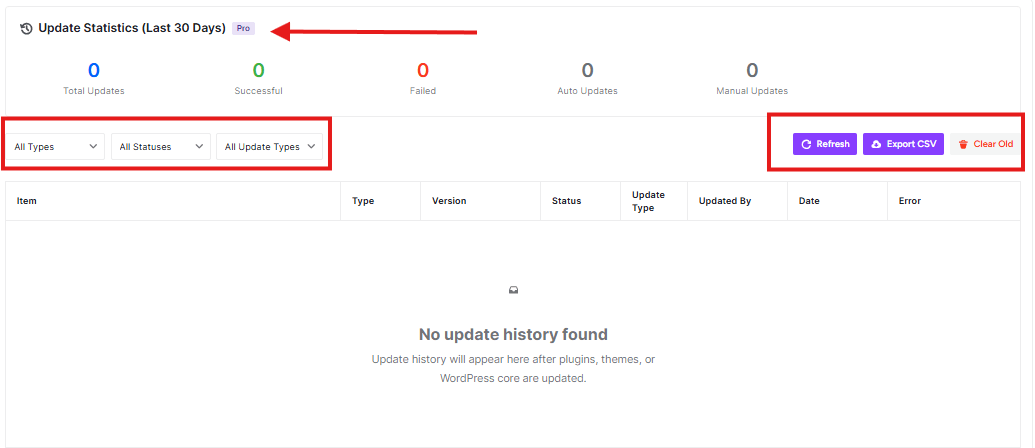
This dashboard shows you a record of all updates that have been made to your WordPress website. It helps you keep track of what’s been updated, when, and whether those updates were successful.
Understanding the Dashboard
Top Statistics (Last 30 Days)
At the top of the page, you’ll see five important numbers:
- Total Updates: Shows how many updates were attempted in the last 30 days
- Successful: Shows how many updates completed without problems
- Failed: Shows how many updates didn’t work properly
- Auto Updates: Shows how many updates happened automatically
- Manual Updates: Shows how many updates you or someone else did manually
Filter Options
You can use the dropdown menus to filter what you see:
- All Types: Filter by plugins, themes, or WordPress core
- All Statuses: Show only successful, failed, or all updates
- All Update Types: Show auto or manual updates
Action Buttons
- Refresh: Click this to get the latest update information
- Export CSV: Download this data as a spreadsheet file
- Clear Old: Remove old update records (use carefully!)
Security Hardening
What is Security Hardening?
This section helps make your WordPress website more secure by adjusting important security settings. Think of it like adding extra locks and security features to protect your website from potential threats.
Understanding the Dashboard
Color-Coded Recommendations
- Green tags: These are recommended settings that should be enabled for most websites
- Orange tags: These settings might affect how your website works – review them carefully before enabling
Progress Tracking
The number at the top (currently “0 / 35 features enabled”) shows how many security features you’ve turned on out of the total available.
Navigation Tabs
You can switch between different security categories using the tabs:
- Access & Identity: User login and account security
- Files & Directories: Protecting your website files
- Headers & Fingerprinting: Hiding technical information
- APIs & Remote Access: Controlling external connections
- Frontend & Features: Website appearance and functionality
Access & Identity Security Options
This section helps protect user accounts and login processes:
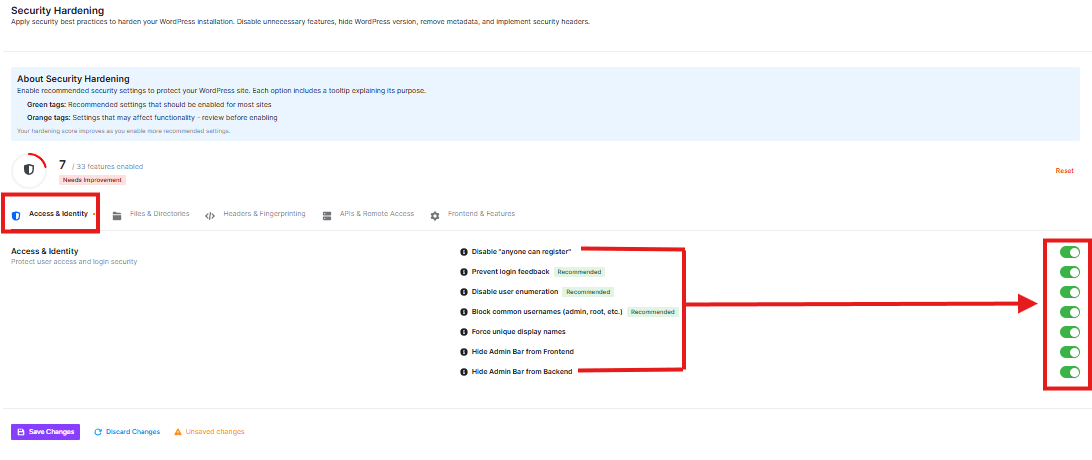
Recommended Settings (Green Tags)
- Disable “Anyone can register”: Prevents random people from creating accounts on your site
- Prevent login feedback: Stops giving hints about whether a username or email exists
- Disable user enumeration: Makes it harder for attackers to discover user accounts
- Block common usernames: Prevents using easy-to-guess usernames like “admin” or “root”
- Force unique display names: Ensures all users have different names
- Hide Admin Bar from Frontend: Removes the admin toolbar from the public part of your site
- Hide Admin Bar from Backend: Removes the admin toolbar from the dashboard
File & Directory Security Options
This section helps protect your website’s files and folders:
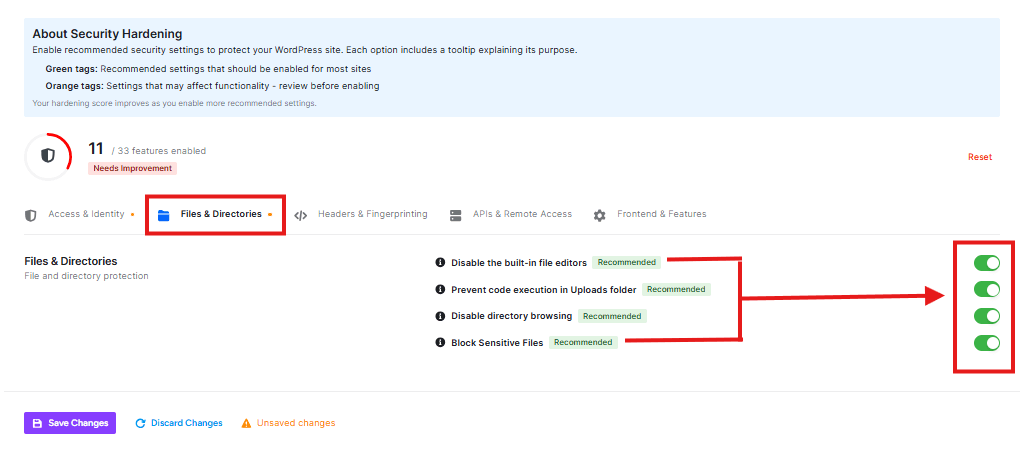
Recommended Settings (Green Tags)
- Disable the built-in file editors: Turns off WordPress’s built-in code editor, which prevents people from editing your files directly through the dashboard
- Prevent code execution in Uploads folder: Stops malicious code from running in your uploads folder
- Disable directory browsing: Prevents visitors from seeing a list of files in your folders
- Block Sensitive Files: Protects important configuration files from being accessed
Header Security Options
This section helps hide technical information about your website:
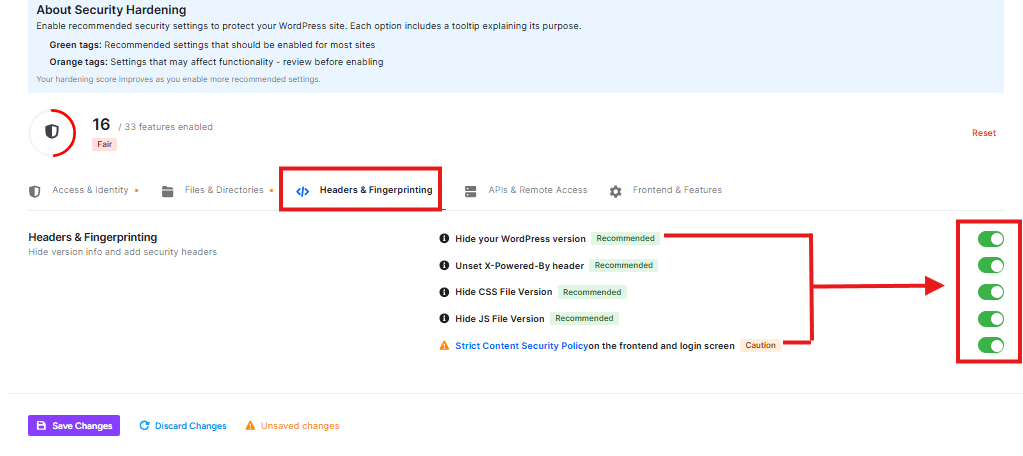
Recommended Settings (Green Tags)
- Hide your WordPress version: Prevents showing which version of WordPress you’re using
- Unset X Powered by header: Removes information about what software powers your site
- Hide CSS File Version: Hides version numbers in your CSS files
- Hide JS File Version: Hides version numbers in your JavaScript files
Caution Setting (Orange Tag)
- Strict Content Security Policy on the frontend and login screen: This is an advanced security setting that might affect how your site works
API & Remote Access Options
This section helps protect your website from unauthorized external connections:
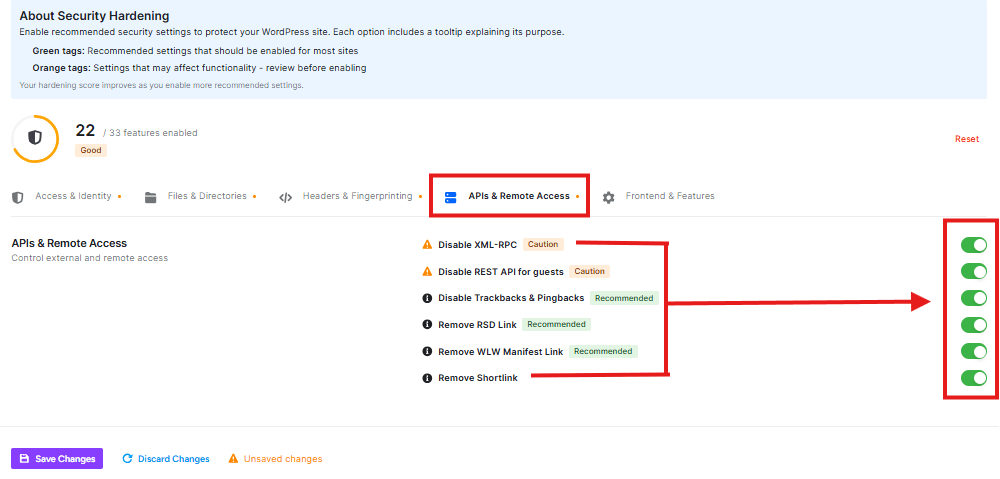
- Disable XML-RPC: Controls a feature that allows external systems to connect to your site
- Disable REST API for guests: Restricts access to the API for people who aren’t logged in
- Disable Trackbacks & Pingbacks: Turns off notifications between websites
- Remove RSD Link: Hides a technical link used by some blogging tools
- Remove WLW Manifest Link: Hides a link used by Windows Live Writer
- Remove Shortlink: Hides a special short URL for your posts
Frontend & Features Options
This section helps optimize and secure how your website appears to visitors:
Frontend & Features:
Turns off special icons used in WordPress
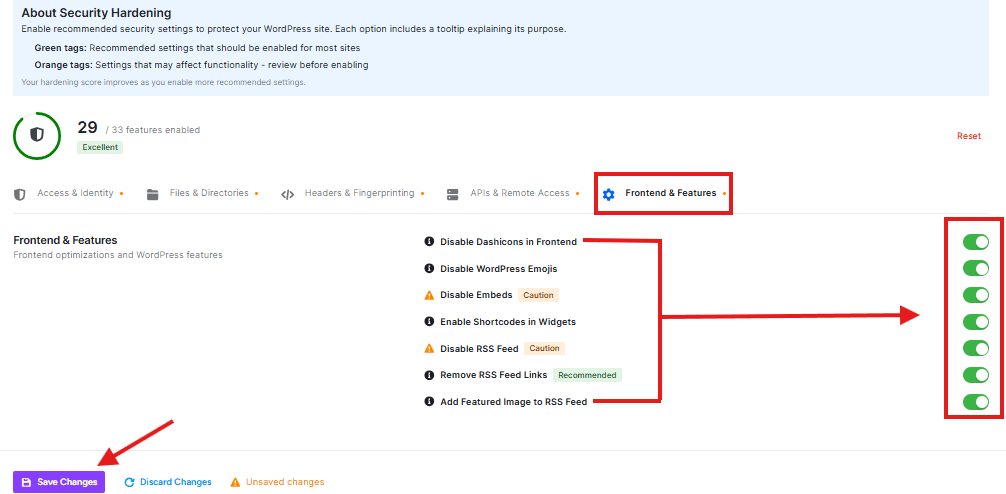
- Disable WordPress Emojis: Stops emoji support on your site
- Remove RSS Feed Links: Hides links to your RSS feeds
- Add Featured Image to RSS Feed: Includes your post images in RSS feeds
- Disable Embeds in Widgets: Prevents embedding content in widgets
- Enable Shortcodes in Widgets: Allows using shortcodes in widgets
- Disable RSS Feed: Turns off your website’s RSS feed completely


