
The Site Health page is like a doctor’s report for your website. It shows you exactly how your site is built and if it is running smoothly. If you ever need to ask a professional for help, all the information they need is right here.
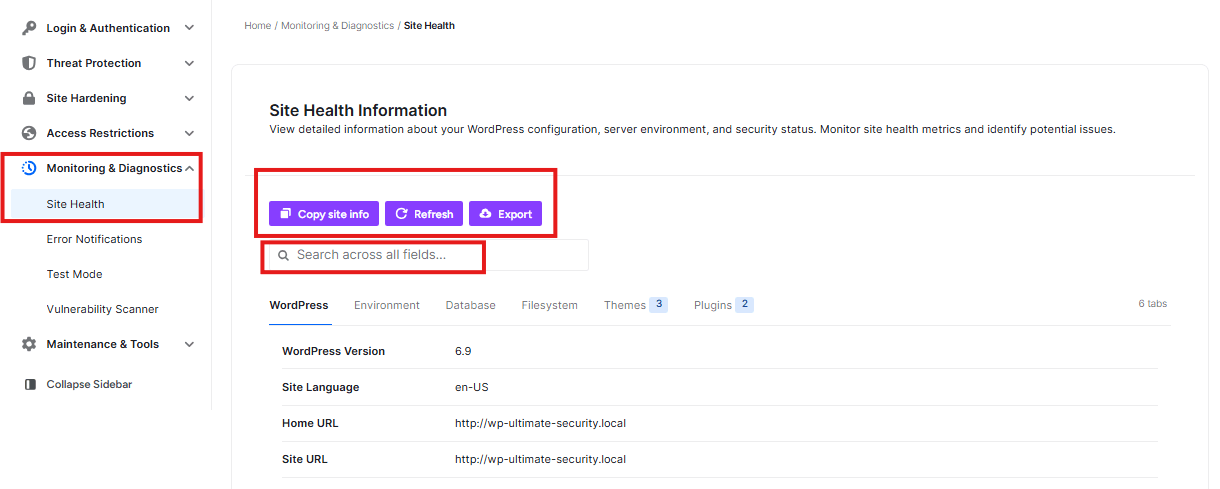
The Action Buttons
At the top of the page, you have three main tools:
- Copy site info: This copies all your technical details so you can easily paste them into an email for support.
- Refresh: This updates the page to show the most recent information.
- Export: This saves a copy of all this information to your computer.
The Information Tabs
There are six different “folders” of information you can look through:
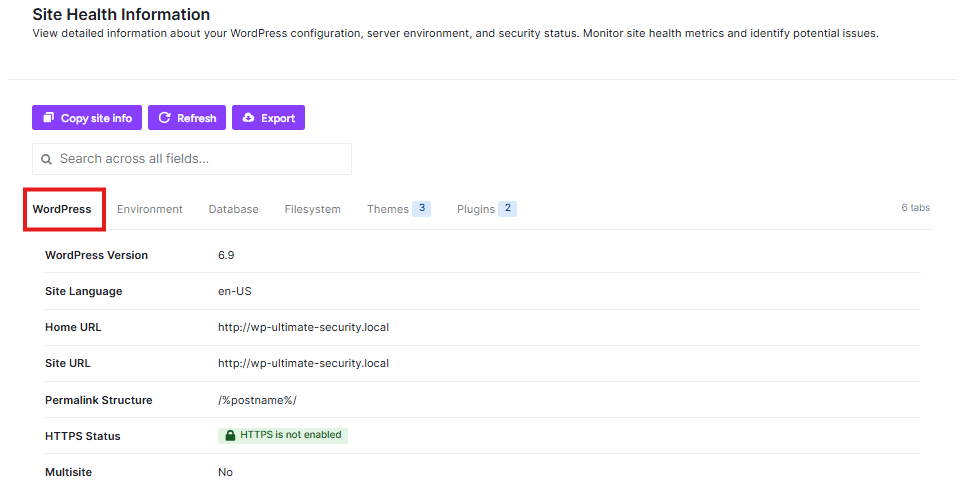
1. WordPress
This shows your site’s “ID card.” It tells you which version of WordPress you are using (like 6.9) and if your site is using a “secure lock” (HTTPS). If you see “HTTPS is not enabled,” you should fix this to keep your site safe.
2. Environment
This shows details about the computer (server) where your website lives.
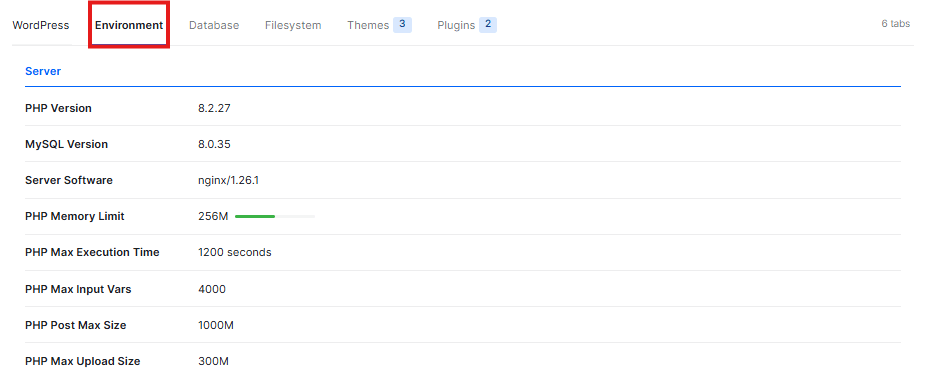
- PHP Version: This is the main “engine” version your site runs on.
- Memory Limit: This shows how much “brain power” your site is allowed to use.
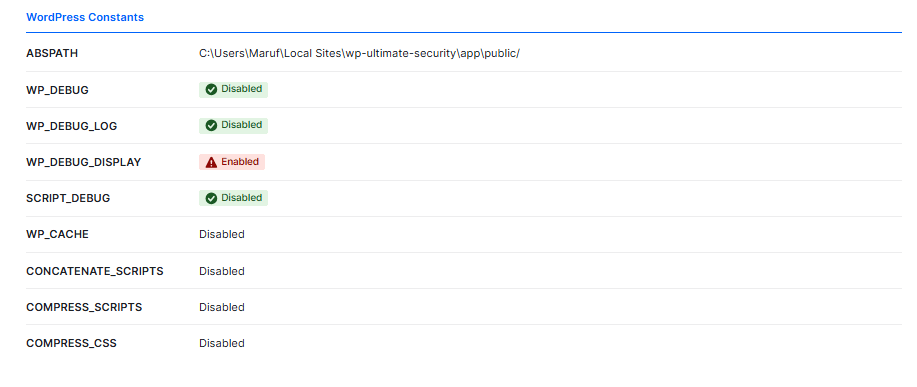
- WP_DEBUG: If this says “Enabled” with a red warning, it might show technical errors to your visitors. It is usually safer to have this “Disabled”.
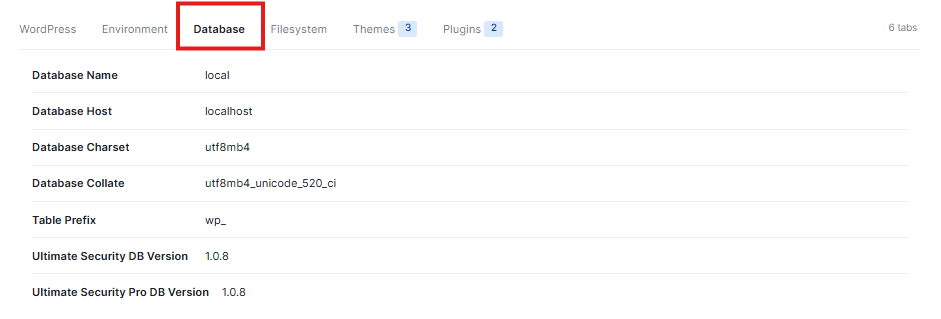
3. Database
This is the “filing cabinet” where all your posts, pages, and settings are stored. It lists the technical names and versions of your database so experts can see how it is organized.
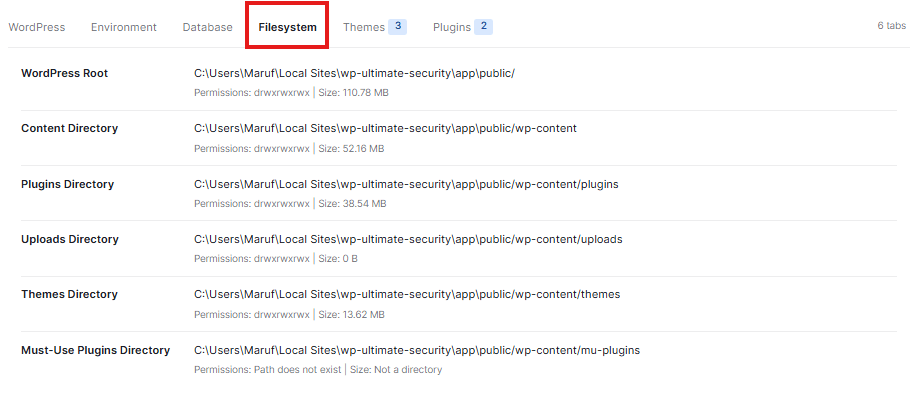
4. Filesystem
This section checks the “drawers” on your server to make sure WordPress is allowed to save and move files. It shows where your plugins, themes, and images are kept on the computer.
5. Themes
This lists the different designs (Themes) you have installed.
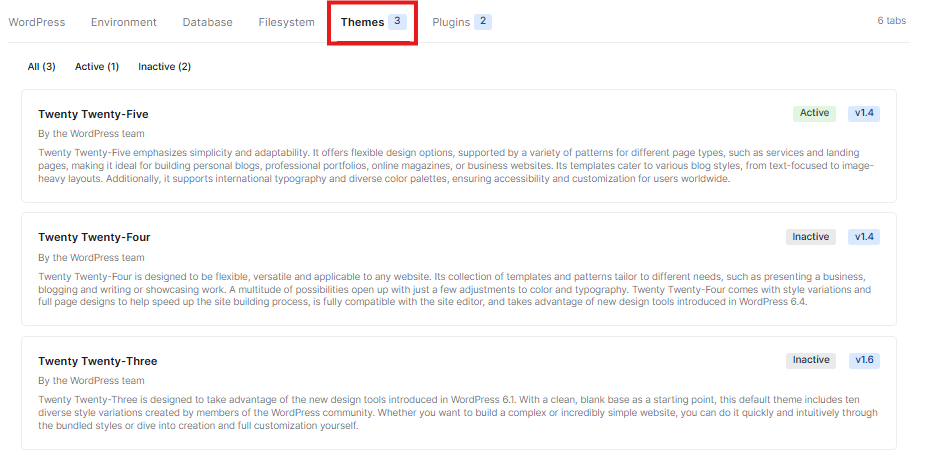
- Active: The design you are currently using for your site.
- Inactive: Other designs you have downloaded but are not using right now.
6. Plugins
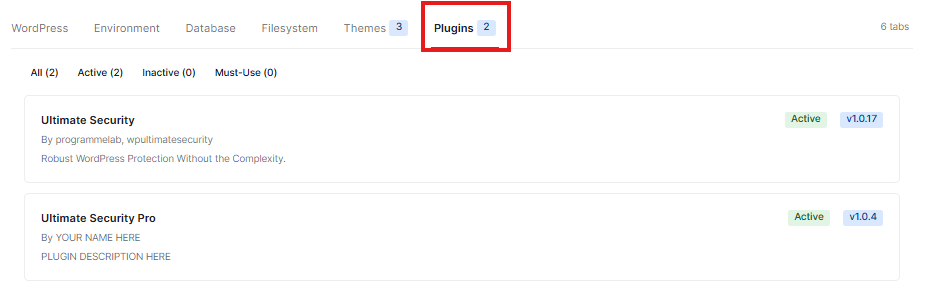
This shows the extra “tools” (Plugins) you have added to your site, like Ultimate Security. It tells you if they are Active and which version you are using.


