
Two-Factor Authentication
It is an extra layer of multi-factor authentication with email OTP, authenticator apps, SMS authentication, and backup recovery codes.
Overview
Navigate to Ultimate Security > Login Authentication > 2FA >
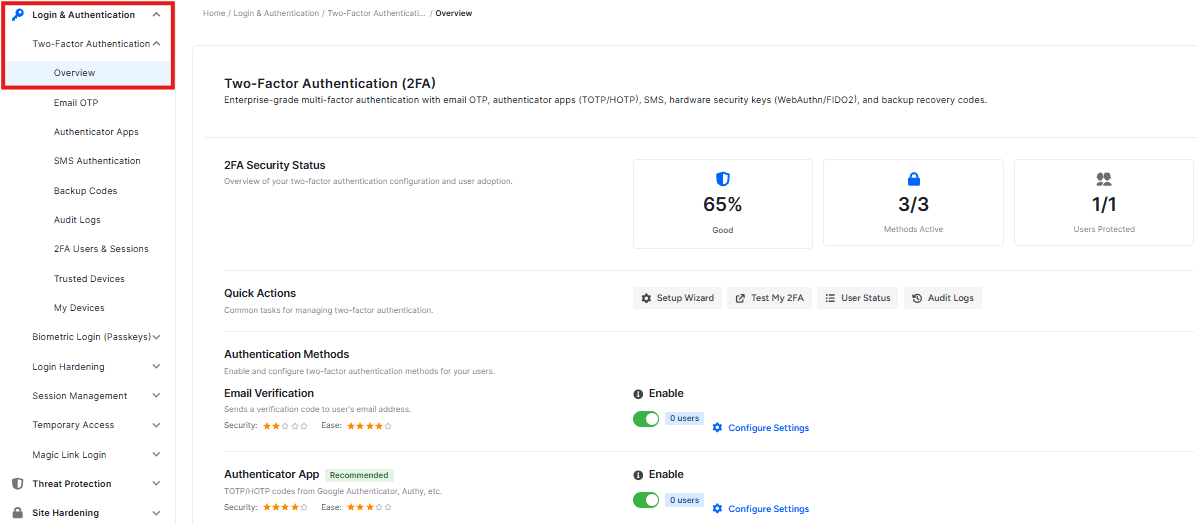
At the top of the page, you will find three key metrics:

Security Status
- Indicates the 2FA system is active and working correctly
Active Methods
- See your 2FA options here. Click ‘Compare method’ to see a table at the bottom that explains the differences between each method.
User Adoption
- Tracks how many users on your site have actually set up 2FA for their account.
Quick Actions
This section provides shortcuts to manage your two-factor authentication settings:

- Test 2FA: Verify your current setup by clicking here. You will be taken to a dashboard where you can choose to test either email or an authenticator app.
- Setup Wizard: Follow a guided flow to configure 2FA. You can select email OTP or an authenticator app. The wizard walks you through Level -> Method -> Roles -> Review steps before leading you to the final configuration page.
- View User Status: See which users on your site currently have 2FA enabled.
- Audit Logs: Review a history of authentication events and activities
Authentication Methods Comparison
This section helps you compare the two available security methods to decide which one to use.
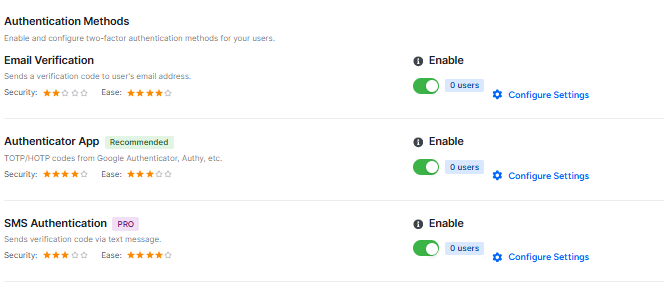
- Email Verification: This method is easy to set up and does not require any extra applications.
- Authenticator App (Recommended): This option is very secure and easy to use. It requires a smartphone.
You can view the security rating, pros, and cons for each method. To start setting up a method, click the Configure button.
Email OTP
This page lets you set up email verification. When turned on, users will get a one-time code in their email every time they log in.
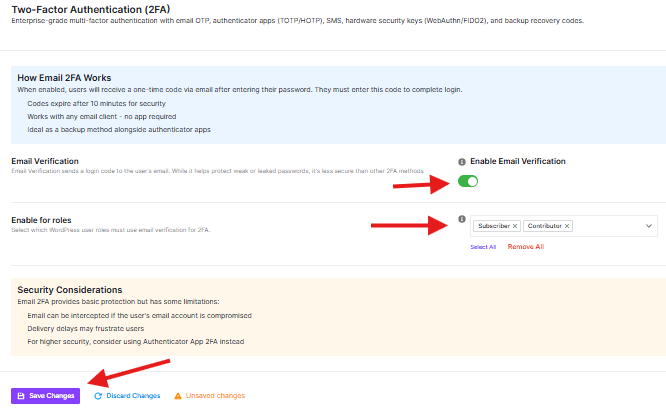
Enable Email Verification
- There is a toggle switch.
Enable for Roles
- This setting allows you to choose which user groups are required to use email 2FA.
- You may choose to disable this for regular subscribers to avoid friction during simple logins, unless your site deals with sensitive user data.
NB: “Save Changes” or “Discard Changes” button will apply the settings
Next Steps for Users
Once you have enabled this feature on this page, your users must:
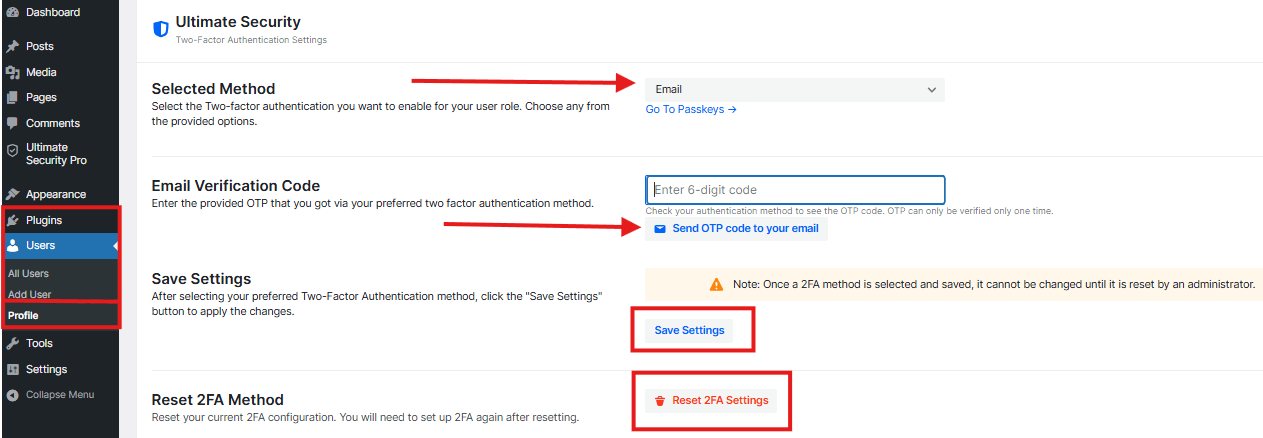
- Go to their WordPress Dashboard > Users > Profile page
- Scroll down and find the Ultimate Security
- Select the email method.
- Get OTP from the email address for verification
- Save Settings to apply
Security Considerations
Please keep the following in mind:
- Email delivery is not always instant. Network issues or server load can cause delays, making the verification code expire before the user finds it.
- If a hacker has already compromised a user’s email password, they can access the 2FA code, rendering this layer of security ineffective.
- Occasionally, verification codes can be flagged as spam and end up in the user’s junk folder.
Authentication Apps
Use this page to set up your Authenticator app. These apps provide the strongest security because they work without internet or phone signal. For extra protection, your login code changes every 30 seconds
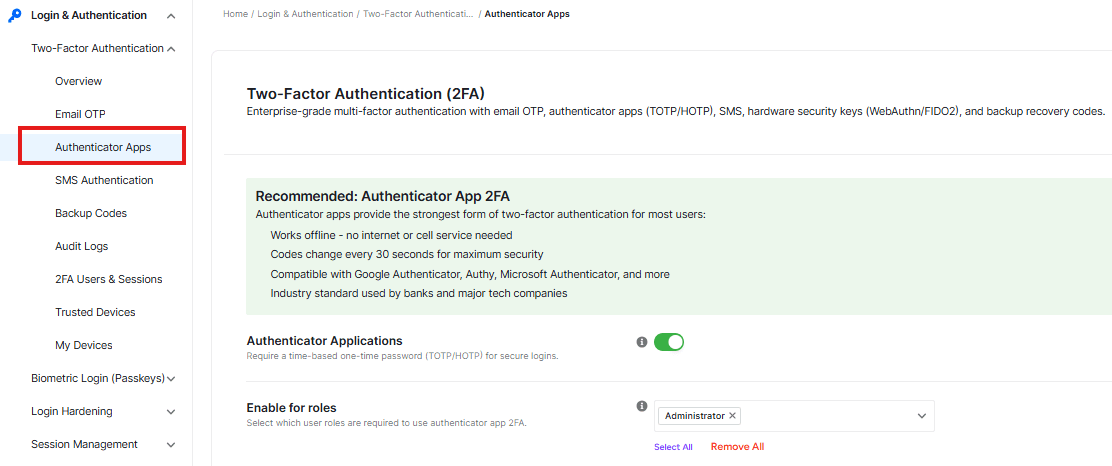
Authenticator Applications Toggle
- This switch enables or disables two-factor authentication.
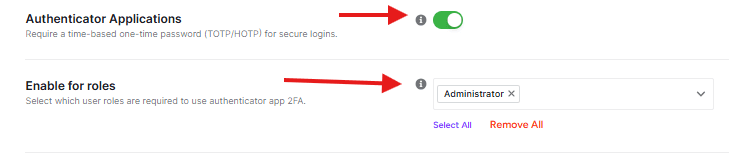
Enable for Roles
- This setting allows you to select which user roles are allowed to use the Authenticator App.
Advanced Settings
This section allows you to select the algorithm used to generate your OTP. You can choose between two options:

- TOTP (Time-Based): This is the most common algorithm and is used by virtually all authenticators. It generates a new verification code every 30 seconds based on the current time.
- HOTP (Event-Based): This option generates codes based on a counter. The code only changes when an event occurs (like a login attempt), rather than based on the time.
XML-RPC
XML-RPC is a feature in WordPress that allows external services to communicate with your site remotely. You will see a dropdown menu with two specific options. This setting decides if 2FA is required when these external services try to connect.

Option 1: Do not require 2FA over XMLRPC (default).
- External tools and mobile apps can connect to your site using just a username and password. They will not be asked for a 2FA code.
Option 2: Do require 2FA over XMLRPC
- Any connection attempt via XML-RPC (including mobile apps) must provide a valid two-factor authentication code in addition to the password.
Note: Only enable this requirement if you are sure your external apps support Two-Factor Authentication, or if you do not use external apps to manage your site
Encrypt Keys in Database
This feature locks your security codes inside the database to keep them hidden. It adds an extra layer of protection so that even if a hacker gets into your database, they cannot see or steal your login secrets.

Note: Once you enable this feature, it cannot be disabled. However, it is completely safe to keep it enabled.
Important Notice:
For the highest level of security, we strongly recommend using the Authentication App method (if available) instead of Email OTP. Authentication apps generate codes offline on your device, are immune to email delays, and are virtually impossible to intercept remotely.
Use email OTP primarily as a backup method or for users who are unable to use an authentication app.
Next Steps for Users
Once you have enabled this feature on this page, your users must:
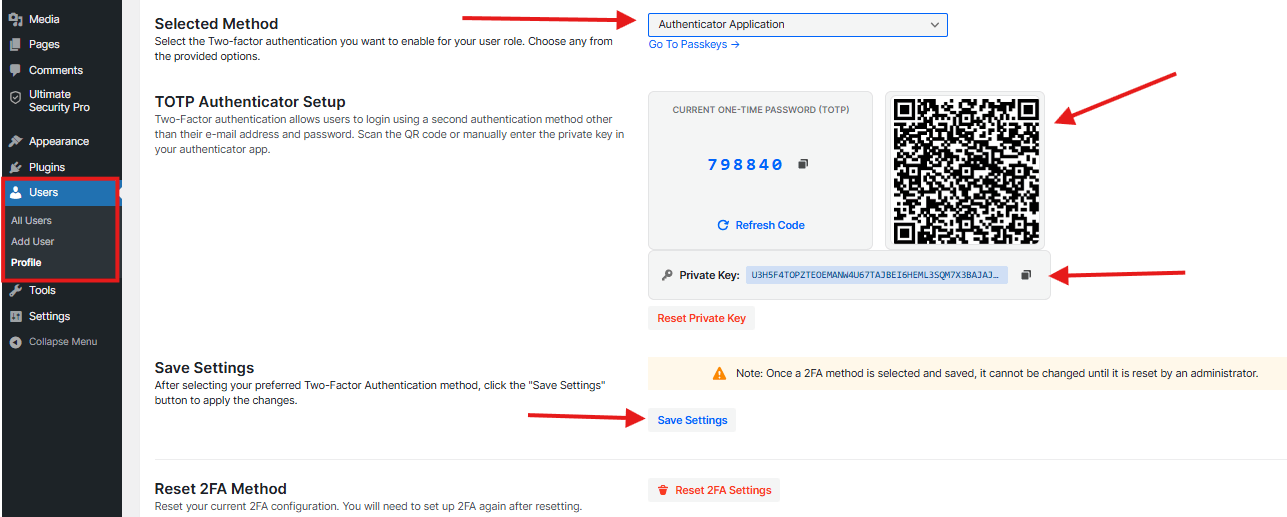
- Go to their WordPress Dashboard > Users > Profile page
- Scroll down and find the Ultimate Security
- Select the Authentication App method.
- Click Setup
- Scan the provided QR code with their preferred mobile app to finish the connection.
- Reset 2FA Method settings to restore all settings
Login Hardening
This page helps you protect your website by hiding your login page. By changing the address of your login page, you can stop automated robots and hackers from finding it.
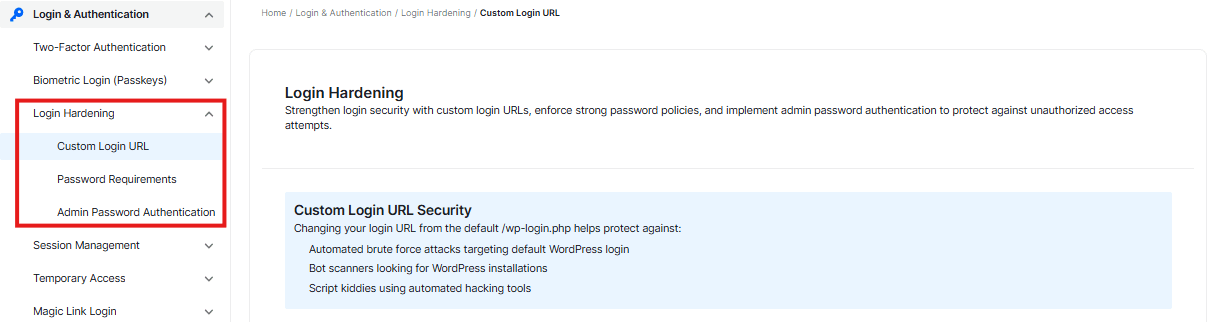
Custom Login URL Security
It states that modifying the default login URL helps defend against brute force attacks and scanner attacks.
Login Page URL

Below, you will see the login page URL field.
- This displays the default address for your login page.
- In the type box, you can change the default login URL and create a new private entrance.
Old Login Page Redirect

This option lets you redirect anyone who tries to access the default WordPress login page URL
- The default setting is 404. If a bot or hacker tries the old default link, they will receive a “Page Not Found” error.
- You can also add a custom URL in the box to redirect them to another link
Show a Consent Message
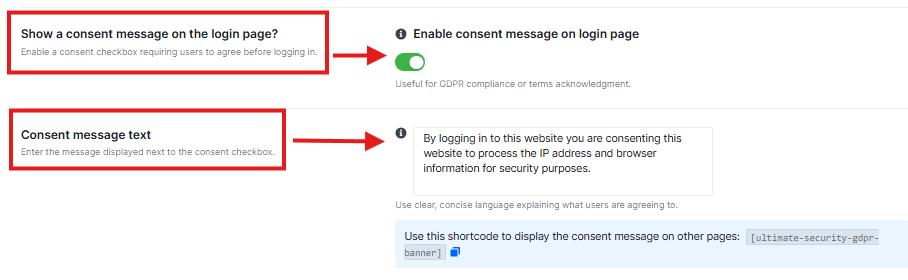
This option lets you show a custom message in the login form
- This feature has a toggle switch.
- Next to it, there is a text box containing a default message. This is the text that users will see when they reach your login page.
- You can type a custom message or welcome message here.
Save Your Changes
At the bottom of the section;
- You must click the button to apply any changes you made to the URL or settings.
Important Reminder: Before changing your login URL:
- Bookmark your new login URL or write it down
- Save the Plugin Deactivation URL from Settings > More > Extra
- Test the new URL in an incognito window before logging out
- If locked out, you can deactivate the plugin via FTP or use the deactivation URL
Password Requirements
This setting allows you to set rules for passwords on your website. By enforcing these rules, you make sure that all users create strong, hard-to-guess passwords.
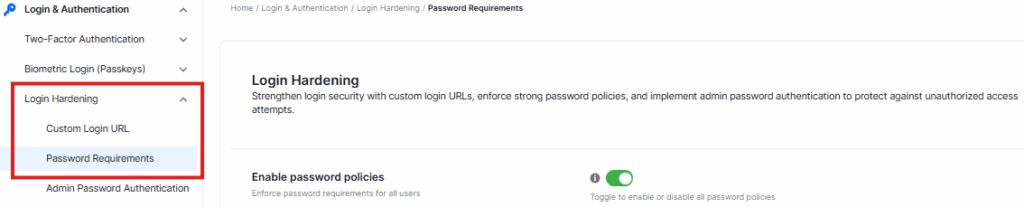
Enable Password Policies
You will see the main option labeled “Enable password policies.”

- This is the switch for this entire page.
- If you turn this off, none of the password rules below will apply to your users.
Quick Presets
Below the main switch, you will see a row of tabs labeled “Quick presets.” These are shortcuts to quickly set how strict you want the password rules to be. The available tabs are
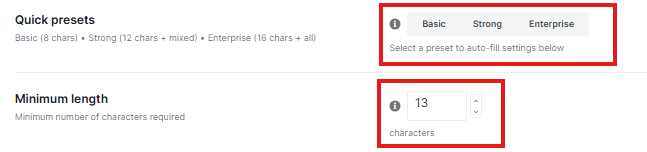
- Basic: Sets simple, easy-to-follow rules.
- Strong: Sets stricter rules for better security.
- Enterprise: Sets the highest level of security for professional environments.
NB: Clicking one of these tabs automatically fills in the settings below (like length and character types) to match that level of security.
Minimum Length

Under the presets, you will find the setting for “Minimum length.”
- This controls how many characters a password must have.
- You can adjust the number (e.g., 8, 12, 16) to make passwords shorter or longer.
Require Uppercase & Lowercase
Next, there is a checkbox labeled “Require uppercase & lowercase.”

- It means users cannot use all lowercase letters. They must be mixed in capital letters
Require Numbers
Below that, there is a checkbox labeled “Require numbers.”

- It means users must include at least one number in their password.
Require Special Characters
Finally, there is a checkbox labeled “Require special characters.”

- What this means: Users must include at least one special symbol (like !, @, #, $, or %) in their password.
Exclude Characters
Located right below the “Require special characters” option, you will see an input box.

- While you force users to use special characters, you might want to ban specific ones that cause technical problems or are hard to type.
- If you type characters into this box (like ” ‘), users will not be allowed to use those specific symbols in their passwords.
Password History
Next, you will see the setting for “Password history.”

- This is set to 1 by default
- This stops users from reusing their old passwords. A setting of “1” means a user cannot reuse their most recent password. They must pick a new one. If you set it to “5,” they couldn’t reuse their last 5 passwords.
Expiration Period
Below that, there is an option labeled “Expiration period.”

- This makes users pick a new password after a certain amount of time.
- Setting it to “0” (zero) means passwords never expire. Users can keep their password forever. If you want them to change it every 3 months or even in a year, you would enter “3” here and select the month/year near the box.
Warning Days
Next to the expiration setting, you will see “Warning days.”

- If you have an expiration period set, this setting warns the user before their password runs out.
- Setting any number means the user will receive a notice before their password expires, reminding them to update it.
Grace Period
Below the warning days, there is the “Grace period” setting.

- This gives users a few extra chances to log in after their password has technically expired.
- Setting any number means the user can still log in for the certain number of days after the expiration date. During this time, the site will usually force them to pick a new password immediately. After the days are over, they are locked out completely.
Email Notification
You will see a toggle switch labeled “Email notification.”

- The system will automatically send emails to users regarding their password.
- This ensures users get notified about upcoming expirations or required changes without you having to tell them manually.
First Login Reset
At the bottom of this section, there is a toggle labeled “First login reset.”

- This is useful for new accounts. When you create a new user and they log in for the very first time, the system will force them to change their password immediately.
- This ensures that only the actual user knows their password, not the admin who created the account
Disable Self-Service Reset
You will see a toggle switch labeled “Disable self-service reset.”

- Normally, users can click a “Lost your password?” link to reset their own password via email. By turning this on, you are disabling that feature.
- This is useful for high-security sites where you want to personally verify who is asking for a password reset. It prevents hackers from trying to take over accounts by using the reset tool.
Custom Reset Message
Below the toggle, there is a text box labeled “Custom reset message.
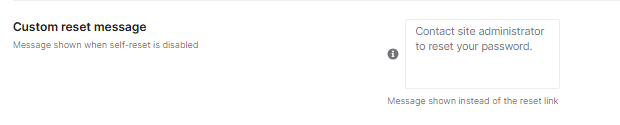
- The box currently contains the text “Contact site administrator to reset your password.”
- What this means: Since the standard reset link is now hidden, this is the message users will see instead.
- You can type any instructions you want here. For example, you could provide an email address telling users exactly how to reach you to get their password fixed.
Custom Reset URL
Next, there is an input field labeled “Custom reset URL.”

- What this means: If you have created a specific custom page or form on your website for users to request help, you can paste that link here.
- If you do not have a custom page, you can leave this as is. If you enter a URL, the system might redirect users to that specific page when they try to reset their password.
Save or Discard Changes
- At the very bottom of the page, you will see buttons to control your settings.
Session Management
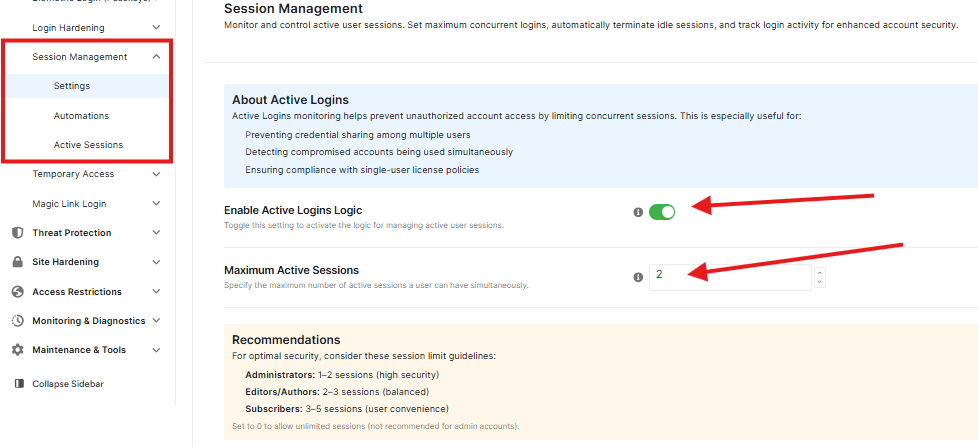
This page helps secure accounts by limiting current logins, terminating idle sessions, and tracking all login attempts
About Active Logins
When you look at the About Active Logins box, you will see a simple explanation of why this feature is good for your site.
Enable Active Logins Logic
There is a toggle switch to enable this feature
Maximum Active Sessions
This setting allows you to control how many devices can stay logged in at a time. Set your preferred session numbers in the box to limit login devices.
Recommendations
At the bottom of the page, you will see a Recommendations section. This gives you helpful advice on how many sessions to allow for different types of users.
Note: If you aren’t sure what number to pick, following the recommendations is the safest choice
Use the buttons at the bottom of the page to save and discard changes.


