
Site Health
The Site Health page is like a doctor’s report for your website. It shows you exactly how your site is built and if it is running smoothly. If you ever need to ask a professional for help, all the information they need is right here.
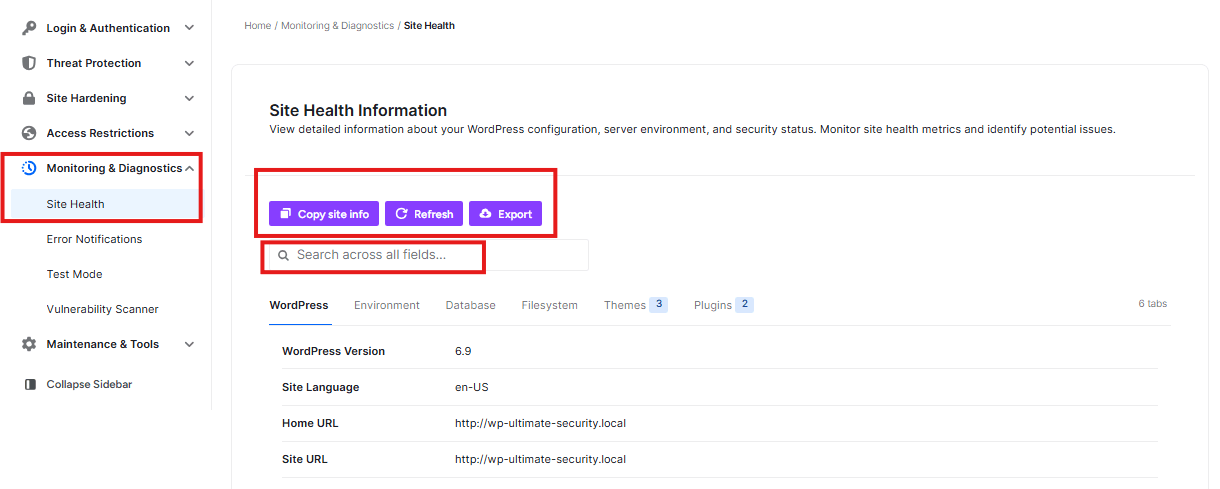
The Action Buttons
At the top of the page, you have three main tools:
- Copy site info: This copies all your technical details so you can easily paste them into an email for support.
- Refresh: This updates the page to show the most recent information.
- Export: This saves a copy of all this information to your computer.
The Information Tabs
There are six different “folders” of information you can look through:
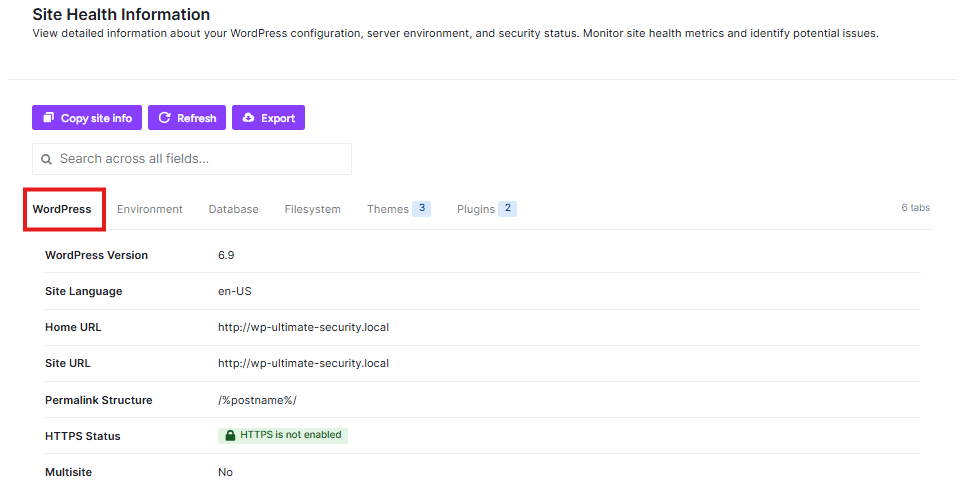
1. WordPress
This shows your site’s “ID card.” It tells you which version of WordPress you are using (like 6.9) and if your site is using a “secure lock” (HTTPS). If you see “HTTPS is not enabled,” you should fix this to keep your site safe.
2. Environment
This shows details about the computer (server) where your website lives.
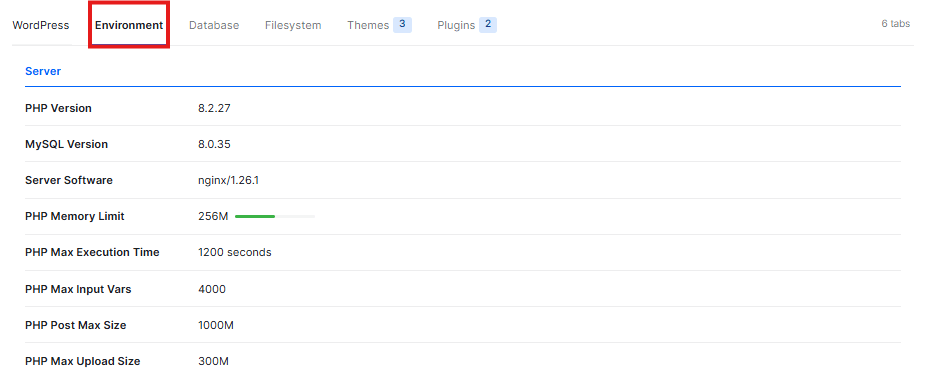
- PHP Version: This is the main “engine” version your site runs on.
- Memory Limit: This shows how much “brain power” your site is allowed to use.
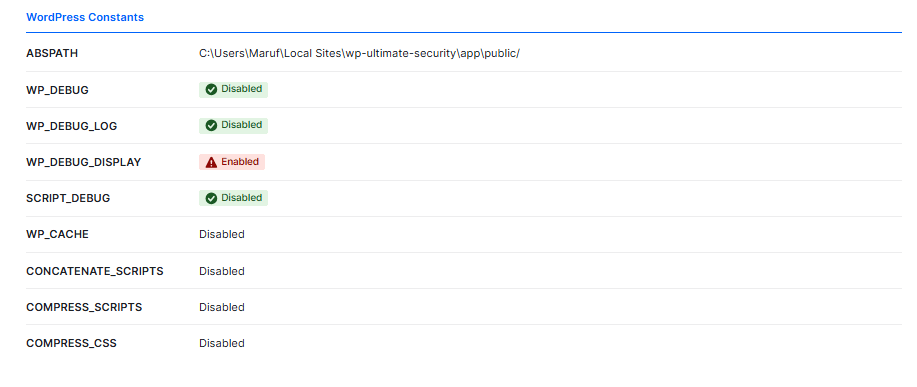
- WP_DEBUG: If this says “Enabled” with a red warning, it might show technical errors to your visitors. It is usually safer to have this “Disabled”.
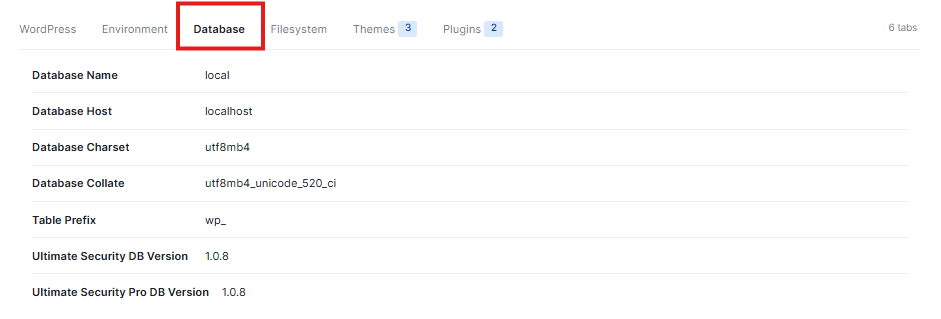
3. Database
This is the “filing cabinet” where all your posts, pages, and settings are stored. It lists the technical names and versions of your database so experts can see how it is organized.
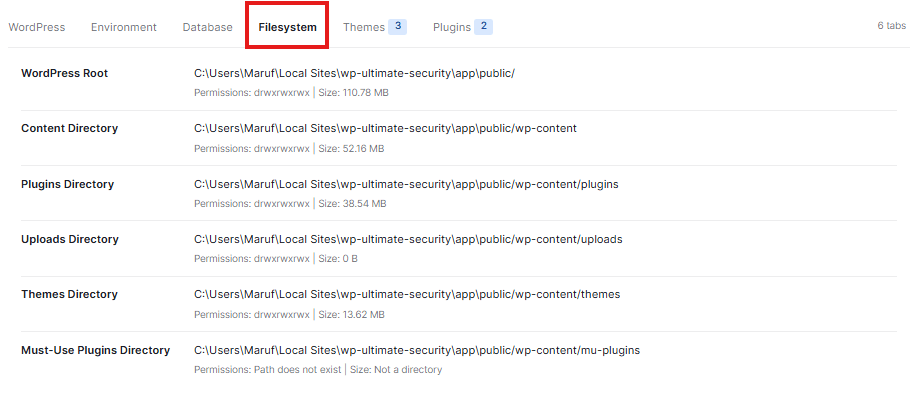
4. Filesystem
This section checks the “drawers” on your server to make sure WordPress is allowed to save and move files. It shows where your plugins, themes, and images are kept on the computer.
5. Themes
This lists the different designs (Themes) you have installed.
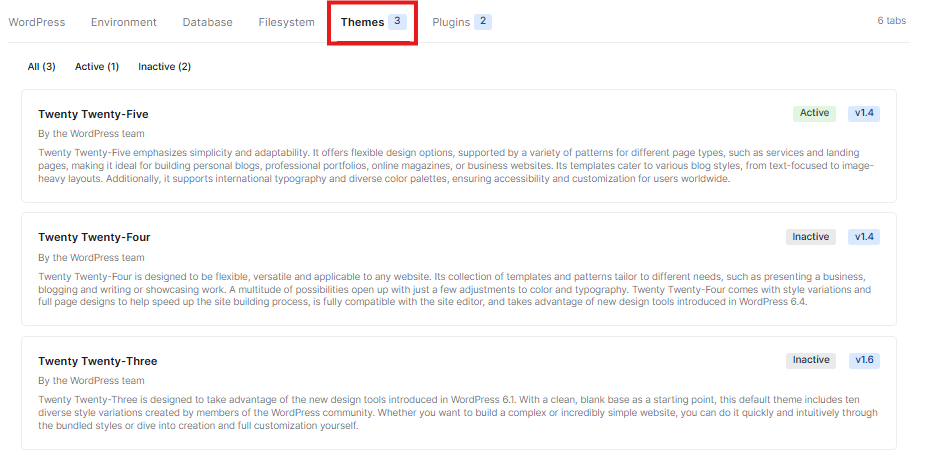
- Active: The design you are currently using for your site.
- Inactive: Other designs you have downloaded but are not using right now.
6. Plugins
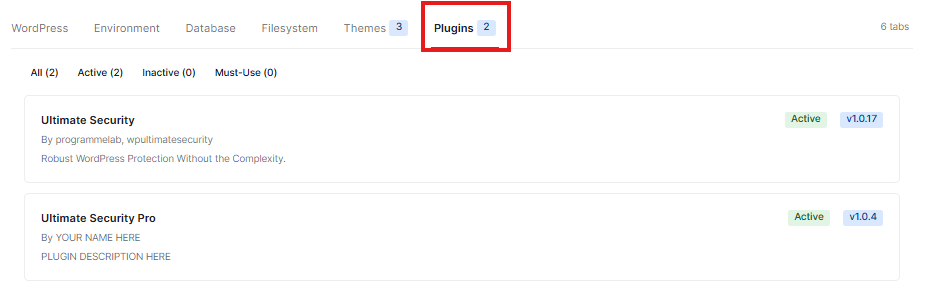
This shows the extra “tools” (Plugins) you have added to your site, like Ultimate Security. It tells you if they are Active and which version you are using.
Error Notifications Page
This page helps you set up how you want to get alerts when something goes wrong with your website.
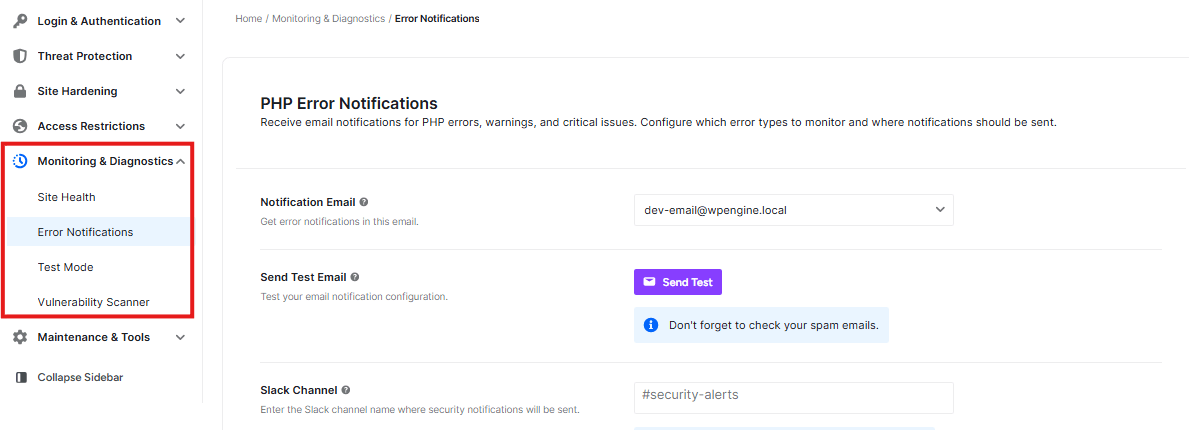
What You Can Do Here:
Notification Email:

- You can choose which email address gets error messages
- Right now it’s set to: [email protected]
Send Test Email:

- Click the “Send Test” button to check if your email notifications work
- Remember to check your spam folder if you don’t see the test email
Slack Channel:

- You can send error alerts to a Slack channel
- The channel name is: #security-alerts
- The channel must already exist in your Slack workspace
Slack Webhook URL:

- This is a special link that connects your website to Slack
- It should look like: https://hooks.slack.com/services/xxxxxx
Send Test Message:

- Click “Send Slack” to test if your Slack notifications work
Error Levels To Notify:
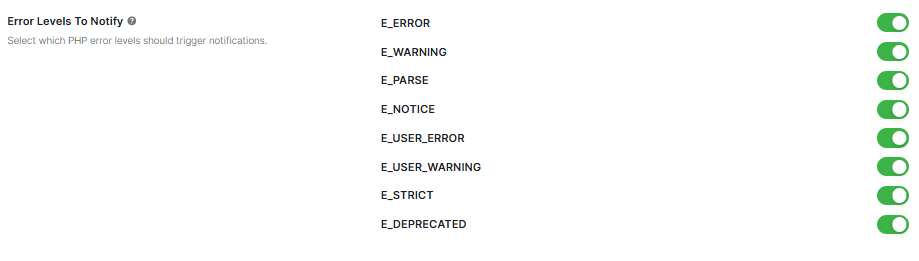
- These are different types of errors your site might have
- You can turn each type ON or OFF using the toggle switches
- Right now, “E_ERROR” is turned ON (green switch)
- Other types like warnings, notices, and user errors can be turned on or off
Test Mode Page
This page helps you test your security settings without actually blocking real users.
Enable Test Mode:
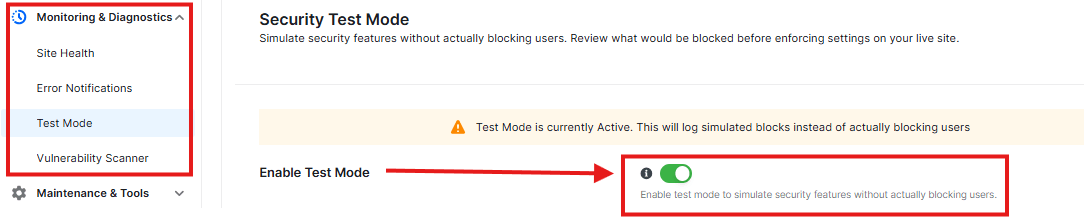
- When ON, it simulates security features without really blocking anyone
User Roles:

- You can choose which user types to test with:
- Administrator (always active)
- Editor
- Author
- Contributor
- Subscriber
- Each has its own toggle switch
Safety Options:

- Always exclude administrators (recommended) – keeps you safe from being blocked
- Log simulated blocks to activity logs – keeps records of test runs
- Show test mode notice in admin dashboard – reminds you it’s in test mode
Simulation Statistics:
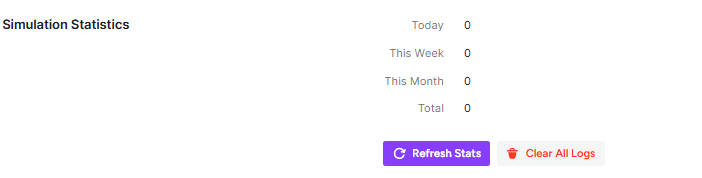
- Shows how many test blocks happened:
- Today: 0
- This Week: 0
- This Month: 0
- Total: 0
- You can “Refresh Stats” or “Clear All Logs”
Recent Simulations:

- Shows your test results
- Right now it says: “No simulation logs yet. Enable test mode and wait for security events to be simulated.”
Vulnerability Scanner
This is the Vulnerability Scanner page. It helps you check if your plugins and themes have any security problems.
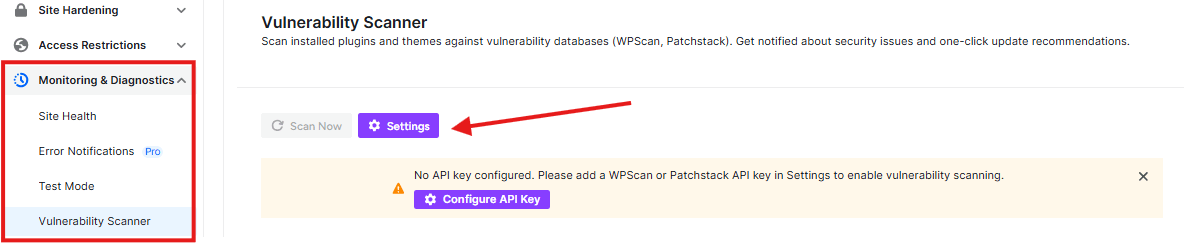
Top Section:
- Scans your plugins and themes against security databases
- Two buttons: “Scan Now” and “Settings”
Search and Filter:
- Search bar to look for specific plugins or themes
- Filter tabs: Plugins, Themes, WordPress Core
Settings (Popup)
This is a popup window that opens when you click the “Settings” button. It helps you configure the scanner.
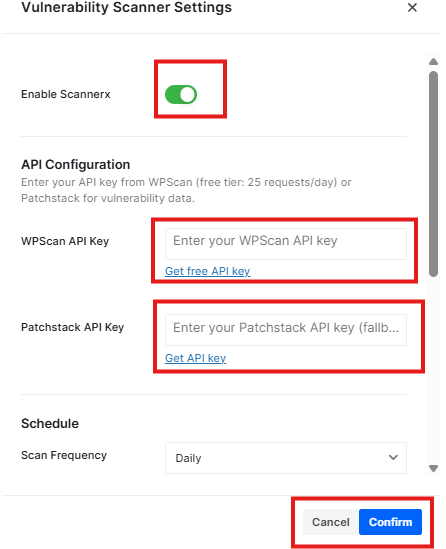
What You Can Configure:
API Configuration:
- WPScan API Key: Enter your WPScan API key
- Patchstack API Key: Enter your Patchstack API key
Schedule:
- Scan Frequency: Choose how often to scan (currently set to “Daily”)
- Abandoned Threshold: Set how many days to check for abandoned plugins/themes
Notifications:
- Email Notifications: Toggle ON/OFF (currently ON)
- Notification Email: Enter the email address to receive alerts
- Severity Levels: Choose which types of issues to notify about (Critical, High, Medium, Low)
Buttons:
- Cancel: Close without saving
- Continue: Save your settings


