
Comments Management
Global Comments
This section lets you decide where people are allowed to leave comments.
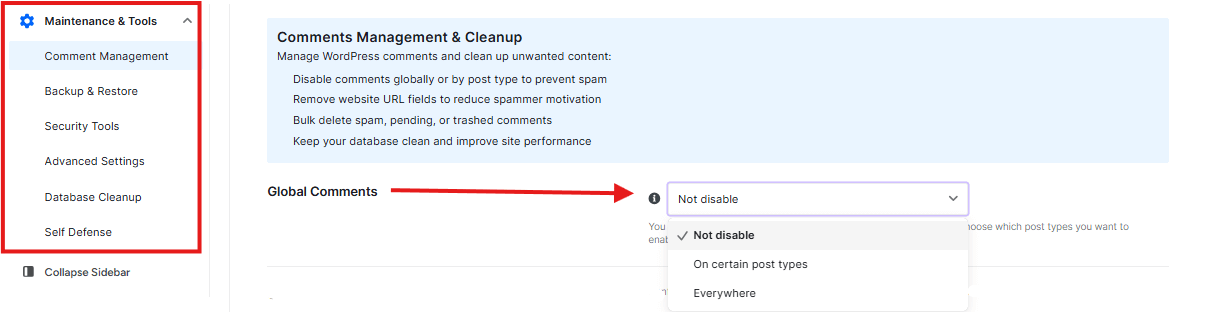
- What it does: You can turn off comments for your whole website or just for specific types of pages.
- How to use it: Use the dropdown menu to choose if you want to disable comments everywhere or only on certain parts of your site.
2. Select Post Types
If you chose to turn off comments on “certain post types,” this is where you pick them.
- What it does: You can flip the switch for Posts, Pages, Media (like images), or Products.
- Why use it: Sometimes you want people to comment on your blog posts, but not on your “Contact Us” page or product images.
3. Comment Settings (The Spam Blockers)
Spammers love to leave links to other websites. These settings stop them.

- Remove “url” in the comment form: This hides the box where people normally type their website address. If they can’t put their link, they usually won’t leave a spam comment.
- Remove external links in the comments: If a spammer does leave a link, this tool will strip it out.
- Replace external links from author bio: This stops people from using their profile name to advertise other websites.
4. Cleaning Up Old Comments
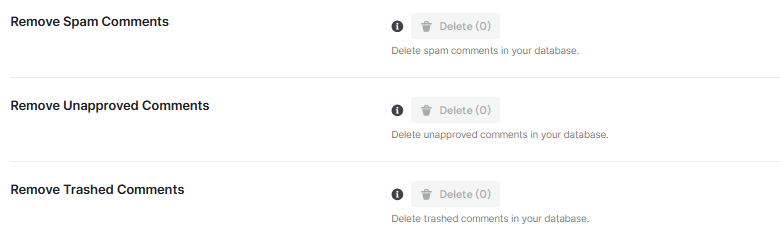
The bottom sections are for deleting comments that are already there.
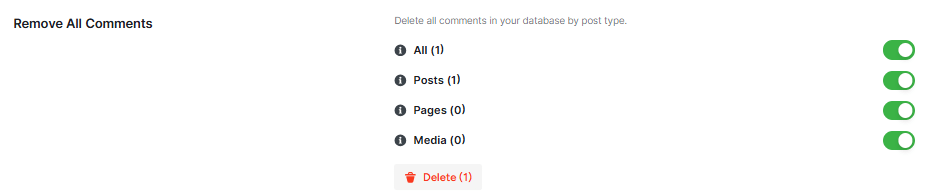
- Remove All Comments: Use this to wipe the slate clean and delete every single comment on your site.
- Remove Spam Comments: This deletes comments that WordPress has already flagged as “Spam.”
- Remove Unapproved Comments: This clears out comments waiting for you to say “Yes” or “No” to them.
- Remove Trashed Comments: This empties the “Trash” bin for your comments, like taking the garbage out to the curb.
💡Always click the purple Save Changes button at the very bottom left after you make a choice. If you don’t, the plugin won’t remember what you picked!
Backup & Restore
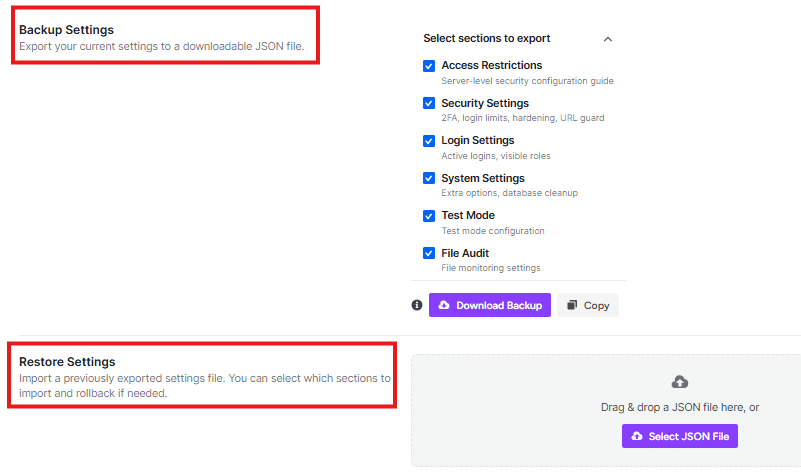
Backup Settings
This section lets you save your current settings into a file that lives on your computer.
- What it does: It turns all your switches and buttons into a special file (called a JSON file).
- Select sections to export: You can choose exactly what to save. You can check boxes for things like Login Settings, Security Settings, or Access Restrictions.
- Download Backup: When you click this purple button, the file downloads to your computer.
- Copy: This button lets you copy the settings as text if you just want to paste them somewhere else.
Restore Settings
If you move to a new website or accidentally mess up your settings, use this area to fix it.
- What it does: It takes a file you saved earlier and puts all those settings back onto your site.
- How to use it: You can Drag & drop your saved file into the gray box, or click Select JSON File to find it on your computer.
- Import Settings: Once the file is uploaded, click this to turn the settings on.
Security Tools
REST API Methods
The REST API uses four main types of messages to manage your website’s data:
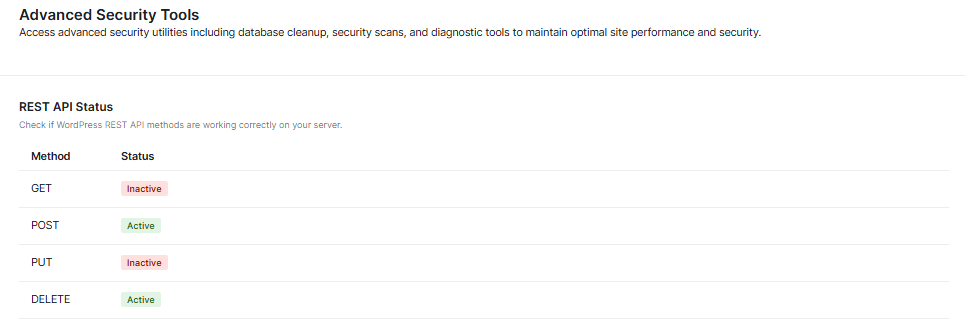
- GET (The “Reader”):
- This is used when your site wants to read or look at information. It’s like opening a book to see what is written inside.
- POST (The “Creator”):
- This is used to add or create something new. It’s like writing a brand-new page and adding it to your book.
- PUT (The “Editor”):
- This is used to update or fix something that is already there. It’s like taking an eraser to a mistake and writing the correct information over it.
- DELETE (The “Eraser”):
- This is used to remove information. It’s like ripping a page out of the book and throwing it away.
What the Status Colors Mean
- Active (Green): The “door” is open, and your website can use this method to talk to other apps.
- Inactive (Red): The “door” is locked. This might be for safety, but sometimes it can stop certain features from working.
Server Resources
This part shows you how hard your website’s “brain” is working.

- Memory Limit: This is the total amount of “thinking space” your website has (for example, 256M).
- Current Usage: This shows how much of that space you are using right now. If the green bar gets too full, your site might slow down.
- Max Execution Time: This is the amount of time (in seconds) your site is allowed to work on a single task before it gives up.
- Copy & Print: You can use these buttons to save this information if you ever need to show it to a tech expert for help.
3. Scheduled Tasks
This is the “To-Do List” for your security plugin.
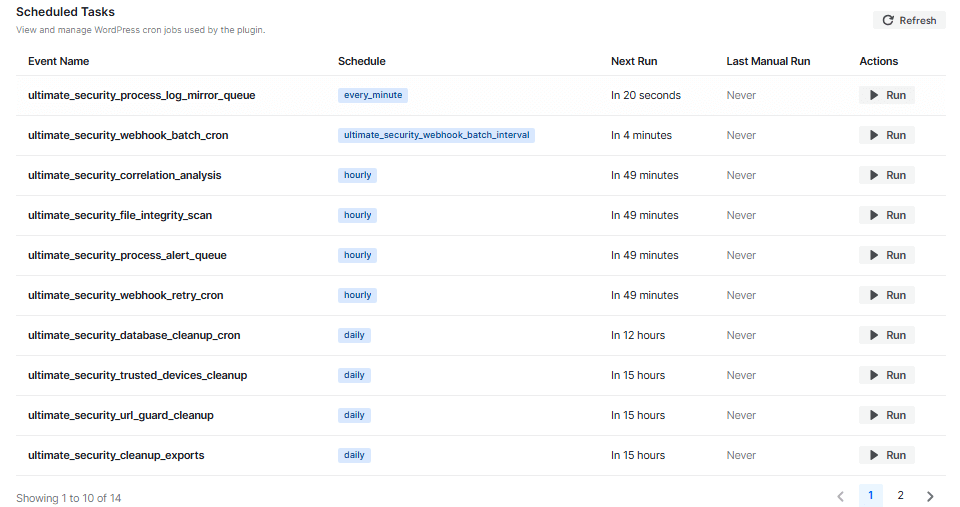
- Event Name: This is the name of the specific job the plugin needs to do, like checking your files for changes or sending alerts.
- Schedule: This tells you how often the job happens (for example, “every minute” or “hourly”).
- Next Run: This shows a countdown of when the job will start again.
- Actions (Run Button): If you don’t want to wait for the timer, you can click the Run button to make the plugin do that task immediately.
💡You don’t usually need to change anything here. This page is mostly for checking that everything is working exactly as it should!
Advanced Settings
Data Management
This section decides what happens if you ever decide to stop using the plugin and delete it.
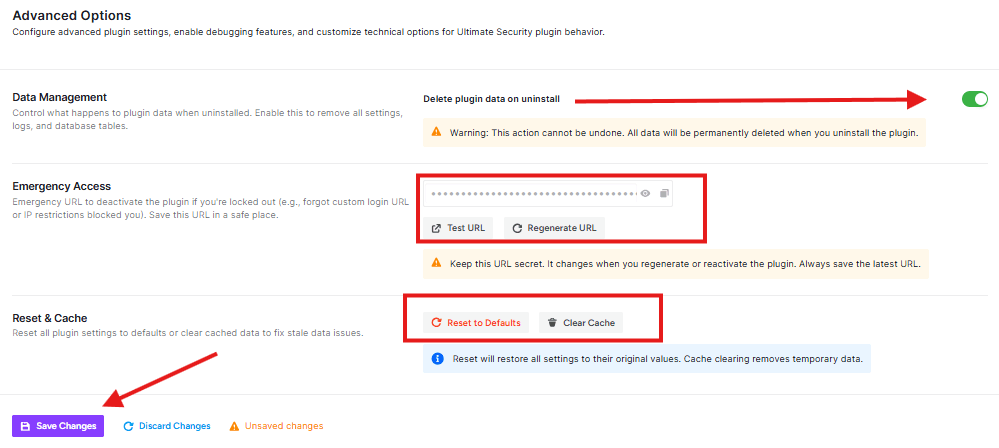
- Delete plugin data on uninstall: * What it does: If you turn this switch ON, the plugin will erase everything it ever recorded (like settings and security logs) when you delete it from WordPress.
- Why use it: Use this if you want to make sure no leftover “digital trash” is left behind on your website.
- ⚠️ Warning: Once this data is deleted, you can never get it back!
Emergency Access (The “Spare Key”)
This is one of the most important parts of the plugin. Sometimes, security settings might accidentally lock you out of your own website.
- Emergency URL: This is a secret web link made just for you.
- What it does: If you are locked out, you can paste this secret link into your browser. It will automatically turn off the security plugin so you can get back into your site.
- How to use it: 1. Save it: Copy this link and save it somewhere safe, like a notebook or a private file on your phone. 2. Test URL: Click this to make sure the link works. 3. Regenerate URL: If you think someone else saw your secret link, click this to create a brand-new one.
Reset & Cache (The “Fresh Start”)
If the plugin is acting strangely or you just want to go back to the beginning, use these buttons.
- Reset to Defaults: * What it does: This pushes the “Reset” button on every setting in the plugin. It will go back to exactly how it looked when you first installed it.
- Clear Cache: * What it does: This clears out “temporary memory” that the plugin uses.
- Why use it: If you changed a setting but don’t see the change happening on your site, clicking this can usually fix the problem.
💡 Always remember to click the Save Changes button at the bottom left after turning on the “Delete plugin data” switch!
Database Cleanup
Database Stats
At the top, you’ll see four important numbers:
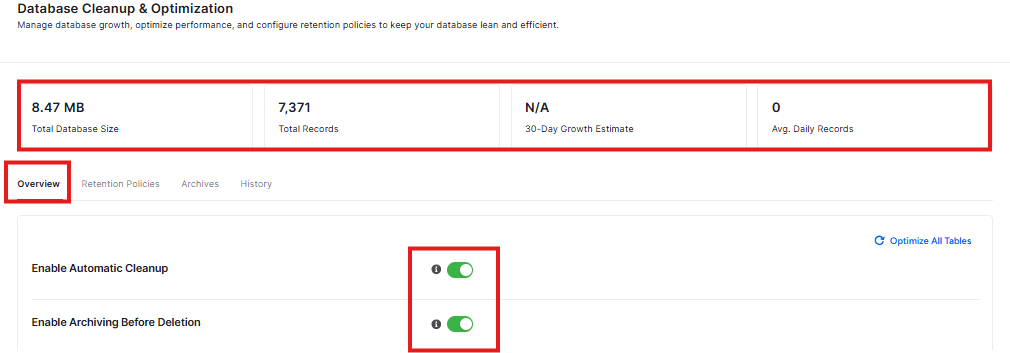
- Total Database Size: How big your database is (right now it shows 0 B)
- Total Records: How many things are stored in your database (right now it shows 0)
- 30-Day Growth Estimate: How much your database might grow in 30 days
- Avg. Daily Records: How many new things are added each day
Step 2: Turn On Automatic Cleanup
You’ll see two toggle switches:
- Enable Automatic Cleanup – This automatically removes old, unnecessary data from your database
- Enable Archiving Before Deletion – This saves a copy of data before removing it (good for safety)
Both are turned ON by default, which is usually best for most websites.
Step 3: Clean Up Your Database
In the “Database Cleanup” section, you can:
- Select which tables (parts of your database) to clean
- Delete old records that you don’t need anymore
Right now, it shows “No log tables found” which means your database is already clean!
Overview Tab
This is the main dashboard that shows you:
- Your total database size
- How many records (items) are in your database
- How your database is growing
- Average daily records being added
It gives you a quick look at how healthy your database is right now.
Retention Policies Tab
This tab helps you control how long data stays in your database.
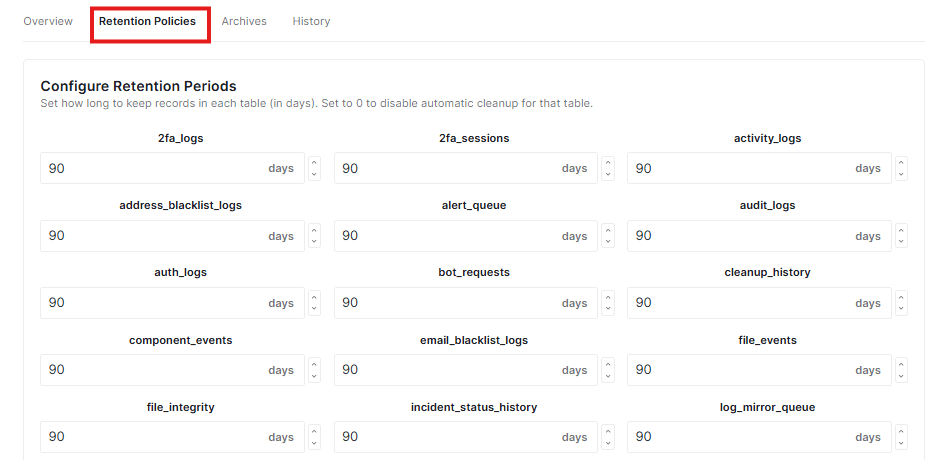
What It Does:
- Configure Retention Periods: You can set how many days to keep records in each part of your database
- Save Retention Policies: Click this blue button to save your settings
Why This Matters:
- Keeping your database clean means your website runs faster
- You can choose how long to keep different types of data
- This helps prevent your database from getting too big and slow
Archives Tab
This tab shows you archived records – data that has been saved before being deleted.
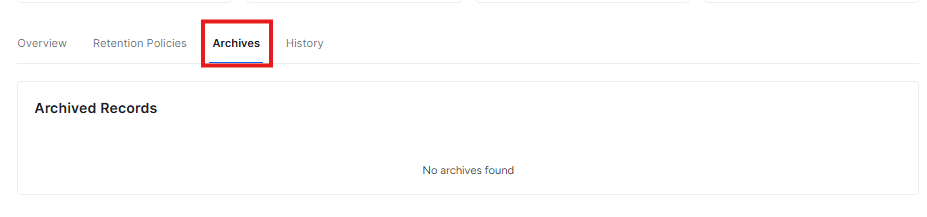
What You’ll See:
- Archived Records: Any data that was archived (saved) before cleanup
- Right now it shows “No archives found” which means your database is clean!
Why Archives Are Good:
- They act like a backup before data gets deleted
- You can review what was removed if needed
- Makes cleanup safer because you can always restore archived data
History Tab
This tab keeps track of all the cleanup activities.
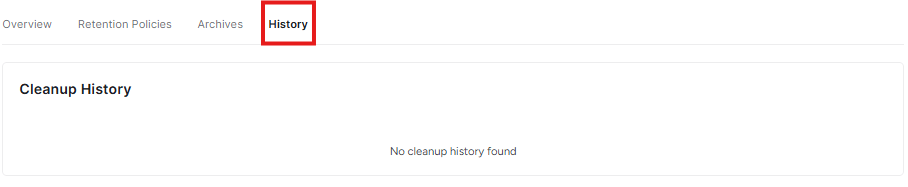
What It Shows:
- Cleanup History: A log of everything the plugin has cleaned up
- Right now it shows “No cleanup history found” which means the plugin hasn’t done any cleanups yet, or it’s a new installation
Why History Is Helpful:
- You can see what was cleaned and when
- Helps you track how your database is being maintained
- Good for troubleshooting if something goes wrong
Important Tips:
- Always save your changes by clicking “Save Changes” at the bottom
- If you make a mistake, you can “Discard Changes” to go back
- Start with the default settings if you’re not sure what to do
- These features help keep your website fast and secure!
Important Notes
- Automatic cleanup helps keep your site running fast
- Archiving before deletion is like making a backup before cleaning – it’s safer
- You can always turn these features off if you prefer to clean your database manually
- Click “Save Changes” to keep your settings, or “Discard Changes” to go back to how things were
Self Defense Protection
This feature keeps your security plugin safe from being turned off by bad people.
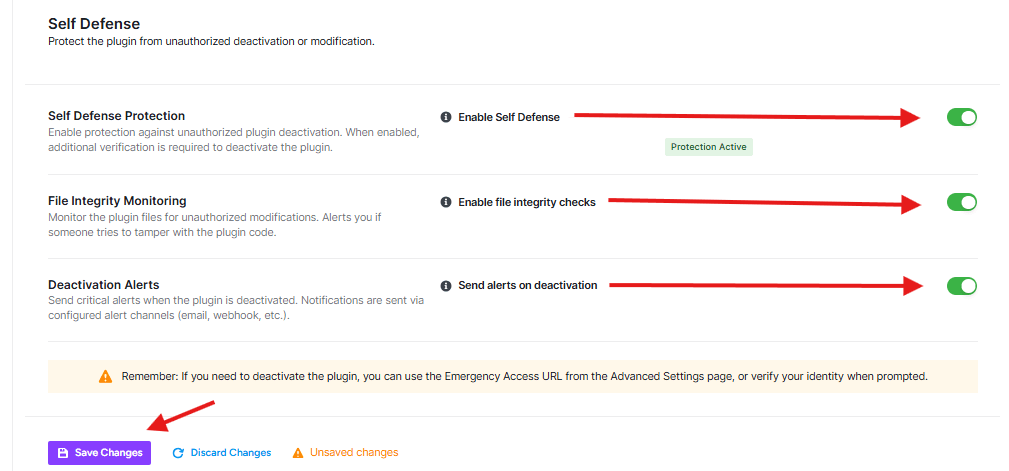
Enable Self Defense:
- When this is ON (green), it means:
- No one can easily turn off your security plugin
- If someone tries to turn it off, they’ll need to prove who they are first
- Your website stays protected
File Integrity Monitoring
This feature watches your security plugin files to make sure no one changes them.
- Enable file integrity checks: When this is ON (green), it means:
- The plugin checks if any files have been changed
- If someone tries to mess with your plugin code, you’ll get an alert
- Your security stays strong and trustworthy
Deactivation Alerts
This feature tells you when someone tries to turn off your security plugin.
- Send alerts on deactivation: When this is ON (green), it means:
- You’ll get a message if someone tries to turn off your security
- Alerts can come to your email or other places you set up
- You’ll know right away if something suspicious happens
Important Warning
If you ever need to turn off this security plugin (maybe to fix something), remember:
- You can use the “Emergency Access URL” from the Advanced Settings page
- Or you’ll need to prove it’s really you trying to turn it off


