
AI Providers
The AI Providers page is where you connect external artificial intelligence services to power smart features in your plugin, such as the AI Assistant…
On this page
The AI Providers page is where you connect external artificial intelligence services to power smart features in your plugin, such as the AI Assistant and the AI malware scanner. Go to your Ultimate Security Settings, click on Maintenance & Tools, and then select AI Providers. This feature is part of Ultimate Security Pro.
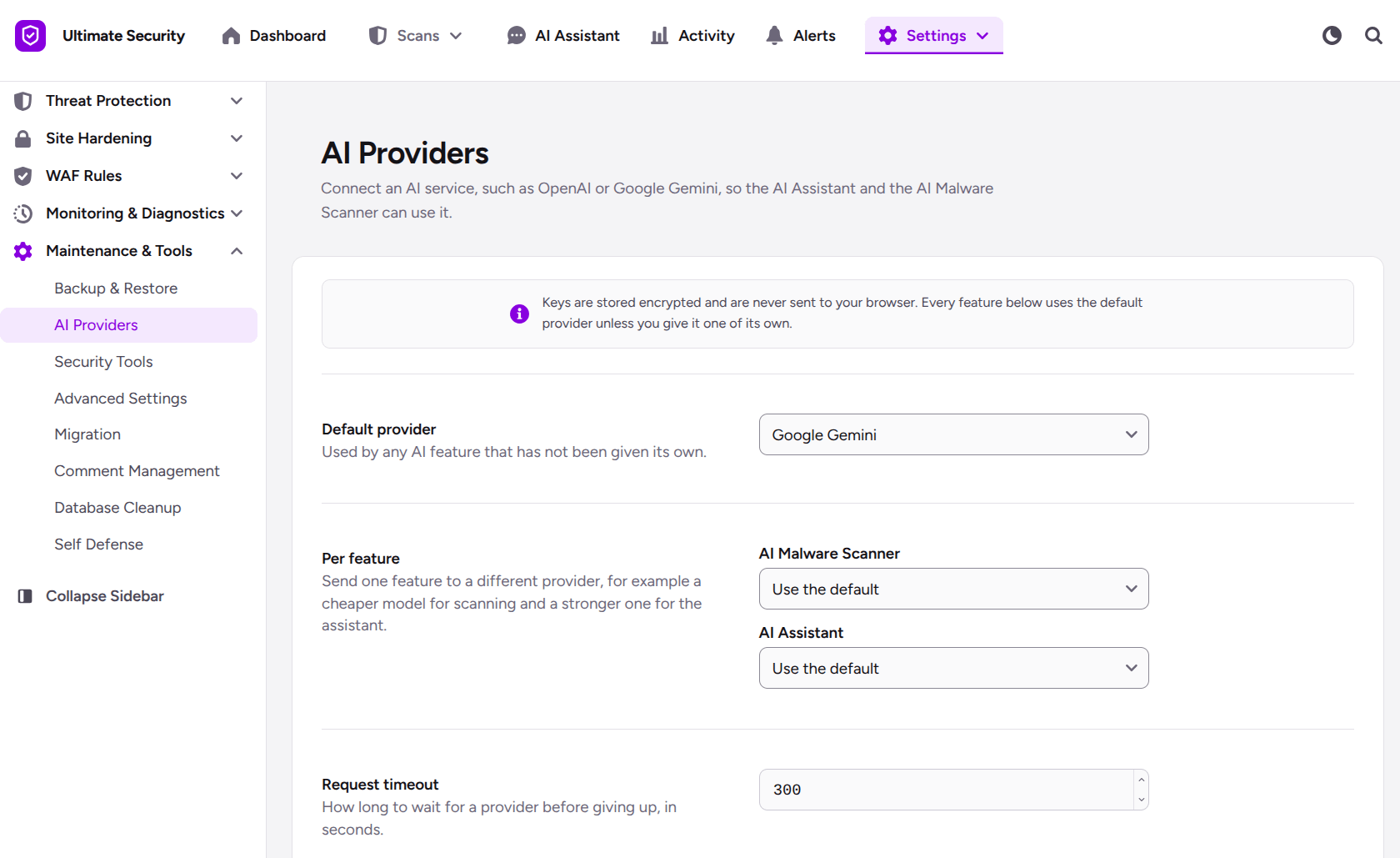
Note: Keys are stored encrypted and are never sent to your browser.
Setting Up Your Default AI Service
At the top of the page, you can choose which AI powers your plugin:
- Default provider: Select your primary AI service from the dropdown menu. This will act as your main backup provider for any features that do not have a custom one assigned.
- Per Feature (Custom Assignments): If you want to use different AI for different jobs, you can assign them here.
- Request Timeout: This setting controls how long (in seconds) the plugin will wait for an AI service to reply before giving up.
Connecting Your API Key & Selecting a Model
Further down the page, you will see a long list of supported AI providers. To activate one:
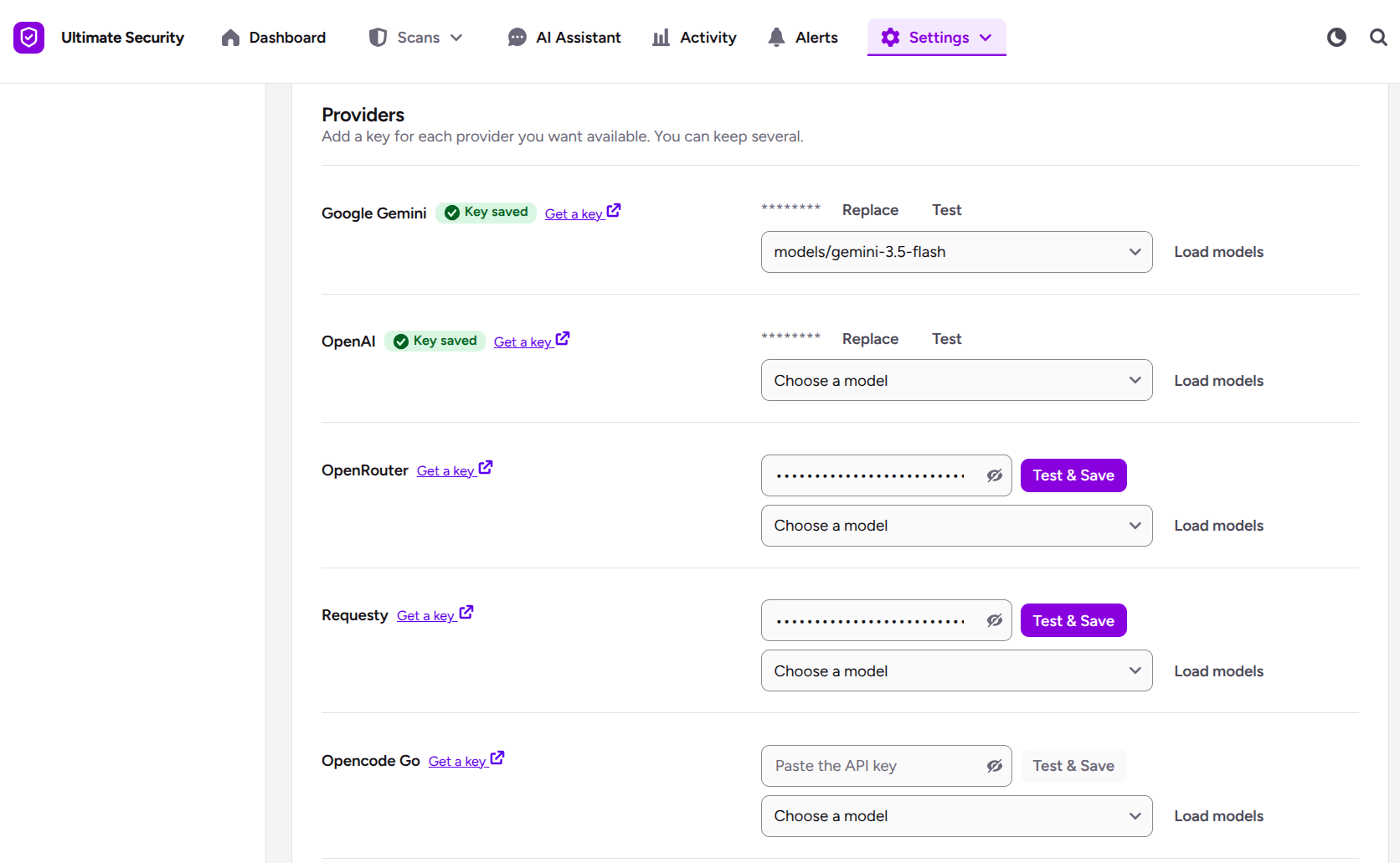
- Find Your Provider: Scroll down the list to locate the AI service you want to use. If you need a key, you can click the “Get a key” link right next to the provider’s name.
- Paste the API Key: Enter your secret API key into the “Paste the API key” box.
- Test the Key: Click the “Test & Save” button to ensure your key is valid and connected properly.
- Choose Your AI Model: Once connected, either type in the model name or click “Load models” to pick your preferred model version from the dropdown menu.
- Save Your Changes: Once you have configured everything, click the “Save Changes” button at the top right (or bottom) of the page to apply your settings.
Was this article helpful?
Thanks for the feedback.