
Email Verification
Configure email verification checks for syntax, MX records, disposable and role-based addresses, and choose which forms they run on.
On this page
The Email Verification feature protects your WordPress site from fake accounts, spam comments, and fraudulent checkouts. It checks email addresses in real-time during user activity using MX lookups and domain intelligence to ensure only legitimate users get through.
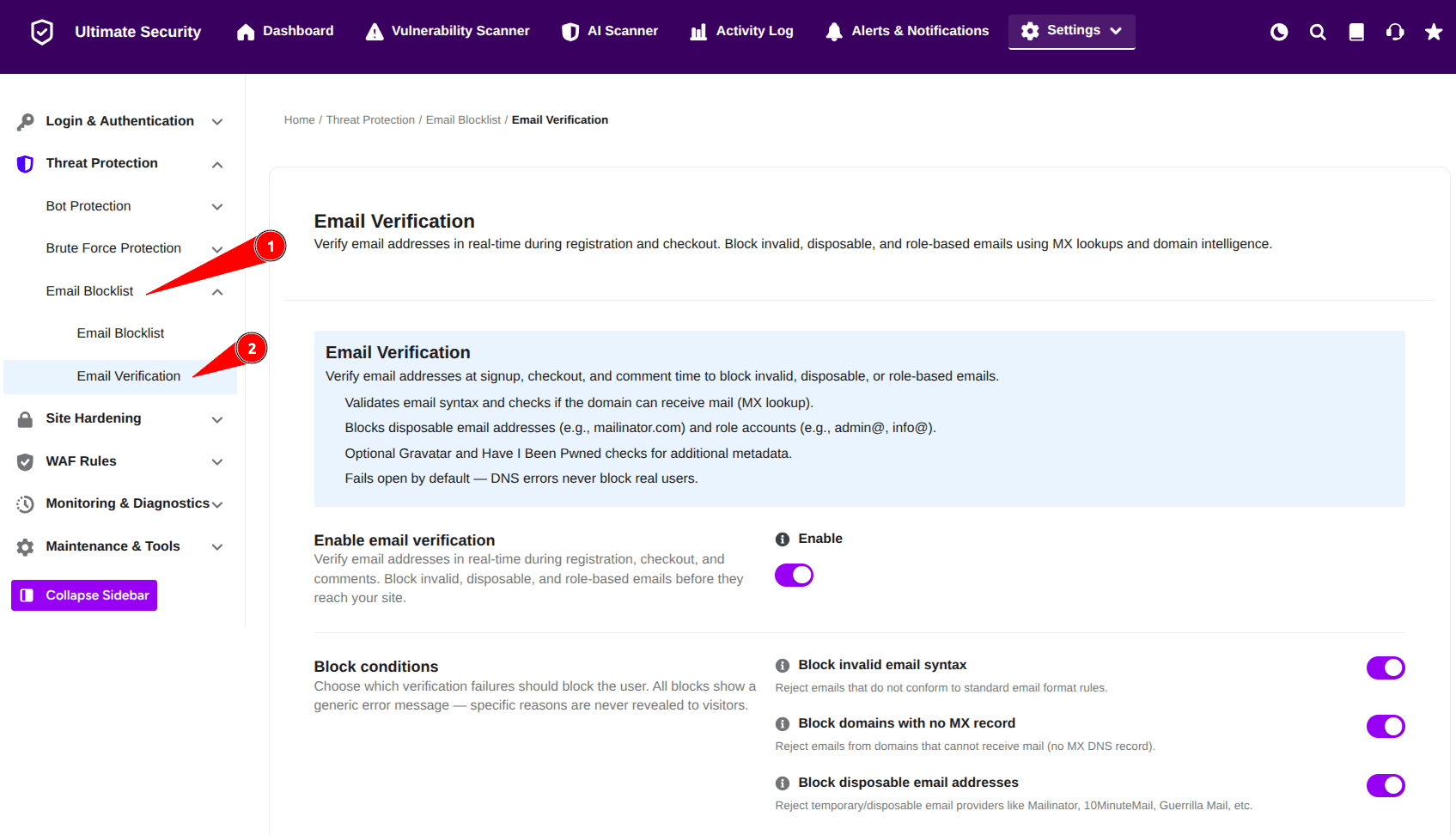
What Is Email Verification?
Email Verification blocks invalid, temporary, and disposable email addresses before they can interact with your site.
- Syntax & Domain Checks: Verifies standard email formatting and confirms the domain has valid MX records to receive email.
- Disposable & Role Block: Prevents temporary email accounts (e.g., Mailinator) and role-based emails (e.g.,
admin@,info@) from registering or placing orders. - Smart Fail-Safe: Fails open by default—DNS or server lookup errors will never block a real customer from completing their action.
Enable Email Verification
Turn this toggle ON to start real-time verification across registration, checkout, and comment forms on your site.
Block Conditions
Control which email checks trigger an automatic block. When a rule is triggered, the user sees a generic error message so attackers cannot guess why they were blocked.

- Block invalid email syntax: Rejects emails that do not follow proper formatting standards.
- Block domains with no MX record: Rejects emails from domains that cannot receive emails.
- Block disposable email addresses: Stops temporary or throwaway email accounts (e.g., Mailinator, 10MinuteMail).
Enforce On
Choose where on your site you want to enforce these email checks:

- WordPress Registration: Validates emails during new user account creation.
- Comments: Checks the email field submitted on comment forms.
- WooCommerce Checkout: Verifies billing emails during WooCommerce account creation and checkout.
Advanced Options
Fine-tune your email verification rules with role-based restrictions, metadata lookups, and fail-safe controls.
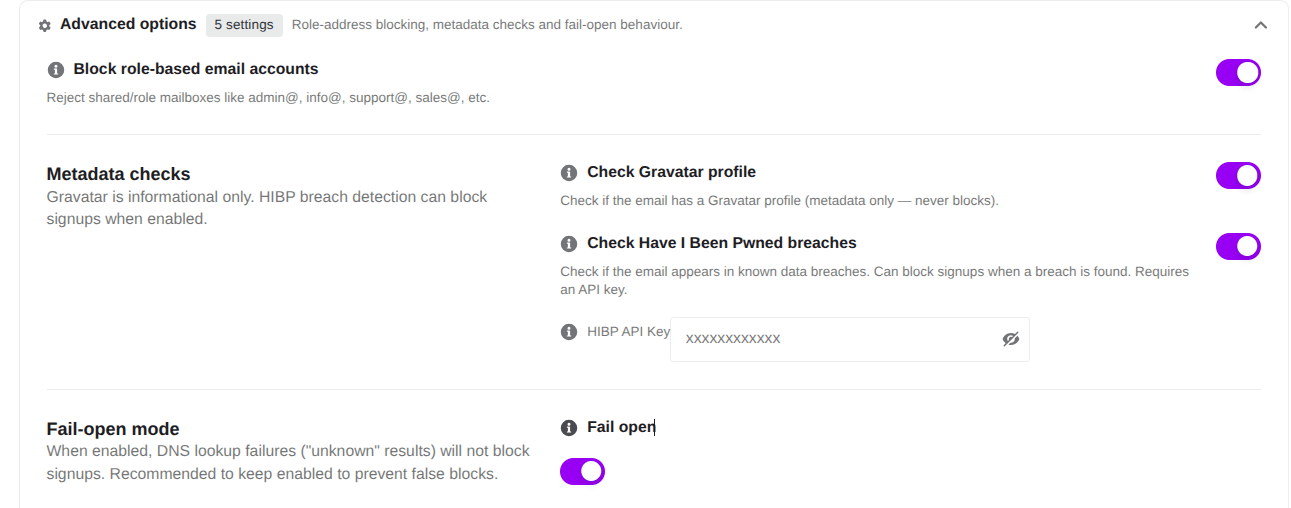
Block Role-Based Email Accounts
- What It Does: Rejects generic or shared company mailboxes such as (
admin@,info@,support@, orsales@.) - How to Use: Enable this toggle if you want to ensure users sign up or purchase using personal or individual business email addresses instead of team aliases.
Metadata Checks
Gather extra context on incoming email addresses and block accounts flagged in data breaches.
- Check Gravatar Profile: Checks whether an avatar is associated with the email address. This is strictly informational for metadata tracking and never blocks a submission.
- Check Have I Been Pwned Breaches: Checks whether the submitted email appears in public data breaches via the Have I Been Pwned (HIBP) database. When enabled, it can automatically block signups from compromised emails.
- HIBP API Key: Enter your HIBP API key into this field to activate breach checking.
Fail-Open Mode
- What It Does: Determines what happens if an external DNS lookup or API query fails or times out (returning an “unknown” status).
- How to Use: Keep the Fail open toggle enabled so legitimate users are never blocked due to temporary network issues or DNS timeouts. Disable it only if you prefer strict enforcement over user convenience.
Test an Email Address
Before enabling rules site-wide, test specific email addresses to preview how the verification engine processes them.
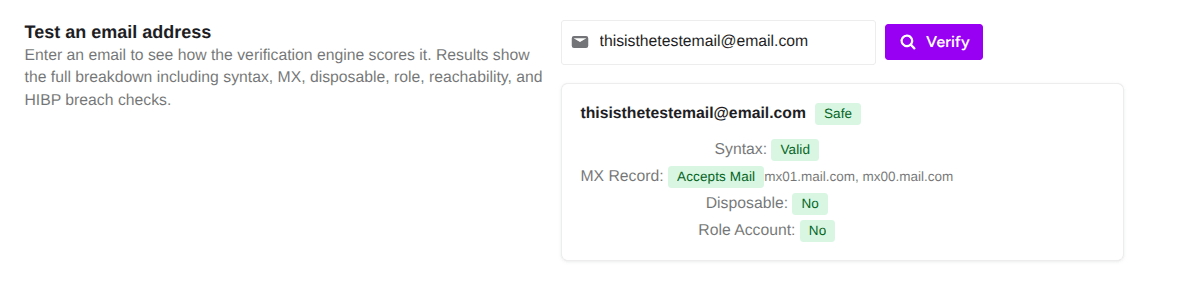
- Enter an email address in the field.
- Click Verify.
- Review the breakdown showing syntax, MX check, disposable status, role detection, reachability, and HIBP breach status.
Blocked Email Logs
Track blocked attempts and review activity across your forms in real-time.
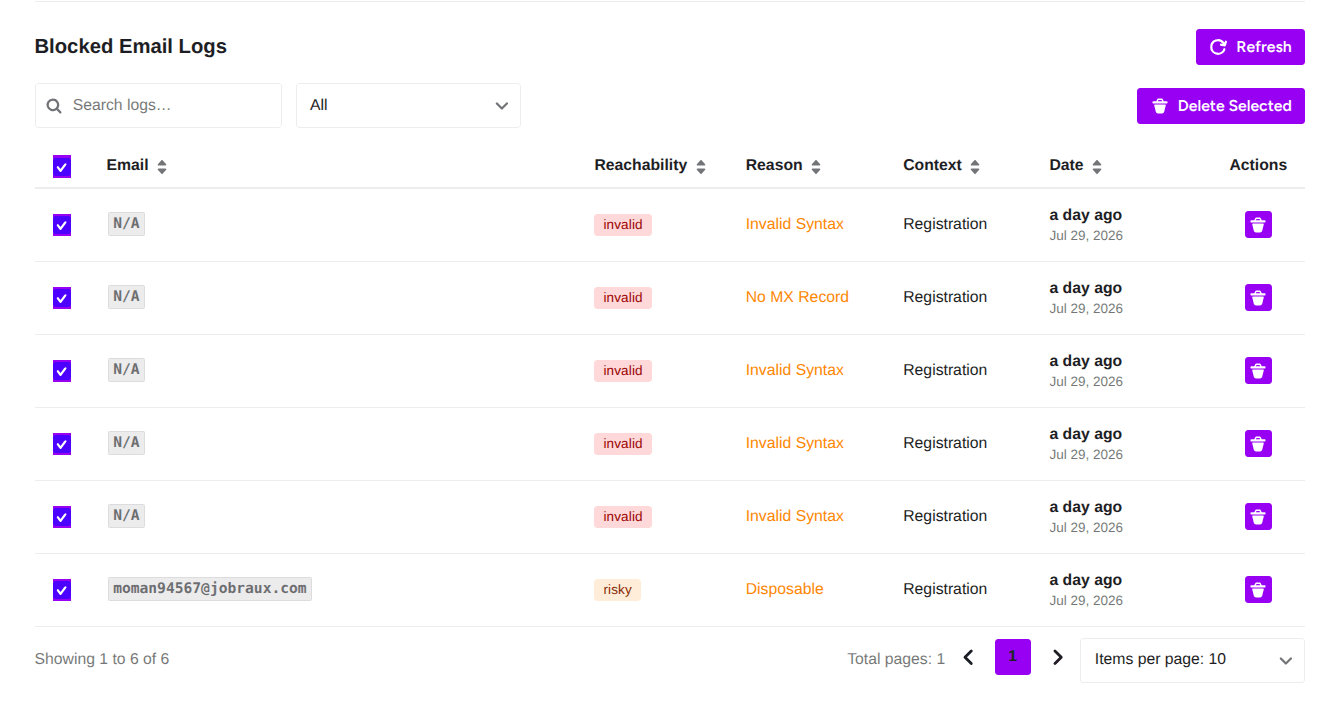
- Search & Filter: Search specific logs or filter by block reasons.
- Log Details: View the targeted email, reachability score, block reason, context (e.g., Registration), and timestamp.
- Manage Logs: Click Refresh to load recent logs, select specific entries to delete using Delete Selected, or remove individual entries with the trash icon.
Click Save Changes to apply settings