
Ultimate Security Purchase, Account, and Billing
Complete checkout through Paddle, set your account password from the Login Details email, and manage purchases and subscriptions in the portal.
On this page
This guide will help you complete the checkout and billing, the payment process, create your customer account credentials, and navigate your user dashboard to manage your licenses and downloads
Complete Checkout and Payment
After you select a plan, you will be redirected to the checkout page, enter your details and process payment securely through Paddle.
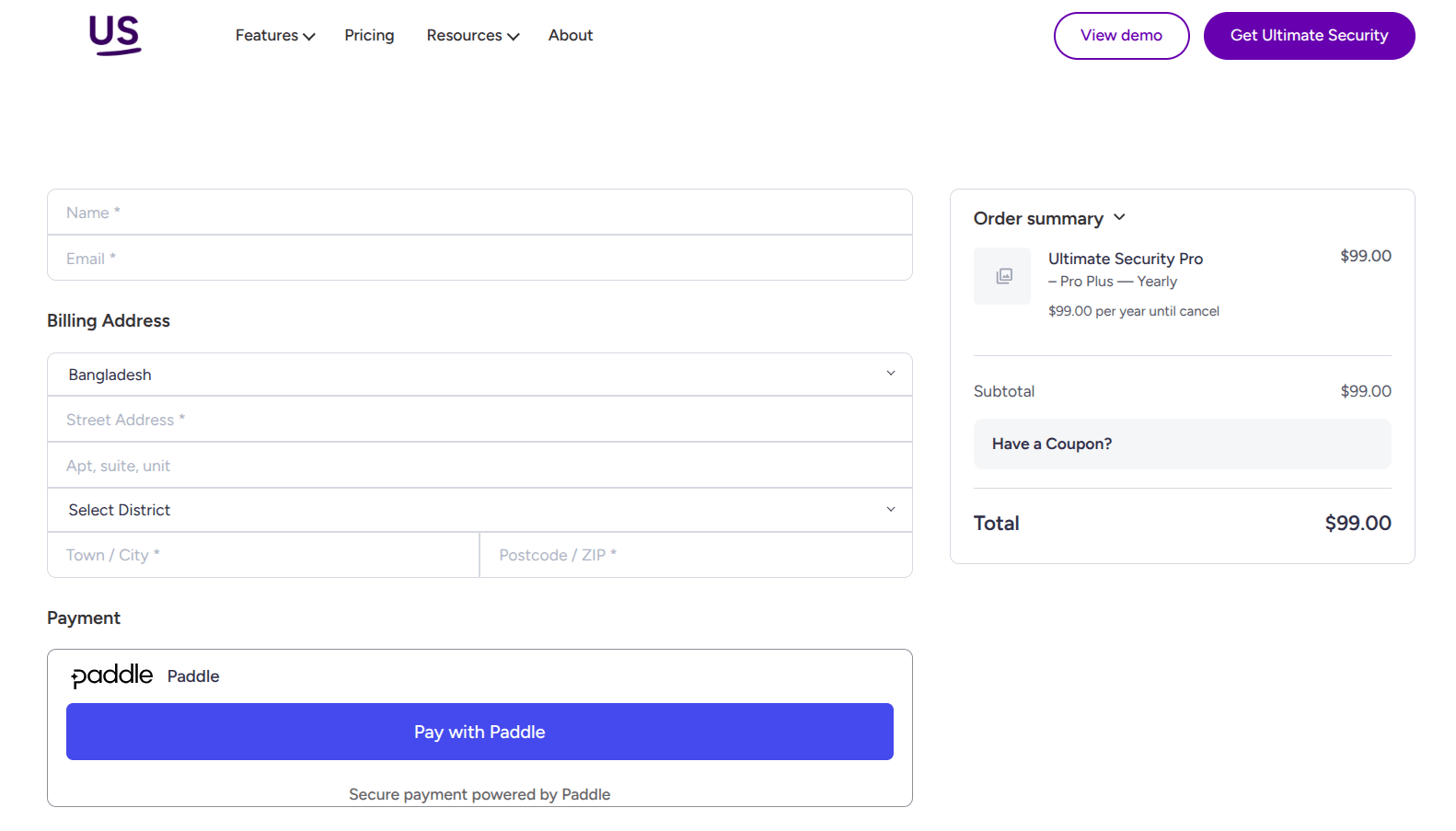
Enter Billing Details
Fill in all required fields on the checkout page:
- Enter your Name and Email address.
- Select your Country, Street Address, Apartment, Suite or Unit, District, and Postcode/ZIP.
Process Payment
Choose your payment method and complete the transaction:
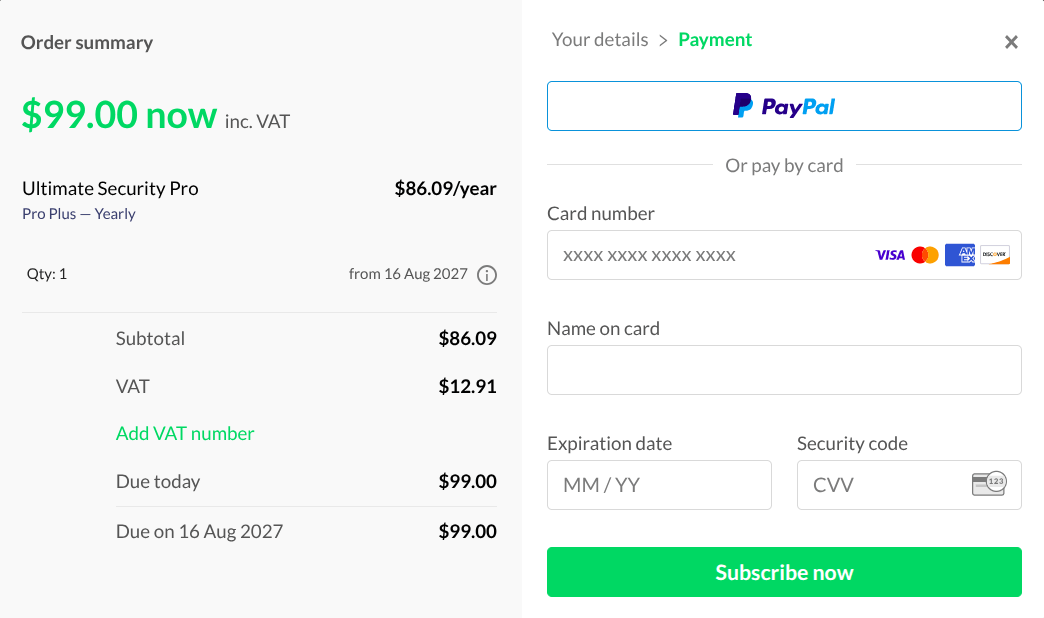
- Click Pay with Paddle to initiate the payment popup.
- Select Card or PayPal as your payment method.
- If using a credit/debit card, input the Card Number, Name on Card, Expiration Date, and Security Code.
- Click Subscribe now to finalize.
Purchase Confirmation
Once processed, you will be redirected to the Purchase Successful screen. This page displays:
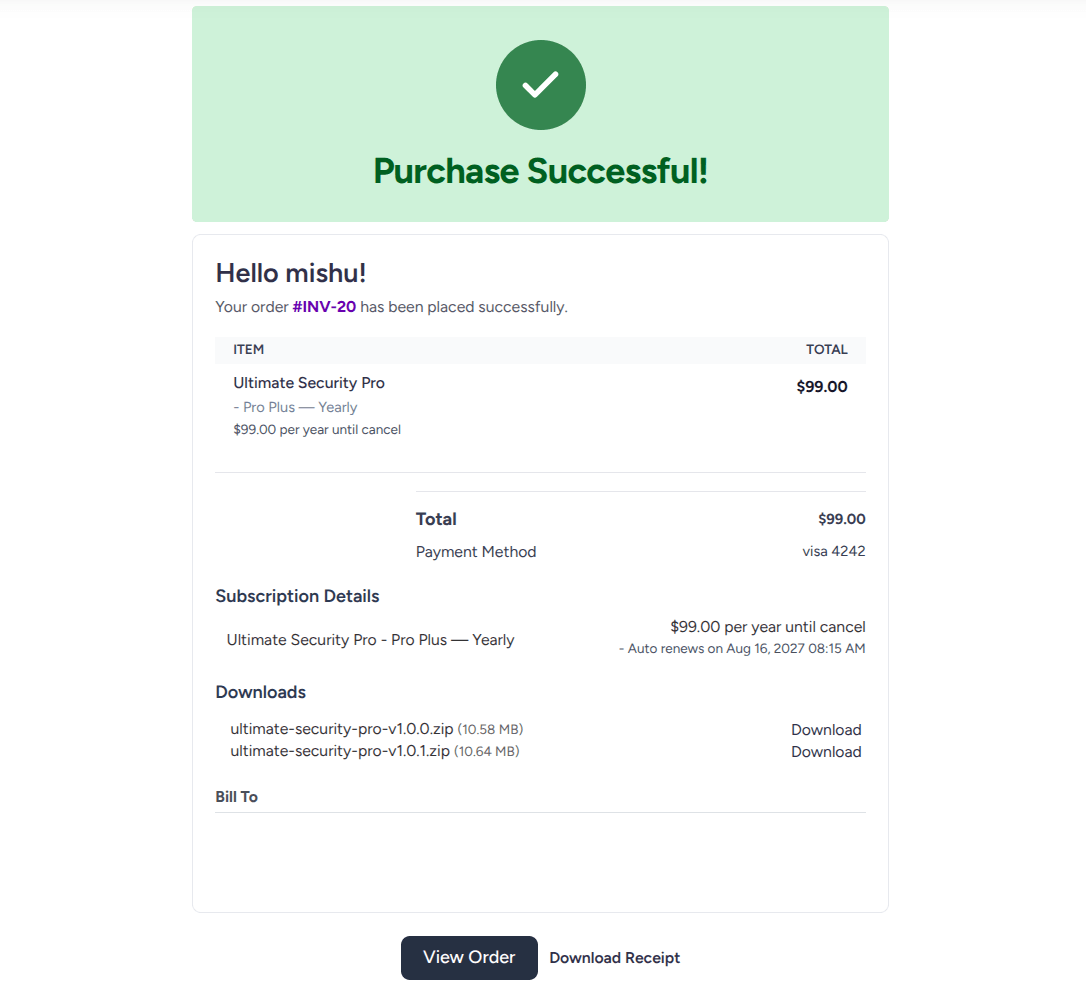
- Your Order Number.
- A summary of the purchased plan.
- Direct links to download your Ultimate Security Pro plugin file.
- Buttons to view your order details or download your receipt.
Account Creation and Password Setup
Your account is automatically created upon purchase. Check the inbox of the email address provided during checkout. Open the email with the subject Login Details. The username is already given, and now you need to set up your password using the following link from the email. Once you go into the link:
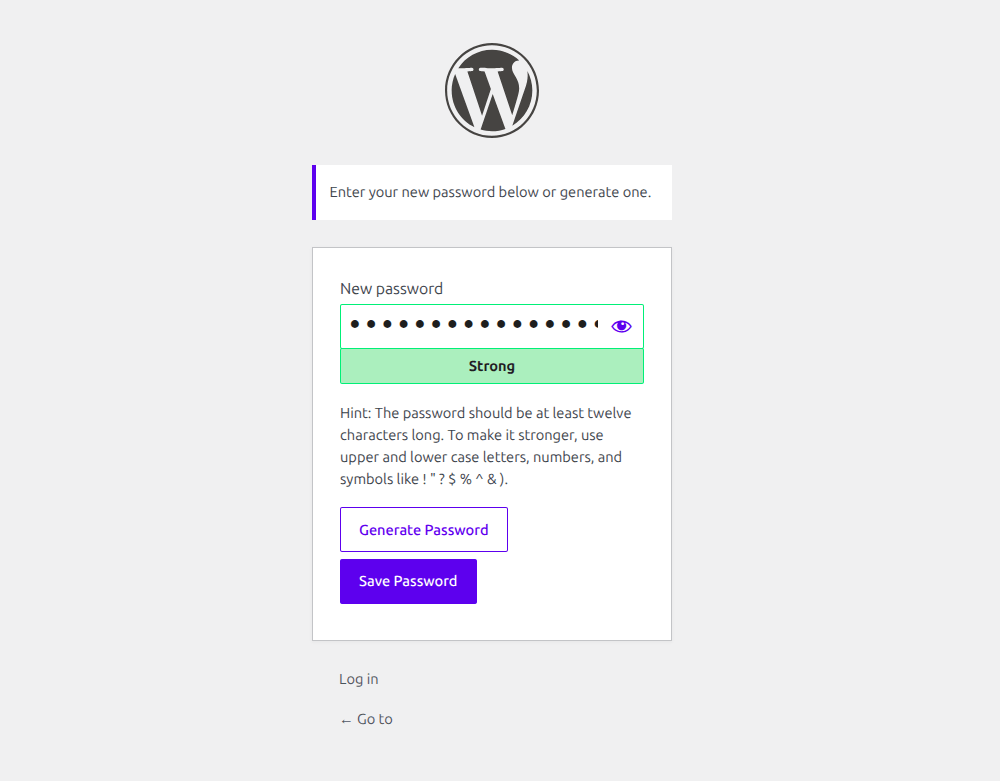
Set Your Password
- Click the unique setup link inside the email.
- On the password page, enter your desired new password or click Generate Password.
- Click Save Password to save your credentials.
Navigate the Customer Dashboard
The customer portal provides access to all your purchases, software updates, and license management tools. Click the Log In link on the confirmation page or visit the login page, enter your registered Username or Email Address alongside your password to enter your account.
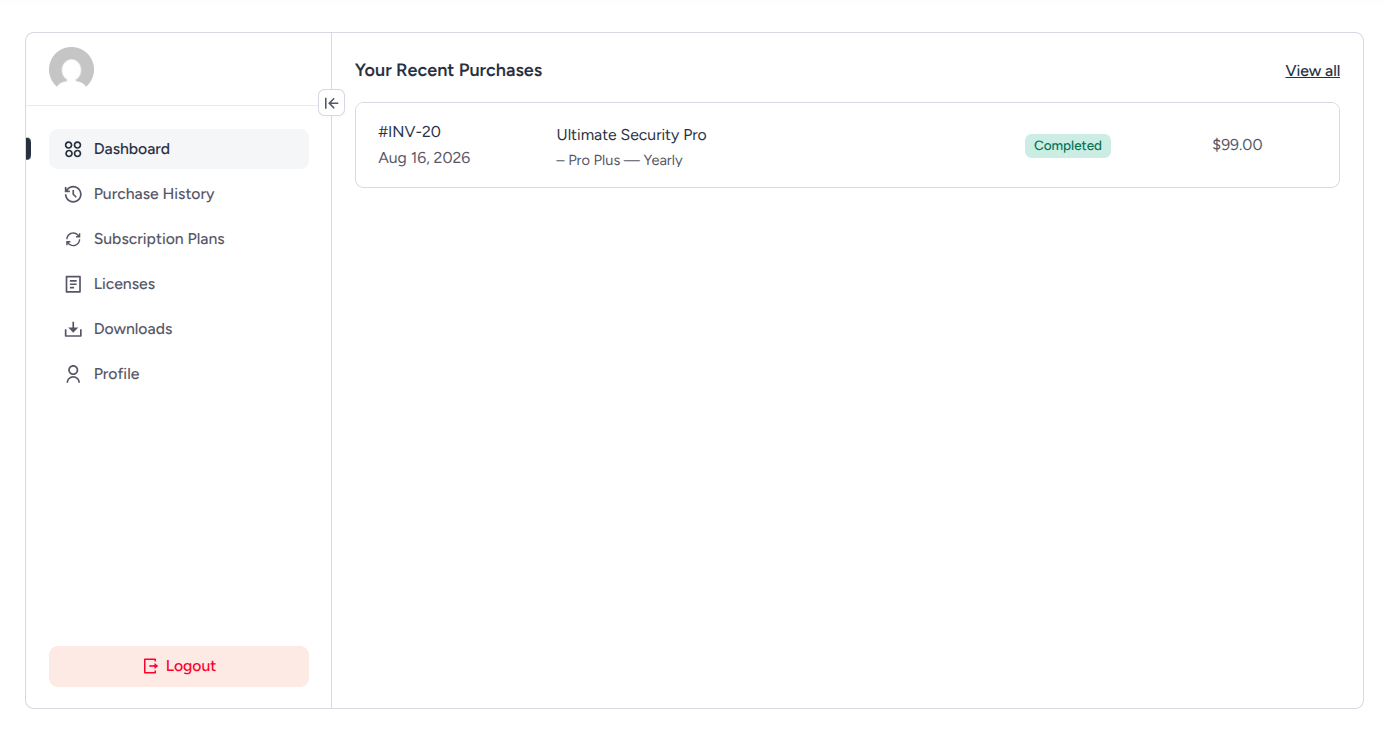
Dashboard
The main landing page after logging in. It features an overview of your recent purchases and quick links to account sections.
Purchase History
Select Purchase History from the sidebar menu to view a list of all transactions. Each entry displays:
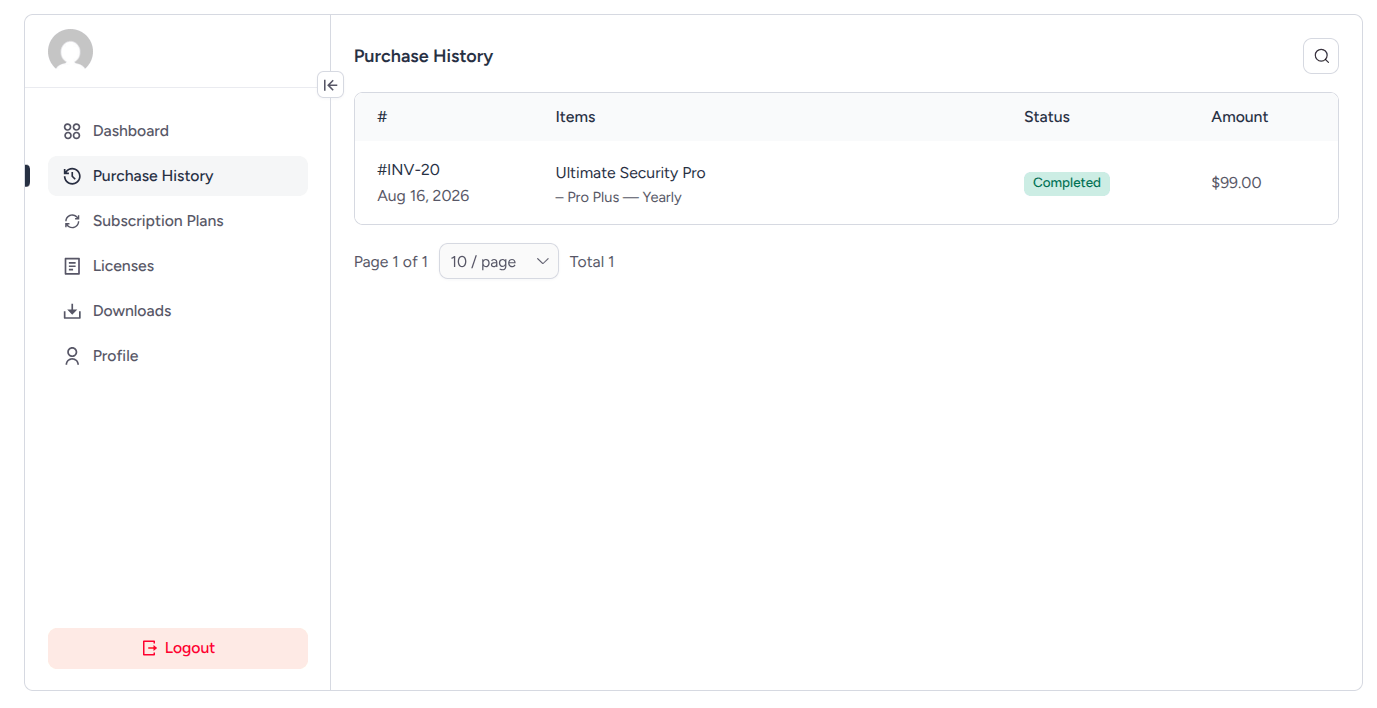
- Order ID and purchase date.
- Item details and completion status.
- Total amount paid.
Subscription Plans
Select Subscription Plans from the sidebar menu to manage active memberships, review billing terms, upgrade plan tiers, and manage payment details.
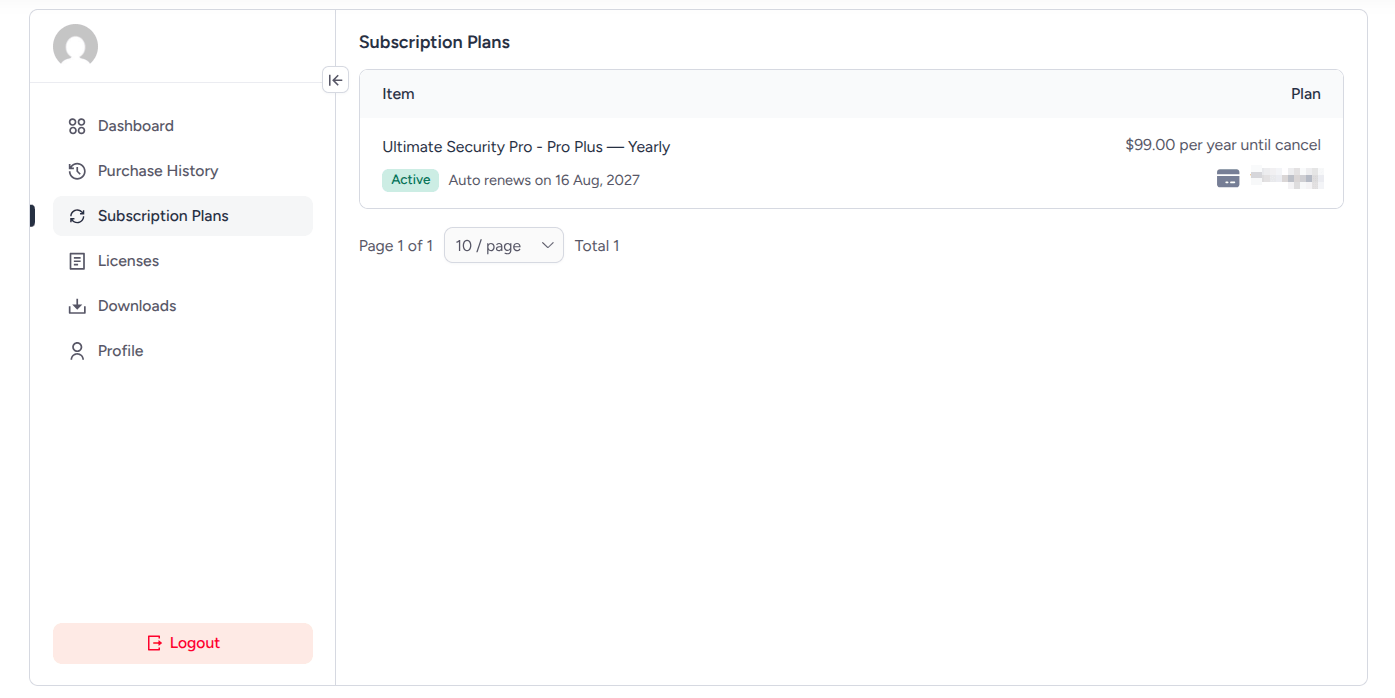
Accessing Subscription Details
Click on your listed subscription item to open the detailed Subscription Plans > Overview page. The top section displays your core plan terms alongside key management options:
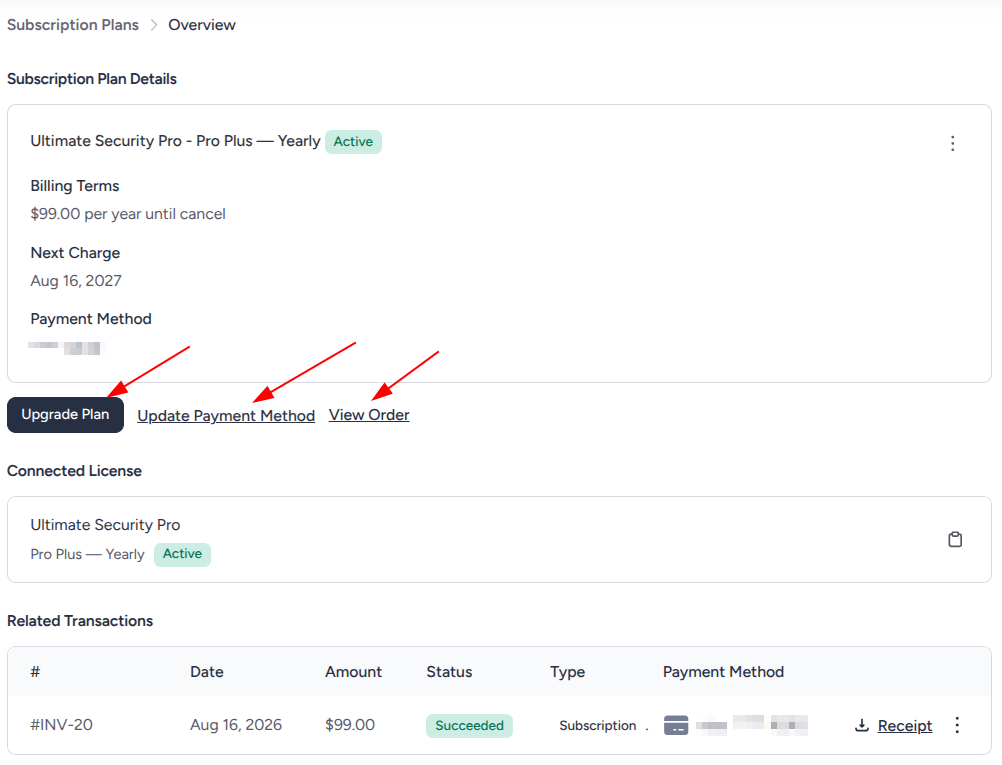
- Subscription Status: Displays your active plan tier and current renewal status.
- Billing Terms: Shows your recurring price and renewal frequency.
- Next Charge: Indicates the exact date your payment method will next be billed.
- Payment Method: Displays the card details currently linked to the subscription.
- Upgrade Plan: Click this button to open the Upgrade Options modal, review higher plan tiers, check price differences, and upgrade your package.
- Update Payment Method: Click this button to open a prompt that redirects you to the Paddle billing management portal.
- View Order: Click this button to view your original purchase invoice and download files.
Connected License
- View the specific product license key attached to your subscription.
- Click the clipboard icon next to the license code to copy it for activation on your WordPress site.
Related Transactions
- Review a complete log of payments processed for this subscription.
- View invoice numbers, billing dates, amounts, status, and payment methods.
- Click Receipt next to any transaction to download a PDF copy for your records.
Managing Payments & Cancellations
When you click Update Payment Method and confirm by clicking Continue, the portal opens in a new tab:
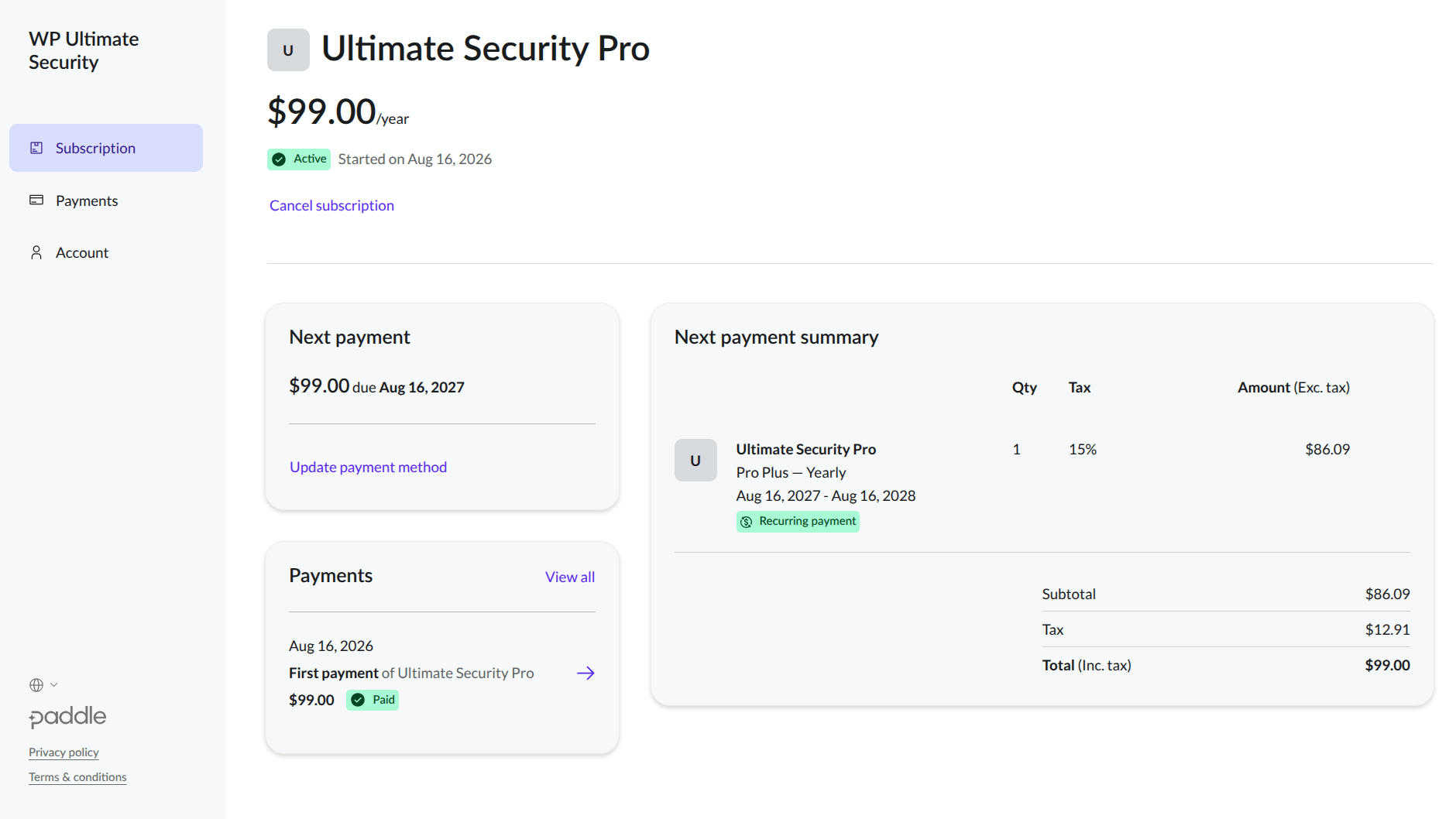
- Subscription Tab: View your start date, check upcoming payment breakdowns (including subtotal and tax), click Update payment method to update card details, or click Cancel subscription to stop automatic renewals.
- Payments Tab: View historical transaction logs, check payment status badges, and inspect individual receipts.
- Account Tab: Review registered user contact details or click Sign out to close the billing portal session.
Licenses
Select Licenses from the sidebar menu to view your active product license keys.
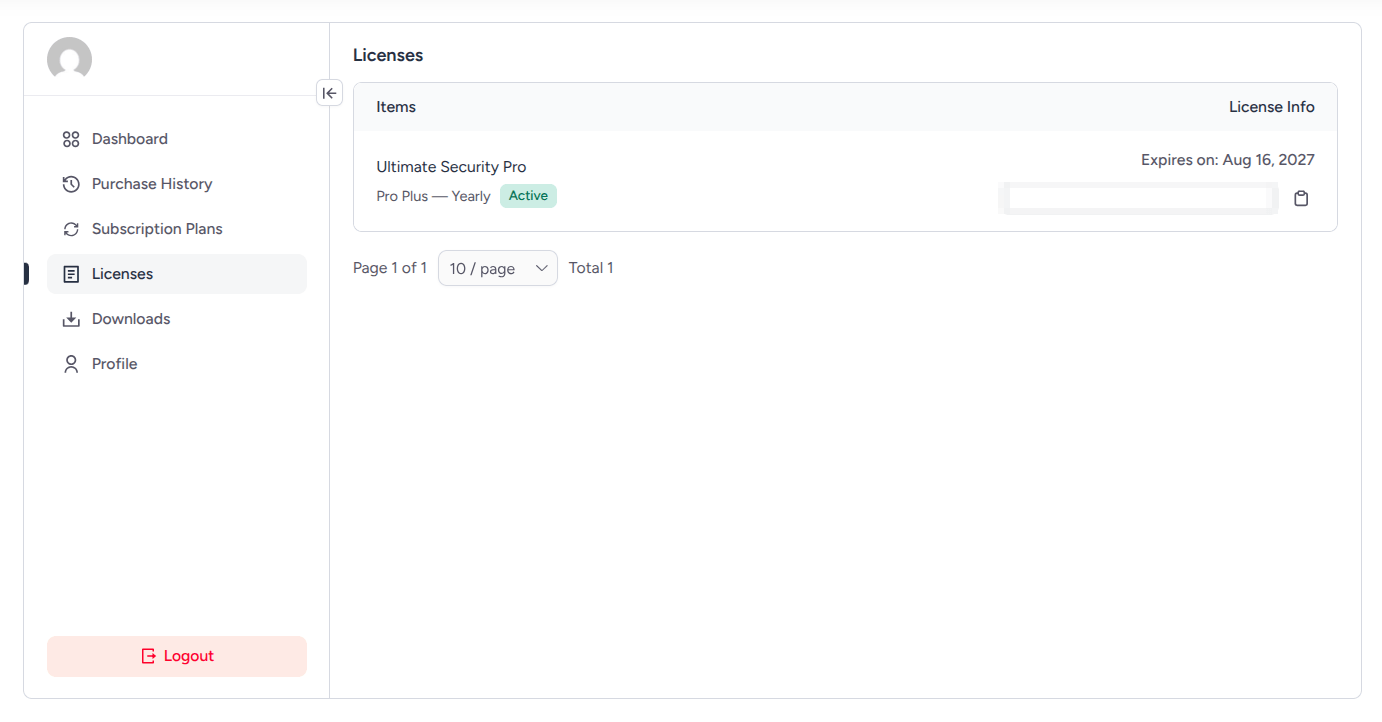
- Locate your item in the list.
- Click the Copy Key button next to your license code. This copies the key to your clipboard so you can paste it directly into your Ultimate Security license settings to activate Pro features.
Downloads
Select Downloads from the sidebar menu to access the installation files.
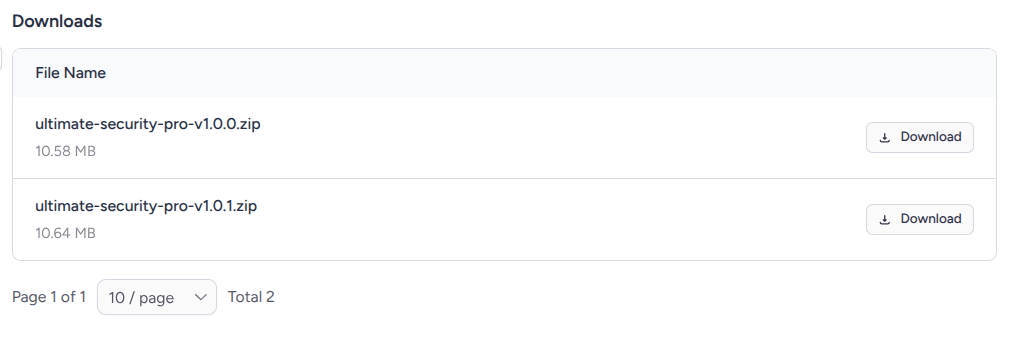
- View available plugin zip files.
- Click Download next to the latest version to save the file to your local computer.
Profile
Select Profile to manage your personal details. Here you can update your account name, billing address, and shipping address or add new ones.
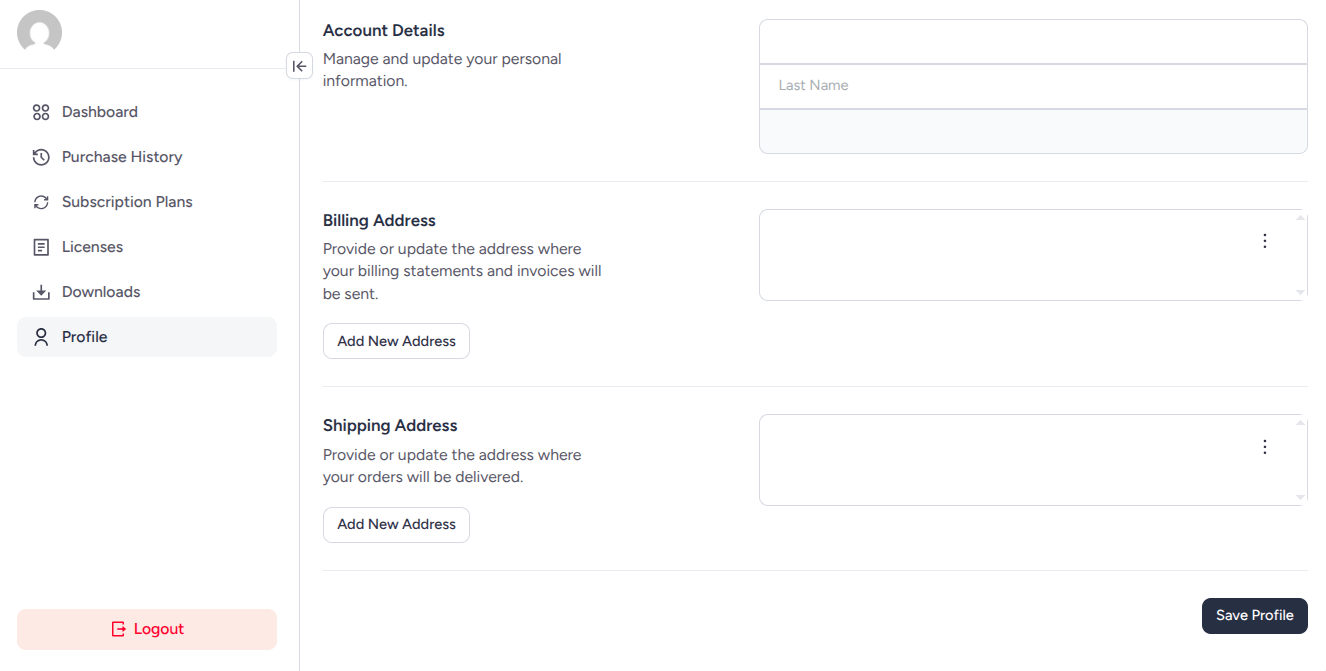
Click Save Profile to apply changes.