
Plugin Updates
Filter plugins by status, including abandoned ones, and for each one control updates, auto-updates, translation updates and dashboard visibility.
On this page
The Plugin Updates feature gives you full control over how your WordPress plugins are updated and displayed on your site. It helps you manage updates safely, keep your site secure, and prevent unauthorized changes.
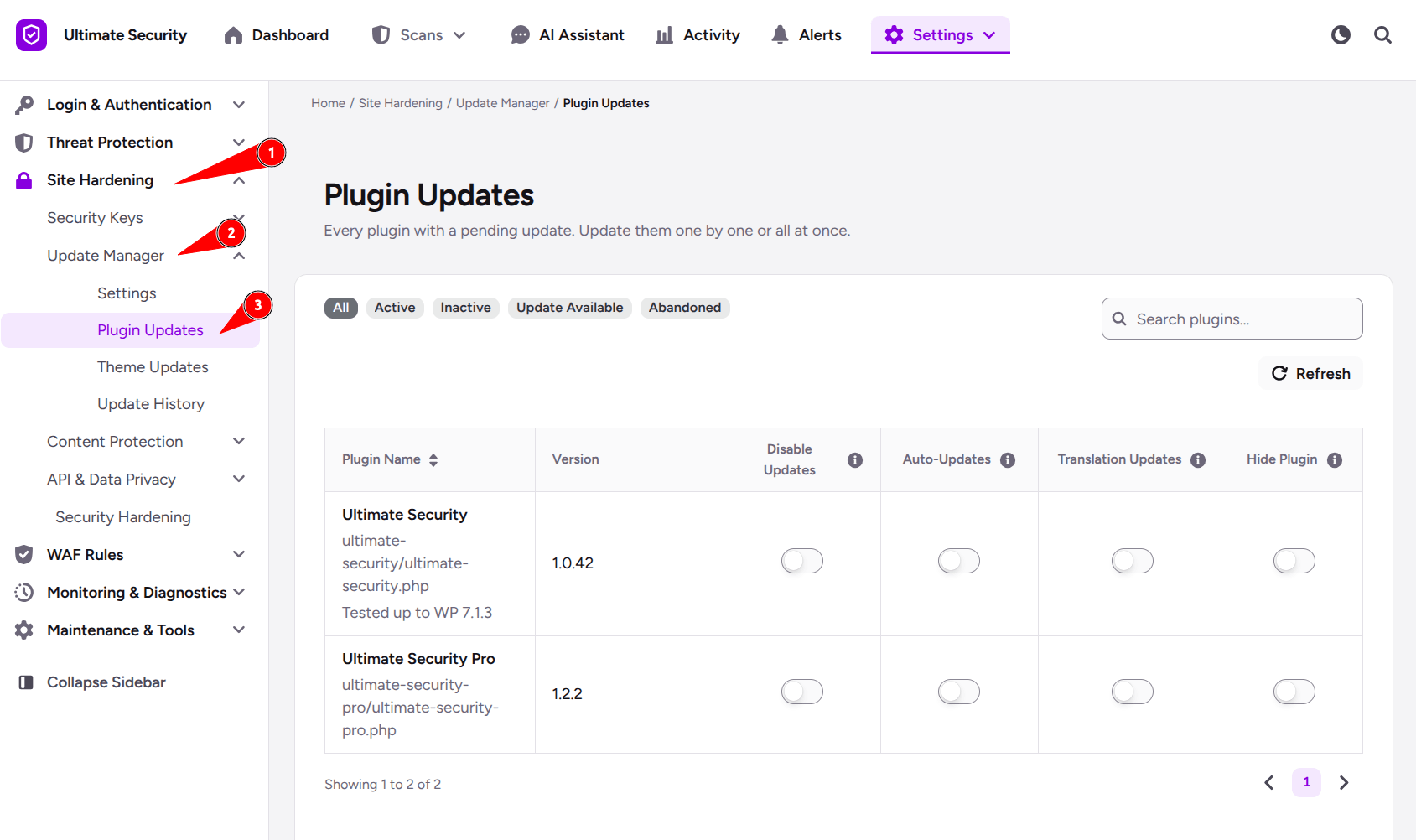
Elements & Filtering Tabs
At the top of the page, you will find a search bar and filter tabs to help you quickly locate specific plugins:
- Search Bar: Type any plugin name to quickly find it in your list.
- Filter Tabs (
All,Active,Inactive,Update Available,Abandoned): Click these tabs to filter your plugins by their current status. - Refresh Button: Click this to reload the list and fetch the latest update statuses from WordPress.
Table Columns & Settings Explained
The table displays all your installed plugins and gives you control over their security and update behavior through four main settings columns:
Plugin Name & Version
- What it shows: Displays the name of the plugin, its file path, the version currently installed on your site, and compatibility details (such as whether it is tested up to your current WordPress version).
- Why it matters: Lets you verify exactly which version is running so you know if an update is required.
Disable Updates
- What it does: Stops WordPress from checking for or installing updates for that specific plugin.
- When to use it: Turn this toggle ON if you are using a customized version of a plugin and want to prevent standard updates from overwriting your custom code.
Auto-Updates
- What it does: Allows the plugin to update itself automatically in the background whenever a new version is released.
- When to use it: Turn this toggle ON for trusted, reliable plugins to ensure your site stays secure without requiring manual updates every time.
Translation Updates
- What it does: Controls whether your site automatically downloads new or updated language translation files for the plugin.
- When to use it: Turn this toggle ON if your website uses a language other than English and you want your plugin text to remain fully translated.
Hide Plugin
- What it does: Hides the plugin from public view in your WordPress dashboard plugin list.
- When to use it: Turn this toggle ON if you want to keep specific plugins discreetly managed or hidden from other site users.
Was this article helpful?
Thanks for the feedback.