
Outbound Connections
The Outbound Connections feature monitors and logs all network requests made by your website’s plugins, themes, and WordPress core files to external servers.
On this page
The Outbound Connections feature monitors and logs all network requests made by your website’s plugins, themes, and WordPress core files to external servers.
Important Note: This feature operates in watch-only mode. It records connections for your review, but nothing is blocked or restricted.
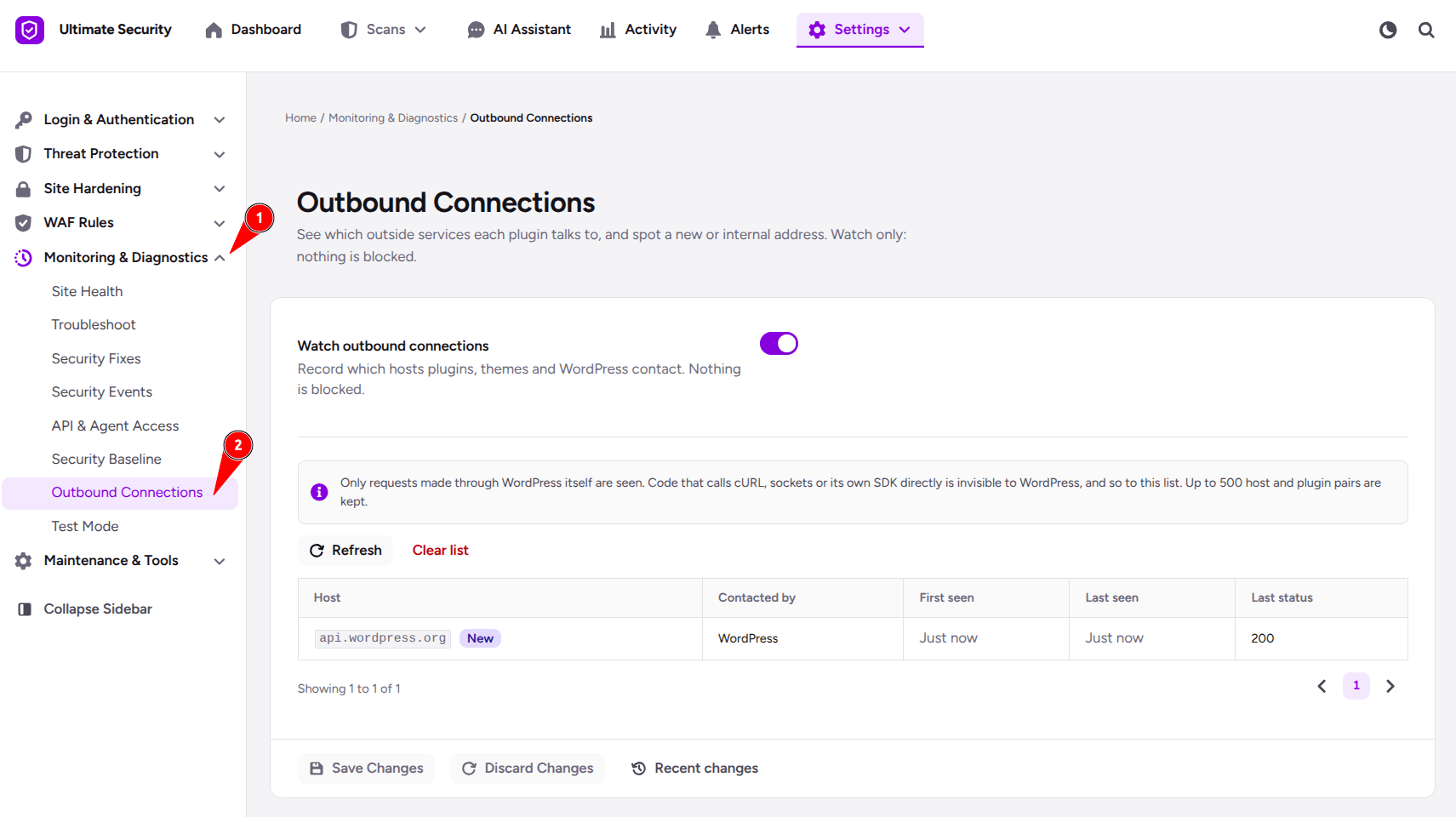
How to Use It
- Navigate to Monitoring & Diagnostics > Outbound Connections in your WordPress dashboard.
- Switch the Watch outbound connections toggle to ON.
- Review the connection log table to view all recently detected external connections.
- Click Save Changes at the bottom of the page to apply your settings.
Settings & Controls Explained
- Watch outbound connections (Toggle): Turn ON to enable external request logging, or turn OFF to stop recording outbound connections.
- Refresh (Button): Click to update the table with the latest connection data without refreshing your browser page.
- Clear list (Button): Click to permanently remove all logged entries and reset the connection history.
Connection Table Breakdown
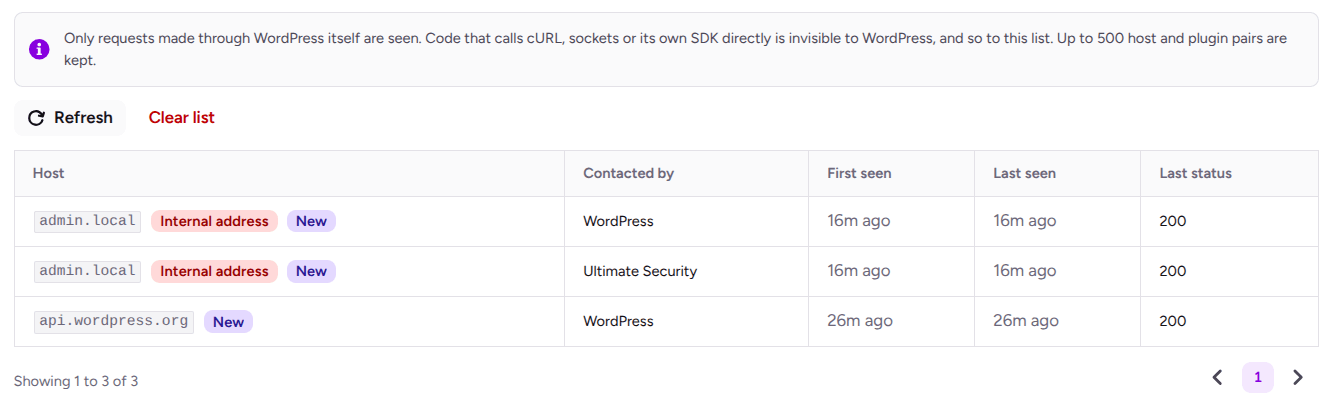
- Host: The destination domain or web address your site is contacting. A “New” badge highlights addresses detected for the first time.
- Contacted by: The specific plugin, theme, or WordPress core component that started the connection.
- First seen / Last seen: The exact dates and timestamps showing when the connection was first recorded and when it was most recently active.
- Last status: The HTTP response code returned by the destination server (for example, code
200means the connection was successful).
💡 Important Notes & Limitations
- Log Capacity: The system stores up to 500 unique host and plugin pairs before automatically removing older entries to make room for new data.
- Direct Requests: Network calls made directly through server tools (such as cURL or custom SDKs) bypass native WordPress functions and will not appear in this log.
Was this article helpful?
Thanks for the feedback.