
Activity All Logs
Browse every recorded activity with user, source, severity and device details, filter by time, severity or source, and export to CSV.
On this page
The All Logs tab in Activity Logs displays a complete, detailed record of every security event, background check, and user action on your website. It gives you full visibility to inspect past site activities, track user changes, and investigate security issues.
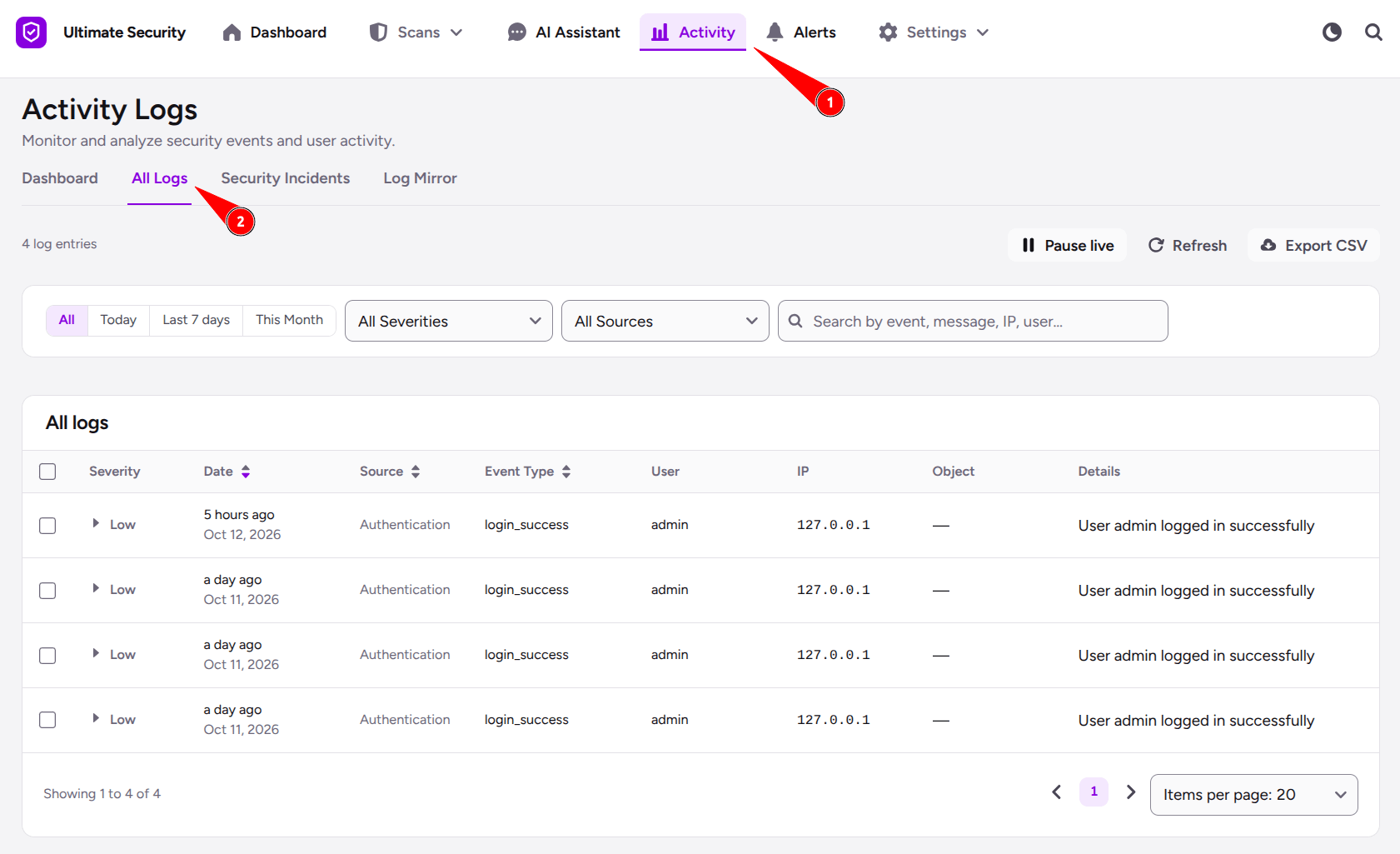
Action Controls & Top Bar
At the top of the All Logs view, you will find quick control tools to manage, filter, and export log data:
- Total Log Entries: Displays the total count of recorded events currently stored in your database.
- Pause live / Resume live: Pause real-time log updates when analyzing events to prevent the list from auto-refreshing.
- Refresh: Instantly reloads the page to show the latest activity logs.
- Export CSV: Downloads your activity log records into a CSV spreadsheet file for offline reporting or external audit.
Log Filtering & Search Controls
Use these quick filter buttons and controls to quickly find specific events:
- Quick Date Buttons (
All,Today,Last 7 days,This Month): Rapidly filter logs by popular time ranges with a single click. - All Severities Filter: Filter log entries based on risk level (High, Medium, or Low).
- All Sources Filter: Narrows down events based on where they originated.
- Search Bar: Type keywords to search directly for specific event names, log messages, IP addresses, or usernames.
Understanding the All Logs Table
The log table provides detailed insight into specific activity types taking place on your website. Here is a breakdown of what each column means.
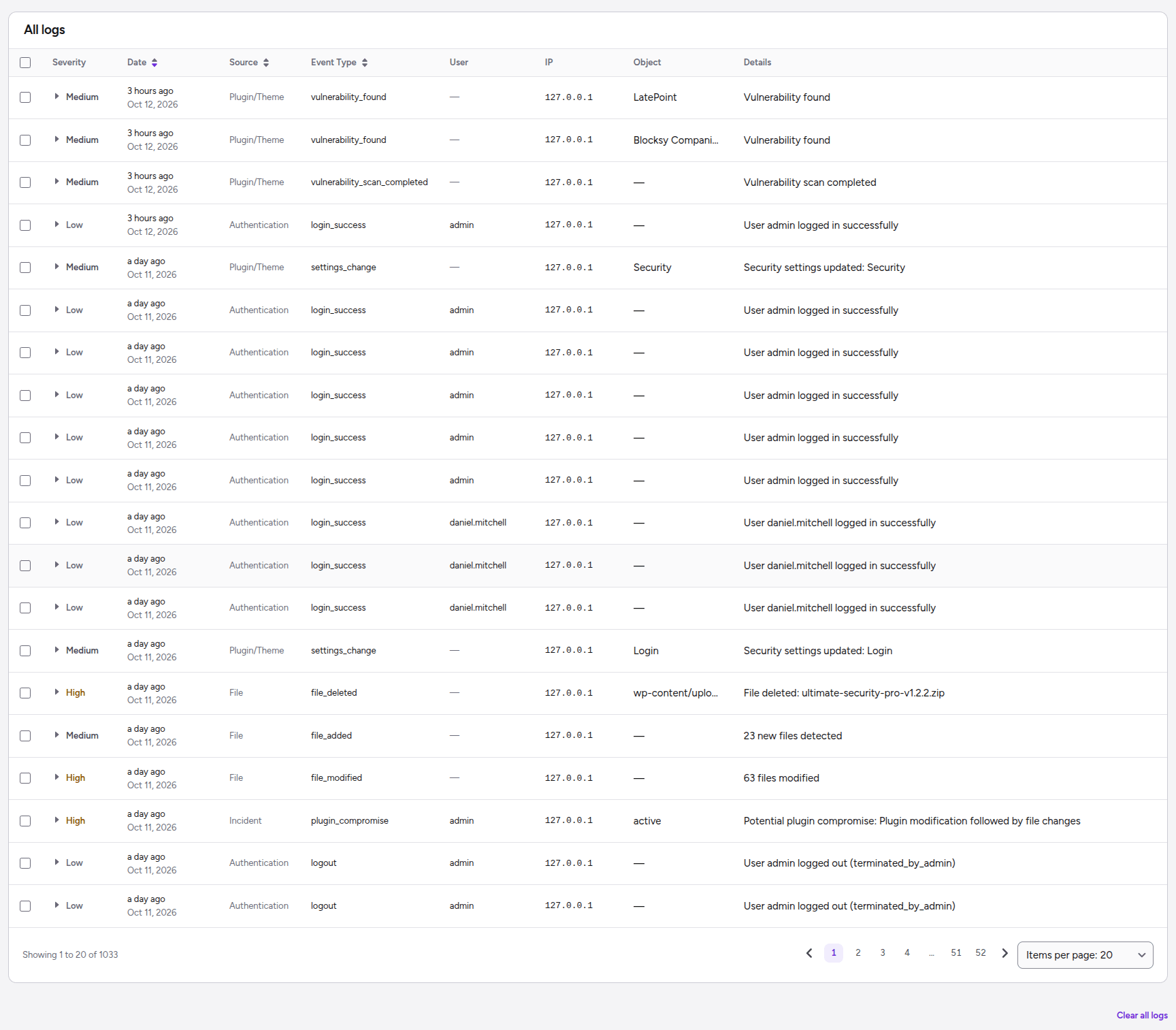
- Severity: Indicates how important or risky the event is (High, Medium, or Low).
- Date: Shows when the activity occurred.
- Source: Displays which system area recorded the activity (e.g.,
Authentication,Plugin/Theme,File, orIncident). - Event Type: The internal code or label assigned to the action.
- User: The username of the person who completed the action (shows
—if triggered automatically by the system). - IP: The IP address connected to the action.
- Object: The specific item, module, or settings section affected.
- Details: A plain-English summary of what happened.
Was this article helpful?
Thanks for the feedback.