
Security Hardening
Turn on hardening options for accounts, files, headers, APIs and front-end features, and track how many of the available options are enabled.
On this page
This section helps make your WordPress website more secure by adjusting important security settings. Think of it like adding extra locks and security features to protect your website from potential threats.
Progress Tracking
The number at the top shows how many security features you’ve turned on out of the total available.
Navigation Tabs
You can switch between different security categories using the tabs:
- Access & Identity: User login and account security
- Files & Directories: Protecting your website files
- Headers & Fingerprinting: Hiding technical information
- APIs & Remote Access: Controlling external connections
- Frontend & Features: Website appearance and functionality
Access & Identity
This section helps protect user accounts and login processes:
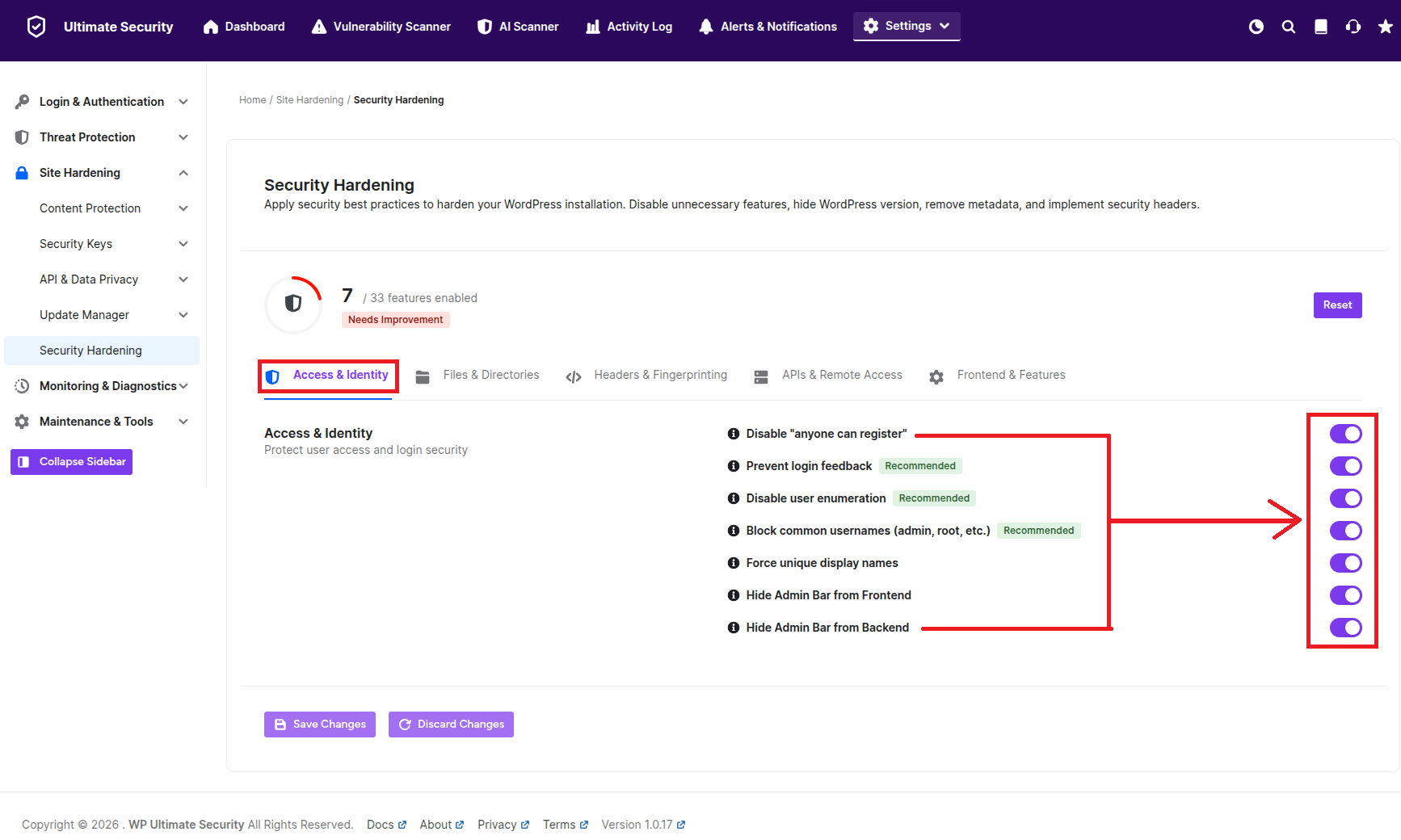
- Disable “Anyone can register”: Prevents random people from creating accounts on your site
- Prevent login feedback: Stops giving hints about whether a username or email exists
- Disable user enumeration: Makes it harder for attackers to discover user accounts
- Block common usernames: Prevents using easy-to-guess usernames like “admin” or “root”
- Force unique display names: Ensures all users have different names
- Hide Admin Bar from Frontend: Removes the admin toolbar from the public part of your site
- Hide Admin Bar from Backend: Removes the admin toolbar from the dashboard
Files & Directories
This section helps protect your website’s files and folders:
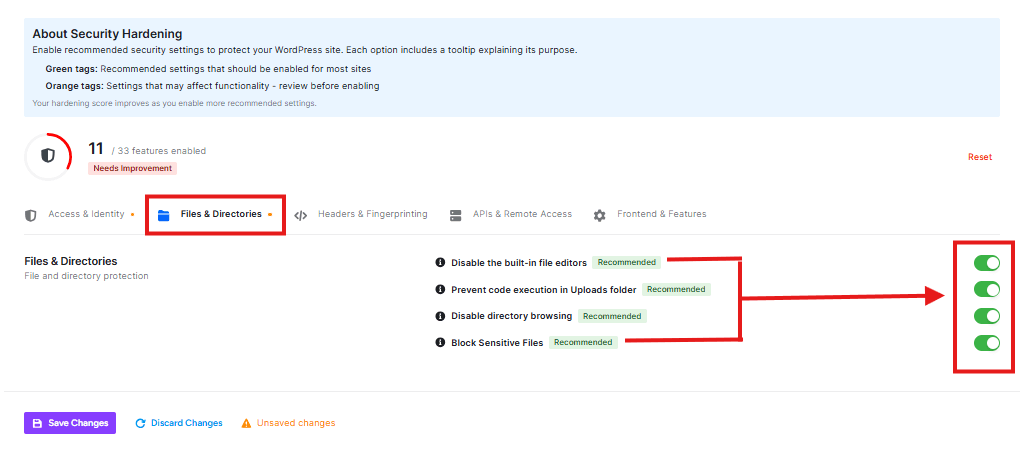
- Disable the built-in file editors: Turns off WordPress’s built-in code editor, which prevents people from editing your files directly through the dashboard
- Prevent code execution in Uploads folder: Stops malicious code from running in your uploads folder
- Disable directory browsing: Prevents visitors from seeing a list of files in your folders
- Block Sensitive Files: Protects important configuration files from being accessed
Headers & Fingerprinting
This section helps hide technical information about your website:
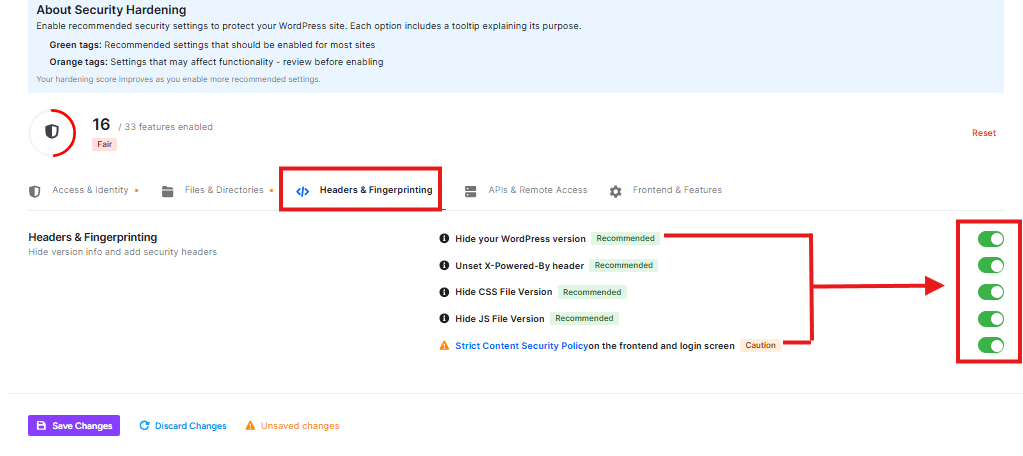
- Hide your WordPress version: Prevents showing which version of WordPress you’re using
- Unset X Powered by header: Removes information about what software powers your site
- Hide CSS File Version: Hides version numbers in your CSS files
- Hide JS File Version: Hides version numbers in your JavaScript files
- Strict Content Security Policy on the frontend and login screen: This is an advanced security setting that might affect how your site works
API & Remote Access
This section helps protect your website from unauthorized external connections:
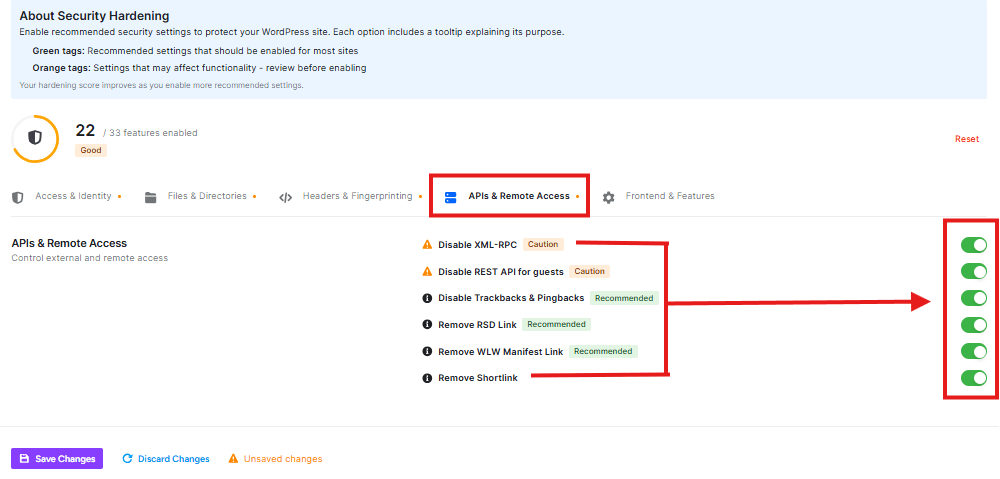
- Disable XML-RPC: Controls a feature that allows external systems to connect to your site
- Disable REST API for guests: Restricts access to the API for people who aren’t logged in
- Disable Trackbacks & Pingbacks: Turns off notifications between websites
- Remove RSD Link: Hides a technical link used by some blogging tools
- Remove WLW Manifest Link: Hides a link used by Windows Live Writer
- Remove Shortlink: Hides a special short URL for your posts
Frontend & Features Options
This section helps optimize and secure how your website appears to visitors:
Turns off special icons used in WordPress
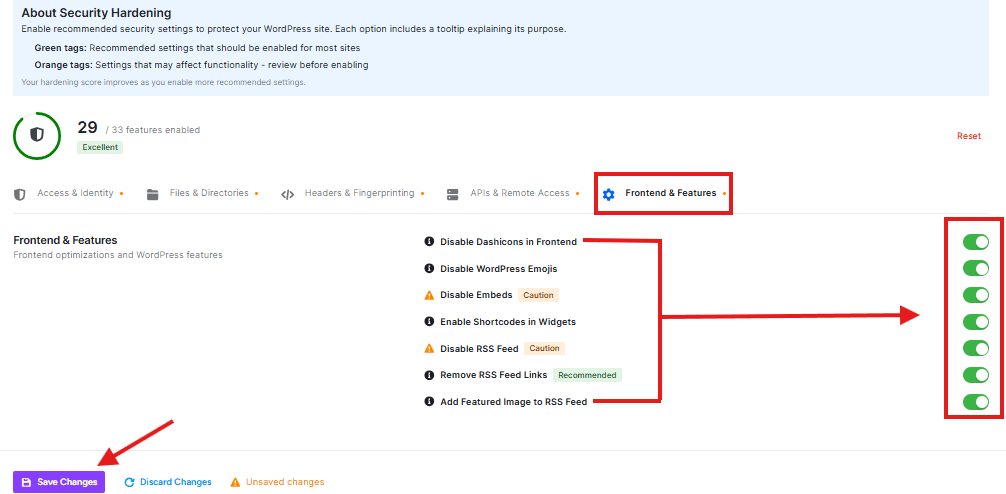
- Disable WordPress Emojis: Stops emoji support on your site
- Remove RSS Feed Links: Hides links to your RSS feeds
- Add Featured Image to RSS Feed: Includes your post images in RSS feeds
- Disable Embeds in Widgets: Prevents embedding content in widgets
- Enable Shortcodes in Widgets: Allows using shortcodes in widgets
- Disable RSS Feed: Turns off your website’s RSS feed completely